- Clear reasons to migrate: additional security, unification, and better collaboration with Google Workspace.
- Available methods: manual (drag/drop or download/upload) and third-party services.
- Key tools: Air Explorer, rclone, InClowdz and CapCut Online for automation and synchronization.
If you use multiple cloud services simultaneously, sooner or later you'll consider moving your documents, photos, and projects to a single service to gain organization and efficiency, and to learn more about file managers . Transferring files from Dropbox to Google Drive is a common need in both personal and professional settings, and there are several ways to do it without losing data, permissions, or folder structure.
This guide covers manual and automated methods, specialized tools, and key features of both services to ensure a smooth and secure migration. We also review important differences between Dropbox and Google Drive (such as how they sync and collaborate) and offer practical tips to avoid surprises. The goal is to help you choose the best option for your needs , whether it's a one-off backup, a complete migration, or continuous synchronization.
Reasons to move files from Dropbox to Google Drive
There are several compelling reasons to centralize your data in another cloud. These are the most common ones and how they affect your day-to-day operations.
Additional backupMaintaining a backup on another platform improves your resilience against incidents, account lockouts, or human error. Avoiding a "one-stop shop" approach is a good security practice.
Unify and simplifyIf you work with two cloud services simultaneously, you can end up duplicating files and wasting time searching for them. Consolidating to Google Drive allows you to avoid this. manage everything in one place.
Extended collaborationDrive stands out for its integration with Docs, Sheets, and Slides, with comments and real-time versioning For teams. When multiple users edit content simultaneously, the Google ecosystem is usually more convenient.
Integration with Google WorkspaceIf your organization uses Gmail, Calendar, and the rest of the Google apps, having the files in Drive provides a more consistent and productive experience.
More free starting spaceGoogle Drive's free tier offers 15 GB of shared storage with Gmail and Photos, compared to Dropbox's 2 GB. If you're running out of space in Dropbox, moving files to Drive can be an immediate solution.
Personal preferencesSome people prefer searching on Drive, using its mobile app, or using its sharing method. Usability It also counts.
Manual methods for transferring files
Manual methods don't require external services and are perfect for modest file sets or when you prefer complete control. The two most straightforward methods are these.
Drag and drop between sync foldersInstall the official Dropbox and Google Drive desktop apps. Open their folders on your computer and drag from Dropbox to Drive. It's simple and you don't need anything else, though. can temporarily double the use of local space while the synchronization is being completed.
Download and re-uploadGo to dropbox.com, download what you want to move, and then upload it to drive.google.com. This method is reliable for small batchesHowever, it consumes bandwidth and time, and depends on your connection.
Tips for these methods: If you need to copy everything, make sure Dropbox isn't set to " On-Demand Files " or a similar option, as you might be dragging shortcuts instead of the actual files. Also, check that you have plenty of space in Google Drive before starting the transfer.

Import from Google Drive to Dropbox (and vice versa) with native options
Dropbox offers a web option for importing content from Google Drive with fine-grained control over how it's organized and what happens to the source. This method is useful if you're working from a browser and want to fine-tune the import behavior.
When launching the import, you can check different boxes:
Maintain folder structureThe items arrive in Dropbox with the same hierarchy as in Drive. Note that only the selected files are uploaded; if you choose one that was inside several folders, you'll see the path, but Not all content is migrated automatically of those folders.
Overwrite files with the same nameIf a file with the same name already exists in Dropbox, it will be replaced by the imported one.
Delete source filesBy enabling this option, the files you upload from Google Drive are deleted from Drive after completing the upload to Dropbox.
After confirming, you'll see a notification and receive a confirmation email when the process is complete. To import content from a different Google account, click "Import from Google Drive" and then select "Switch Google account." This will link the new account, and you can repeat the import process . Keep in mind that you can't connect two Google accounts simultaneously on this screen.
Programs and services for migrating between clouds
If you manage large volumes or want to automate processes, third-party services reduce effort, eliminate downloads to your PC, and add smart synchronization features. Below are several popular options and their strengths.
Air Explorer: Direct cloud backup and synchronization
Air Explorer lets you connect Dropbox and Google Drive and copy directly between them without downloading the data to your computer. You can copy/paste or drag and drop between panels, and create syncs so that changes in one cloud are reflected in the other.
Key advantages of Air Explorer:
Unlimited data transfer in the copy between clouds.
Intuitive interface to select folders and launch tasks without complications.
Automation with scheduling, synchronization, and batch transfers.
Preserves folder structure and the date of modification when copying.
Security with OAuth support and encryption option during transfer.
Compatibility with Windows and macOS.
It also includes filters by type or date, multi-account management, and the ability to pause and resume long jobs. It's a highly efficient solution for complete migrations and regular maintenance.
rclone: the command-line tool for experts
rclone is a free and open-source command-line utility that connects to dozens of storage services (over 40) and allows you to accurately copy, sync, and verify data. Available on Windows, macOS, and Linux , it's ideal if you want complete control, scripting capabilities, and high performance.
Once you configure the remotes (for example, one for Dropbox and another for Google Drive), you can run commands to copy between providers, define exclusions, check checksums , and prevent local downloads. It's not designed for Apple's iCloud and requires a bit of a learning curve, but in return, it offers professional-level power and flexibility.
InClowdz is a cloud platform that makes it easy to move data from Dropbox to Google Drive (and many other services) without using your computer. It's 100% web-based and designed to keep your cloud services continuously synchronized.
The process is very simple: you choose the source (Dropbox), the destination (Google Drive), and authorize both accounts; then you select the folders to transfer, and InClowdz handles the flow . It's a paid service, geared towards continuous syncing, with the advantage of not relying on local storage. It doesn't support iCloud.
CapCut Online: Drive and Dropbox synchronization in a workspace
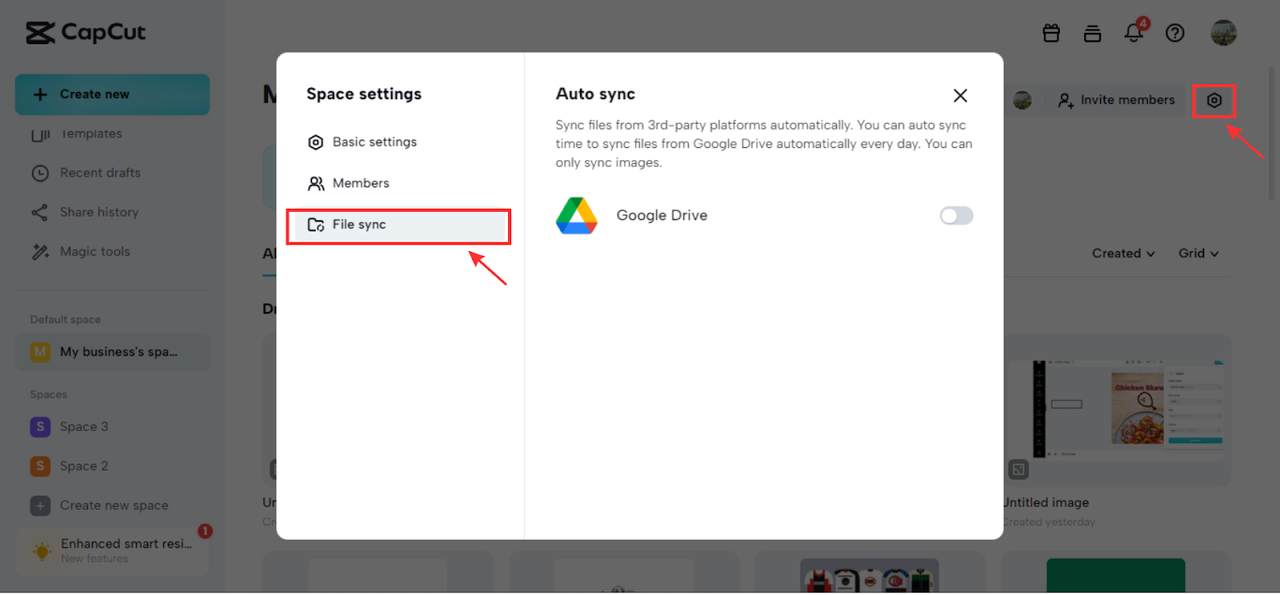
CapCut Online, in addition to multimedia editing, offers cloud storage with features to sync files from Google Drive and Dropbox without downloading them. It provides up to 15 GB of free storage and the ability to create up to three workspaces to separate projects.
Functions relevant to the transfer:
Automatic synchronization of files from both clouds to the CapCut Online space.
Transfer between workspaces to reorganize projects.
Invitations to collaborators via link or email and permission management (e.g., administrators with full editing and collaborators with limited capabilities).
Typical workflow: You register your account, create a space, connect Drive or Dropbox, and enable file synchronization. From there, you can upload media directly from the connected cloud services, edit content, and share it using various options. It's a practical alternative when you combine asset migration with editing and collaboration.
Google Drive vs Dropbox: Key differences when syncing and collaborating
Although both services allow you to store, share, and collaborate, there are nuances worth knowing before migrating. Synchronization is one of the most important.
How do they synchronize?Google Drive tends to upload/download the entire file when it detects changes, which can introduce slight delays when viewing modifications on another device. Dropbox uses block-level (delta) synchronization, uploading only the parts of the file that have changed; This accelerates notably the update in large files.
Space and pricesGoogle Drive offers 15 GB of free storage (shared with Gmail and Photos), while Dropbox starts with 2 GB. Both offer paid plans if you need more storage.
Productivity SuiteGoogle Drive natively integrates Docs, Sheets, and Slides with a very complete ecosystem. Dropbox offers Paper for notes and light content management, although the Google suite It is usually broader for most cases.
Use casesIf your work revolves around Docs/Sheets/Slides, Drive is a perfect fit; if you prioritize very fast synchronization of large files and binary file review workflows, Dropbox is still a great option.
Useful management and security features during and after migration
To make the transition seamless, it's helpful to master some of the management tools available in Drive and Dropbox. They'll help you maintain order, control, and traceability of your content.
Upload files and foldersFrom the web or desktop, take advantage of bulk uploads and drag and drop entire folders. In Drive, folder uploads maintain the hierarchy; the same is true in Dropbox, so preserve the tree it's simple.
Share files and folders and adjust permissions: choose whether it is read-only or edit-only, limit by domain or by users, and revoke access when the project is finished.
Define link expiration dateSetting expiration dates on sharing links reduces the risk of prolonged exposure. In corporate environments, expire access It is key to compliance.
Search and filterUse the advanced search and filters by type, owner, date, or keywords. With a lot of migrated content, These filters will save you hours..
Version historyIf you accidentally overwrite a version, you can revert to a previous version. After large migrations, it's helpful to review recent versions to confirm that context has not been lost.
Files available offlineMark folders for offline access on your mobile device or computer. This helps you work when your connection fails or you're out of the office.
Share with your organization
For corporate accounts, it's advisable to restrict access to users within the same domain, require login, and control whether link forwarding is allowed. Establish clear policies for sensitive areas to minimize accidental data breaches.
Good practices, precautions and common problems
Before moving anything, make sure your connection is stable. For large uploads, an Ethernet cable is usually more reliable than Wi-Fi, preventing interruptions and file corruption. If your bandwidth is limited, schedule nightly or batch transfers.
Check the storage space at your destination: if you're going to Drive, keep in mind that the 15 GB of free storage is shared with Gmail and Google Photos. Plan accordingly if you need a larger plan . The same applies when transferring files from Drive to Dropbox, where the 2 GB of free storage fills up quickly.
If you're using the desktop apps, check your settings: in Dropbox, the "on-demand" options might leave files only in the cloud. Before dragging and dropping, make sure everything is downloaded to avoid any surprises. When installing Google Drive for desktop, confirm which folders you want to sync to prevent filling up your disk.
When migrating shared content, review permissions and links: you may want to recreate the same access scheme in Google Drive, defining who can view or edit , limiting access by domain, and setting validity periods. Don't forget folders shared with third parties.
If you're importing from Dropbox or an intermediary service, carefully review the "overwrite" and "delete source" options: the first prevents duplicates, while the second acts as an actual "move." Test with a small folder before launching the full migration.
For bulk backups, consider automation: with Air Explorer you can schedule synchronizations and maintain the structure; rclone allows integrity checks by hash; InClowdz eliminates local downloading; and CapCut Online adds synchronization and collaboration if you're also going to edit multimedia assets.
Regarding references and training materials, many industry guides are produced by internationally certified authors covering software, devices, and technical workflows; it is helpful to draw on this knowledge to plan and execute migrations smoothly.
Centralizing your files in Google Drive or moving part of your library from Dropbox doesn't have to be complicated: choose your method (manual or with tools), verify space and permissions, ensure data integrity, and take advantage of features like advanced search, version control, and link expiration. With a little preparation and the right tools, moving from one cloud to another becomes a routine, fast, and secure process.
