- Camtasia offers multi-track editing, 4K/60 and AI noise reduction; Free Cam prioritizes simplicity and low power consumption.
- For quick, unedited clips, Free Cam is sufficient; for polished projects, Camtasia speeds up the process.
- Sources differ in Free Cam's deployment and advanced features; check the version and plan before deciding.
If you frequently work with desktop recordings, tutorials, and explainer clips, you've probably heard of Camtasia and FreeCam. Both tools have been around for years, and while they share the same goal, they're not exactly in the same league . In this article, we'll clearly explain what they offer, how they differ, and when it's best to choose one over the other.
To make things easy for you, we've analyzed what the top-ranking websites publish and cross-referenced data on features, performance, deployment, and price. You'll see that there are similarities, nuances, and even some contradictions between sources, but we'll explain everything so you can make an informed decision and know what to expect from each program.
Camtasia: Professional approach with advanced editing
The first thing that stands out about Camtasia is its interface, which is very similar to that of a video editor: timeline, media library, preview, etc. This is no accident, because in addition to recording the screen, you can incorporate images, external clips, titles, and other visual elements into the same project to create a complete video with a polished finish and a multi-track workflow.
Among its most notable capabilities, several sources highlight features designed for tutorial creators: precise region selection, app capture, webcam, system audio, and microphone input, and a suite of post-editing tools that go far beyond trimming. You can add transitions, callouts, annotations, and, importantly, manage multiple video and audio files simultaneously to build scenes and variations.
The timeline allows you to organize footage by scenes or segments, making final editing easier. Furthermore, Camtasia has incorporated cutting-edge features such as AI-assisted noise reduction (ClearView, as indicated in some recent versions) to clean up audio with a single click. The ability to export in 4K at 60 fps is also mentioned, directly addressing current high-definition content creation standards.
Another advantage is collaborative work and rapid sharing: the application offers options for uploading or sharing directly, so teams can review results in seconds. And although its core is the desktop client, it's mentioned that with a Camtasia account, you can use web components to access online projects and features that complement the traditional workflow.
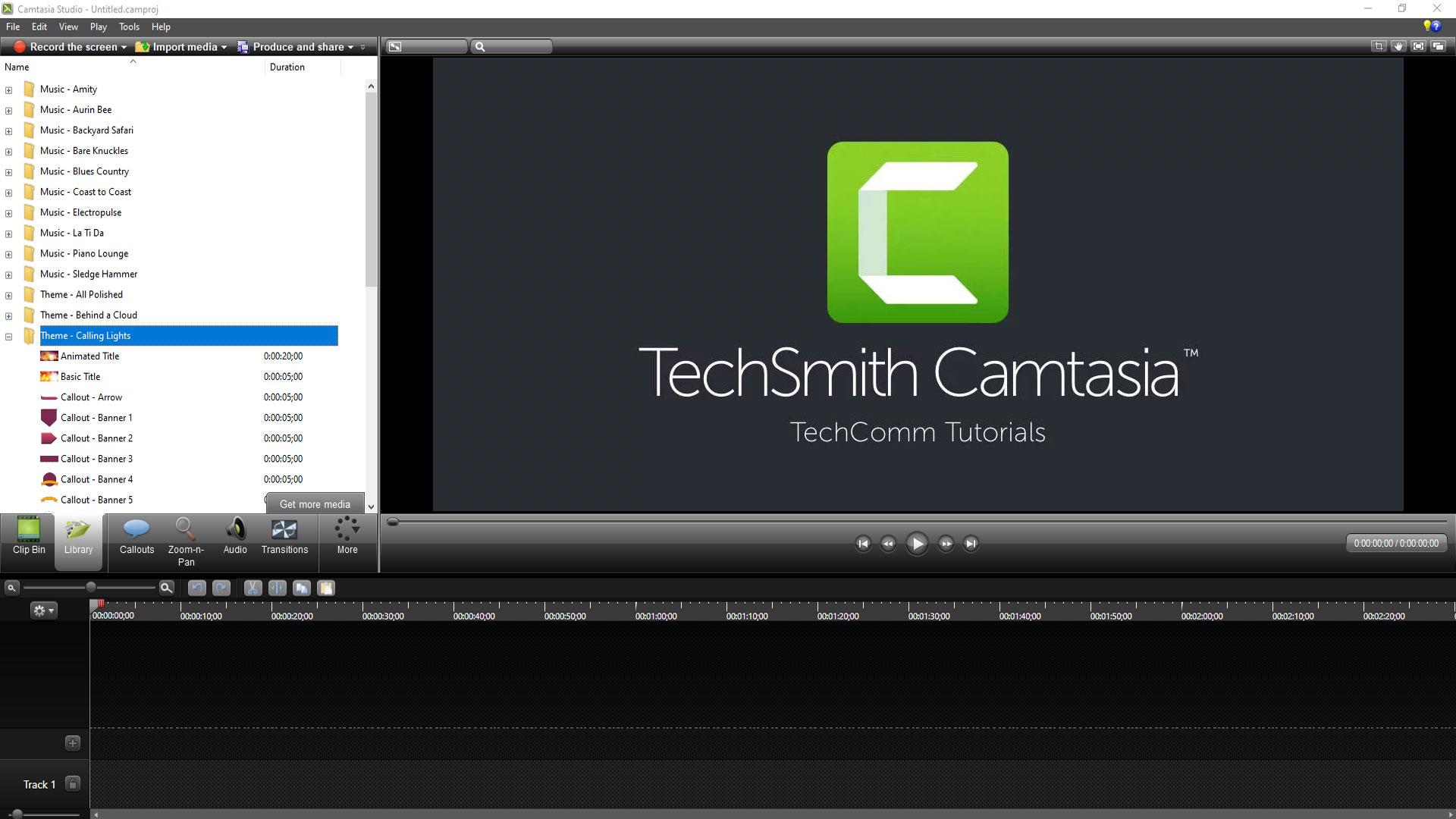
It's worth noting that some product descriptions highlight "multi-track editing" with up to five simultaneous tracks. This feature, typical of an editor, is key for those who synchronize voice-over, music, camera, and screen. In everyday use, being able to stack or separate assets across multiple tracks translates into greater control and a more professional result.
Free Cam: simplicity, lightness and few complications
FreeCam, on the other hand, is defined by its practicality: install and record. The interface is extremely straightforward, with a "New Recording" button to get started without any fuss, select the area, audio source, and you're done. It's designed for those who want speed and a tool that won't be intrusive. That's why many guides recommend it if you just want to capture something specific and save it without any hassle.
One of its biggest advantages is its resource consumption: Free Cam is said to use around 40% less CPU and memory than Camtasia. This is noticeable on less powerful computers or when you have several apps open. Another benefit is the ability to accumulate small clips for later use, with minimal configuration options which, far from being a disadvantage, help avoid unnecessary adjustments.
That said, it's not all positive when compared to full-fledged editing tools. Several sources indicate that FreeCam's editing capabilities are very limited or nonexistent depending on the version, and that it's not suitable if your project requires multi-track editing, animations, titles, or effects. Another important point: it's noted that the free version only exports in WMV format and doesn't allow you to directly integrate the webcam into the video, something that's often a requirement in tutorials.
Regarding costs, there's a reference to an annual "pro" version (listed at $227/year in one of the sources), while Windows is listed as the supported platform for compatibility. Furthermore, there's a comparison chart that categorizes Free Cam as "Web Based" versus Camtasia's "On-Premises" deployment; however, other descriptions emphasize that Free Cam is downloaded and installed locally after entering a valid email address . We've included this discrepancy between sources here to give you the full picture.
Direct comparison: Camtasia vs Free Cam
If we focus solely on functionality, Camtasia offers a recording and editing ecosystem that allows you to produce a video ready for publication, complete with titles, transitions, clean audio, and high-quality export. Free Cam, on the other hand, sacrifices complexity for speed: it records, saves, and little else. In other words, it offers "production" on one hand and "direct capture" on the other—two philosophies that cater to different needs.
In terms of performance, sources agree that FreeCam is lighter (with that reference to approximately 40% less resource consumption). This is a relevant point if you prioritize smooth operation or work on modest laptops. On the other hand, it's also mentioned that Camtasia is more stable when the project grows and there are multiple tracks, assets, and demanding export processes. This large-scale stability is, for many creators, crucial in the long run.
Output quality is another clear differentiator: several websites mention 4K export at 60 fps with Camtasia, which also integrates AI noise reduction technology (ClearView) and a multitrack editing suite with up to five tracks. Free Cam, based on our research, only offers basic export options, limited editing capabilities, and fewer formats. Meanwhile, an English-language description attributes "Multitrack Recording and Mixing" and other advanced features to Free Cam, which contrasts with most descriptions in Spanish. We note this because it's part of the analyzed material, although the general perception is that Free Cam excels in simplicity rather than multitrack capabilities.
In terms of everyday use, the choice usually boils down to this: Free Cam if you just need to capture a quick clip without complications or editing; Camtasia if you want a polished video with titles, calls, zooms, music, and voiceover, without having to use another editor. The balance shifts if you're certain you'll never edit: in that case, the time you save with Free Cam and its lightweight design can be winning arguments.
Deployment and compatibility: what the sources say
One of the comparison charts in English states that Free Cam is "Web Based" while Camtasia is "On-Premises". However, other information we reviewed contradicts this, indicating that Free Cam is installed locally (Windows) after entering an email address, and that Camtasia offers a desktop client with the option to use a web application linked to the account to manage projects or complementary workflows.
This disparity seems to stem from how each site groups solutions and which versions or plans they reference. In practice, if you follow the descriptions step by step, Free Cam behaves like a local Windows app, while Camtasia is desktop software with complementary online tools and services . If you strictly need a 100% browser-based solution, it's best to check each tool's official website before making a decision.
For what type of users and sectors?
The comparison charts often offer somewhat generic messages like "Free Cam is ideal for all industries" and "for all industries, Camtasia is better," which, frankly, aren't very precise. What's useful here is to think about specific scenarios: internal training, support, marketing, sales, product development, teaching... In all of these, if your team simply needs quick screenshots to share via email or chat, Free Cam is more than adequate and has minimal impact on your system.
If, on the other hand, you're creating branded content, courses, public demos, or social media materials that require a professional finish, Camtasia saves you from having to switch to a dedicated editor. Its collection of templates, resources, multiple recording options, and 4K/60 fps, along with AI noise reduction, make the leap from simple capture to presentable video much more straightforward.
Summary of advantages and disadvantages
Camtasia excels in multitrack editing, 4K/60 export, AI noise reduction, templates, and advanced tutorial options. Pros: professional-quality results without leaving the app, resources and templates, and stability with large projects. Cons: it's a paid app after a 30-day trial, and there are criticisms regarding the price and learning curve in some environments, with users pointing out potential performance issues on less powerful computers.
Free Cam stands out for its simplicity and lightweight design. Pros: minimal interface, very low resource consumption, fast recording, ideal for simple tasks and quick clips. Cons: limited or no editing depending on the version, export limited to WMV in the free version, no webcam integration in the base version, and according to some reviews, advanced features reserved for more expensive paid plans.
Evaluation methodology: what we look at when comparing
Before choosing, it's important to be clear about the evaluation criteria. The sources reviewed emphasize the importance of the tool being free or open source (or at least offering a generous trial), the availability of editing during and after recording, pan/zoom effects and mouse highlighting , fine-tuning microphone settings, and the ability to mix multiple inputs while allowing for high-quality output (ideally 4K).
All of this fits with a modern use of these programs: recording with camera, microphone and desktop at the same time; inserting graphic elements on the fly; polishing the sound without going to another application; and exporting in formats and qualities that fit with YouTube, networks or enterprise players.
Alternatives cited by the best guides
Besides Camtasia and Free Cam, reference lists, such as the best free video editors , mention a long list of alternatives with different profiles. You don't need to try them all, but it's good to know what each one offers so you don't waste hours blindly and can choose what best fits your workflow. Here are the most relevant points that are repeated or highlighted in various sources, along with their strengths and limitations :
- FocuSeeFeatures include: automatic zoom recording that follows the cursor, mouse highlighting, automatic subtitles, customizable frames and backgrounds, and sharing options with interactive elements. Pros: speeds up the production of tutorials and demos; Cons: major upgrades may incur extra costs. Works on Windows and macOS.
- Gemoo RecorderIt records your screen and camera simultaneously, supports filters and virtual backgrounds on the webcam, text insertion, shapes, and memes during recording, and automatic upload to the cloud. Pros: versatility and online storage; Cons: you'll depend on its ecosystem to get the most out of it. auto upload.
- Jing ScreencastVery simple for quick screenshots or video captures, with limitations in the free version (e.g., 5-minute duration) and basic editing tools. Pros: Ultra-low learning curve; Cons: Very limited editing features restricted in the free version.
- ScreenRecQuick capture with keyboard shortcuts, includes system audio or voice, no watermarks or recording limits, and instant online sharing. Pros: Speed and zero watermarks; Cons: You have to create an account to unlock everything and editing is modestAvailable for Mac and Windows.
- Screencast-O-Matic (now ScreenPal): In addition to recording, it has an affordable editor, hosting and analytics, and direct upload to YouTube. Pros: Complete package at a good price; Cons: Doesn't capture scrolling windows and working with many elements can be a bit more involved slow.
- ShareXFree software for Windows that captures screens, GIFs, performs OCR, and offers automation and collaboration options. Pros: powerful and flexible at no cost; Cons: lacks a built-in video editor and its menu can be overwhelming. beginner.
- ScreenflowmacOS-oriented, very strong in capture and editing quality, with a stock library. Pros: well-designed tools; Cons: higher price and learning curve. It's a professional option with very good support.
- CloudAppLightweight capture and editing with a focus on cloud sharing and collaboration. Pros: Integration with online platforms; Cons: More enterprise-oriented and several features are required subscription.
- seeA browser extension for capturing and editing from the cloud. Pros: Speed and surprisingly robust editing for a free product; Cons: Limited customization options and not natively Windows-oriented. .
- SnagitFrom the TechSmith ecosystem, powerful for recording and short videos with quick editing and templates. Pros: well-organized panel and many integrations; Cons: higher price than basic recorders and some features like extracting text from recordings may not be available in all versions modalities.
- DebutFeatures: fine-tuning of settings (FPS, aspect ratio), simultaneous screen and webcam recording, and task scheduling. Pros: advanced flexibility; Cons: recordings may be watermarked, and the video editor is not integrated. package.
Another prominent list also includes options like EaseUS RecExperts (very balanced and simple, with a trial version useful for many), OBS Studio (free and open source, a favorite among streamers and with plugins; powerful but less beginner-friendly), Movavi Screen Recorder (integrated recording and editor with custom window features), CamStudio (classic for Windows, basic and somewhat outdated), Bandicam (strong in gaming but with restrictions and a watermark in its free version) and Fraps (known for benchmarking and real-time capture at high FPS, although resource-intensive and requires payment to unlock all features)
A tool appearing on multiple lists is usually a good sign: Snagit, ScreenFlow, and OBS are all listed for different reasons (ease of use, power, or both). The important thing is to identify whether your priority is editing, streaming, speed, or simply a user-friendly interface.
Cost, tests, and critical reviews
Regarding Camtasia, several pages remind users that it's not free, that the trial lasts 30 days, and that the trial videos are watermarked. They also mention a highly critical review that cites "choppy images" and "slow loading times," emphasizing that it can be "difficult to use and expensive" for some users. This contrasts with the majority view that sees it as a very competent solution for serious projects. This duality reflects different realities: different equipment and expectations lead to different experiences.
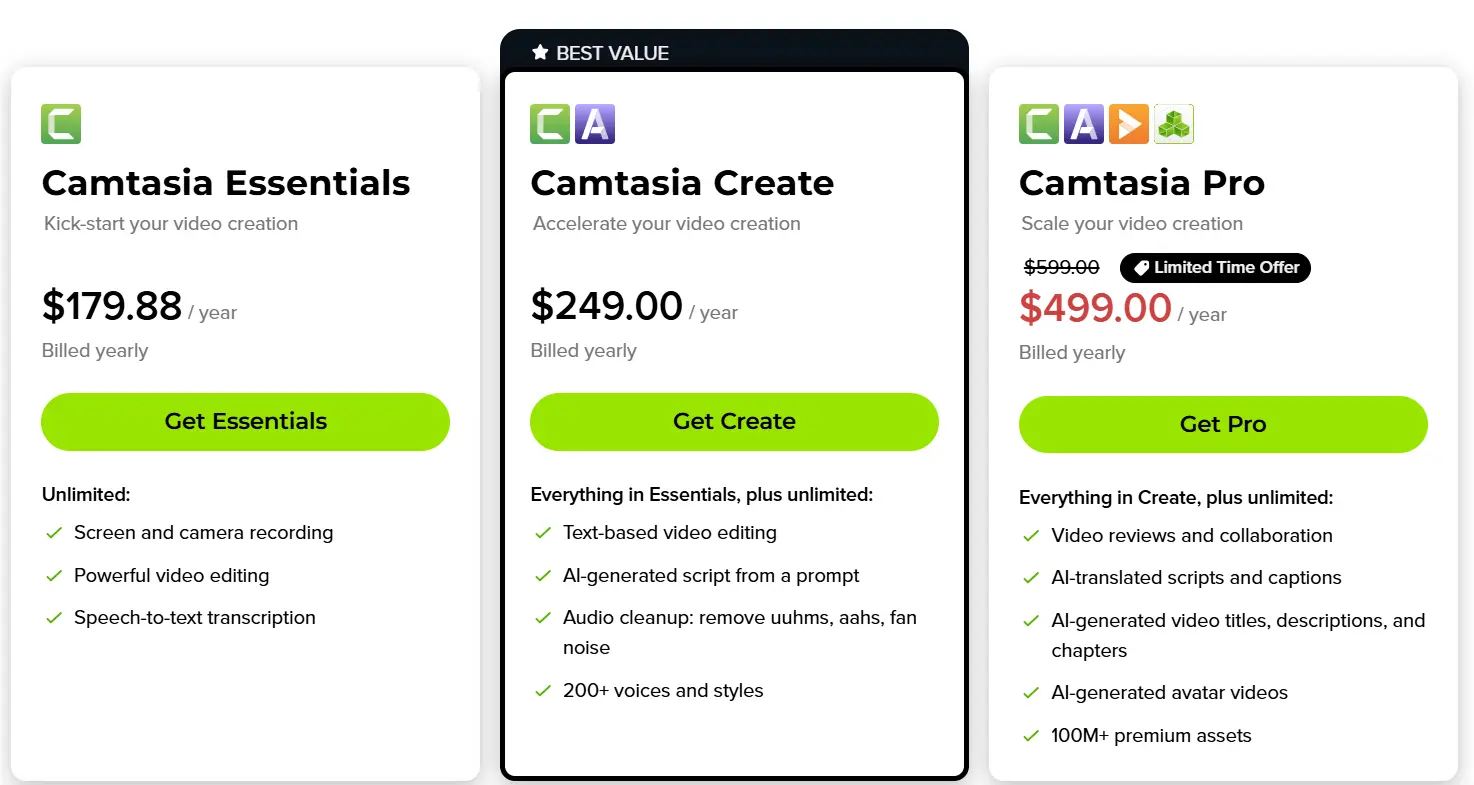
Another detail that appears in some listings: a high "lifetime" price is mentioned for Camtasia, while others recommend considering alternatives if budget is a key factor. Regarding FreeCam, in addition to the free version, a paid "pro" version with more features is mentioned. In both cases, the general recommendation is to take advantage of the trials and verify if they meet your needs: editing, codecs , 4K, audio mixing, integrated webcam, and stability with long projects.
Recommended usage scenarios
If you record tutorials with narration, windows, zooms, and overlays, Camtasia's approach is a great fit because it eliminates the need to switch between applications. AI noise reduction and 4K/60 export stabilize the quality, and multi-track support is helpful for music, voiceovers, and overlaid images. This combination is difficult to replicate with basic tools without adding an external editor and more steps to the process.
If your goal is to quickly capture an error, document a workflow, record a video call, or leave a short clip for support or product information, FreeCam is fast and resource-efficient. You won't have a full editing suite, but often you don't need one: you save the WMV and share it. When the priority is avoiding distractions from a thousand options and finishing in minutes , it makes a difference.
Interesting notes from the sources
In the middle of the comparisons, a typical X/Twitter notification appeared (“we have detected that JavaScript is disabled…”). We included it because it was part of the material visited and also as a reminder: if you are going to consult demos, threads, or reviews hosted on social networks, you will probably need your browser to be up to date and JavaScript enabled.
Frequently asked questions we've encountered
Is there a free version of Camtasia? A 30-day trial is offered, and videos created during that period are watermarked. After the trial, a paid subscription is required to continue using the software without limitations, and it's expensive compared to simpler or open-source alternatives available on the market.
Is Camtasia better than Bandicam? Comparisons suggest Camtasia has more editing features and higher overall quality, while Bandicam wins on price and ease of gameplay recording. The decision depends on whether you need integrated editing or prefer a recorder focused on pure performance and a tight budget.
Are Camtasia and Filmora the same? No. Filmora belongs to a different developer, and although they share common ground in editing, some guides conclude that Camtasia is the go-to option for professionals who can afford it, while Filmora offers a different balance of price and features. Again, it's worth trying both if you work in training or marketing.
Ultimately, the choice depends on the type of project and equipment. If you just need to "record and be done," FreeCam makes it easy with minimal resources. When it comes to producing more polished pieces with editing, audio processing, and final artwork, Camtasia is a perfect fit. And if none of those convince you, the alternatives on the list offer a range of options, from free and open-source (OBS, ShareX) to solutions focused on usability and cloud ecosystems.