- Verification of hardware compatibility and activation status of the wireless adapter.
- Optimization of system drivers and firmware to ensure stable communication.
- Management of internal Windows services and automated diagnostic tools.
- Specific pairing settings and audio output configuration for external devices.
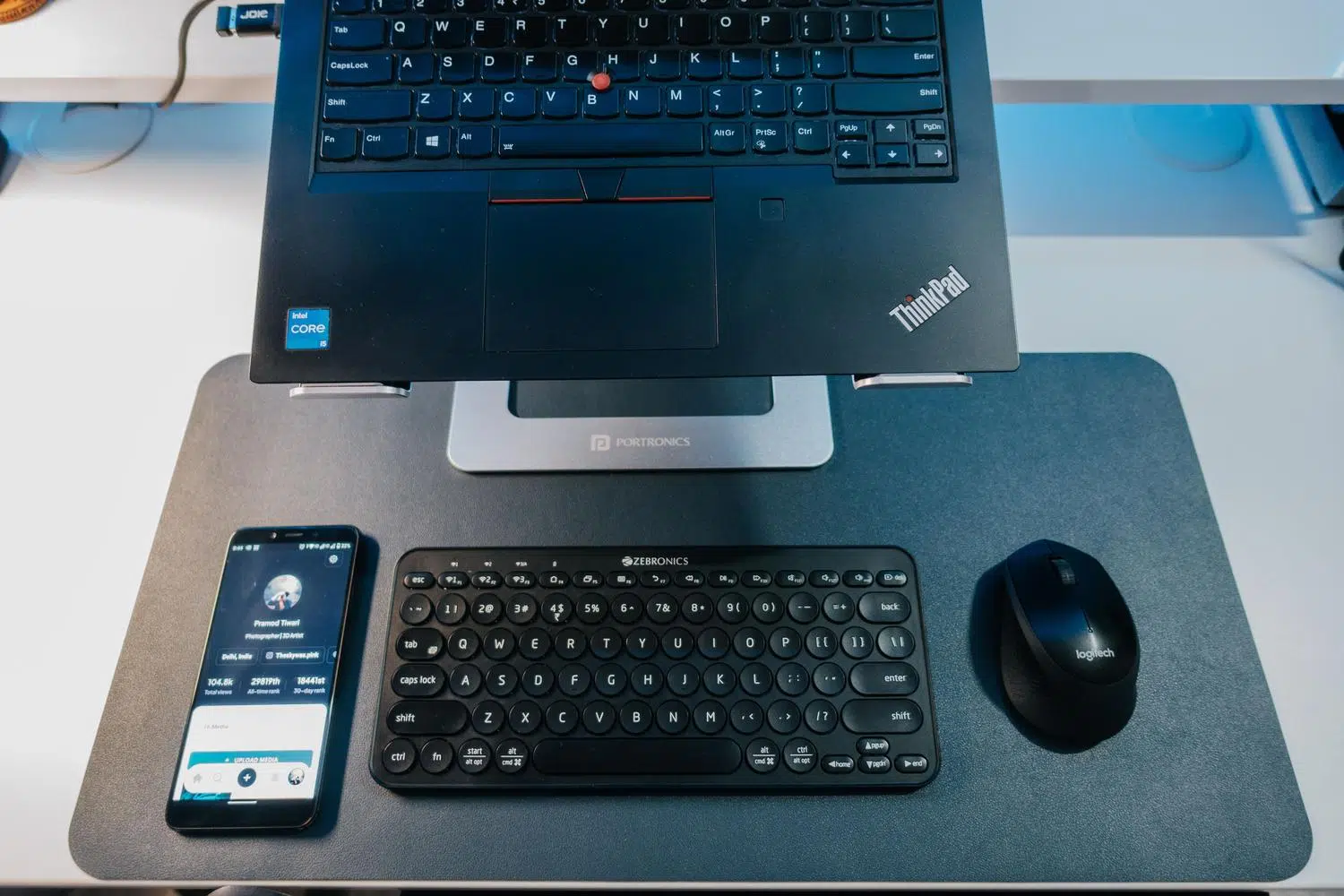
I'm sure it's happened to you: you want to connect your headphones or mouse, and suddenly Windows Bluetooth decides to go on strike . It's a great technology for getting rid of cables, but when it fails, it can be a real headache that leaves you completely stranded.
Don't worry, you don't need to be a computer expert to fix it. In this article, we'll break down all the possible solutions , from the simplest to those that require delving a little deeper into the system, so your devices can run smoothly again.
First steps: Basic and quick checks
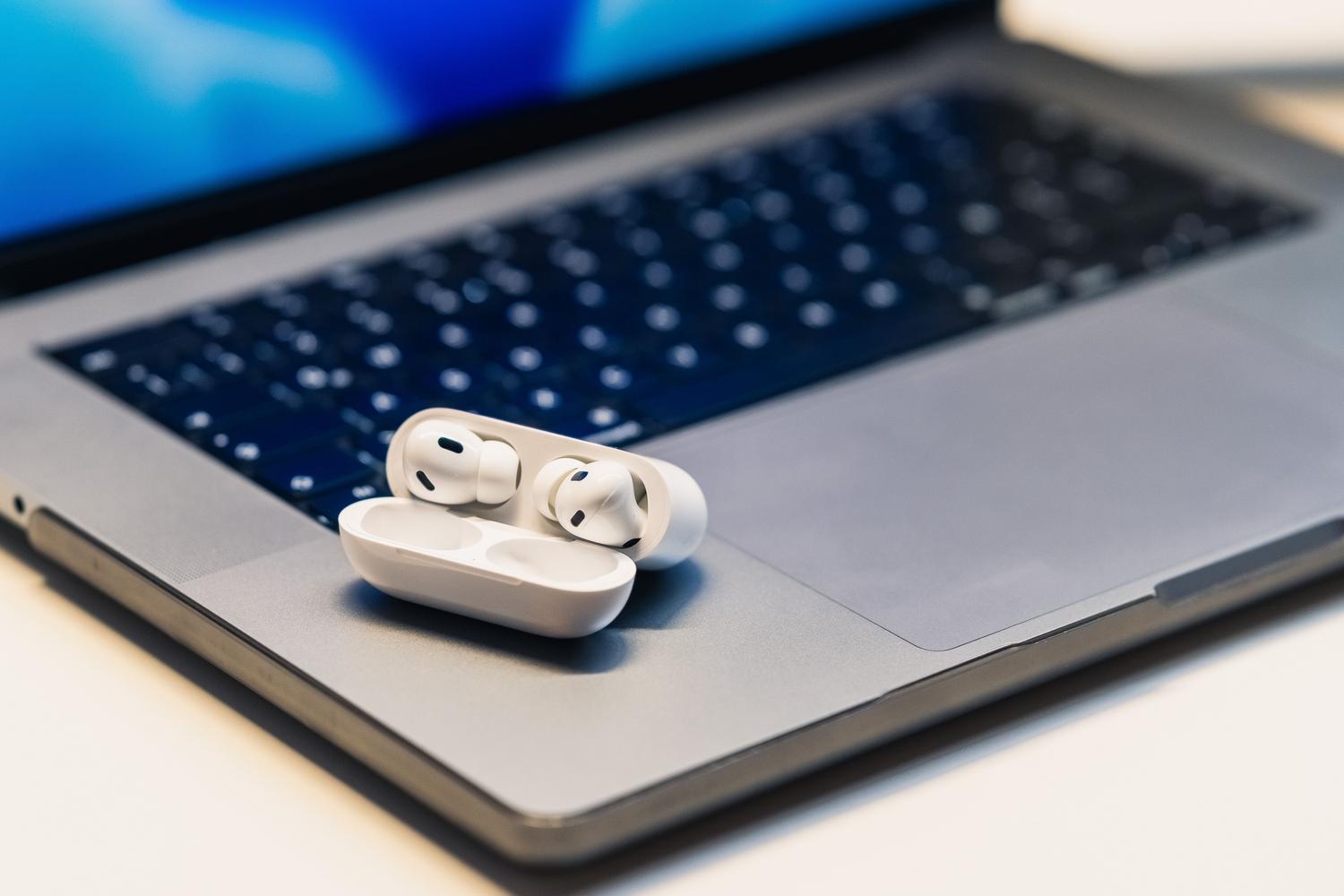
Before we get bogged down in complex configurations, let's start with the obvious. First, check that your computer actually has Bluetooth by consulting the technical specifications, as some desktop models don't include it as standard. If you're using a laptop, check if there's a physical switch on the casing that might be disabled.
On the other hand, the device you want to connect must be turned on, have sufficient battery power — you can check the battery level of Bluetooth devices in Windows to be sure—and, most importantly, be in pairing mode. A trick that often works is to turn the accessory off, wait a few seconds, and then turn it back on. Also, keep in mind that unshielded USB 3.0 ports can create electrical interference that disrupts the connection, so try to keep the Bluetooth receiver away from these ports.
Use of diagnostic and automation tools

Windows includes a tool called Get Help, which has an automated troubleshooter. This is the first place you should look, as it performs quick diagnostics and attempts to repair the most common problems without requiring any manual intervention. If you have an ASUS computer, you can use the MyASUS application in the System Diagnostics section to perform a specific check of the Bluetooth module.

If you prefer the traditional route, you can go to Settings > System > Troubleshoot and run the Bluetooth troubleshooter from the list of other tools. Although it may sometimes seem to just redirect you to a website, it's still a useful starting point for detecting software errors.
Advanced controller and hardware management
If the icon has disappeared or the device is unresponsive, Device Manager is your best friend. To access it, right-click the Start button and select it. Once there, look for the Bluetooth section; if you see an icon with a downward arrow, it means the adapter is disabled, so right-click it and select Enable device.
When the problem is one of stability, the best solution is to update the driver software . You can do this automatically from the device manager, but if Windows doesn't find anything, the most effective approach is to go to your PC manufacturer's website and download the latest version. If the driver is corrupted or there are conflicts between the software and drivers in Windows , the best course of action is to completely uninstall the adapter , select the option to remove the driver software, and restart your computer so the system reinstalls it from scratch.
Visibility settings and system services

Sometimes the problem isn't technical, but rather a configuration issue. In Windows 11, you can change device discovery to Advanced mode within the Bluetooth & devices settings to allow the system to find accessories it normally ignores. In earlier versions, make sure the " Allow other computers to find this computer" option is selected in the additional settings.

If all of the above fails, it's possible that internal Windows services have become unresponsive. Open the Run dialog box (Win + R), type services.msc , and look for all services that begin with the word Bluetooth. Right-click on them and select Restart to refresh the communication between the hardware and the operating system.
Specific solutions for audio problems
It's very common for the device to be connected but for no sound to come out of the Bluetooth speakers. In this case, check that the device is set as the default output device in the Windows sound settings. If there's still no sound, go to Control Panel, then Devices and Printers, right-click on your device, and on the Services tab, make sure the Audio Sink option is enabled.
If you notice the audio cutting out, remember that the standard range is about 10 meters, but any wall or metal object can block the signal . On desktop computers, it's essential that the external Wi-Fi/Bluetooth antennas are properly installed, as reception is almost nonexistent without them.
Final resources and restoration
When all other options are exhausted, you can try a full system shutdown by holding down the Shift key while clicking Shut Down. This forces the PC to close all processes and clear residual memory before restarting. If the problem started after an update, using a system restore point to revert to a previous date may be the final solution.
As a last resort, if none of this has worked and you suspect a serious software failure, you can reset the computer to its original configuration , although remember to always back up your personal files before making such a drastic decision.
To get Bluetooth working properly, the key is to combine driver maintenance with system service checks and correct hardware configuration. From running automatic diagnostics to adjusting audio sinks or reinstalling drivers from the manufacturer's website, there are multiple layers of solutions that can resolve anything from a simple interference issue to a critical Windows registry error.