- Activate memory saving mode to disable inactive tabs.
- Power saving settings to extend laptop battery life.
- Managing extensions and background processes to free up system resources.

It's an open secret that Google Chrome is probably the most powerful and versatile browser out there, but it also has a rather questionable reputation: it's a real resource hog . For many of us, it's the browser of choice because of its speed and ecosystem, but the price to pay is often seeing our computer's RAM disappear in the blink of an eye, especially when we give in to the habit of having dozens of tabs open.
If you notice your computer is sluggish or your laptop fan sounds like it's about to take off, don't worry, you're not alone. Fortunately, Google has implemented several features so you don't have to buy more RAM every six months. In this article, we'll see how to tame the Chrome monster so your browsing is smooth without straining your PC.

The star tool: Memory Saving
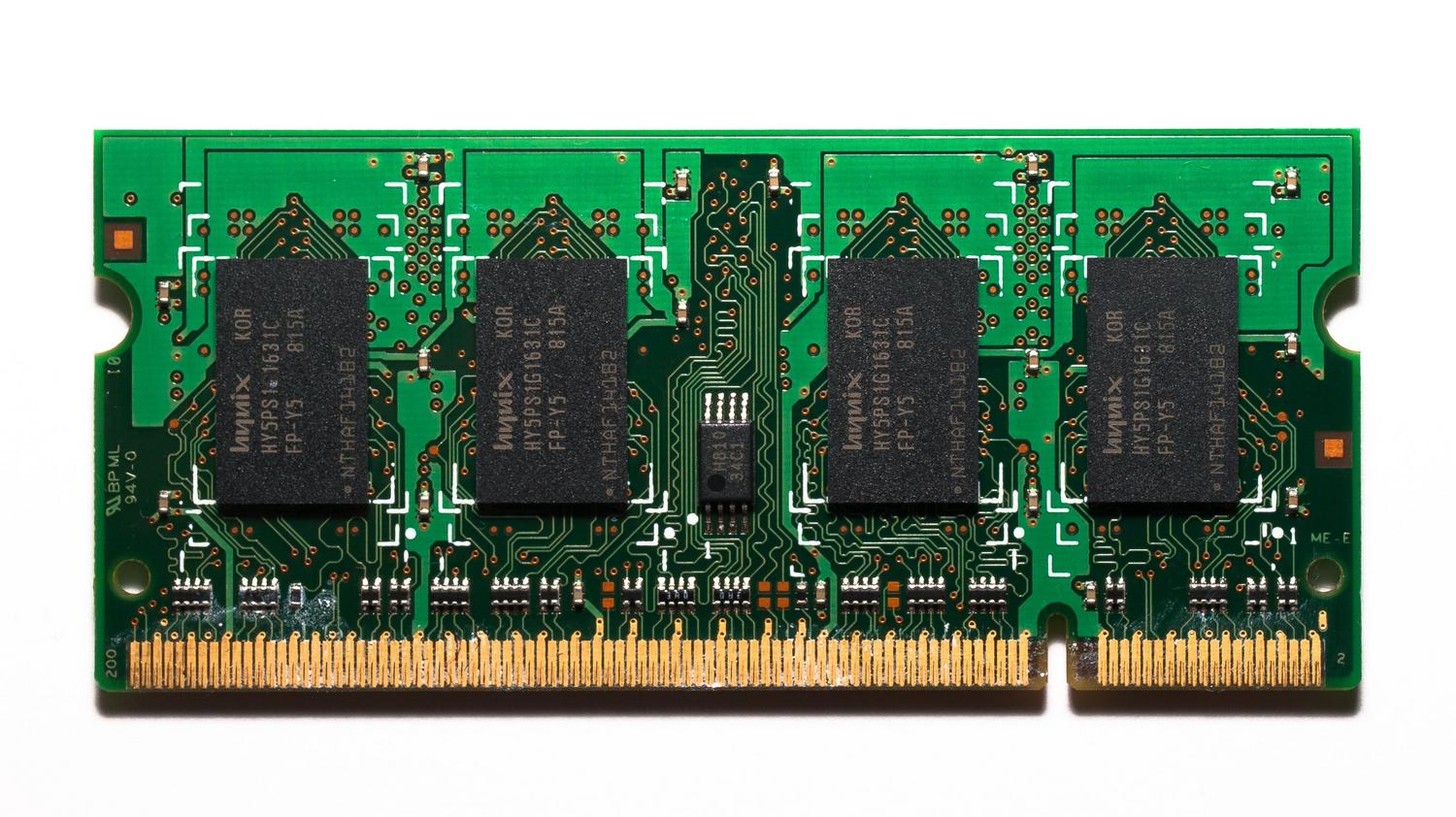
The most direct way to combat this problem is by using the Performance section. Chrome has integrated a feature called Memory Saver that's simply a lifesaver. Basically, it "puts to sleep" tabs you haven't looked at for a while, freeing up the memory they were using so that active tabs load faster. When you click on one of those inactive pages again, it reloads automatically.
To activate this mode, simply go to settings, find the Performance tab in the side menu, and check the corresponding box. The most interesting feature is that you can customize the power saving level : you can choose a moderate mode, a balanced mode (which is the one recommended by Google), or the maximum mode if your hardware is truly limited and you need to squeeze every available megabyte out of it.

However, we know that some websites can't be left inactive, such as a music player or a document you're working on in real time. To prevent Chrome from disabling them, you can create an exceptions list . On the same performance screen, you'll see the "Always keep these sites awake" option, where you can manually add the URLs you need to remain active.
Battery optimization and energy performance

If you use Chrome on a laptop, you know that RAM usage often goes hand in hand with considerable energy consumption. To address this, there's Power Saving mode . This feature not only conserves RAM but also limits background activities and reduces some visual effects or video frame rates to prevent the processor from working excessively.

You can configure this mode to activate only when your laptop is unplugged or when the battery drops below 20%. It's an ideal option for when you're on a long trip or in a meeting and don't have a power outlet nearby, although you should be aware that you might notice that scrolling through websites is slightly less smooth.
Advanced tricks to free up more resources
Beyond the official performance buttons, there are other strategies that make a difference. One of the most effective is cleaning up your extensions. Sometimes we install plugins that seem useful but run in the background without us noticing, invisibly consuming RAM. I recommend going to your extensions manager and deleting anything you don't use daily.
Another critical point is plugins. There's an option called Click-to-Play that lets you decide when the content of certain plugins runs, preventing them from automatically loading on every website you visit. Also, if you use Google Drive, you can disable offline access if you don't need it, as this eliminates unnecessary background processes and makes browsing much faster.

How to monitor memory usage in real time
If you're curious to know exactly which tab is hogging your computer's memory, Chrome has a very simple trick. In the latest versions, simply hovering your mouse over the open tab will bring up an information card showing the exact memory usage of that specific page. This is essential for identifying poorly optimized websites that are spiking your RAM consumption.
For Windows users, there's always the option of opening the system's Task Manager to see overall resource usage, although Chrome's built-in tool is much more accurate at managing tab chaos . Remember that Chrome's model involves running each tab as an independent process; this is great for security and stability (if one tab crashes, the entire browser doesn't), but it's the main reason why memory consumption skyrockets.
To maintain a responsive system, the ideal approach is to combine memory saving with mindful management of open tabs , limiting the number of active websites and removing unnecessary plugins. By adjusting performance levels and power settings, any computer, even low-end models, can enjoy significantly more stable and faster browsing without investing in new hardware.
