- Configure icons, system elements, and taskbar behavior to suit your workflow.
- Customize the appearance with colors, transparency, alignment, and size, using both native settings and PowerToys.
- Take advantage of shortcuts like drag and drop, quick audio switching, or showing the desktop to boost productivity.
- Fix taskbar errors by restarting Explorer, updating Windows, or resetting settings when necessary.
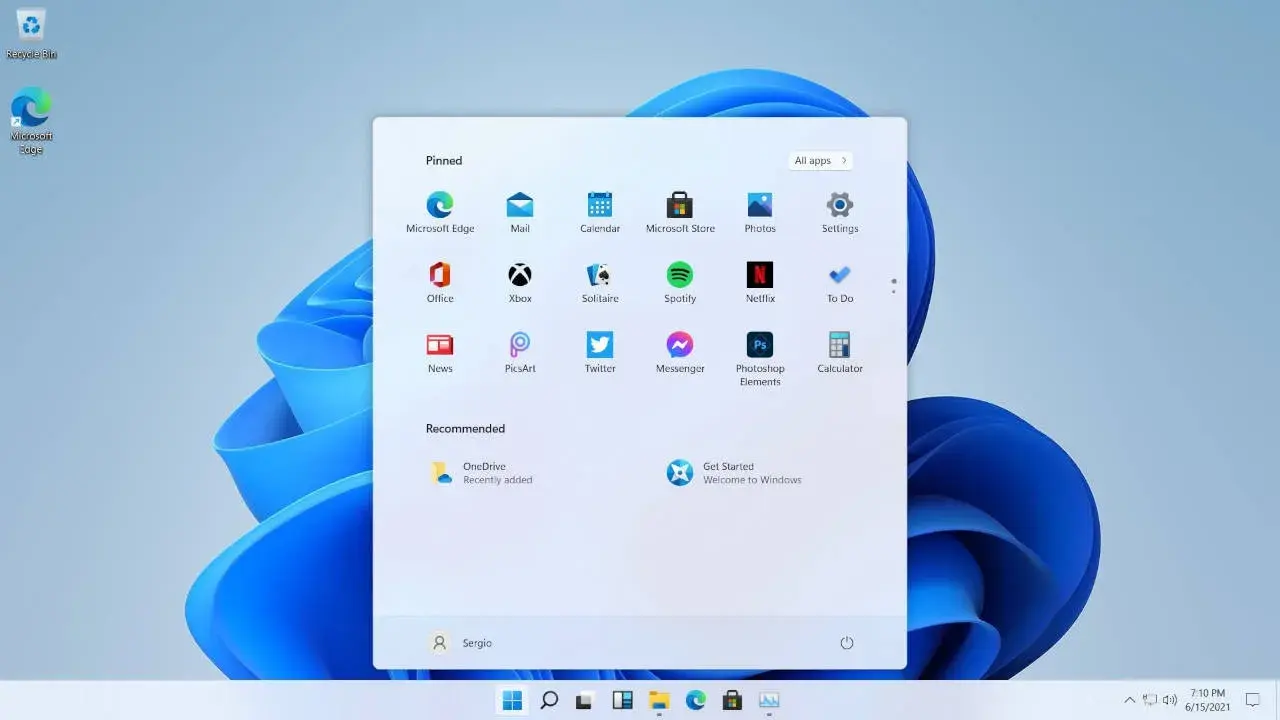
If you use Windows 11 every day, the taskbar can become your best friend… or just a decorative element. What makes the difference is knowing how to use all its features : from pinning apps and resizing them, to moving, hiding, or even making it transparent without installing any unusual programs.
The good news is that most settings are already built into the system and can be configured in just a few clicks. You just need to know where each option is and how to combine them to customize the taskbar to suit your work, gaming, or study habits. Let's take a step-by-step look at all the possibilities that have emerged with Windows 11 (and a few solutions for when something goes wrong).
Customize taskbar icons and shortcuts
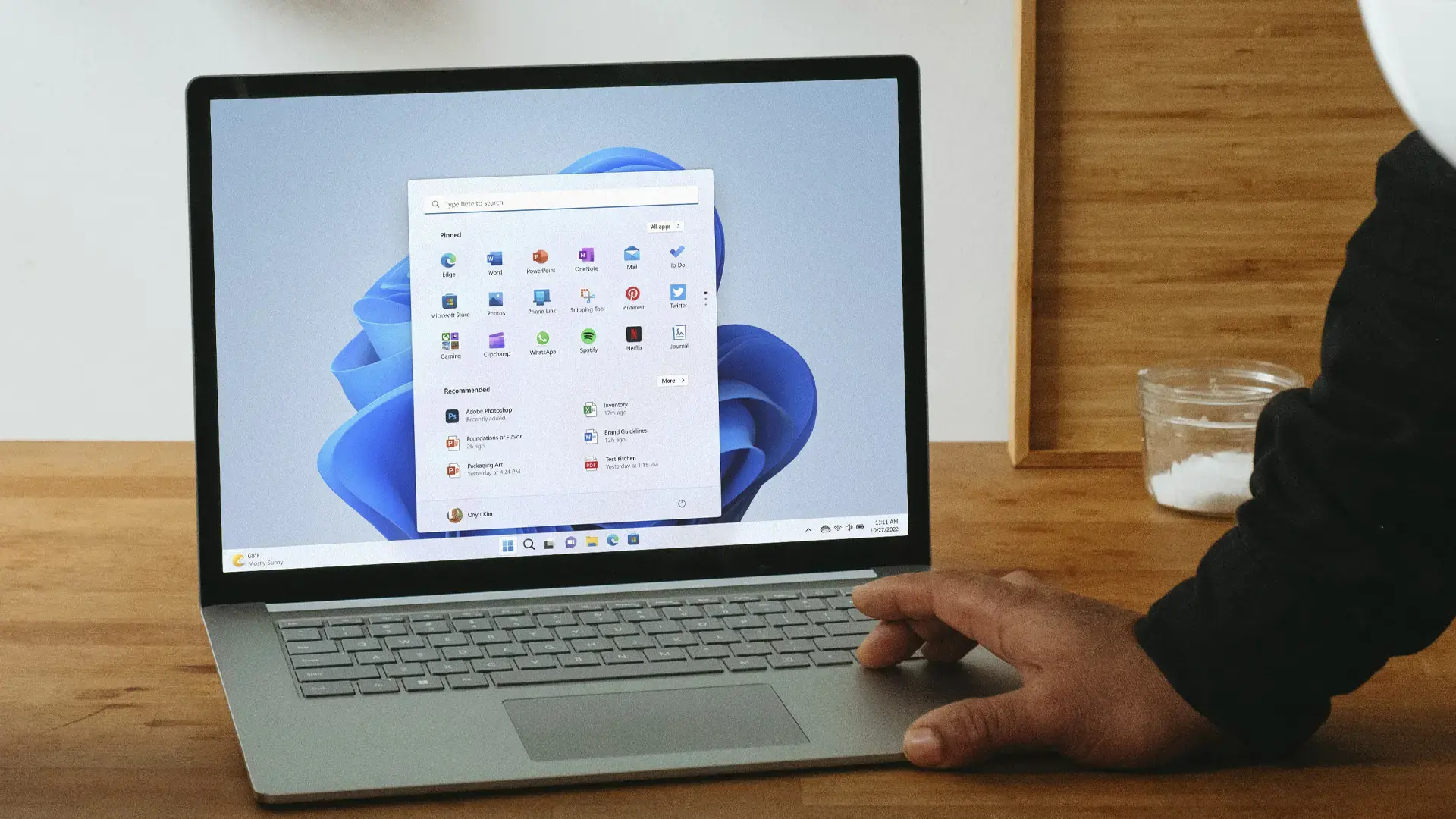
Out of the box, Windows 11 displays a series of icons in the taskbar that you might not need. The first step to making it useful is to keep only what you actually use and place each application where it's most convenient.
To pin an application that's already open, simply right-click on its icon in the taskbar and choose "Pin to taskbar ." From that moment on, the icon will remain pinned even when you close the program, so you always have it at hand.
Another quick way to pin an app is to use the Windows search bar. In the search box on the taskbar, type the app's name, right-click on the result, and choose "Pin to taskbar ." This is very handy for adding tools that aren't currently open.
If you no longer use a pinned app, there's no point in it taking up space. Right-click its icon and select "Unpin from taskbar ." This will keep your taskbar clean and focused on what you actually use every day.
The order of the icons also matters. You can rearrange them simply by dragging each icon with your mouse to the desired position. There are no limits: move your most frequently used apps to the center or to the side to always have them easily accessible at a glance.
System elements: search engine, task view, widgets, and weather
In addition to applications, Windows 11 includes several system elements in the taskbar, such as the search button, Task View, widgets, and the weather panel. All of these components can be enabled or hidden as desired in the settings.
Right-click on an empty area of the taskbar and choose "Taskbar settings" . In the "Taskbar items" section, you'll see toggles to show or hide things like Search, Task View, Widgets, Chat (Teams), and similar items.
If you don't use, for example, the Teams chat that Microsoft includes by default, you can uncheck the corresponding option. Disabling these shortcuts reduces visual clutter and frees up more space for your applications , which is especially useful on small screens or laptops.
With the latest updates, the Widgets section also integrates weather information into the taskbar. You'll see an icon with the temperature and a brief weather description. This small weather panel appears at a glance without needing to open anything , and you can keep or remove it from the Widgets settings.
Change the alignment and position of the taskbar
One of the most controversial changes in Windows 11 was moving the icons to the center of the taskbar, macOS-style, and keeping it fixed at the bottom of the screen. While not everything can be changed natively, you do have several interesting options. The first key adjustment is icon alignment.
Go to "Taskbar settings" (right-click on the taskbar) and then to "Taskbar behaviors." There you'll see an option called "Taskbar alignment ." Expand the menu and choose "Left" if you prefer to revert to the classic Windows style, with the Start button and the other icons aligned to the left side.
For many users of previous versions, moving the icons to the left makes everything feel more familiar. If you're coming from Windows 10, you'll likely find it more comfortable to switch back to this layout , without missing out on the other visual improvements in Windows 11.
Regarding the position of the taskbar itself (bottom, top, or sides), Windows 11 officially only allows it to be at the bottom. However, there's a trick to placing it at the top using the Windows Registry. It's an advanced method and carries some risk : if you've never worked with the Registry, think twice before attempting it.
The procedure involves opening the Registry Editor, locating the appropriate key associated with the taskbar, and modifying a value that changes its vertical position. After restarting Windows Explorer, the taskbar will move to the top. However, any errors in the Registry can cause system malfunctions , so it's advisable to create a backup beforehand and follow the exact instructions in a specialized guide.
Automatically hide the taskbar
If you work on a laptop or a small screen, every pixel counts. In those cases, it can be very useful for the taskbar to disappear when you don't need it. Windows 11 includes a built-in option to automatically hide the taskbar so that it only appears when you hover your mouse over it.
To activate it, open "Taskbar settings," go to "Taskbar behaviors," and check the box "Automatically hide the taskbar ." From then on, the taskbar will hide when not in use and will reappear when you move the pointer to the bottom edge of the screen.
This behavior gives you more vertical space for windows, ideal for browsing, working with documents, or editing photos. When you move your mouse away from the bar, it will automatically disappear after a second , keeping your desktop clear.
In that same behaviors section, you can also adjust other options, such as showing the bar on all screens if you use multiple monitors, or displaying the unread message counter on certain icons. If you're looking for maximum visual clarity, you can disable these counters to avoid constant distractions.
Remember that sometimes the taskbar isn't "failing," it's simply hidden. If you think it's disappeared, move your mouse to the bottom of the screen or press the Windows key. If it reappears, it means that automatic hiding was enabled , and you can disable it from the same behaviors menu.
Change the color and appearance of the taskbar
Beyond functionality, aesthetics also matter. Windows 11 lets you customize the appearance of the taskbar without installing external programs, by playing with colors, light/dark modes, and transparency effects. It all starts in the system's Personalization menu .
Open Start and go to Settings > Personalization > Colors . There, you'll find the option to choose an "accent color," which is the color Windows uses to highlight elements like the active window, selected buttons, or even the taskbar and Start menu.
To apply that color to the taskbar, make sure you check the box next to "Show accent color on Start and taskbar ." If you don't check this box, the color will only be applied to some system details, but the taskbar will retain its default appearance.
In addition to the default colors displayed by Windows, you can expand "View Colors" and choose from a wider palette. This allows you to customize the color bar to your liking, matching it to your wallpaper or theme (light or dark) for a more cohesive look.
You can also apply transparency to the taskbar to better integrate it with the background. From the same color menu, the transparency effect will allow the taskbar to subtly reveal the desktop, giving it a more modern look. We recommend considering the overall design : taskbar color, wallpaper, light/dark mode, etc. This will prevent the taskbar from being too garish or the background from becoming overpowering.
PowerToys and transparent taskbar
If you want to take your Windows appearance a step further, Microsoft offers the PowerToys suite , available in the Microsoft Store, which includes additional features designed for advanced users. Among them are options to fine-tune the visual behavior of Windows even more, including the taskbar. The interesting thing about PowerToys is that it's an official tool , maintained by Microsoft and the community, not an app of dubious origin.
With certain PowerToys modules, you can achieve, for example, enhanced transparency effects or extra behaviors without having to resort to third-party applications downloaded from unknown websites. It's a safe way to get a more eye-catching or minimalist taskbar while maintaining system stability.
Adjust window size, grouping, and behavior
In Windows 10, it was very easy to change the taskbar height by dragging its edge. In Windows 11, that direct option has disappeared, but it's still possible to modify the size through the Registry. Again, this is an advanced setting with some risk , so it's best to proceed with caution.
The idea is to edit a specific Registry key to indicate whether you want a larger or smaller taskbar than usual. After applying the change and restarting Windows Explorer, you'll see a taskbar with larger (or more compact) icons. This is useful if you have vision problems or if you like to see more things at once , even though it's not an official setting in the graphical interface.
Another interesting behavior relates to the grouping of windows from the same application. By default, Windows 11 groups windows under a single icon. When you hover your mouse over it, you see thumbnails of each window. If you frequently work with many windows of the same app, this can sometimes be inconvenient . See tips on multitasking in Windows to optimize this workflow.
There's a shortcut that can save you time: hold down the Ctrl key while clicking the application icon in the taskbar. This will open Windows directly to the last active window of that program, without you having to select from all the previews.
To show the desktop at once, you can enable what Windows calls "Peek." Go to "Taskbar settings," then "Taskbar behaviors," and select the option "Select the far corner of the taskbar to show the desktop ." From then on, clicking the far right corner of the taskbar will minimize all windows, revealing a clean desktop.
Useful shortcuts: drag and drop, audio devices, and more
One of the features missing from early versions of Windows 11, which Microsoft later brought back, was the ability to drag and drop files onto taskbar icons. Now you can once again use this convenient gesture to quickly open documents in any application you want.
It's easy to use: drag a file from Windows Explorer to the corresponding app icon in the taskbar. Hold for a second, and the application will launch or display its window, allowing you to drop the file inside to open it. It's a very efficient way to work with images, documents, or projects without having to search for the "Open" option in each program.
Another very handy trick involves switching audio devices. If you have headphones, external speakers, or monitors connected, switching between them from the bar is very quick. Click on the volume icon and, next to the slider, click the icon with a small arrow. You'll see a list of all available output devices to select in two clicks.
This way, you can switch from your laptop's speakers to Bluetooth headphones or a soundbar without going into advanced control panels. It's a perfect shortcut for those who switch between gaming, work, and video calls several times a day.
Remember that the taskbar also shows, via a line below the icon, which applications are running. The currently active icon is usually highlighted with the Windows accent color, allowing you to instantly identify which window is in the foreground.
Remove annoying icons like Microsoft Teams (Chat)
With Windows 11, Microsoft has heavily promoted certain applications like Teams, integrating them directly into the taskbar under the "Chat" icon. If you don't use Teams, this shortcut might be unnecessary and take up space that could be used for other things.
To remove it, place your mouse on any empty area of the taskbar, right-click, and go to "Taskbar settings ." There, find the section where items like Search, Task View, Widgets, and Chat appear, and uncheck the Chat box.
The option will disappear from the bar and won't bother you again, although you can always reactivate it later if you decide to use Teams. This same panel lets you choose which system icons you want to see from the start.
Troubleshooting when the taskbar isn't working
Although it's not common, the taskbar can sometimes freeze, become unresponsive, or even disappear altogether. Because it's integrated with Windows Explorer, problems in one affect the other. Fortunately, there are several simple troubleshooting steps you can take before resorting to more drastic measures.
The first logical step is to restart your computer. Many minor errors are corrected by restarting Windows, especially if they occurred after an update or a temporary failure. If the progress bar returns to normal after restarting, you don't need to do anything else.
If it still fails, try restarting Windows Explorer only. Press Ctrl + Shift + Escape to open Task Manager , and if necessary, click "More details" to see the full list of processes. On the "Processes" tab, scroll down to "Windows Processes," select "Windows Explorer," and click the "Restart" button.
For a few seconds, you'll see the desktop and taskbar flicker or disappear, then reload. This soft reset of the graphical environment often fixes taskbar freezes without requiring a full system restart.
Another possibility is that the problem stems from a pending configuration or update. Go to "Settings > Windows Update" and check for updates. Microsoft often fixes bugs in the taskbar and Start menu with cumulative patches , so it's a good idea to keep your system up to date and review how to optimize Windows 11 if your PC is running slowly.
From the advanced options in Windows Update, you can also check the "Optional updates," which sometimes include new device drivers. If a faulty driver is causing the conflict, updating it from there may fix the taskbar issue.
If none of these options work, make sure you're using an account with administrator privileges. Some repairs or resets require elevated privileges , and if your user account doesn't have them, Windows may prevent certain maintenance actions.
In the worst-case scenario, when nothing works and the taskbar remains unresponsive, the problem may be more serious. In this extreme situation, the solution involves resetting Windows 11 to its factory settings, either preserving or discarding your files depending on the method you choose. It's a drastic measure, but it usually resolves the most serious errors related to the system shell.
By combining these settings, shortcuts, and tricks, the Windows 11 taskbar can transform from a simple icon container into a powerful tool for saving time and improving convenience: from pinning and organizing your key applications and controlling notifications and audio, to fully customizing its appearance with colors, transparency, and position. With a little patience to fine-tune each detail to your liking, your daily experience with Windows becomes much smoother, more personalized, and more efficient.
