- Windows 11 officially limits the taskbar to the bottom edge, only allowing you to change the alignment of its icons from Settings.
- Old tricks using registry entries and BAT scripts to move the bar to the sides or up are outdated and can cause instability.
- Third-party applications offer more customization, but they force features not supported by Microsoft and can affect performance.
- The decision to move or hide the bar depends on screen space, the type of work, and the willingness to take risks versus stability.
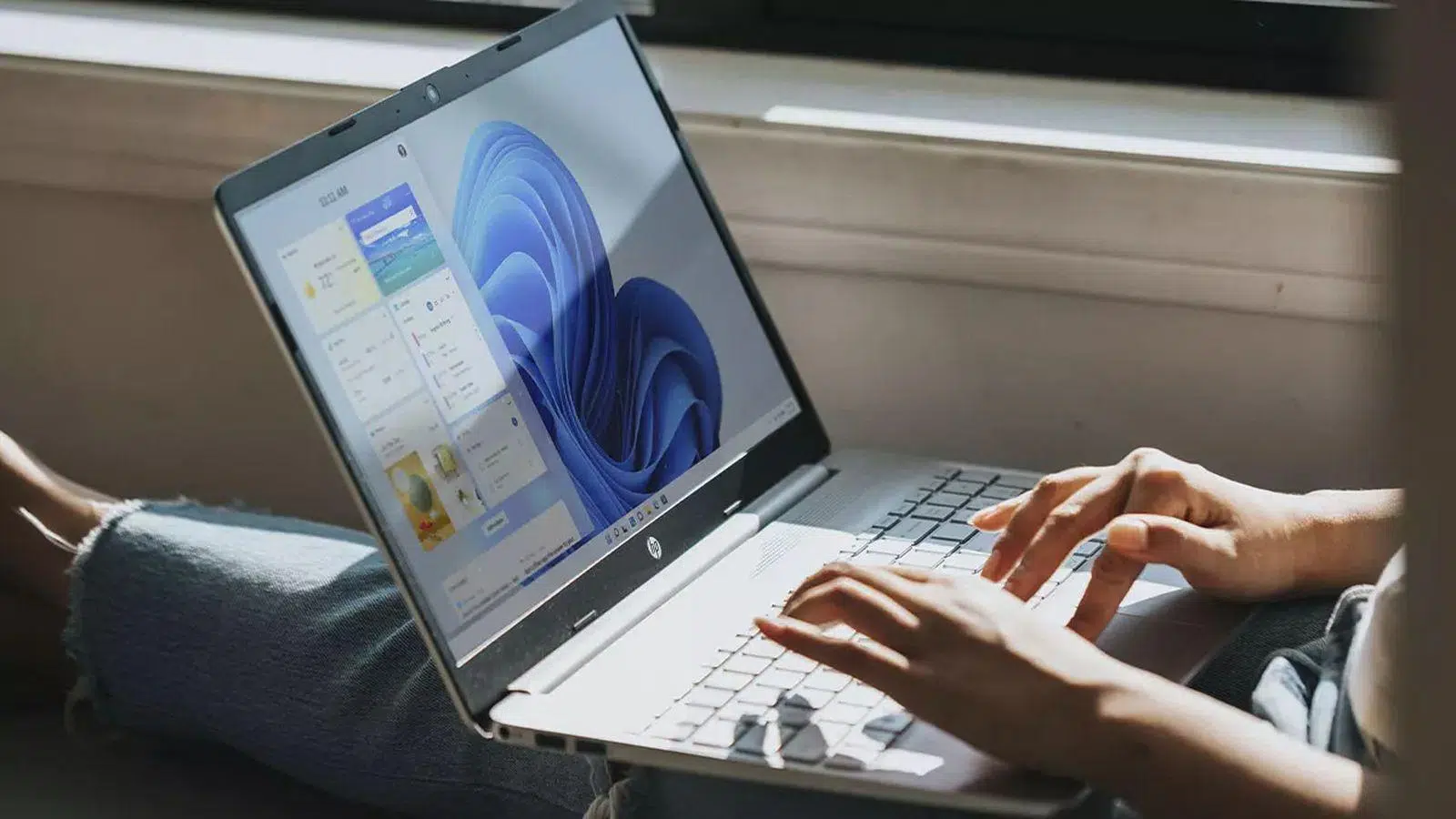
If you've reached this point, it's because you're wondering if you can move the taskbar in Windows 11 like you did in previous versions, placing it at the top or even on the sides of the screen. The short answer is that it's no longer as simple as dragging it with the mouse, but there are several important details you should know before changing anything.
Microsoft has completely redesigned the Windows 11 taskbar , removing the classic option to move it freely along the edges of the screen. Even so, there are ways to change its alignment, tricks that worked in older versions of Windows 11, and some alternative methods (registry, scripts, and third-party apps) that allow you to force its position, always with certain limitations and risks that we will explain in detail.
Why the Windows 11 taskbar is different
Microsoft's operating system has earned its reputation, among other things, for its simple and highly customizable interface . Within that interface, the taskbar is a key element: it centralizes the Start menu, shortcuts, open windows, the notification area , and the clock, so any change to its design affects the user experience.
With Windows 11, Microsoft decided to rebuild the taskbar from scratch , focusing particularly on touchscreens and modern devices, such as convertible laptops and Surface-type tablets. This internal redesign simplifies its behavior and makes it more consistent across different screen sizes, but it also meant sacrificing some features that many users took for granted.
One of the missing features is the ability to move the taskbar by dragging it to any edge of the screen, something that in Windows 10 and earlier versions could be done in seconds after unlocking the taskbar. In Windows 11, the drag option is no longer available, and there's no visible native setting to change its location.
The main reason is a structural design change: the new bar doesn't share the same internal logic as the previous one, and as a result, Microsoft has removed official support for positions other than the bottom edge. In fact, the few methods that exploit remnants of that configuration often result in scaling errors or strange visual behavior.
This doesn't mean you're completely stuck with the factory settings, but it does mean that any attempt to go beyond what the Settings menu allows enters "unsupported" territory according to Microsoft. It's important to keep this in mind before modifying the registry, using scripts, or installing third-party applications.
What can you do from Windows 11 Settings
Among the official options, Windows 11 only allows you to adjust the alignment of the taskbar icons (centered or left) and customize which elements appear or how the bar behaves, but always located at the bottom edge of the screen.
To access these options, you can open Windows Settings in several ways: by pressing the Windows key + I, typing “Settings” in the Start menu search box, or by right-clicking the Start button and selecting Settings. The most direct way to access specific taskbar settings is to right-click an empty area of the taskbar and choose “Taskbar settings.”
Once inside, in the left sidebar you'll find the "Personalization" section . Selecting it will reveal the "Taskbar" section on the right, where you can control which icons are displayed, which system elements appear, and how the taskbar behaves.
On that same screen, you'll find the link to "Taskbar behavior ." There you'll find the setting called "Taskbar alignment," which lets you choose whether the Start menu and pinned icons are centered (the default in Windows 11) or aligned to the left, restoring a look closer to Windows 10.
Although this option doesn't move the bar to another edge, it does noticeably change the visual feel and the way you work with the icons, especially if you've been using the Start menu in the left corner for many years and find it hard to get used to the new center.
The method of registering to move the bar (and why it's no longer recommended)
During early versions of Windows 11 (such as build 22H1 and earlier), there was an unorthodox trick to force a change in the taskbar's position using the Windows Registry Editor. This method took advantage of remnants of the old positioning logic that remained in the system.
The path used was the registry key HKEY_CURRENT_USER\Software\Microsoft\Windows\CurrentVersion\Explorer\StuckRects3 . Within it, the binary value “Settings” or “Configuration” was modified, changing a specific pair of bytes in a specific column (usually identified as FE or FF in many guides).
The trick was to locate the value that appeared as “03” (bar at the bottom) and replace it with one of the other accepted values: “00” for the left edge, “01” for the top, or “02” for the right edge of the screen. After modifying the value, you had to save, close the Registry Editor, and restart Windows Explorer for the changes to take effect.
To restart Explorer—or to control processes in Windows —many users employed the command ` taskkill /f /im explorer.exe` in a command prompt window with administrator privileges, followed by ` start explorer.exe` to reload the desktop. Doing so would cause the taskbar to appear on the border defined by those commands.
The problem is that, since the 2022 updates (especially from version 22H2 onwards), Microsoft effectively disabled this method . On most current systems, changing these values no longer has any effect, or it causes visual glitches and scaling problems, especially if you try to position the bar on the sides.
Even on systems where it still does "something," the results are inconsistent: icons aren't always positioned correctly, some areas of the taskbar are rendered incorrectly, and certain system elements behave erratically. For all these reasons, it's now considered an obsolete and potentially unstable method.
Furthermore, modifying the registry is never harmless. Changing the wrong key can cause serious system errors , crashes, or loss of functionality. If someone still wants to experiment on an older Windows 11 installation, it's essential to create a system restore point or registry backup beforehand to undo any problems.
Scripts and "hack" type solutions: using BAT files
In the absence of official options, some users have resorted to third-party scripts to automate these registry changes. One of the best-known examples is a batch file called TaskBarLayout.bat , available in a GitHub repository dedicated to Windows 11 tweaks.
When this script runs, it displays a small menu in the console where you can choose the taskbar's position using the number keys 1 through 4. Each number corresponds to a location: left, right, top, or bottom, respectively. The script text isn't always perfectly translated, but the structure is usually quite intuitive.
What the BAT file does internally is modify the registry values for you in the same area mentioned earlier and restart the necessary processes for the changes to take effect, using tools like the Windows Task Manager . In other words, it automates the "registry trick" so you don't have to manually edit the bytes.
However, this type of solution comes with several important caveats: first, it's not an official Microsoft product . It's a community-developed tool hosted on a third-party repository, and as such, it should be used at your own risk. Avoid downloading other suspicious executables or clicking on ads from the site.
Secondly, because they rely on the same internal logic that Microsoft has been blocking with updates, these scripts have stopped working correctly in many current Windows 11 installations. It's common that, after the latest versions, running the file changes nothing or generates anomalous behavior in the interface.
The general recommendation is very clear: if your system is updated to the latest official Windows 11 builds, using scripts of this type is neither a reliable nor a safe solution . It would only make sense as a one-off experiment on test machines or older versions where you know exactly what you're doing.
Third-party applications to customize the taskbar
Another avenue that many users have explored is external customization applications , specifically designed to recover classic Windows 10 options or add advanced features to the Windows 11 taskbar.
This group includes tools that allow you to modify the appearance of the Start menu, add transparencies, change icons, or even simulate moving the taskbar to other edges of the screen. One of the tools mentioned in some guides is an application called "StarAllBlack," whose purpose is to offer more control over the location of the taskbar and other desktop elements.
The typical operation of these types of programs is similar: when you open the app, a section dedicated to taskbar configuration appears , where you can select the desired position (bottom, top, or sides). When applying the changes, it's often not necessary to restart the system, as the application handles the modification on the fly.
These solutions have the advantage of greatly simplifying the process for non-expert users, eliminating the need to manually access the registry or run commands. Furthermore, they often include additional aesthetic customization options that can be very appealing to those who want to completely personalize their desktop.
The price to pay is that, once again, we're talking about features that Windows 11 doesn't officially support . This means the application may be forcing certain behaviors through internal tricks, hooks, or interface modifications that, depending on the Windows update, could stop working or cause instability.
In many cases, the developers of these apps themselves warn that system performance can be affected when unsupported bar positions are forced, especially on less powerful computers or those with many active customizations. Minor flickering, delays when opening the Start menu, or problems connecting monitors are some of the possible side effects.
Therefore, before installing any tool of this type, it's worth considering whether you really need to move the slider or if you can adapt to the limitations set by the manufacturer . If you decide to use an external app, it's advisable to create a system backup, download it only from trusted sources, and carefully review the permissions it requests.
Why many people prefer the vertical bar
Beyond the technical aspects, there's a fundamental debate: the ideal position of the taskbar. In theory, there's no universal rule, but there are user profiles for whom the vertical bar makes much more sense than the classic bottom bar.
With today's increasingly widescreen monitors, horizontal space is plentiful, while vertical space is precious. By placing the toolbar on the side, you free up valuable height for content , which makes a huge difference in word processors, browsers, or applications that work with large blocks of text.
Some users enthusiastically defend the vertical scroll bar because, they say, when it's at the bottom they feel like they're losing several lines of information in their documents. If they also work with two monitors, placing the scroll bars on either side of each screen maximizes the free central area, allowing them to see more code, more rows in a spreadsheet, or more lines in a document without having to scroll so much.
This approach is especially popular among programmers and heavy writers , to the point that many choose to physically rotate their monitors to portrait mode to further maximize reading space. In these scenarios, a vertical bar on the left or right fits in very naturally.
This trend has also been adopted by those who use browsers like Microsoft Edge with vertical tabs . It makes perfect sense: if tabs, favorites, and various toolbars already occupy the top, adding the taskbar there further reduces the reading area, while moving it to the side better balances the space.
However, not all PC uses benefit equally. For gaming, for example, many prefer the taskbar at the bottom or even hidden, as this minimizes interference with full-screen games. Ultimately, it all depends on the type of work (or leisure) you do and what you're used to after years of use.
Advantages and disadvantages of changing the position of the bar
If we disregard the technical limitations of Windows 11 and focus on the practical "why", there are several clear reasons to consider moving the taskbar , especially in intensive productivity environments.
The first advantage is optimized screen space . Users who work with long documents, code, extensive spreadsheets, or dense web content can notice a real improvement by gaining a few vertical lines. It's more comfortable to read and write when you don't have to constantly scroll with the mouse wheel.
Another advantage is its adaptability to multi-monitor setups . Those who use multiple monitors, especially if one is positioned vertically, appreciate being able to place the bar on the side that best suits their workflow: for example, the bar on the left side of the main monitor and on the right side of the secondary monitor, so that everything is "framed" without encroaching on the central work area.
Furthermore, the choice of position also influences the ergonomics of the mouse pointer . If you frequently use the taskbar to switch windows, open programs, or manage notifications, you might find it more convenient to have it on the side closest to where you naturally move the mouse, reducing unnecessary movement.
Generally speaking, programmers, writers, and editors benefit from a sidebar because it frees up valuable vertical space. Graphic designers and video editors, on the other hand, tend to prefer the sidebar at the top, freeing up more space at the bottom for timelines, audio tracks, and editing panels, and minimizing the risk of accidental clicks on the sidebar.
Users of ultrawide monitors typically place the taskbar along one of the side edges, taking advantage of the enormous available width and freeing up the lower portion for applications. This way, critical interface elements are more aligned with the central field of vision.
On the downside, an unfamiliar position can be annoying for the first few days . If you've had the bar at the bottom for years, moving it up or to the side can make you lose your way, accidentally select the wrong edge, or not find the icons where you expect. This adjustment period is inevitable, and not everyone has the patience to get through it.
Furthermore, forcing unsupported positions in Windows 11 through hacks exposes us to performance drops, graphical glitches, or minor bugs when interacting with maximized windows, notifications, or the Start menu itself. Again, it's a balance between flexibility and stability.
Alternative options: hide the bar and adjust its behavior
If after all of the above you find that physically moving the bar is not feasible or the risk is not worth it, you can always resort to built-in behavior options in Windows 11 that help to gain space or make it less intrusive.
One of the most useful features is the ability to automatically hide the taskbar . From the Personalization > Taskbar > Taskbar behavior section, you can enable the option that hides the taskbar when you're not using it and only makes it appear when you move your mouse to its usual location.
With this setting, although the bar technically remains at the bottom edge, it doesn't take up any visible space most of the time . This allows you to work in almost full-screen mode with documents, browsers, or applications without sacrificing quick access to your icons and the Start menu when you need it.
Another interesting combination is to unify several customizations: an automatically hidden taskbar, left-aligned icons for a more classic feel, and a clean desktop background with few icons. This mix helps to create a less cluttered desktop and focuses attention on the active window.
If you're worried about visual clutter, you can also reduce the number of elements that appear in the bar: disable icons you don't use, hide some system shortcuts, or limit which apps have permission to display icons in the notification area. Sometimes, a cleaner bar provides almost the same sense of order as changing its position.
In extreme cases, if none of the configurations convince you, you can also separate your workflow: use a clean main monitor with a minimalist or hidden bottom bar, and a secondary monitor where you place less critical windows or auxiliary tools, thus reducing the need to constantly touch the bar.
In practice, everything surrounding moving the taskbar in Windows 11 is a mix of technical limitations imposed by the system redesign, workarounds that become obsolete with each update, and very personal preferences about how to best utilize screen space. Currently, the only truly safe option involves tinkering with the official settings (alignment, behavior, and auto-hide) and carefully considering whether it's worth taking the risks of scripts, registry hacks, or third-party applications just to recover a sidebar or top bar that the system itself no longer considers part of its standard design.
