- The gateway IP address is the master key to enter the device's control panel.
- It is essential to have the administrative credentials that are usually printed on the physical label of the equipment.
- There are several access methods, including web browsers and official applications from the manufacturer or operator.
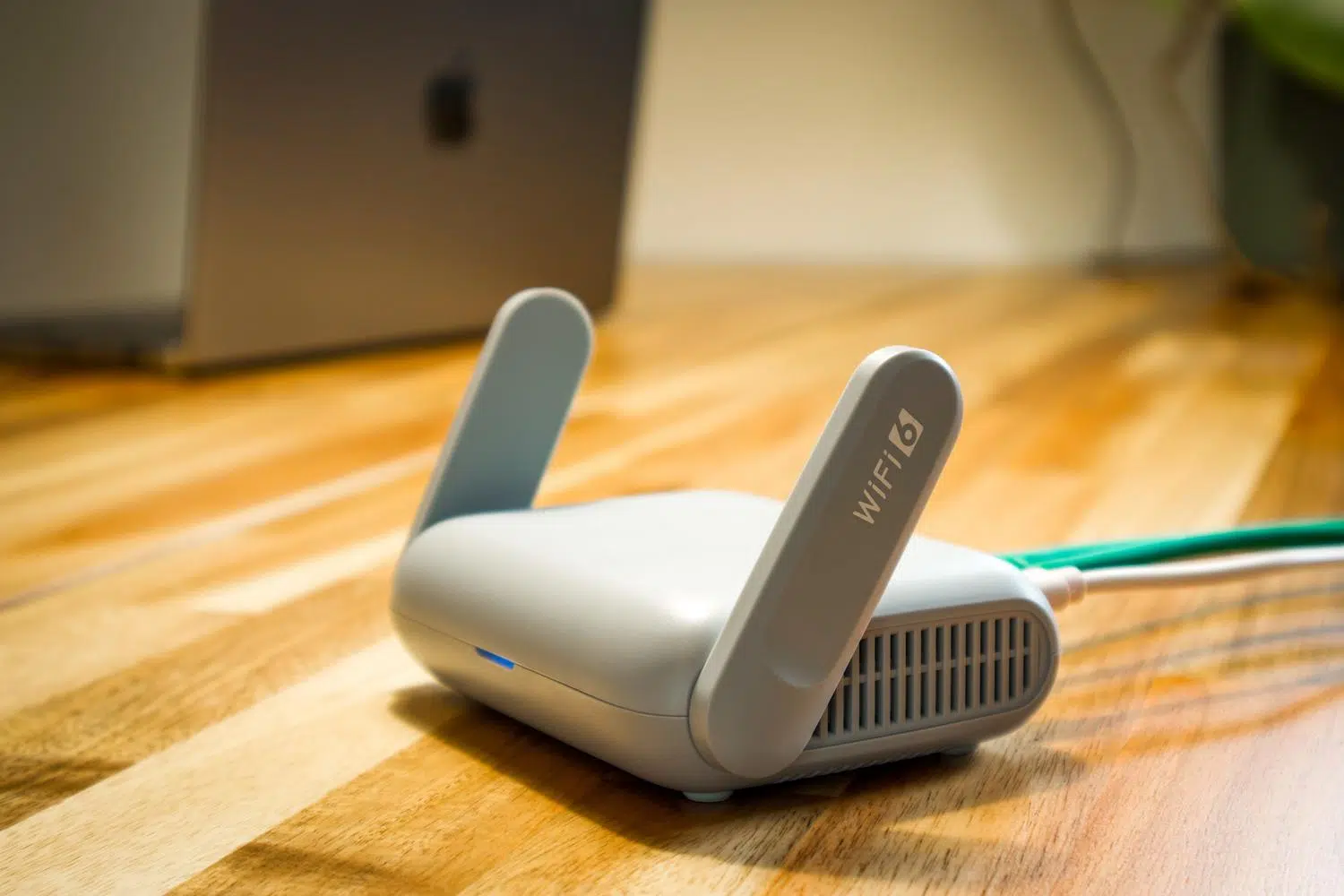
You've probably experienced this: your home Wi-Fi suddenly starts to slow down, or you simply want to change the password so your neighbor doesn't steal your connection. While many people think you absolutely have to sit in front of a wired computer to adjust your router settings, the truth is you can manage everything from the comfort of your couch using your smartphone.
Accessing your network device's internal settings is a masterstroke for strengthening your home security and optimizing your signal. You don't need to be a computer expert; with a few key pieces of information and a few minutes of your time, you'll have your connection ready to fly.
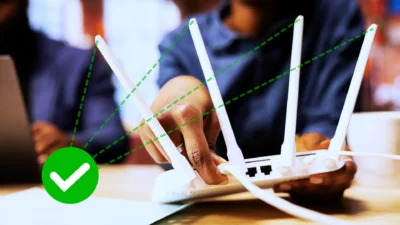
The gateway: your access key
To access the heart of your router, the first step is to find the gateway IP address. Essentially, this is the virtual address that allows your mobile device to communicate with the device that manages your home internet. The vast majority of routers use standard addresses, with 192.168.1.1 being the most common , although 192.168.0.1 is also frequently encountered.
If you try to log in and the page doesn't load, don't worry. You can find your router's IP address by looking in the Wi-Fi network settings of your Android or iPhone , specifically in the section called "Gateway" within the details of the network you're connected to.

- Make sure your mobile phone is connected to the WiFi network of the device you want to configure. If you're using mobile data, you won't be able to log in.
- Open any browser (Chrome, Safari, etc.) and type in the IP address (for example, 192.168.1.1) in the top bar.
- Press enter and you will see a screen appear asking for a username and password.
- Search one sticker under or behind the routerThat's usually where the default login details are located.
- Enter the keys and that's it! You're now in the administration panel.
Interestingly, some Samsung phones include a shortcut called "Configure router" within the network settings, saving you from having to manually type in the IP address.
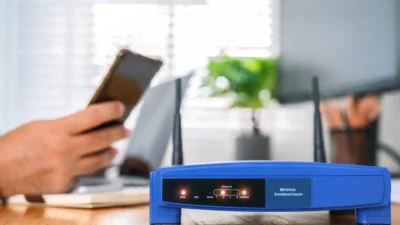
Alternatives through mobile applications
If you don't feel like dealing with IP addresses, there are more modern ways to do it. Many manufacturers like Asus or TP-Link , as well as operators the size of Movistar, have their own official apps to manage Wi-Fi much more intuitively, just like when you configure your Movistar router.
In addition, there are some very powerful free tools available. For example, Fing is great for scanning your network , detecting intruders, and quickly finding your router's IP address. Another very simple option is the "Router Admin Page" app, which automatically detects the access address based on the network you're connected to.
Credentials and problem-solving
A common mistake is confusing your Wi-Fi password (the one you give to guests) with your router's admin password . The latter is the one that allows you to change settings and is usually different. If you can't find it on the label, try classic combinations like admin/admin or 1234/1234 . On Huawei devices, both the username and password are often "user".
If you've changed your password and can't remember it, or if you've messed with something that's stopped your internet connection, the quickest solution is a factory reset . Look for a small hole on the back, insert a paperclip for about 15 seconds until the lights flash, and your router will return to its original settings.

Recommended settings to improve your security
Once you've gained access, don't just stick to the basics. To make your network truly secure, it's highly recommended to change the network name (SSID) and set a strong password. Don't forget to also change the username and password for your control panel; leaving the default settings is like leaving the door wide open for anyone.
You can also take this opportunity to separate the 2.4 GHz and 5 GHz bands if your router is dual-band, creating independent networks to improve performance. Other useful options include enabling parental controls for children, setting up a secure guest Wi-Fi network to avoid sharing your main password, or updating the firmware to patch security vulnerabilities.
Accessing your router from your mobile device lets you optimize speed, block intruders, and protect your privacy with ease. Whether you use the standard IP address in your browser, the manufacturer's app, or scanning tools, you have complete control of your connection right at your fingertips, as long as you remember to keep your credentials safe and make changes with caution.
