- Movistar offers different router models, but the access and configuration logic are very similar in all of them.
- The Smart WiFi app and web panel allow you to change the WiFi name and password, improve security, and manage connected devices.
- Opening ports, updating firmware, and using Smart WiFi amplifiers optimizes online gaming performance and home coverage.
- Restarting, factory resetting, and relying on Movistar's technical support are key to resolving faults and connection problems.
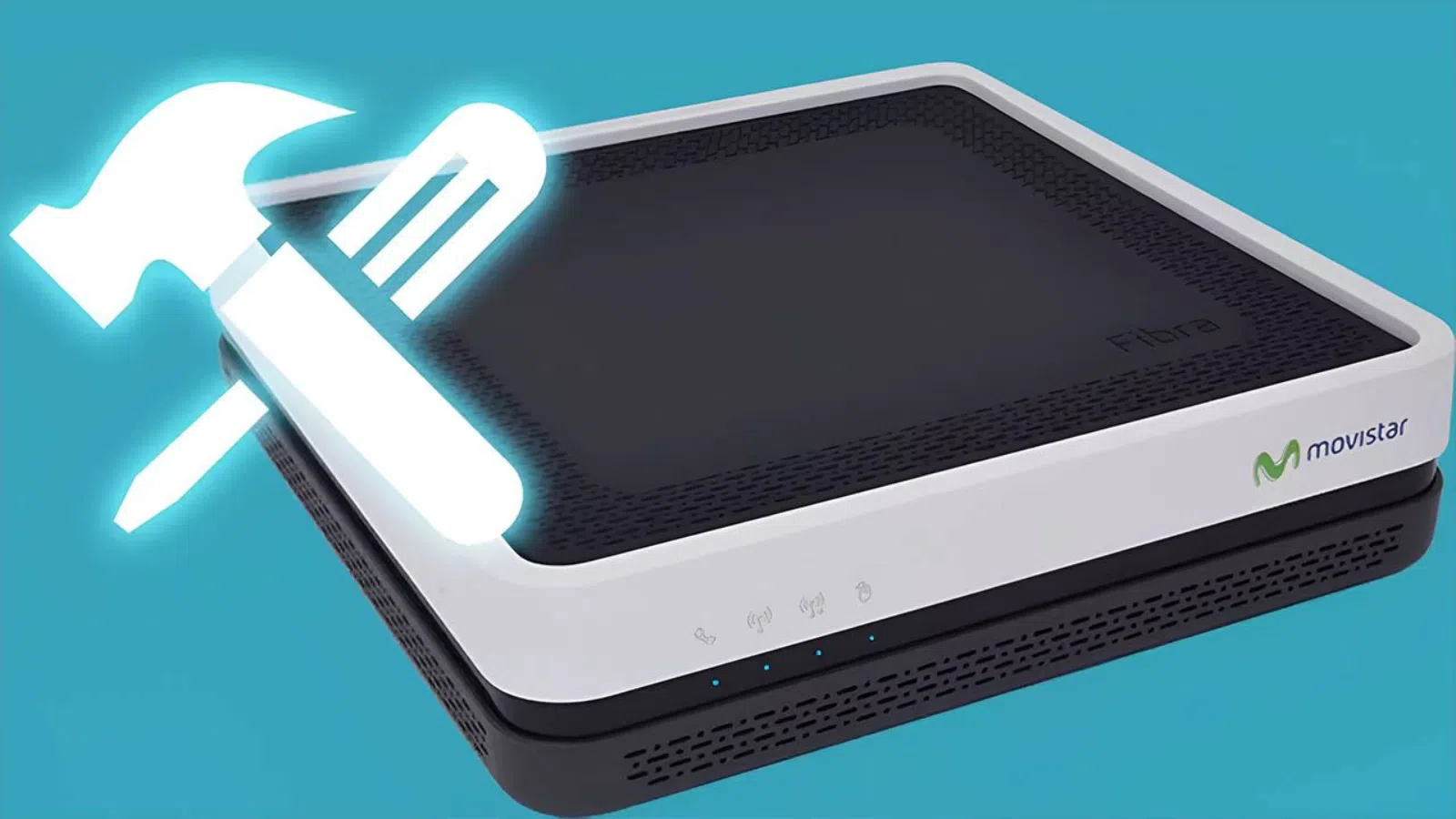
If you have Movistar fiber or ADSL, your router is the heart of your connection, and although it comes ready to use, configuring it properly makes a big difference in speed, security, and stability . The good news is that practically everything can be adjusted from your web browser or mobile device, without needing to be an expert.
Throughout this guide, you'll see, step by step, how to access your Movistar router, change your Wi-Fi password and name, open ports for online gaming, update the firmware, use the Smart WiFi app, and much more . It's designed so you can follow along at your own pace and only touch what you really need.
Movistar router models and basic differences
Movistar has been updating its equipment over time, so at home you might have anything from an old ADSL router to the new Smart WiFi 6 or even models ready for 10 Gbps; in any case, the way to access the configuration is usually very similar: gateway 192.168.1.1 or 192.168.0.1 and default username/password.
The latest fiber optic routers integrate the router, ONT, and WiFi access point into a single device, which Movistar calls HGU or xHGU; this means you have fewer gadgets, fewer cables, and simpler management from the Smart WiFi app , especially for wireless networks and connected devices.
Among the latest models, the Smart WiFi 6 (and the Smart WiFi 6 Go) stand out, capable of offering greater wireless speed, better coverage, and the ability to connect more devices at the same time , thanks to the WiFi 6 standard and WPA3 security encryption, which significantly improves protection against intruders.
An even more advanced router is also being tested, known as the next-generation xHGU, designed for connections of up to 10 Gbps with XGS-PON technology; this device, manufactured by Askey (model RTF8316VW), incorporates WiFi 7 and Ethernet ports prepared for blazing speeds , focused on Movistar's future ultra-fast tariffs.
If you have an older fiber optic router (Comtrend, Amper, MitraStar, etc.), or even an ADSL/VDSL2 router, don't worry: most share the same menu logic and can be managed from 192.168.1.1 or 192.168.0.1 , although the wireless component may be less powerful than in newer models.
For those still connected via ADSL or VDSL2, Movistar has used models such as Zyxel, Comtrend, Observa, Huawei, and Amper over the years; these devices will continue to work as long as your ADSL line is active , but keep in mind that ADSL's days are numbered in Spain and, when it is finally shut down, these devices will no longer work; if you need more information and technical context, consult our complete guide to ADSL, fiber, and telephone services for your home.
If you don't know exactly which router you have, simply turn it over and look at the sticker underneath: you'll see the model, the WiFi password, the router access key, and, on older models, a code or number that identifies the type of equipment ; with that information you can search for the specific manual or tutorial for your model.
How to access the Movistar router (192.168.1.1 and 192.168.0.1)
The standard way to access the settings panel is always the same: open a browser and type the router's local IP address into the address bar , usually 192.168.1.1; in some models it may be 192.168.0.1 or a custom IP address if someone has previously changed it.
Once the page loads, the system will ask for login credentials; on recent devices, the username is usually "admin" and the password is printed on the sticker at the bottom of the router , different from the WiFi key, which is a different one and also appears on that same label.
On older routers, especially many ADSL or early-generation fiber models, the default credentials are usually 1234 / 1234 or admin / admin ; if none of this works, it's usually because someone has changed the password and, if you don't remember it, you'll have to reset it to factory settings.
When you log in, you may first encounter a simplified Movistar panel with basic options (WiFi, ports, devices, etc.); in that case, there will be a link or button for "Advanced settings" that takes you to the original manufacturer's menu , where the more technical options are hidden.
There is also a useful trick if you have trouble logging in even when everything is connected: disconnect the cable that connects the ONT and the router, and then access 192.168.1.1 with username 1234 and password 1234 ; after making changes, reconnect the cable and the router will resume its internet connection.
Access and management from the Smart WiFi app
If you have a Smart WiFi or Smart WiFi 6 router, you have a very convenient tool: the Smart WiFi app for Android and iOS, which allows you to control a large part of the configuration without entering 192.168.1.1 , especially everything related to the wireless network and connected devices.
Once installed and logged in with your Movistar account, the application displays sections such as Devices, My Network, Secure Connection and Settings; in the Devices section you can see which devices are connected, group them by type, temporarily pause their access or permanently block them if you detect intruders.
The My Network section concentrates the WiFi functions: change network name and password, activate or deactivate networks, create a guest WiFi, share access via QR code and optimize the wireless channel , all from your mobile phone and without having to access the router through the browser.
The Secure Connection section offers added protection by automatically filtering out malware and malicious websites , and showing you statistics on blocked threats; it doesn't replace a good antivirus, but it's a valuable addition to your home network.
In Settings, in addition to the typical account options, you can change your access password for My Movistar and other parameters of your profile, which is useful if you want to unify the control of everything related to your line and your router from a single username and password.
Alejandra Portal: current situation and functions it offered
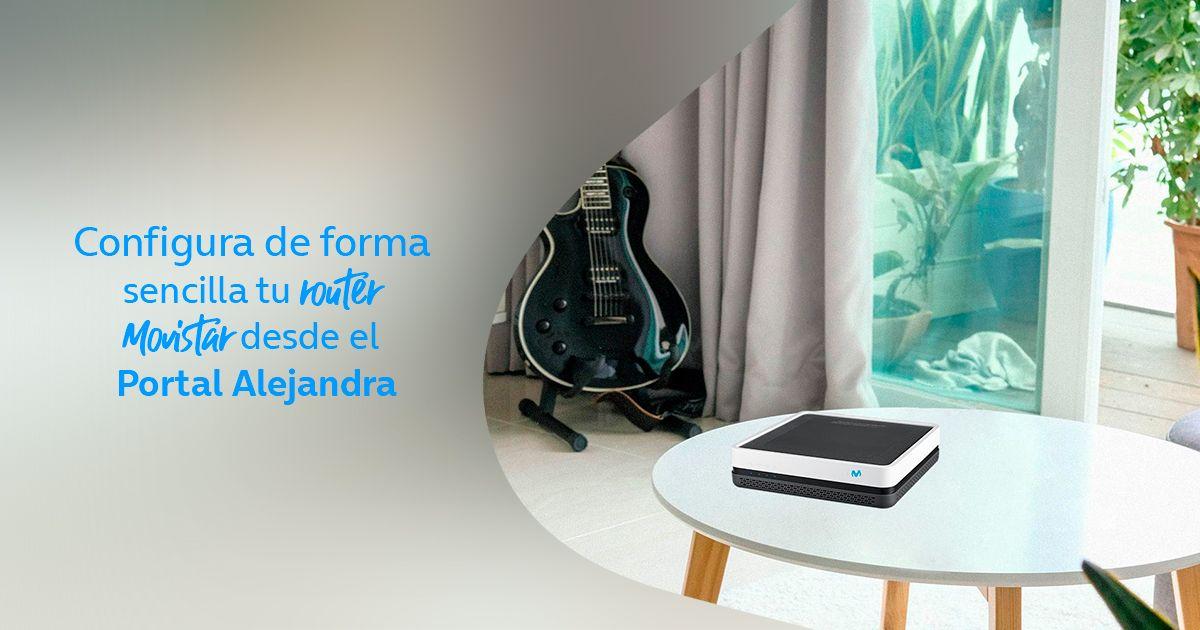
For years, Movistar allowed users to configure their router from the so-called Alejandra Portal, a section of their website where they could change the WiFi password, open ports, adjust encryption, and tweak some advanced parameters without physically accessing the router , all by authenticating with their My Movistar credentials.
That portal, however, has been permanently closed ; the operator has been transferring its functions to the Smart WiFi app and direct access to the router from 192.168.1.1, so that today management is concentrated in those two main ways.
At one time, Alejandra allowed things like activating MAC filtering, changing the radio channel, saving configuration profiles, or updating the firmware centrally; now, most of those tasks are performed from the router's own menu or from the mobile application, depending on the model.
If you still find old documentation that refers you to the Alejandra Portal, keep in mind that the correct thing to do is to replicate those steps, but directly in the router's web interface or in Smart WiFi , because the portal itself is no longer operational for customers.
Configure WiFi: network name, password, and 2,4 GHz / 5 GHz bands
One of the first things you should do after installing your router is to customize your wireless network; by doing so, you not only improve security, but also make it easier to identify your WiFi among your neighbors' and avoid very similar generic names.
From the router menu or from Smart WiFi you can change the SSID (network name) and the access key; it is highly recommended to use WPA2 or WPA3 encryption and create a long password, with uppercase and lowercase letters, numbers and symbols, avoiding birth dates, proper names or obvious data.
In many Movistar models, the network is presented as a single WiFi that groups both 2,4 GHz and 5 GHz under the same name; the router automatically decides which band to connect each device to, which is known as Smart WiFi or band steering, and helps each device use the most appropriate frequency according to coverage and capacity.
If you're having trouble with a device that only works on 2,4 GHz (for example, certain smart home devices or connected appliances) and your mobile phone insists on using 5 GHz when pairing it, you can choose to temporarily disable the 5 GHz band or, if the router allows it, separate the networks by giving different names to 2,4 GHz and 5 GHz , so that you can manually choose which one to use in each case.
It is also possible, in the Wireless or WiFi section of the advanced menu, to hide the SSID so that your network does not appear in the list of visible networks , limit the maximum number of connected clients, create a specific guest network, or even isolate clients so that they cannot see each other within the local network.
Router security: access password, WPA2/WPA3 and MAC filtering
In addition to the WiFi key, it is essential to change the access password to the router itself; leaving it as it comes from the factory (1234, admin or similar) is a risk, because if someone enters your network they could access the device configuration with those generic credentials and alter critical parameters.
To change it, you just need to locate the administration or Management option in the menu (sometimes in the basic Movistar panel, other times in the advanced section); there you can enter a new password for the router's management user , which should be different from the WiFi password and also strong.
In terms of wireless security, make sure the encryption is at least WPA2-PSK or, if your router and devices support it, WPA3; avoiding WEP or plain WPA is key, because they are outdated protocols that are easy to break, and do not offer the level of protection needed for a modern home network.
Another tool offered by many models is MAC filtering: you can define a list of allowed or blocked MAC addresses, so that only devices on that list can connect to your WiFi ; it's not a foolproof system (MACs can be spoofed), but it adds another layer of control.
To activate it, you will need to locate the MAC addresses of your devices (mobile, laptop, console, etc.), enter them in the corresponding section of the router menu and select the option to activate filtering; then, remember to save the changes and check that all authorized devices continue to browse without problems.
Router placement, frequency bands and firmware
The physical position of the router greatly influences the quality of the signal; placing it hidden inside a piece of furniture, against thick walls or in an extreme corner of the house makes the coverage worse and causes interruptions, especially in distant rooms.
Ideally, find a relatively central location in your home, away from obstacles such as load-bearing walls, large appliances, or mirrors, and avoid stacking the router next to other appliances that generate heat; if possible, place it high up, with space around it and without "caging" it inside drawers or cabinets.
Regarding the bands, the 2,4 GHz band has a greater range, but is more congested and shares the channel with many neighbors; the 5 GHz band offers higher speeds and is less congested, but its coverage is somewhat smaller and it suffers more from walls and obstacles ; in general, it is advisable to use 5 GHz for nearby devices and 2,4 GHz for those that are further away.
From the router's menu, you can change the transmission channel if you notice interruptions or sudden slowness; selecting less congested channels (especially in 2,4 GHz) often improves connection stability and reduces interference with other nearby WiFi networks.
Finally, keeping the firmware updated is key for security and performance; many Movistar routers update automatically, but it's still a good idea to check the menu for a new version and apply it when the router itself indicates , always making sure not to turn off the device during the process.
How to open ports on your Movistar router for online games and applications
When playing online, using your own servers, or certain P2P applications, it's common to need to open ports; without them, you'll encounter strict NAT messages, problems joining games, or difficulties for others to connect to your server, and tweaking your router settings is usually the solution.
The general mechanics are similar in almost all models: you enter 192.168.1.1, access the advanced menu and look for the NAT, Port Forwarding, Virtual Server or Ports section; there you can create rules indicating the IP address of the device, the port or range of ports and the TCP, UDP or both protocol.
For example, for Microsoft consoles it is common to open ports such as 53 (UDP/TCP), 80 (TCP), 88 (UDP), 500 (UDP), 3074 (UDP/TCP), 3544 (UDP) and 4500 (UDP); in the case of PlayStation, TCP 80, 443, 3478, 3479, 3480 and UDP 3478, 3479, 3658 and some additional ranges are usually used, so that the console can communicate without blocking with Sony's servers.
If your router offers predefined templates for certain consoles or services, you can use them to avoid having to type everything manually; otherwise, you'll just need to enter the exact port or range recommended by the game, console, or application manufacturer , and make sure to associate it with the correct IP address of the device.
Don't forget that the internal IP address of your console or computer can change if DHCP assigns a different one, so it's a good idea to reserve a static IP address for that device in your router's LAN menu; this way, your port rules will always point to the correct address and you won't have to reconfigure them from time to time.
In some cases, DMZ can be used to redirect all incoming traffic to a specific device, but this is a more aggressive and less secure option; therefore, it is preferable to open only the strictly necessary ports or, failing that, to use UPnP if the router and applications handle it correctly.
Use of Smart WiFi amplifiers to improve coverage
If, despite placing the router correctly, there are rooms where the signal barely reaches or cuts out, Movistar offers its Smart WiFi Amplifiers (and Smart WiFi 6) as an official solution; these devices act as repeaters or mesh points, extending coverage without the need to run cables throughout the house.
The main advantage of the operator's own Smart WiFi amplifiers is that they automatically pair with the Movistar router , copying the network name, password, and security settings, so you don't have to configure additional networks or do anything complicated.
The WiFi 6 version of these amplifiers offers significant improvements: more effective speed, up to 20% more coverage, greater capacity to manage many simultaneous devices, lower energy consumption in connected equipment, and WPA3 encryption to reinforce the security of the extended network.
The price varies depending on whether you choose the self-install option or installation with a technician, but in any case the goal is the same: to bring a stable WiFi signal to areas where the router alone does not reach , without complicating things with advanced configurations or depending on third-party equipment that may cause compatibility problems.
These amplifiers allow you to connect virtually any device (mobile phone, PC, console, TV, printer, etc.) without needing to touch anything else; for the user, the network remains "the same", only with better coverage throughout the home , something especially useful in large or multi-story houses.
Restart or reset the Movistar router
When the connection becomes unstable, some devices stop browsing or you notice strange behavior, the first thing technicians recommend is to restart the router, turning it off and on again after a few seconds ; in many cases, that is enough for the line to return to normal.
If the problem persists or you have lost your router's access password, a complete factory reset may be necessary; to do this, locate the small "Reset" hole on the back, insert a paperclip or toothpick and hold it down for about 20 seconds with the router turned on , until you see it restart.
After the reset, the device will be like new: it will recover the original configuration, including the default access and WiFi keys; you will have to wait a few minutes for it to synchronize with the network and then customize the network name, password and other parameters that you had changed.
If, even after resetting, the router continues to malfunction (freezes, lights don't turn on properly, doesn't synchronize, etc.), the safest course of action is to call Movistar's technical support or use the online chat , because the equipment may be broken and need to be replaced.
In any identified fault, the company itself can track it from the customer area, assigning an incident number and allowing you to check the status of the repair or the shipment of a new router from the website or official apps.
Cost of the Movistar router, returns and support
When you sign up for a new fiber optic line, Movistar installs the router at no cost to you; the equipment is provided on a rental basis without payment, which in practice means that it is owned by the operator, but you use it without paying anything extra as long as you maintain the service.
The advantage of this system is that, if the router fails, Movistar will replace it with another one without you having to pay its price, as long as the problem is technical and not due to obvious misuse; the downside is that, when you cancel your service or switch providers, you have an obligation to return it within a specific period , usually 14 calendar days.
If you don't return the equipment, the company may charge you a penalty that varies depending on the model: older ADSL routers have one rate, fiber optic routers another, and more modern ones like the Smart WiFi HGU, Smart WiFi 6, or Smart WiFi 7 can incur higher charges if they are not returned ; that's why it's important not to get distracted with this procedure.
The return can be made at a Movistar store, in an authorized locker, or by requesting home collection via courier; in the latter case, a management fee is usually applied, and you must ensure that the courier provides a receipt with the details of the collected equipment to avoid any subsequent misunderstandings.
In addition to traditional telephone support (1002 for technical issues), Movistar offers support through online chat, the user community, and its social networks , allowing you to choose the channel that is most convenient for you to explain your problem and receive help with configuration or potential faults.
An important detail is that the operator prioritizes those over 65 when they call, using a voice recognition system that detects if the customer belongs to this group and puts them in contact with an agent as soon as possible; in this way, they try to prevent people with more technical difficulties from getting stuck in endless automated menus.
All these elements—router type, access method, app, security, ports, amplifiers, resets, and support—mean that, with a little time and some curiosity, any average user can have their Movistar router properly configured, with fast, secure WiFi adapted to what they really need at home.