- The router's IP address is the local gateway (192.168.xx) that allows access to its configuration panel.
- It can be accessed from Windows, macOS, GNU/Linux, Android and iOS by searching for the gateway or router value.
- Knowing it allows you to change the WiFi name and password, encryption, channel, and access credentials to the router itself.
- Updating the firmware and adjusting the router's security significantly improves performance and protects the home network.
Knowing your router's IP address is one of those technical details that seems insignificant until you need to change your Wi-Fi password , kick out a freeloading neighbor, or adjust some network setting. That address is the gateway to the device's configuration panel, and without it, you're practically in the dark about your connection.
In the following lines, we'll review, step by step , all the ways to find your router's IP address on a computer (Windows, macOS, and GNU/Linux) and on a mobile device (Android and iOS). We'll also clearly explain what an IP address is, the differences between public and private IPs, and which important settings are worth adjusting once you've accessed your router's control panel. The goal is for you to finish this article able to manage your home network with ease, without always relying on a technician or your internet service provider.
What exactly is a router's IP address and how does it differ from other IP addresses?
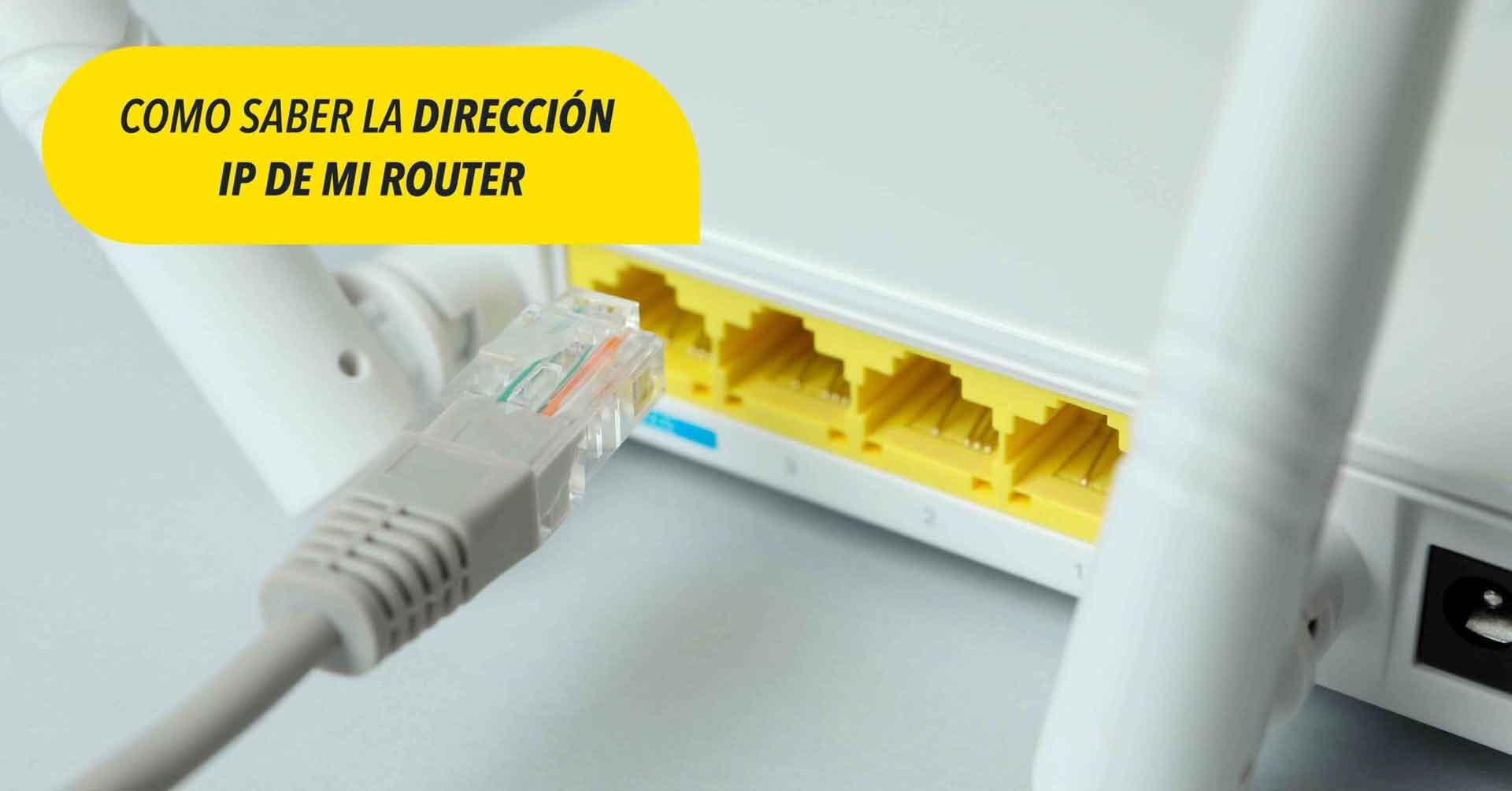
An IP (Internet Protocol) address is a numerical identifier that allows devices to recognize each other and send data to one another on a network, whether it's the internet itself or a local network like a home or office. You can think of it as a phone number or license plate for each device: it lets you know who is communicating with whom at any given time.
Within the world of IP addresses, there are two main types that are important to understand: public IPs and private or local IPs . Each serves a different purpose, which is often the source of confusion when referring to "my IP."
Your public IP address is the one your connection displays to the internet. It's the address a website sees when you connect, or an online service sees when you download or send something. It's usually assigned by your internet service provider (ISP) and can change every time you restart your router or periodically, depending on your contract. There are tons of websites that tell you "your public IP address is…", but that's not the one you need to access your router.
Your private or local IP address is the one used only within your home or office network. Your router acts as a "distributor" of local IP addresses to all connected devices: computers, mobile phones, game consoles, televisions, etc. In addition, the router itself assigns a private IP address, which usually begins with 192.168.xx. This is called the default gateway and is the address you'll need to enter into your web browser to access your router's settings.
To summarize this part : the IP address you need to adjust the router's settings is not the public IP address, but the private IP address the router uses as its gateway. This is the address you'll see listed under "Gateway," "Default Route," or simply "Router," depending on your operating system.
Where the router's IP address is usually located: common addresses and physical label
Most home routers always use a handful of very common IP addresses as their gateway. The most frequently used are:
- 192.168.1.1
- 192.168.0.1
In many cases, simply try these two addresses directly in your browser's address bar (Chrome, Edge, Firefox, Safari, etc.) while connected to the router's network, either via Wi-Fi or cable. If pressing Enter opens a router login page asking for your username and password, you've found the correct IP address.
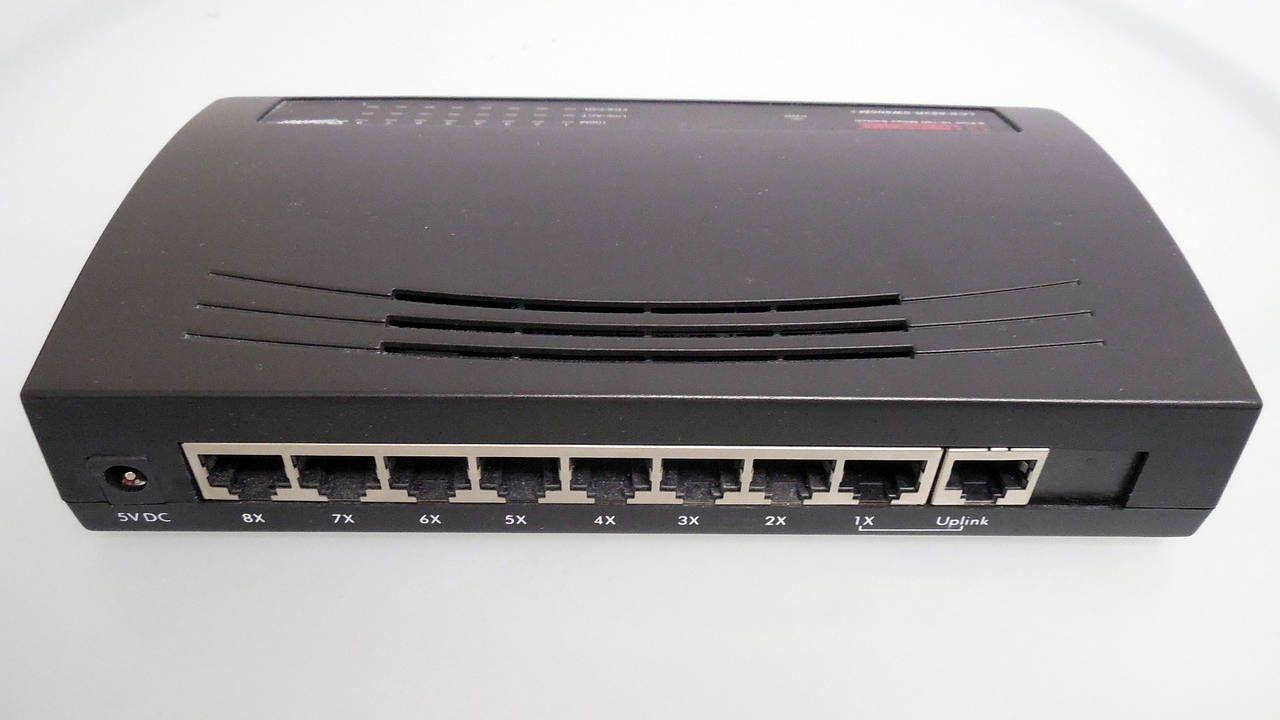
Another very direct way to find out your router's IP address is to look at the device's casing. On the bottom or back, there's usually a label with information such as:
- IP address to access the panel (sometimes “Gateway”, “Router IP” or similar).
- WiFi network name (SSID).
- Default WiFi password.
- Username and password to access the administration panel.
Not all models display this comprehensive information , but many routers from internet service providers and popular brands do. If you don't see anything on the router itself, check the original box, a card that came with the router, or the quick start guide included by the manufacturer, as these usually indicate the default access IP address and credentials.
If you know the exact model of your router (for example: Archer C6, Deco X50, Archer AX6000, TL-WR841N, etc.), another option is to look it up on the manufacturer's official website. Access the support section for the specific model, and within the manual or quick start guide , you'll usually find the default IP address and the factory username/password. This is especially useful with devices like the TP-Link Archer, Deco, or TL-WR series, which have multiple hardware variants and revisions.
How to find your router's IP address on your computer
If typical IP addresses don't work or you want to be absolutely sure which is the gateway, operating systems offer very simple tools to check it. In Windows, you can use either the Command Prompt or the Control Panel; in macOS and GNU/Linux, you'll find it in the network settings or from the terminal.
Find the router's IP address in Windows using Command Prompt
This is probably the fastest way in Windows to see your router's IP address without getting bogged down in menus:
1. Click the Start button (Windows logo) or press the Windows key on your keyboard.
2. Write cmd in the search bar and press Enter to open the window Symbol of the system.
3. In the black window that opens, type ipconfig and hit Enter.
The ipconfig command will display a lot of information about your connection: IPv4 addresses, subnet mask, network adapters, etc. What you're interested in is locating the line that says "Default Gateway" under the network adapter you're using (usually "Wi-Fi Wireless LAN Adapter" or "Ethernet Adapter"). That number, in a format like 192.168.1.1 , is your router's IP address.
In Windows 10 and Windows 11, the process is virtually identical . In Windows 11, you can open either the classic Command Prompt, Windows Terminal, or PowerShell. In all cases, the command to run is the same ( ipconfig ), and the information you need to look for is still "Default Gateway."
View the router's IP address in Windows from the Control Panel
If you prefer the graphical method instead of using the console, Windows also allows you to view the router's IP address from the Control Panel:
1. Open the Start menu and type "control Panel"Press Enter to enter.
2. Go to section “Networks and the Internet” and then to “View network status and tasks”.
3. On the right, you'll see your active connection (the network or router name). Click on that link.
4. In the window that opens, click on the button "Details".
A new window will appear with the adapter details : IPv4 address, DHCP server, subnet mask, etc. In that list, you'll see a field called "Default IPv4 Gateway ." This value is your router's local IP address, which is the address you need to enter in your browser to access the administration panel.
Get your router's IP address on macOS
On Apple computers with macOS you have two main options : use the Terminal app or access the Network settings from System Preferences.
From the Terminal you can run a command equivalent to ipconfig to view network parameters, but for most users it is more convenient to follow the graphical path:
1. Click on the Apple logo and enter "System preferences" (or “System Settings” in more recent versions).
2. Access the section "Net".
3. Choose the connection you are using (Wi-Fi or Ethernet) and tap on it.
The information displayed for that connection will show your local network details. Depending on your macOS version, the router's IP address may be listed as "Router ," "Gateway," or "Default Route." The IP address you need is the one shown in the format 192.168.xx.
View the router's IP address in GNU/Linux distributions
In GNU/Linux systems like Ubuntu, Debian, Fedora, and similar distributions, you also have the option of using the terminal or the graphical menus. The easiest way, if you're not comfortable with commands, is to use the network configuration interface.
On desktops like GNOME or similar , the general steps are these (the names may vary slightly depending on the distribution and translation):
1. Open the dashboard "Configuration" of the System.
2. Enter the section "Net" or “Wi-Fi”.
3. Select the active connection (your WiFi network or wired interface) and tap to view its properties.
In the connection information, you'll see several fields related to the IP address, DNS, and gateway. The key piece of information is usually called "Default Route ," "Gateway," or "Gateway." This is the router's local IP address, which you'll need to enter into your browser to manage the device.
How to find your router's IP address from your Android mobile
In many cases, you won't even need a computer to find your router's IP address. Android allows you to view this information through its settings, although the exact path may vary slightly depending on the brand and manufacturer's custom interface (Samsung, Xiaomi, Realme, etc.).
First of all, make sure you're connected via Wi-Fi to the network whose router you want to check. Otherwise, you'll see data from another network or nothing useful at all. Once connected, follow this general procedure:
1. Enter the app "Settings" from your mobile (gear icon).
2. Access the section “Networks and the Internet” or “Connections”, depending on the device.
3. Click on “Wi-Fi” to see available networks and your current connection.
Within the list of Wi-Fi networks, you'll see the network you're connected to at the top. Tap on it, usually using the gear icon, the arrow, or an information button located to the right of the network name.
When you open the network settings , you may initially only see some basic information (signal strength, frequency, security type, etc.). To see all the details, look for a section called "Advanced ," "Network Details," or something similar, and expand that menu.
At the end of the advanced information, you'll usually find the router's IP address in a field labeled "Gateway ." This is the address you'll need to enter into the browser on your mobile device or any other device connected to the same network to access the router's settings.
What if your Android device doesn't display the gateway address natively? Some models hide this information quite a bit, or oversimplify it. In those cases, you can use network analysis apps like a Wi-Fi analyzer . These apps usually show, as soon as you open them, both the channels of nearby networks and the IP address of the router you're connected to, under the "access points" or "access" tab (depending on the app). Again, that IP address with the 192.168.xx structure is the one you need.
How to find your router's IP address on iPhone (iOS)
On iPhones with iOS, the process is very similar to Android , except that Apple slightly changes the field names and simplifies how the information is displayed. Here too, it's essential to be connected to the Wi-Fi network of the router you want to manage.
Follow these basic steps on your iPhone:
1. Open the app "Settings" of the iPhone.
2. Click on the section “Wi-Fi”, where you will see the network you are connected to.
3. To the right of your network name, tap the button with the letter "I" inside a circle (information icon).
A screen will open with all the details of that Wi-Fi network : iPhone's IP address, subnet mask, DNS server , etc. Unlike Android, here you won't see a field called "Gateway," but rather a field called "Router ." That numerical value is the IP address of the router on your local network.
Once you have located that address , you can type it into your iPhone's browser (Safari or whichever one you use) to access the router's configuration panel, provided you know the username and password for accessing the device itself.
Why is it so important to configure the router correctly?
It's great that the technician got the router working on the first day , but that doesn't mean the factory settings are the most secure, fastest, or most convenient for you. Accessing the router's control panel using the IP address you learned to find allows you to adjust a lot of key parameters.
Some of the most common changes that you should check on virtually any home router are:
- Change the WiFi network name (SSID).
- Change your WiFi password to a stronger one.
- Upgrade the encryption to a more secure standard (WPA2 or WPA3).
- Change the password to access the router itself.
- Choose the least congested WiFi channel.
- Create a guest network separate for visitors.
- Update the firmware to the latest available version.
All of this is done through the router's web interface , which you access by entering the gateway IP address in your browser's address bar and logging in with the router's username and password (which don't necessarily have to be the same as your Wi-Fi network credentials). Many older routers still use very basic combinations like "admin/admin" or "admin/1234", which is why it's so important to change these credentials as soon as possible.
Some providers have started offering their own apps that allow you to manage some settings from your mobile device (changing the password, activating the guest network, etc.) without needing to remember the IP address. Even so, the classic method of accessing the router via a web browser using its local IP address remains the most universal and offers the most complete control.
Recommended changes to your router settings once you know its IP address
Once you know your router's IP address and can access the control panel , there are a number of settings that are definitely worth checking, both for performance and security. We've grouped them together so you don't miss anything important.
Change WiFi network name (SSID)
Most routers come with a generic network name that usually includes the device model or the name of the internet service provider. While it may seem like a minor detail, leaving that SSID as is can give potential attackers clues about the type of router you have and any vulnerabilities it might have.
The best option is to use a neutral network name that doesn't include your name, apartment number, building number, or anything that identifies you. This prevents you from giving away information about who you are or what router model you use. Changing the SSID won't make you invulnerable, but it helps avoid attracting attention and giving extra information to curious onlookers.
Use a strong WiFi password and modern encryption.
Your Wi-Fi password is the main barrier to preventing unauthorized access to your network. The passwords printed on the router's label are usually acceptable, but they aren't always particularly complex, and in some cases, they follow patterns that can be deduced.
For a strong Wi-Fi password, mix uppercase and lowercase letters, numbers, and special symbols, avoiding dictionary words or personal information (birthdates, pet names, etc.). The longer and more random the password, the better. It's a hassle to type it on multiple devices, but the added security is worth it.
In addition to the password, check the type of encryption being used . You should avoid outdated systems like WEP or even the older WPA, which are easy to crack nowadays. On modern routers, it's best to configure at least WPA2-PSK , and if your router and devices support it, enable WPA3 , which is the most robust standard currently available.
Change the password to access the router
A different password is the one that protects the router's control panel itself . This is used when you access the router's IP address in your browser and it asks for a username and password to manage the device. It's very common for people to leave these credentials at their default values, such as "admin/admin", "admin/1234", or similar.
If someone knows your network and this default password , they could access your router's control panel and change your settings, open ports , redirect your traffic, or even block your connection. Therefore, once you're in the control panel, it's advisable to go to the administration or security section and immediately change the access password to a long, hard-to-guess password.
Choose the WiFi channel and configure bands
In areas with many Wi-Fi networks (apartment buildings, offices, etc.), it's very common for performance to suffer due to interference. Your router broadcasts on one of the available channels in the 2,4 GHz or 5 GHz band, and if many neighbors are using the same channel, the signal becomes saturated.
From your router's control panel, you can manually change the channel to choose a less congested one. There are Wi-Fi analysis programs and apps that show you which channels are most crowded and help you choose the ideal one. Many modern routers can also select the best channel automatically, although they aren't always accurate.
Take this opportunity to also check how the bands are configured (2,4 GHz and 5 GHz, or even 6 GHz on WiFi 6E routers and higher). The 2,4 GHz band has a longer range but is slower and tends to be more congested, while the 5 GHz band offers faster speeds over short distances. Some routers allow you to separate the networks (two different SSIDs) or unify them under a single name with automatic band steering.
Update the router firmware
Firmware is the router's internal "operating system ." Just like your mobile phone or computer, your router receives regular updates that fix bugs, patch security vulnerabilities, and sometimes improve performance or add new features.
The settings panel usually has an "Update" or "Firmware" section where you can check for a newer version. In some cases, you can update automatically from the internet; in others, you need to download the file from the manufacturer's website and install it manually.
It's advisable to check for these updates periodically , because a firmware vulnerability could allow an attacker to take control of the router remotely. Furthermore, manufacturers like TP-Link are constantly expanding features or improving support for specific models (Archer, Deco, TL-WR, etc.), so it's a good idea to visit your product's support page and check both the technical specifications and the firmware section.
Other useful safety precautions
In addition to the above, there are a number of extra measures you can consider depending on the level of control you want over your network:
- Disable SSID broadcastingThis hides the network name so it doesn't appear in regular Wi-Fi searches. It's not foolproof, but it adds a small extra layer of privacy.
- Configure MAC filteringThis feature allows you to create a list of authorized MAC addresses for connections. It requires manually adding each device, but makes unauthorized access more difficult.
- Review and adjust the router's firewall.Many routers include a basic firewall; it's a good idea to make sure it's enabled and that only truly necessary connections are allowed.
- Disable services you don't useUPnP, remote router access, FTP servers, or similar should be disabled if you don't need them, as they represent potential additional entry points.
All these actions rely on a common point : being able to access the configuration panel, which requires knowing precisely the router's local IP address, the famous gateway that you have learned to locate in Windows, macOS, GNU/Linux, Android and iOS, or directly on the label of the device itself.
Once you've mastered how to find your router's IP address and distinguish it from your public IP address , the rest is simply a matter of navigating the settings panel, changing the default passwords, adjusting the Wi-Fi to your environment, and keeping the firmware up to date. With a few well-executed changes, your network will be faster, more stable, and, above all, significantly more secure than with the factory settings your router came with.
