- Most freezes are explained by temperature, faulty hardware or lack of resources (RAM, disk, power supply).
- Tools such as CHKDSK, SFC, DISM and memory diagnostics allow you to rule out system, disk and RAM corruption.
- Safe mode, clean boot, and a single updated antivirus help isolate programs and drivers that cause crashes.
- If nothing else works, resetting Windows and having the power supply, motherboard, RAM, and SSD/HDD checked with professional help usually solves the problem.
Having your PC freeze in the middle of a game, a video call, or even just browsing the web is one of the most frustrating things that can happen to you. The screen freezes, the mouse won't move, the sound gets stuck in a loop, and you're left with no choice but to hold down the power button to force a shutdown… risking losing everything you were doing. To diagnose a slow PC, you should follow a logical order of checks.
The tricky part is that a freeze can stem from both software and hardware : from a simple, incorrectly installed program to a failing power supply, faulty RAM, a damaged hard drive, high temperatures, malfunctioning drivers, viruses, or even a problem with your Windows user account. In this guide, we'll review all the common causes and the most effective solutions, so you can troubleshoot each possibility without getting overwhelmed, and see which Windows maintenance tools can help.
What does it really mean when a PC "freezes"?
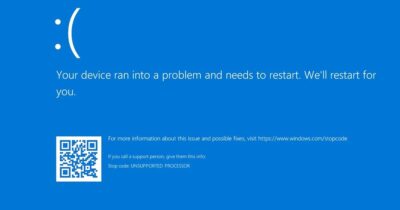
When we say a PC freezes, we mean that the operating system stops processing instructions : the screen freezes, the cursor becomes unresponsive, the keyboard is unresponsive, and often the only option is a physical reset. In some cases, Windows even displays a blue screen of death (BSOD), but in many others, it doesn't even do that; it simply freezes.
The symptoms can vary considerably depending on the cause of the problem : sometimes it freezes immediately upon startup and entering the PIN, other times it happens when opening a game, other times when closing Chrome, or when the computer has been on for many hours. In many cases, the audio continues playing for a few seconds or minutes, or you can hear the other person on a call but they can no longer hear you, indicating that the system is partially functioning, but some component or driver has stopped responding.
It's also very common that when a PC freezes once, if you restart it immediately, it will freeze again shortly after , while if you let it "rest" for a while, it lasts longer. This usually points to temperature, power supply, or hardware problems that appear when the computer is hot or under sustained load.
It's important to distinguish between a complete freeze and a simple pause lasting a few seconds : if the mouse moves but everything is extremely slow, or the system only responds after 20-30 seconds, it's more likely a disk issue, virtual memory problem, or lack of resources than a hard freeze. If only one application is frozen, here's how to close a frozen application in Windows without restarting the entire system.
Causes of temperature lockup and hardware failures
One of the most common causes of PC freezes is high temperatures , especially in summer or in systems that haven't been internally cleaned for years. Dust accumulates on fans, heatsinks, and vents, reducing airflow and acting like a blanket that prevents heat from escaping properly.
If the CPU, GPU, or even the chipset approaches its maximum safe temperature , the system will first begin to reduce frequencies and voltages to protect itself (throttling). If this is still insufficient, it may eventually freeze or shut down abruptly. A similar situation can occur if the thermal paste is dry or improperly applied, or if the heatsink is not securely attached.
Besides temperature, any faulty component can cause random freezing . There are certain patterns that help identify the culprit:
- Power supply damaged or insufficientThe PC shuts down or restarts unexpectedly after a while, sometimes more frequently over several days. It may also freeze when the power supply unit (PSU) fails to deliver the necessary power reliably.
- Faulty RAM memory: seemingly random crashes, blue screens of the “Memory Management” type, errors when copying files or files that suddenly appear corrupted.
- Hard drive or SSD with bad sectors: intermittent freezes, endless loading times, system that hangs for a few seconds while the disk "scratches" and, in severe cases, BSOD or total freeze.
- graphics card with problems: freezes especially when playing games or running 3D applications, sometimes accompanied by screen freezes, screen artifacts or loss of video signal.
A key trick to determine whether you're dealing with a software or hardware problem is to check if, after reinstalling Windows or performing a factory reset, the PC continues to behave the same way. If the crashes persist with a clean system, the problem is very likely hardware-related.
Resources are lacking: RAM, disk space, and virtual memory are at their limits.
Not all freezes are caused by a broken component ; often the computer simply runs out of resources. When the RAM is full, the processor is at 100% usage, and the hard drive is saturated, Windows experiences a severe bottleneck and, instead of just running slowly, in some cases it ends up freezing completely.
RAM acts as short-term working memory . If you have a browser open with 20 tabs, a game, Spotify, several office applications, and on top of that some resource-intensive programs (video editing software, virtual machines, etc.), it's easy to approach the limit even with 8 GB or 16 GB of RAM.
When physical RAM is full, Windows uses "virtual memory" by using the hard drive as an extension . This causes the drive to constantly read and write to the page file. Even on an SSD, this is much slower than using real RAM, and the system can enter a slowdown that eventually leads to a crash.
If the system drive (usually C:) is also almost full , the operating system won't have enough space for virtual memory or its own temporary files, which greatly increases the chances of it crashing. As a guideline, it's recommended to leave at least 20 GB of free space on the Windows drive.
Tools like Task Manager let you see real-time CPU, RAM, disk, and network usage . If the freeze occurred when your RAM and/or disk usage was at 100%, it's highly likely the problem is insufficient resources rather than a broken component.
How to check disks, memory, and system files (CHKDSK, SFC, DISM, RAM Diagnostics)
Before replacing any parts, it's a good idea to use the built-in Windows tools to check the status of your drives, system files, and RAM. Many freezes caused by data corruption can be resolved this way without having to reformat.
The first stop is usually CHKDSK (Check Disk), a veteran command that scans hard drives and SSDs for logical and physical errors. It can mark and isolate bad sectors and repair corrupted file system structures.
To use CHKDSK, open Command Prompt or PowerShell as administrator and run the command on the drive you want to check (for example, C:). If the drive is in use, the system will schedule the check for the next restart. You can also launch CHKDSK from the Windows Repair Environment by booting from an installation USB drive and going to "Repair your computer > Advanced options > Command Prompt". If you need additional instructions on useful CMD commands for these tasks, consult them before making any changes.
After CHKDSK, it is highly recommended to run SFC (System File Checker) . This command analyzes critical Windows files and replaces any it detects as damaged or modified with correct versions stored in the system cache.
If SFC fails to repair everything, DISM (Deployment Imaging Service and Management) comes into play. Using parameters such as /ScanHealth , /RestoreHealth , or /StartComponentCleanup , DISM checks and repairs the Windows image, including components that SFC cannot fix on its own.
Another key point is to check the integrity of your RAM . Windows includes the "Windows Memory Diagnostic" tool, which you can access by typing mdsched in the Run dialog box. The system will restart and perform a full RAM test before loading the operating system.
If the diagnostic detects errors, even just a few faulty cells, it's enough to cause the PC to freeze randomly when trying to access those memory addresses. In that case, you would need to test the modules individually and replace the faulty one.
Try booting into safe mode and a clean boot to isolate problematic software.
When disk and RAM tests yield no conclusive results, suspect software : incompatible drivers, background programs, third-party utilities, antivirus software, etc. Safe Mode and a clean boot are your best friends here.
In Safe Mode, Windows starts only with the essential drivers and services : no advanced graphics drivers, no startup programs, and no third-party applications. If your PC stops freezing in this mode, you can be almost certain that the problem lies with some software that loads during normal startup.
If your computer won't even let you get to the desktop smoothly , you can force it to boot into the recovery environment by turning your PC off and on three times in a row during the Windows loading screen (when you see the logo). On the third try, the blue recovery menu should appear, from which you can go to Advanced options > Startup settings and enable Safe Mode.
Another very useful technique is to perform a "clean boot" . This basically involves disabling all startup programs and non-essential third-party services from msconfig and Task Manager, so that Windows starts "almost" as clean as in safe mode, but with more complete drivers.
From there, you can gradually activate services and programs until you pinpoint the one causing the freezes. It's a somewhat tedious process, but very effective for identifying the problematic software.
Viruses, malware, and misconfigured antivirus software
Malware is another classic source of crashes, extreme slowness, and complete system freezes . Some types of malware consume CPU, RAM, and disk space to the fullest (miners, Trojans, adware loaded with advertising), while others corrupt files or tamper with the Windows registry.
Typical infection symptoms include constant pop-ups, programs you don't remember installing, a browser cluttered with toolbars and strange extensions, or perpetually slow startup times . If you also experience freezes, you almost certainly have unnecessary junk installed.
Windows Defender (Microsoft Defender) is more than sufficient for most users if it's properly updated. You can run a full scan or an "Offline scan" to analyze your system before Windows loads, helping to catch malware that hides in memory from startup.
For added support, specialized tools like Malwarebytes' AdwCleaner are invaluable for removing adware, toolbars, and PUPs (potentially unwanted programs). They don't require installation and often detect what other antivirus programs miss.
Be aware of this: having two antivirus programs running simultaneously is often worse than having none at all . When Microsoft Defender and a third-party antivirus try to scan the same files in real time, they can conflict with each other, drastically increase CPU usage, and leave your PC sluggish or even frozen.
The rule is clear: only one active antivirus, and no stacking of security suites . If you install a third-party antivirus, disable Defender's real-time protection to avoid conflicts.
Problems with user account and corrupted profile files
There are cases where the PC freezes right when logging in or entering the user password , while things seem to work somewhat better in safe mode. In these situations, the problem is often due to corrupted files within the user profile.
Windows stores a lot of settings, caches, and specific data for each account . If any of these elements are corrupted (due to a power outage, malware, an improper uninstallation, etc.), logging in can become a nightmare of crashes and freezes.
Ideally, you should try another local or Microsoft user account to see if the problem persists. But almost no one has a secondary account set up, so you'll have to resort to safe mode or using installation media to open a Command Prompt with elevated privileges.
In that environment, you can again use DISM and SFC to repair the Windows installation with commands such as:
- DISM.exe /Online /Cleanup-Image /ScanHealth
- DISM.exe /Online /Cleanup-Image /StartComponentCleanup
- DISM.exe /Online /Cleanup-Image /RestoreHealth
If things don't improve after that, you can create a new user account and migrate your data (Documents, Desktop, etc.) manually from the old profile, avoiding carrying over corrupted settings.
Freezing while gaming: graphics card, drivers, and requirements
Gaming freezes are a common problem, and several factors come into play . The first, as always, is temperature: both the GPU and CPU work at maximum capacity, and if the cooling system is dirty or undersized, the computer can freeze mid-game.
It's advisable to monitor temperatures using tools like HWiNFO, HWMonitor, or MSI Afterburner . If you see readings above 90-95 °C on the GPU or CPU under load, something is wrong. This could be due to dust, depleted thermal paste, faulty fans, or poor airflow in the case.
Another factor is the hardware's own power : if you try to run a modern game with a very basic graphics card or little RAM, it may start but it will be at its limit and end up freezing when loading certain scenes or when entering/exiting the game.
Graphics card drivers are another common source of freezes . Outdated, improperly installed, or unstable beta drivers can cause anything from simple game crashes to complete system freezes.
The recommendation is to always have the latest stable version of the official NVIDIA or AMD drivers installed, and if you've had several years of updates, perform a clean installation using utilities like DDU (Display Driver Uninstaller) to remove any traces of previous versions.
Don't forget potential problems with the game itself : corrupted installations, damaged files, conflicting mods, or poorly optimized versions that crash on certain configurations. Verifying the integrity of the game files through Steam, Battle.net, etc., and reinstalling the game if necessary usually helps.
Finally, DirectX and other graphics APIs (Vulkan, OpenGL) can also cause problems if they are outdated or corrupted. Reinstalling the DirectX runtime from the Microsoft website and keeping Windows up to date through Windows Update significantly reduces these issues.
Windows, BIOS, and driver updates
Large Windows updates sometimes bring more problems than improvements . It's relatively common for crashes, browser restarts, performance drops, or incompatibilities with older drivers to occur after a feature update.
If you notice that the freezes started right after a specific update , you can try uninstalling it from Settings > Update & Security > Windows Update > View update history > Uninstall updates. Another option is to use a previous restore point.
Even so, having a completely outdated system isn't a good idea either : you miss out on stability fixes, security patches, and new driver versions distributed through Windows Update. The sensible approach is to keep updating, but avoid installing major updates on day one until they've settled.
Updating your motherboard's BIOS/UEFI can also resolve crashes related to processor, memory, or graphics compatibility. However, it's a delicate process: a power outage or flashing the wrong file could render your motherboard unusable. Before modifying the BIOS, carefully review the manufacturer's website for each version's release notes and ensure you download the exact file for your model. Additionally, it's advisable to understand what a service pack is and how major updates affect the system.
Peripherals, device drivers, and power supplies
Not everyone thinks about peripherals when their PC freezes, but a faulty device can crash the system . A USB drive that keeps disconnecting, a damaged external hard drive, a printer with outdated drivers… if your computer freezes every time you connect or use a certain device, it's worth investigating. For specific printer problems, see the guide on printer issues in Windows.
Typical signs of a problematic peripheral are freezing as soon as it is plugged in or when it starts to be used , error messages of device not recognized or that the system simply stops seeing it or loses it in the middle of a transfer.
The diagnosis is simple: disconnect all peripherals except the essentials (keyboard, mouse, and monitor) and see if the crashes disappear. Then reconnect them one by one until you find the one causing the problem. You can also check if it behaves the same way on another PC.
The power supply unit (PSU) is another critical component that is often overlooked. A generic 500W PSU of dubious quality may not be able to reliably power an RX 580, an RTX 3060 Ti, or any moderately powerful graphics card, especially if the computer is a few years old.
Symptoms of a faulty PSU include random restarts or shutdowns, strange noises, a burning smell, the inability to turn on the PC sometimes, and even freezes under heavy load . You can use online PSU calculators to check if the rated power is sufficient for your hardware.
If you suspect the power supply, the safest course of action is to try another one from a reputable brand with a decent certification (80 Plus Bronze or higher). A multimeter or a PSU tester can help detect out-of-range voltages, but if you're inexperienced, it's best to leave it to a professional.
Physical maintenance: cleaning, cooling, and component upgrades
Although it may sound like a cliché, a clean and well-ventilated PC fails much less often . In desktops and, especially, laptops, dust on fans and heatsinks causes temperatures to spike and shortens the lifespan of components.
An annual internal cleaning with compressed air, tidying up cables, and checking that all fans are spinning properly is usually sufficient for most home computers. With laptops, you often have to remove the bottom casing to access the fans and vents, so it might be a good idea to use a repair service if you're not confident doing it yourself.
CPU thermal paste also degrades over time . It's recommended to replace it with a decent quality paste every 3-4 years, making sure the heatsink is properly installed. This is even more necessary for heavily used graphics cards or high-performance systems.
If your problem is limited resources, upgrading RAM or switching to a large SSD can breathe new life into your PC . These days, 8 GB isn't enough for some intensive uses; 16 GB is a good starting point for gaming and working comfortably, and 32 GB or more is ideal for video editing, demanding design work, or virtual machines.
Regarding storage, replacing a mechanical HDD with an SSD (ideally at least 500 GB or 1 TB) significantly reduces freezes and micro-freezes caused by slow disk access. Furthermore, modern SSDs have error correction mechanisms that make them more resilient to minor failures.
For laptops, pay special attention to overheating : avoid using them on beds or soft surfaces that cover the vents, always leave some space underneath, and consider using a cooling pad with fans if you work for many hours at a time.
What to do when none of the above works
If you've checked temperatures, run CHKDSK, SFC and DISM, checked the RAM, tried safe mode, uninstalled suspicious programs and your PC is still freezing , it's time to take more drastic measures.
Resetting Windows from the recovery options is usually the next logical step . You can choose between keeping your personal files or erasing everything; in both cases, Windows will be reinstalled, leaving the system clean, but with the "keep files" option, you'll have to reinstall programs manually.
If the system doesn't even boot stably, you can create a Windows installation USB , boot from it, access "Repair your computer," and from there attempt a system restore, startup repair, or a complete reinstallation.
When you suspect the BIOS (for example, because you touched some overclocking or advanced settings and since then you have crashes) , a classic way to return to factory settings is to remove the motherboard battery for a few minutes with the computer disconnected, or use the clear CMOS jumper if the motherboard has one.
And if, after all this, the PC continues to freeze, the most sensible thing to do is assume there's a hardware failure that's difficult to locate without tools . At that point, taking the computer to a technician who can test the memory, power supply, motherboard, graphics card, and hard drives with replacement parts usually saves a lot of time and headaches.
With all that said, most freezes end up being solved by following a logical order: check temperatures and cleanliness, check disks and RAM, rule out conflicting software, keep drivers and Windows up to date, monitor the power supply and, if necessary, update key components to give the computer a break ; if you tackle the problem step by step and not haphazardly, it's unlikely you'll have to live for long with a PC that freezes every other day.