- Router ports act like numbered doors through which data enters and exits, and should only be opened when a service requires connections from the Internet to your network.
- Opening a port involves creating a port forwarding rule that associates an external port, a protocol, and a fixed internal IP address of the device that will receive the traffic.
- UPnP can automate the opening and closing of ports, but for security it is more advisable to manually open only the necessary ones and check them with scanning tools.
- Each open port increases the attack surface, so it's advisable to avoid exposing sensitive ports, keep your router updated, and periodically review active rules.
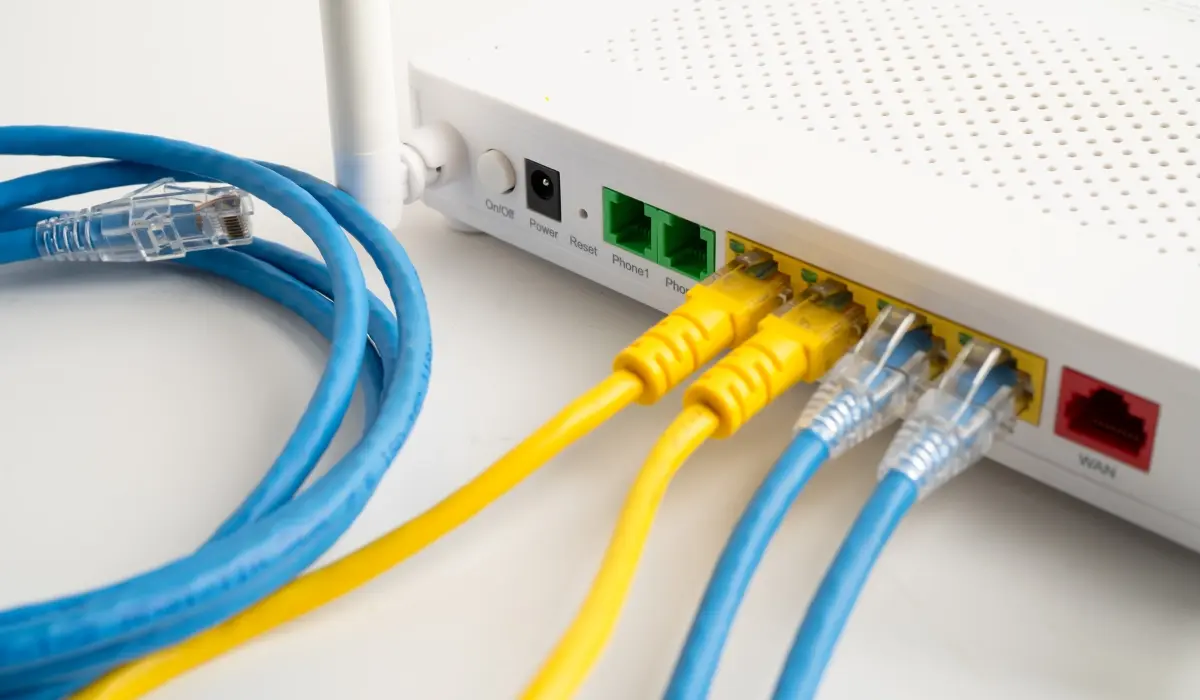
If you've ever struggled with an online game, a download program ( like how to open a torrent step by step ), or an IP camera that you can't view from outside your home, the problem is very likely related to your router's ports and how you have them configured . It sounds like something network engineers would do, but with a little patience, you can manage it yourself without going crazy.
In the following lines, we'll see exactly what router ports are, when it's worth opening them, and how to do it step by step on virtually any home router, from ISP-provided routers (Movistar, Orange, Vodafone, Yoigo, MásMóvil, Jazztel, etc.) to models from brands like ASUS or D-Link. You'll also learn about security risks, which ports to avoid, and how to verify that everything is properly opened and working.
What are router ports and how are they organized?
To put it simply, imagine your home network is an apartment building and the router is the doorman who distributes all the packets arriving from the internet . Each service (web, email, online games, video calls, etc.) has its own "doorbell" or numbered door: that's a port. When someone calls a specific port, the router decides which device on your network should receive the data.
Every home router has 65.536 ports, numbered from 0 to 65.535 . You're unlikely to use them all, but many have a standardized function that should be respected. This organization is managed by IANA, which defines different ranges with very specific uses.
These ports are divided into three main groups with very different functions, and knowing what each range does helps you understand why some you should almost never touch and others are the ones you'll open for games or applications.
The system works like this: low ports are used by the system and basic protocols, intermediate ports are usually reserved for specific programs, and high ports are used as dynamic or private ports for occasional connections with external servers.
In detail, the ranges are distributed as follows, and it's advisable to have them under control before you start tinkering:
- Ports 0-1023 (well-known or system ports)These are reserved for the operating system and basic protocols. Typical examples include: 20 (FTPS), 21 (FTP), 22 (SSH), 25 (SMTP), 53 (DNS), 80 (HTTP), and 443 (HTTPS). It's best not to reuse them haphazardly to create your own custom services.
- Ports 1024-49.151 (registered)These are used by programs and games you install. Many are configured automatically during installation. For example, port 1194 in OpenVPN. home NAS servers or 6881 in BitTorrent.
- Ports 49.152-65.535 (private or dynamic)These are temporarily assigned to outgoing connections or to specific apps that communicate with remote servers. They are the ones most commonly used for home-based services.
Why do you sometimes need to open ports on your router?
By default, most home routers are configured to block almost all incoming internet traffic . Outgoing traffic is fine: thanks to NAT (Network Address Translation), your devices can browse, play games, or watch Netflix without needing to open anything. The trouble starts when you want incoming connections from outside the network.
When a game, P2P app, or home server needs others to connect to it from the internet, the router needs to be told which "port" to allow that traffic through. If that port isn't configured correctly, the information gets stuck in the router because it doesn't know which internal device to send it to , and that's when the typical symptoms appear: strict NAT on consoles, slow downloads, problems hosting games, dropped video calls, etc.
This is where port forwarding comes into play: you tell the router that everything coming in through a specific port should be redirected to the internal IP address of a device . If you skip this step or do it incorrectly, the connection from outside will never be established, even if the program is correctly installed.
Therefore, when you install something that relies on incoming connections, two key things happen: first, the device tries to use a dynamic port; second, if the router doesn't have a clear rule associated with that port, it will drop those incoming requests "for security reasons ." Opening ports is literally telling the router what to do with that traffic instead of just throwing it away.
Ports, NAT and security: what you should know before touching anything
NAT is the technology that allows many devices in your home to share a single public IP address . From the outside, only the router's IP address is visible, while internally, all devices use private IP addresses (like 192.168.1.X). This translation is done by the router packet by packet.
When the connection originates from within your device and goes to the internet (browsing, watching Netflix, playing games by connecting to an external server, etc.), the router creates an internal table with the source port and knows how to send the response to the correct device. You don't need to manually open ports for this.
You only need to open ports when communication originates from outside your local network : hosting an FTP server, accessing via SSH, setting up a VPN, viewing IP cameras from outside, or improving NAT on consoles so others can connect to you. In these cases, you should create a controlled loophole in your router's firewall to allow this traffic.
However, every open port is another door through which attackers could try to gain entry. Cybercriminals use scanning tools to detect open ports and vulnerable services , and from there launch brute-force attacks, exploit vulnerabilities, or even DDoS attacks if the port is suitable.
Therefore, in terms of security, the golden rule is very clear: only open the strictly necessary ports, for the shortest possible time, and keep everything updated (router, operating system, and applications that listen on that port).
Differences between TCP and UDP when opening ports
When you create a forwarding rule, you'll always see that you have to choose a protocol. In networking, the two main protocols are TCP and UDP, two different ways of sending data over the internet that affect how you need to open the port.
TCP functions as a certified messaging service: it establishes a connection, guarantees that all packets arrive in order , and if something goes wrong, it resends the necessary data. This provides high reliability, but it adds checks that introduce some latency. It's used for web browsing, email, many APIs, downloads, and more.
UDP is more inflexible: it sends packets without confirming whether they've arrived or been lost. It's like sending messages in a bottle: they travel quickly, but there's no guarantee of delivery or order . The advantage is speed and low latency, making it ideal for real-time streaming, online gaming, video calls, or live audio.
Depending on the application, you'll be asked to open a TCP port, a UDP port, or both. If you're unsure and your router offers the option, you can often select TCP/UDP (Both) to cover both possibilities, although it's best to follow the exact recommendations of the game or program.
Essential preliminary steps before opening ports
Before diving into the router's control panel, there are two things you should clarify: know which IP address to send traffic to and be sure that this IP address will not change every time the device restarts.
The first step is to get to know the private IP address of the device to which you are going to open the portsIn Windows you can open a console (search for "cmd"), type ipconfig and look at the value of "IPv4 Address". On macOS and Linux, you'll find it in the network settings or with commands like ifconfig o ip a.
The second step, and this is where many people get stuck, is to fix that IP address so it doesn't change. You can do this in two ways: by manually configuring the IP address on the device itself or, much better, by using the router's static DHCP option, always assigning the same IP address to the device's MAC address. For this, you can find information on how to access your router and configure its Wi-Fi.
If you don't do this, when the router assigns new IPs upon startup, the port rule will still point to an old address and the service will stop working, and you'll go crazy thinking the problem is something else.
Enable or disable UPnP on the router
Almost all modern routers include a feature called UPnP (Universal Plug and Play) , which basically allows applications to automatically request the router to open and close ports as needed.
The advantage is clear: if implemented correctly, you save yourself from having to create manual rules for many games and programs, and the router also closes the ports when it detects that there is no traffic through them for a while.
To activate it, you usually need to access the configuration panel (IP address like 192.168.0.1 or 192.168.1.1 in your browser), log in with your username and password, and look for the UPnP, NAT, or advanced settings section . It's usually as simple as checking a box, saving, and you're done.
The problem is that, from a security standpoint, some experts recommend keeping UPnP disabled , because a malicious app on your network could open ports at will and leave a significant vulnerability. If you want to be on the safe side, it's slower but more controlled to manually open only the ports you need; generally, it's best to follow good router configuration advice.
How to access the router and locate the port forwarding section
To adjust any settings, you must first access the router's web interface . This is usually done by typing the gateway address into your browser's address bar: typically 192.168.1.1 or 192.168.0.1, although each internet service provider may use a different one.
If you don't know it, in Windows you can open the Command Prompt, run ipconfig and look at the "Default Gateway" field. That's the IP address you need to enter in your browser as if it were a normal website; you can also check how find your router's IP address.
Once the login page loads, enter your router's administrator username and password . These are usually found on a sticker on the base or back of the device (admin/admin, 1234/1234, or similar combinations on many ISP models).
Within the menu, the port forwarding section may be called different things depending on the manufacturer: NAT, Port Forwarding, Virtual Server, Port Redirection, or Virtual Server . It's usually found under "Advanced Settings," "Internet," "Firewall," or similar, so you'll have to navigate through the tabs a bit.
Keep in mind that if you've ever changed your router password and forgotten it, you might have no choice but to perform a physical reset of the device to restore it to its factory settings . This will erase all your configuration (including open ports), so it's a good idea to back up your settings once you've got everything working properly.
Manually open ports on any router: key parameters
Once you're in the correct section, all routers request roughly the same information, although the screen may change slightly. The idea is always the same: create a rule that specifies which port to open, to which internal IP address, and with which protocol.
The most common fields you will encounter are these (the names may vary slightly, but the meaning is the same):
- Name of service or rule: label to remind you what that opening is for (for example, "PS5 Online", "Minecraft Server", "Lounge Camera").
- DanceChoose between TCP, UDP, or both. Follow the instructions in the game or program; if it doesn't specify, both are often used.
- External Port / WAN PortThis is the port number that will be opened to the Internet. If you are asked to open port 25565, for example, this will be 25565.
- Internal port / LAN port: On many routers you can leave it the same as the external one, unless you want to perform port translation for some special reason.
- Internal IP address (LAN Host, Internal IP): the static IP address of the device on your network that will receive that traffic (computer, console, NAS, IP camera…).
- Source IP address or source filtering (if it exists): some advanced routers allow you to limit who can use that port only from certain remote IPs, adding a layer of security.
After filling in these fields, there will usually be an Add, Save, or Apply button . On many models, the change is applied immediately, but on others, it's recommended to restart the router to ensure the rule is activated without problems.
If you're opening multiple non-consecutive ports, some firmwares allow you to enter comma-separated lists or hyphen-separated ranges (for example, 1000-1010, 2000, 3000-3005). Others require you to create a rule for each port or range, one by one, which is a bit of a hassle but works the same way.
On specific carrier routers, such as the ZTE F680 from Jazztel/MásMóvil, you'll see additional fields like WAN Start/End Port and LAN Start/End Port . The logic is the same: you specify the external range you want to open and the internal range to redirect to, which will often be identical unless you want to map a different group.
Open ports from the operators' websites and their own portals
Some companies like Movistar, Orange or Vodafone offer their own portal on their website (like Portal Alejandra or other remote management tools ) from where you can change router settings without directly accessing its internal IP address.
These portals usually include a Ports or Port Forwarding section where you choose whether to apply predefined profiles (for example, for PS5, Xbox or certain games) or if you want to create manual rules with IP, port and protocol; if you use the operator's router you can consult guides such as the guide to configure your Movistar router.
The advantage is that the interface is usually more user-friendly and consistent, even if router models change within the same provider. Furthermore, you can adjust the settings remotely, without being physically connected to the router's network.
The problem is that it only works if you're using the router provided by your internet service provider, and they don't always display all the advanced options . If you need finer settings (filtering by source IP, complex mappings, etc.), you'll probably have to access the router directly.
Check if the router ports are actually open
After setting up a rule, it's a good idea to verify that everything is configured correctly. You can do this either from your computer or using convenient online port scanning tools .
From Windows, a basic way to view ports in use is to open Command Prompt with administrator privileges and run netstat -anThe command will list you all ports open and active connections with its status and protocol.
On macOS, you can open the Network Utility app, go to the Port Scan tab , enter the IP address, and click "Scan" to scan for open ports. This is useful for verifying that the service is listening on the computer.
Externally, there are websites that, by entering your public IP address and a port number, will tell you if they can connect from the internet. Make sure the service is enabled on your computer when you run the test, or the result may be misleading.
If the port still appears as closed, check the destination's internal IP address, the protocol, the operating system's firewall, and any CG-NAT settings from your ISP . If your connection is behind CG-NAT and you don't have your own public IP address, no matter how many ports you open on your router, you won't be able to receive direct connections from outside.
When is it advisable to open ports and specific examples
Not everything in life is about opening ports willy-nilly. There are very clear scenarios where it makes sense to do this, and others where you won't gain anything at all, even if you open half your router.
One of the most common uses is improving the online gaming experience . Many titles require specific ports to achieve an open NAT, especially on consoles like PS4, PS5, Xbox 360, or Xbox One. This reduces problems when joining matches, voice chat issues, and excessive lag.
It's also quite common for P2P applications and BitTorrent clients to do this . If the port the program uses is closed, you'll find that your connection is always slower, you'll get "strict NAT" or "firewall blocking" warnings, and downloads will be much slower than they should be.
Other cases where opening ports makes a lot of sense are home servers (web, FTP/FTPS, SSH, VPN , NAS), IP video surveillance cameras accessible from outside, network printers with remote management, or video calls that require incoming connections in very specific ranges.
Which specific ports are typically opened for games, apps, and devices
Each program or device defines the ports it needs in its documentation, and that's the first thing you should check. Even so, there are some fairly standard ports that are common in many home use cases.
In the world of games and consoles, some very common examples are:
- PS5: ports 80, 443, 3478-3480 TCP; 3478-3479 UDP.
- PS4: ports 80, 443, 5223, 10070-10080 TCP; 3478, 3479, 3658, 10070 UDP.
- Xbox 360: ports 53, 80, 3074 TCP; 53, 88, 3074 UDP.
- Xbox One: ports 53, 80, 3074 TCP; 53, 88, 500, 3074, 3544, 4500 UDP.
Regarding video calls, several popular services use broad ranges. For example, Skype may require TCP ports 443 and 3478-3481 and high UDP ports such as 1000-10000, 16000-26000, or 50000-65000. Google Meet typically uses TCP ports 443 and UDP ports 19302-19309. Zoom uses TCP ports 80, 443, 8801, and 8802 and UDP ports 3478, 3479, 8801, and 8802.
Voice and chat applications like Discord add their own port ranges (e.g., 443, 6457-6463 TCP/UDP). Services like FaceTime rely on TCP port 443 and UDP ports such as 53, 80, 5223 and ranges 16393-16472, among others.
When we talk about network printers, ports like 9100 (very common for direct printing) are often used , in addition to others like 631, 2501, 5001, 9600 or 161 for management, depending on the model and protocol used.
In P2P, BitTorrent clients can use ranges like 9881-9999 TCP (or the one you define in configuration), while in VPNs or NAS services you will see typical ports like 1194 for OpenVPN, 500/4500 for IPsec, or other manufacturer-specific ones.
Particularly dangerous ports and the risks of leaving them open
Not all ports are equally innocent. Some are associated with services that have a long history of vulnerabilities or are highly attractive to attackers, so keeping them unnecessarily exposed is playing with fire.
Among the most vulnerable are FTP ports 20 and 21 , used for file transfer; if not properly secured, they are easy targets for credential theft. Port 22 (SSH) , while secure if configured correctly, is a frequent target of brute-force attacks.
SMB ports 137, 139, and 445 , associated with network file and printer sharing, have been the focus of attacks such as EternalBlue and various ransomware programs. Leaving them open to external threats is practically inviting them in.
Other common entry points for DDoS attacks and similar threats include port 53 (DNS) and port 69 (TFTP) , which is typically used for small file transfers. It's also unwise to expose HTTP/HTTPS ports like 80, 8080, 443, or 8443 without proper control, especially if they are hosted on poorly maintained servers or servers with outdated software.
Legacy services like Telnet (23) or TFTP (69) shouldn't be visible on the internet anymore; they lack encryption and are very easy to intercept and manipulate. If any application requests something like this, seriously consider using modern alternatives.
Typical errors when the open port "doesn't work"
It happens a lot: you configure the rule, follow a tutorial to the letter, and yet the port still seems to be closed or the game/program isn't working as it should . Usually, the cause lies in one of these points.
The first thing to check is that the destination internal IP address is correct and hasn't changed . If the IP address is obtained via DHCP and isn't static, the router may have reassigned it to another device.
Next, make sure you don't have Carrier Grade NAT with your ISP. If you're behind Carrier Grade NAT, your router doesn't receive its own public IP address; instead, it shares one with other customers. In that situation, opening ports on your home network won't help with access from outside; you'd have to request a public IP address or a specific service from your ISP.
The third suspect is the operating system's firewall or a security suite. Even if the router allows traffic through, if the Windows or macOS firewall, or your antivirus software, blocks that port , the connection won't reach the program that needs to listen.
Finally, double-check the service's configuration: ensure it's actually listening on the port you opened, that the default settings haven't been changed, and that the application is running when you test. An "open" port with no one listening behind it can appear as filtered or closed from the outside.
Opening ports for gaming: advantages and precautions
One of the most common reasons for getting involved in all this is to obtain a better NAT type for online gaming , especially on consoles. An open NAT type makes it easier to connect with other players, host matches, and reduce certain types of lag or disconnections.
Even if you only use the ports for gaming, each port opening adds some attack surface to your network. Ideally, you should only open the strictly necessary port ranges, avoid reusing highly sensitive ports, and close any you no longer use when you switch games or devices.
Also keep in mind that the port you open on the router isn't limited to your console or PC: any machine on the network that tries to listen on that same port could receive unexpected traffic if an attacker manages to access your LAN from another direction.
The reasonable balance is to be well informed about the ports required by each game or service, document them, and maintain a minimum inventory of active rules on the router , reviewing them from time to time to delete those that no longer make sense.
With that approach, you'll not only improve your gaming experience and the use of certain applications, but you'll also keep your home network under control and with a much more reasonable level of exposure.
Ultimately, understanding what ports are, how they interact with NAT, and when it makes sense to open them allows you to get the most out of your connection without increasing risks : you can host servers, play online with fewer headaches, make better use of P2P programs or IP cameras, and avoid false solutions like opening ports for things that don't need it, such as Netflix or Disney+, where quality depends on the network path and bandwidth, not on hacking the router.
