- A NAS server is a small, always-on computer that centralizes backups, multimedia, and documents on your home network.
- You can opt for a simple commercial NAS from brands like Synology or QNAP, or recycle an old PC with systems like OpenMediaVault.
- Choosing the right processor, RAM, number of bays, and NAS-specific drives is key to balancing capacity, performance, and reliability.
- Proper network configuration, permissions, and security turn your NAS into a powerful private cloud without relying on external services.
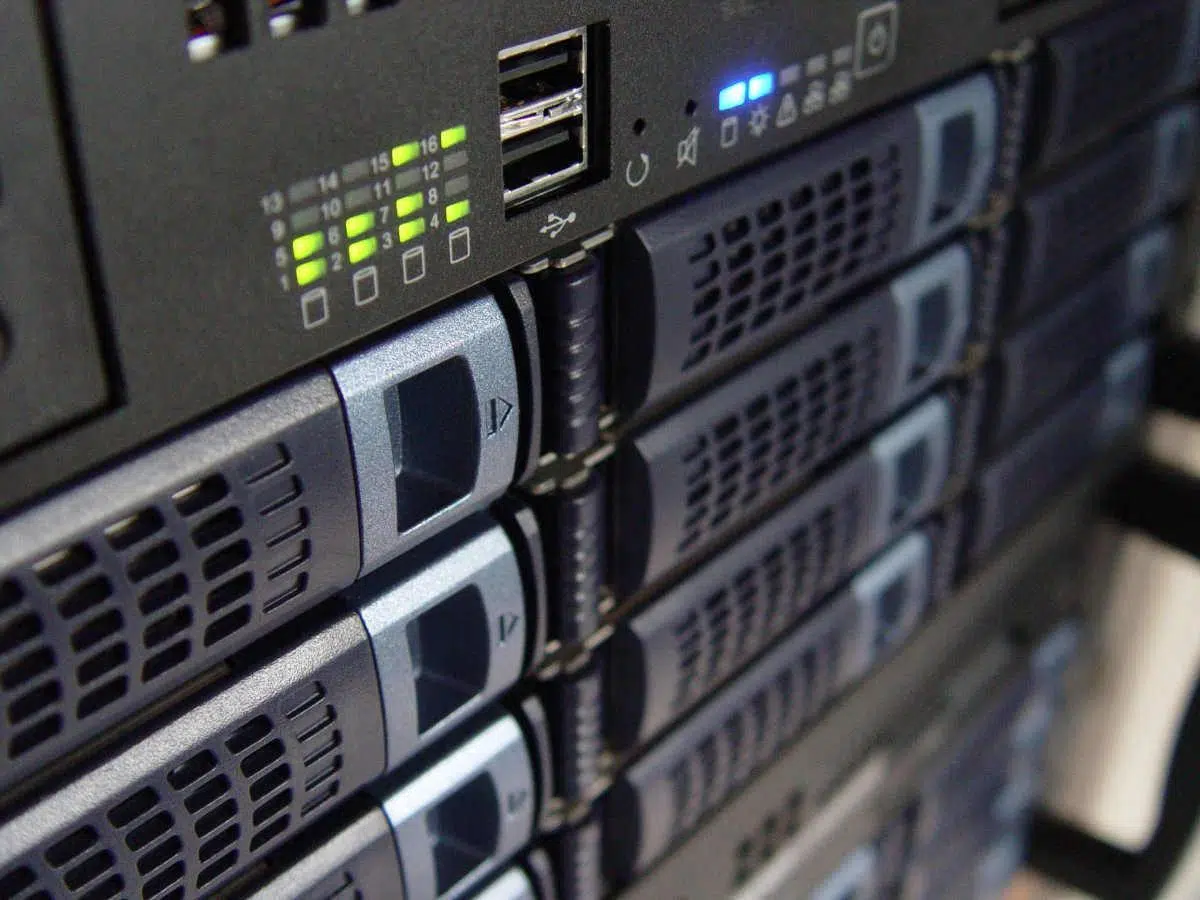
If you've been thinking about how to have your own private cloud at home without relying on Google, Apple, or other services , a NAS server is probably exactly what you've been looking for, even if you didn't know it yet. You don't need to be an engineer or a hardware geek: with a little planning and the right equipment, you can set up a system that works for you 24/7, storing your backups, photos, movies, and practically anything else you want.
In this guide, we'll take a step-by-step look at what a NAS is, your options (buying one pre-made or building it yourself) , what features to consider before removing the graphics card, and how to configure it step by step, whether you choose a commercial NAS like Synology or QNAP, or decide to repurpose an old PC with OpenMediaVault or similar systems. The goal is for you to finish this article knowing what suits your needs and how to get it up and running without any hassle.
What is a NAS server and what can it do in your home?
A NAS (Network Attached Storage) server is, simply put, a storage device connected to your local network that acts as the central hub for your data. It's like an external hard drive on steroids: instead of plugging it into a single computer via USB, you connect it to your router with a network cable, making it available to all the devices in your home: PCs, laptops, mobile phones, tablets, TVs, game consoles, etc.
Although its basic function is to store files, a NAS is actually a small computer with its own operating system , processor, RAM, and bays for one or more hard drives. Many models allow you to install applications to expand their capabilities: media server, private cloud, download server, email, VPN, web server, video surveillance solutions, and even platforms for hosting WordPress websites or online stores.
The main difference compared to a typical external hard drive is that a NAS is designed to be powered on 24/7 , always available, and is accessed via the network. This allows multiple users to connect simultaneously, automatic backups to be performed, and remote access to your files if you choose to expose it to the internet with appropriate security measures.
Another key point is that a NAS lets you create your own "Dropbox" or "Google Drive" at home . Your data isn't on a large company's servers, but on your own hard drives, in your living room or office. For many users, this isn't just about privacy, but also about control: you can expand storage whenever you want, avoid monthly fees, and adjust everything to your needs.
Within the NAS world, there are two main user profiles: the home user looking for something simple for backups, multimedia, and photos , and the small business or professional user who needs more bays, more power, and more advanced configuration options (complex RAID, specific services, multiple users with granular permissions, etc.). "Home" models tend to be more polished in terms of interface and automation, while business-oriented models prioritize robustness and capabilities.
Commercial NAS vs Home NAS: What options do you have?
When setting up a NAS server at home, you basically have two options: buy a pre-built NAS from a well-known manufacturer (Synology, QNAP, Western Digital, etc.) or repurpose an old PC you have lying around and transform it into your own home NAS. Both options have very clear pros and cons.
Commercial cloud storage systems like Synology or QNAP stand out for their ease of use and plug-and-play design . Manufacturers have done a great job refining their operating systems, offering setup wizards, their own app stores, and mobile applications so that almost anyone can set up their personal cloud in half an hour. However, this convenience comes at a price, and it's not uncommon to see mid-range models costing several hundred euros just for the casing, without any hard drives.
At the opposite end of the spectrum is the option of building your own NAS using an old PC : a desktop you no longer use, a beat-up but still functional laptop, or even very cheap second-hand equipment, such as certain SFF (Small Form Factor) PCs that can be found for €60-80 and have Intel i3 processors from a few generations ago. Here, the biggest expense is almost always the hard drives you'll install.
The main advantage of a home NAS is that you get much more power for much less money . It's not uncommon to see commercial NAS units costing €700-€800 equipped with modest processors (like Celeron) and 4-8 GB of RAM, while with that same budget in a refurbished PC you can get an older i5 or i7, 16-32 GB of RAM, and plenty of space for multiple drives. On the other hand, the setup is a bit more involved and you'll have to wrestle a little more with the operating system.
A third, intermediate option is to use dedicated NAS systems like FreeNAS/TrueNAS, Unraid, OMV, or more user-friendly distributions like hexaBOROS (the famous "hex OS" popularized by Linus Tech Tips) . These platforms offer a fairly convenient graphical interface with disk, RAID, user, and service management, but they are still more technical than the typical plug-and-play Synology. In return, they allow you to get the most out of your hardware and save you a significant amount of money.
How to choose a NAS: hardware and key features
Before you rush out to buy or recycle anything, it's a good idea to be clear about what you'll need your NAS for on a daily basis . A device for storing backups and little else is not the same as one that will stream 4K movies to multiple TVs, act as a photo cloud, host virtual machines, and manage downloads 24/7.
Let's start with the processor and RAM. While a NAS doesn't need a gaming CPU, it's important that it has enough power to handle multiple tasks simultaneously : backups, media streaming, downloads, photo indexing, etc. For normal home use (backups and HD media), a modest processor and 1-2 GB of RAM are usually sufficient, but if you plan on playing high-resolution video, using containers, or running demanding services, upgrading to 4-8 GB of RAM is highly recommended.
If you're building a home NAS, considering CPUs like the Intel Core i3 3000 or 4000 series is a great option : they consume relatively little power, provide more than enough performance for light encryption and various services, and are readily available in used office equipment. Regarding RAM, while some solutions like OpenMediaVault can boot with just 1 GB, 4 GB or more is reasonable for comfortable operation.
Another critical aspect is the number of drive bays and total storage capacity. Each bay is a slot for a hard drive, and depending on how many you have, you can consider different capacity and security scenarios . For home users, 1- or 2-bay drives are common, although there are models with 4, 6, or more bays designed for more demanding environments. Think about how many terabytes you'll need now and how many you'll need in a few years, and whether you're willing to sacrifice some capacity for redundancy.
For example, with a two-bay NAS, you can use both drives to add up capacity (without redundancy) or configure them as a mirror (RAID 1), so that one drive constantly copies to the other, allowing you to survive the failure of one drive . In configurations with more drives, you can opt for RAID 5, RAID 6, or hybrid variants, combining performance and fault tolerance.
The operating system is another point you shouldn't overlook. Each commercial NAS manufacturer uses its own platform with its own app store and interface . Synology, QNAP, WD, etc., offer official applications for backups, photos, multimedia, private clouds, synchronization with Google Drive/Dropbox, and so on. If you plan to use Plex, a specific backup system, or any other specialized software, it's advisable to check beforehand if it's available for that brand.
Finally, don't forget that a powerful NAS is useless if you install low-quality hard drives or drives not designed for 24/7 use . It's advisable to use NAS-specific drives, such as Western Digital Red or equivalent models from Seagate and other manufacturers, which are better suited to withstand continuous use, vibrations, and temperature fluctuations. In addition to capacity, pay attention to read/write speeds and RPM.
Commercial NAS: experience, real uses and limitations
Many users who make the switch to a commercial NAS discover that it ends up becoming the digital heart of their home . A typical example is someone who buys a two-bay Synology (equivalent to the current DS220j model), installs two multi-terabyte hard drives, and years later, the device is still running day and night, serving data to the whole family.
In these cases, the NAS becomes the absolute center of home storage : backups of all computers, primary storage for work files, multimedia library (movies, TV series, and music ripped from DVDs and CDs), family photos and videos, etc. Services like Dropbox, Google Drive, or iCloud are reserved for occasional tasks, while the "real data" resides on the NAS.
Thanks to official and third-party apps, you can create fairly decent alternatives to services like Gmail, Google Photos, Netflix, or even e-commerce platforms or blogs . Most manufacturers offer app stores where you can install media server packages (Plex, Emby, Video Station), email servers, download managers, WordPress platforms, CRMs, and more. You don't have to use everything; everyone can choose what suits their needs.
In terms of entertainment, a well-configured NAS is a delight: your entire collection of movies, series, and music is accessible from any TV or device . You can have a mini PC or a Chromecast with Google TV connected to the living room TV, or Plex/Kodi apps on your devices, and play content over the network without having to move USB drives or external hard drives around.
You can also use a NAS as an alternative to Google Photos or iCloud. Many brands already have their own solutions, such as Synology Photos or QuMagie from QNAP , which allow you to automatically upload photos from your phone, browse albums, search for people using facial recognition, and organize collections. They're not usually as "magical" as Google or Apple services, but with a little care (folders for trips/events, favorites, tags) you can keep your memories very well organized without sharing them with third parties.
When we talk about accessing your NAS from outside your home, commercial NAS devices usually offer very simple services like QuickConnect or other remote access methods , allowing you to access your NAS from anywhere with a URL like “quickconnect.to/yourID” or through mobile apps. This is incredibly convenient, but it also raises a security issue: if you don't keep the system properly updated and use strong passwords, you're exposing a small Linux computer to the internet, with all the risks that entails.
That's why many users choose to keep their NAS accessible only within the local network , and if they need access from outside, they use more secure solutions like a VPN set up on the NAS itself or on the router. The important thing is to understand that a NAS isn't just a simple hard drive, but a device with services listening on the network, and it should be treated as such.
Building a home NAS with an old PC and OpenMediaVault
If you want to save money and get the most out of your existing hardware, one of the best solutions is to use OpenMediaVault (OMV) as the operating system for your home NAS . OMV is a Debian-based distribution, designed specifically for storage tasks, that is very stable, open source, and almost entirely manageable through a fairly intuitive web interface.
One interesting advantage of OMV over other options is that it doesn't lock you into overly "exotic" or dependent file systems , as can happen with certain ZFS configurations in TrueNAS/FreeNAS. If your server ever fails, it will be easier to reuse the disks in another system and recover data, provided you have adequate backups and know what you're doing, of course.
In terms of requirements, OMV is quite modest: it can run with 1 GB of RAM, although 4 GB or more is recommended , and as for the CPU, any recent low-to-mid-range processor or an i3 from a few years ago will be more than enough for a home NAS. The ideal setup is a Small Form Factor (SFF) desktop computer with good access to storage and low power consumption, although an older laptop or a mini PC can also work with some modifications.
A very common scenario is to take a second-hand office PC, for example, an HP Compaq Elite 8300 SFF with an i3-3220, a few GB of RAM, and a couple of spare hard drives . You can dedicate a small drive (for example, a 250 GB HDD or an old SSD) for the operating system and another for data (1 TB, 2 TB, 4 TB, or whatever you want to expand to). If you don't have a computer, you can find machines like this on the used market for €60-80; you'll just need to add new, high-quality hard drives.
Installing OpenMediaVault is quite straightforward: download the ISO from the official website, create a bootable USB drive using Rufus or a similar tool, and boot your PC from that USB . During the process, you choose your language, time zone, keyboard layout, give the server a name (to identify it on the network), specify a simple domain like "local", and define the root user password. The installer then partitions the system disk, configures the Debian package manager, and installs the GRUB bootloader on the main disk.
Once the installation is complete and you restart, you'll see that the system boots to a GRUB menu and ends up in a text console. You don't need to struggle with that terminal if you don't want to : simply leave the computer connected to the router via Ethernet cable and locate its IP address from another computer (by checking the router's settings or using tools like whatismyipaddress and similar programs on your local network).
From any browser on your network, access that IP address (for example, http://192.168.1.XX) and the OpenMediaVault web interface will be displayed . The default username and password for administration are usually “admin” and “openmediavault”, and the first thing you should do upon logging in is change that password to a strong one that you can remember or write down in a safe place.
Configure disks, shared folders, and services in OMV
With the server now accessible from your browser, the next step is to configure the data drives you'll use to store your files . In the OMV menu, under "Storage," you'll find the "Disks" section, where all the drives connected to your computer should appear.
If you don't see the drive you intended to use for data, you can force a scan using the "Scan" option. If it still doesn't appear, there could be a problem with the cabling, power supply, compatibility, or even the drive's health . Tools like CrystalDiskInfo (run on another PC before installing the drive in the NAS) are very useful for verifying that the drive is in good condition.
Once the disks are detected, in the "File Systems" section you can create or mount partitions on the data disk . Normally, you select the free partition (for example, /dev/sdb1) and mount it. OMV will then display a yellow notification asking you to confirm and apply the changes. Do not ignore these warnings: the configuration will not be saved until you approve them.
The next step is to define one or more shared folders on the data drive . From the "Access Permissions > Shared Folders" section, you can create a folder, name it, choose which device it's saved on (the one you just mounted), and set the default permissions. For a basic and straightforward setup, many people start by granting read and write permissions to everyone, including guests, even if you want to refine this later.
To make that folder truly accessible from your Windows, macOS, or Linux computers, you'll need to enable a file-sharing service. The most common is Samba (SMB/CIFS), which is the same protocol used to access shared resources on Windows networks . In the "Services > SMB/CIFS" menu, you can enable the service, define whether home directories will be browsable, and create shared resources pointing to the folder you just configured.
When creating the shared resource, be sure to mark it as navigable and, for maximum simplicity initially, allow guest access. This will allow you to see the OMV server and shared folder from your PC's file explorer by going to the "Network" section, without having to enter a username and password . If you later want to restrict access to that folder so only certain people can access it, simply create users on OMV and disable guest access.
With that basic setup, you'd already have a fully functional home NAS server, accessible from any computer on your home network for reading and writing files. From there, you can add features as needed: a music server (for example, with Navidrome), backup systems, photo synchronization services with apps like PhotoSync, or even containers and virtual machines if your hardware allows it.
Practical tips, performance and security for your home NAS
A NAS, even a homemade one, will almost always be on, so it's important to consider power consumption, noise, and temperature . Choosing a relatively compact case with good ventilation and efficient power supplies will save you headaches in the long run. Small Form Factor (SFF) devices are often a very good option because they take up little space and, when properly installed, can be quite discreet.
In terms of performance, if your network is Gigabit (which is standard nowadays), you can expect real-world speeds close to 100 MB/s for both reading and writing with decent mechanical hard drives . For a single user moving large files (such as videos), this is more than enough. The limitations will come more from the speed of the hard drive itself or the CPU if you're encrypting, transcoding video, or performing many tasks simultaneously.
If the hard drive makes some noise at first, don't be too alarmed: some models are more noticeable when the heads are parking or performing checks . However, if you hear very loud clicking, continuous scratching, or see the speed drop drastically, it's best to analyze the drive with SMART tools and consider replacing it before entrusting it with important data.
In terms of additional services, having your media library accessible via Plex or Emby from any TV or device is one of the key uses. Simply install the corresponding server on the NAS (or in a container) and point the library to the folders where you store movies, TV shows, and music . If the NAS processor isn't powerful enough to handle full 4K transcoding, you can always opt for direct play or delegate the transcoding to another device.
For mobile photos and videos, apps like PhotoSync on your phone let you automate uploading your captures to the NAS every time you get home or whenever you choose . This way, you avoid relying on Google Photos or iCloud, maintain control of your files, and can free up phone space with greater peace of mind. It's a small initial investment of time that more than pays for itself later.
Finally, internet access deserves careful consideration. While it's tempting to open ports and access the NAS from anywhere, the more exposed your server is, the larger its attack surface . If you don't have a clear need for constant external access, you can limit your use to your local network or configure a VPN (either your own or your router's) to securely access your home network and, once inside, access the NAS as if you were sitting on your couch.
With all of the above in mind, a home NAS server, whether purchased from a manufacturer or built using a recycled PC and OpenMediaVault, becomes a key component of your digital life: it centralizes your backups, brings together your multimedia content, allows you to create your own cloud, and reduces your reliance on external services . It might sound like a "geeky" project at first, but once you've had it up and running for a while, you'll likely wonder how you ever managed to rely on separate hard drives and cloud services for so many years.