- Software and driver conflicts often cause crashes, device errors, and blue screens, especially when they affect kernel-mode drivers.
- Windows includes powerful tools such as Driver Verifier, Device Manager, and troubleshooters to detect and fix corrupt or incompatible drivers.
- Combining good practices (official updates, clean boot, antivirus/firewall control) and manufacturer utilities drastically reduces driver failures.
- In extreme cases, cloning drivers from a healthy computer or reinstalling the system from a recovery drive guarantees the recovery of a stable and conflict-free environment.
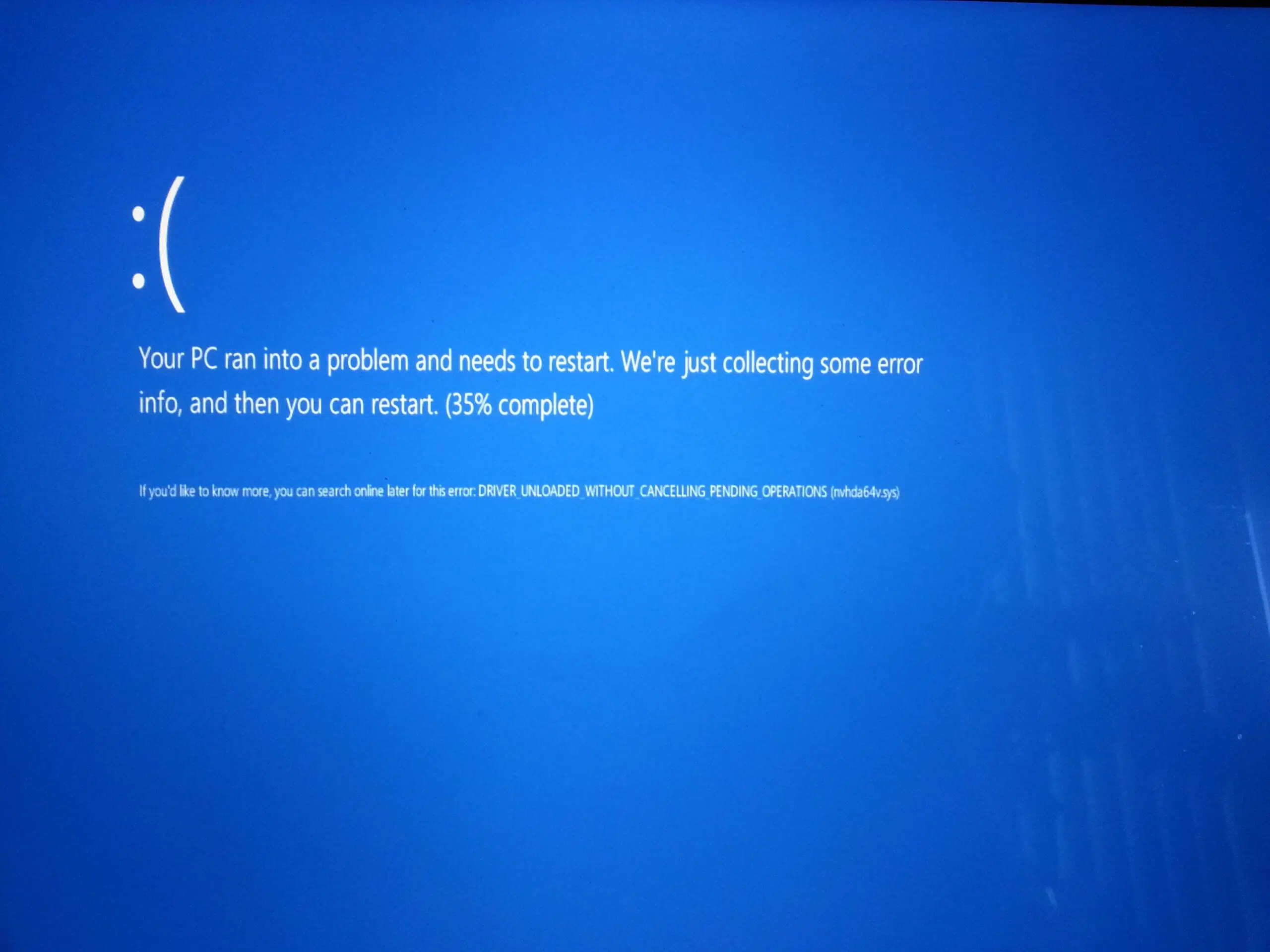
When Windows starts malfunctioning, crashing, displaying blue screens, or programs that stop opening for no apparent reason, the problem often stems from conflicts between software and drivers . Diagnosing these issues isn't always easy, but with a good understanding of how drivers work and the tools the system offers, most problems can be resolved without taking your PC to a repair shop—for example, by backing up your Windows drivers.
In the following lines you will see, in considerable detail, what types of drivers there are in Windows, what errors they usually cause, how they are detected and what real methods work to fix them: from built-in utilities like Driver Verifier to more practical tricks like cloning drivers from a healthy computer, doing a clean boot or dealing with stubborn printers and intrusive antivirus software.
What are drivers and why do they cause so many problems?
A driver is the bridge that allows Windows to communicate with the hardware and certain software devices, and when that bridge fails, performance errors, crashes, and incompatibilities appear . Therefore, before you start tinkering with anything, it's important to understand what types of drivers exist in Windows and the role each one plays in system stability.
In Windows, we can basically distinguish between two main families: kernel-mode drivers and user-mode drivers. Each has its own risks and symptoms when something goes wrong.
Kernel-mode drivers operate at the deepest level of the system, with direct access to the hardware: graphics cards, sound cards, network cards, disk controllers, etc. For more advanced diagnostics, it's helpful to consult advanced PCIe diagnostic guides . These drivers are involved in managing I/O, memory, processes, security, and Plug and Play , and are typically organized in layers: a top layer (interface with applications), a middle layer (device classes, such as the disk controller), and a bottom layer (direct access to the physical device).
If a kernel-mode driver is poorly written, outdated, or corrupted, it will typically cause serious crashes, blue screens, and unexpected restarts . That's precisely why the Driver Checker tool examines these drivers so closely: any suspicious behavior triggers a blue screen error check so you can troubleshoot it.
User-mode drivers, on the other hand, run within the application context and don't interfere as much with the system's inner workings. They typically provide an interface between Win32 programs and kernel drivers (or other system components), as is the case with many printer drivers, input device drivers, or certain layers of audio and video software.
When a user-mode driver breaks, it usually causes a specific application to crash or a peripheral device to stop working, but without bringing down the entire Windows system. Even so, they can cause conflicts with other applications or driver suites if they are not properly maintained or if versions are mixed carelessly.
Typical driver problems in Windows and their causes
Most driver "mysteries" tend to fit into a few fairly common patterns: old or incompatible drivers, interference with antivirus or firewalls, software that overwrites other drivers, malware, and conflicts with Windows updates themselves.
One of the most common problems is outdated or incompatible drivers for your version of Windows . Symptoms include devices that stop working after a system update, poor performance, or missing features (for example, audio problems after upgrading to Windows 11). Windows offers a compatibility troubleshooter to address this, allowing you to install drivers designed for earlier versions in compatibility mode.
Another source of headaches is the drivers that Windows Update decides to update on its own . It's especially tricky with graphics cards: you manually install the latest AMD Adrenalin driver, Windows installs another GPU driver via Windows Update, and you end up with errors, black screens, monitors that aren't detected, or games that won't launch.
It's also very common for the Windows firewall or antivirus software to block communication from certain drivers, especially for network printers, special USB devices, or remote management tools . If you don't try temporarily disabling these security layers, it's easy to panic and think the hardware is broken.
In the software realm, more than one driver has become unusable after installing a program that alters the printing chain, manipulates audio, or creates virtual devices (PDF printers, virtual sound drivers, etc.). These types of applications can modify or damage existing driver files and trigger unusual conflicts.
Finally, malware must not be overlooked: an infection can corrupt system files and drivers, causing anything from network failures to a disk becoming undetectable or a printer "disappearing." In such cases, a thorough system cleanup and reinstallation of the affected drivers after the scan is usually mandatory.
How to diagnose driver conflicts with Driver Verifier
Since the Windows 2000 era, Windows has included a powerful tool designed primarily for developers and advanced administrators: the Driver Verifier . It tests kernel-mode drivers to uncover programming errors, improper memory access, or dangerous usage patterns that could crash the system.
To use it, simply run Verifier.exe with administrator privileges and restart your computer . You can launch it without parameters to open the graphical interface (Driver Verifier Manager) or with modifiers from a CMD console , applying different configurations with the so-called "flags".
Among the standard options are several automatic checks that are always run on the verified drivers: IRQL checks, spinlock usage validation, checking memory allocations and releases in the correct IRQLs, detecting memory accesses after release, verifying that a driver does not unload while it has pending operations, etc.
The Special Pool option causes driver memory requests to be allocated from a specially monitored area to detect buffer overflows, underruns, and accesses to already freed memory. If corruption is present, the likelihood of its detection increases significantly.
The Force IRQL Check flag puts the driver in a difficult position by invalidating pageable code and applying memory pressure. If the driver attempts to access paged memory on an inappropriate IRQL or with a lock in place, the system detects it immediately.
Pool tracking monitors whether the controller leaves memory unreleased when unloading, helping to locate chronic memory leaks that can degrade long-term performance.
I/O verification ( and its enhanced version) requires that the IRPs used by the driver be assigned from a special group, thoroughly checking how it handles IoCallDriver, IoCompleteRequest, and IoFreeIrp calls. Any abuse or inconsistency is triggered by a bug check 0xC9 (DRIVER_VERIFIER_IOMANAGER_VIOLATION).
Other relevant options include deadlock detection (monitoring mutexes, spinlocks, and fast mutual exclusions to see if the code might be blocked), DMA checking (good use of buffers and DMA adapters), security checks (preventing references to user-mode addresses from the kernel), and DDI compliance checking, which verifies that the driver respects kernel interfaces using the VerifierExt.sys library.
When Driver Verifier detects a violation, the standard procedure is to force a Blue screen with codes such as 0xC1, 0xC4, 0xC6, 0xC9, 0xD6 or 0xE6With a debugger connected, the command !analyze -v It usually identifies the responsible driver, and extensions such as !verifier, !deadlock, !iovirp o !ruleinfo They allow you to delve deeper into statistics and broken rules; to see how to address these errors in detail, consult the guide. BSOD analysis and kernel dump.
Additionally, from the Verifier GUI you can see the status of each driver (loaded, unloaded, never loaded) , which flags are active, global failure counters, and, if you have enabled Special Group, receive warnings if less than 95% of the allocations go into that pool, indicating that you are verifying too many drivers for the available RAM.
Configure and use Verifier.exe from the command line
If you prefer a more scriptable approach, Verifier can also be configured from CMD using a series of modifiers. The key is to understand that Each option is encoded as a bit within a hexadecimal value that you pass to the parameter /flags.
For example, some standard flags are: 0x00000001 (Special Group), 0x00000002 (Force IRQL), 0x00000008 (Pool Tracking), 0x00000010 (I/O Verification), 0x00000020 (Deadlock Detection), 0x00000080 (DMA Check), 0x00000100 (Security Checks), 0x00000800 (Miscellaneous Checks), and 0x00020000 (DDI Compliance). There are additional flags for simulating low resources, logging IRPs, or forcing pending IRPs.
To enable, for example, only Special Group, I/O verification, and miscellaneous checks, you would use something like this: verifier.exe /flags 0x811If you want to activate the entire standard set, you can choose verifier.exe /standard or by its equivalent in flags, verifier.exe /flags 0x209BB.
After choosing the brands, you must indicate which drivers will be checkedThere you have two paths: target specific drivers with verifier.exe /driver driver1.sys driver2.sys or sweep the entire system with verifier.exe /allLogically, the more aggressive you are (especially with Special Group and low resource simulation) the more you will notice the impact on performance.
There is also a way volatile property marketDesigned for hot-swapping, allowing you to change flags or add verified drivers without restarting: verifier.exe /volatile /flags 0xVALUE /adddriver MiDriver.sysThis state lasts until you modify it again or restart the machine.
To check at any time how the Checker is configured or what statistics it keeps, you have two key commands: verifier /query (current status and counters) and verifier /querysettings (active configuration stored in the Registry).
Once you have finished the tests, it is important reset the settings for the equipment to return to normal operation. Just one verifier.exe /reset and a subsequent restart to disable all checks.
Practical solutions to common driver problems
Beyond pure debugging tools, in their day-to-day work most users encounter very specific problems: drivers that become outdated, incompatibilities after updates, printers that don't respond, graphics cards that clash with Windows Update, or laptops that go crazy when using automatic driver update programs.
A basic starting point is to ensure that Windows is reasonably up to date. Many modern printers, Bluetooth devices, and other recent hardware rely on updated system components . From Settings > Update & Security > Windows Update, you can check for updates, install them, and, if desired, adjust active hours to avoid unexpected restarts.
If a driver doesn't quite fit with your version of Windows, you can use the compatibility troubleshooter : right-click on the driver installer, select "Troubleshoot compatibility", choose "Troubleshooter program", check boxes such as "Worked in previous versions of Windows, but now won't install or run" or "Requires additional permissions", and let the wizard test different compatibility modes.
When the problem is located on a specific device, the necessary step is to use Device Manager (devmgmt.msc) . From there, you can automatically update the driver software, completely uninstall it (by checking "Delete the driver software for this device" if applicable) and let Windows reinstall a clean driver upon restart, or manually install one from your disk.
In many cases, especially with common hardware, using generic Microsoft drivers works very well . In Device Manager, by choosing "Update driver" > "Browse my computer for driver software" > "Let me pick from a list of available drivers on my computer" and checking "Show compatible hardware," you can select a stable generic driver that usually avoids conflicts with less polished, custom versions.
If the problem stems from another program interfering with your system (very common with PDF suites, print managers, or software that creates virtual devices), the sensible strategy is to first uninstall the suspect program, clean up any remaining files if possible by following guides for uninstalling programs and cleaning your PC , and then reinstall the official drivers.
Conflicts between Windows Update and GPU, audio, and other drivers
A fairly common case of software and driver conflicts occurs with modern graphics cards in Windows 10 and 11. You install the latest AMD Adrenalin package or the NVIDIA driver from their website, everything starts up fine, and then, after a while or several restarts, the problems begin: the screen goes black , one of the monitors stops being detected, or Steam won't open games because "there's no compatible driver."
The most common explanation is that Windows Update has decided to update the GPU driver on its own, installing a version different from the one provided by AMD/NVIDIA. This mix can break components of the management software (Adrenalin, GeForce Experience) or leave the system in an inconsistent state.
To minimize these problems, many users opt for two steps: using DDU (Display Driver Uninstaller) in safe mode to completely clean up any remaining traces of previous drivers , and then installing the desired official driver by temporarily disconnecting from the internet or blocking Windows from automatically updating hardware drivers.
Something similar happens with certain audio drivers after major Windows 10/11 updates. You might encounter microphones that sound distorted , devices that disappear from the system, or a mix of manufacturer drivers and the generic Windows drivers. In these cases, if updating from the manufacturer's website doesn't work, a very effective technique is to export the drivers from a computer of the same model that is working correctly.
With DISM you can, on the "healthy" endpoint, execute DISM /online /export-driver /destination:D:\ModeloPortatil to remove all installed drivers. Then, on the problematic computer, import with pnputil /add-driver "D:\ModeloPortatil\*.inf" /subdirs /install. This way, You clone exactly the set of drivers that you know works.without relying on manual searches.
Printers: the eternal classic of driver conflicts
If there's one device particularly prone to conflict with Windows, it's the printer . From installations that never finish to the infamous "printer driver is unavailable" message, to print queues that get stuck indefinitely.
In simple scenarios, the best approach is to connect the printer to your PC with an internet connection and let Windows Update automatically search for, download, and install the drivers . If it's a USB printer, often nothing more is needed. If it connects via Wi-Fi, you'll usually also need the manufacturer's utility (HP, Canon, Epson, Brother, etc.) to connect it to your network.
When the printer is already installed but stops printing and jobs get stuck in the queue indefinitely, a very effective trick is manually purge the print queueThis is done from a CMD with administrator privileges by first running net stop spooler to stop the spooler service, internally emptying the jobs, and then net start spooler to start it up clean again.
If the problem is purely with the drivers, you can reinstall them from Device Manager: in "Print queues" locate your printer, right-click, "Uninstall device" (also removing the software if that option is offered) and restart your PC so that Windows can search again for a compatible driver from Windows Update.
In some cases, especially with older or very basic models, it works better to use the generic Microsoft printer driver . Again in Device Manager, select "Update driver," choose manual installation, and then "Let me pick from a list of available drivers on my computer," selecting the corresponding generic driver.
When a network printer isn't working, it's a good idea to check that neither the Windows Firewall nor your antivirus software is blocking the IP address or ports . You can review rules, open necessary ports, or run a quick test by temporarily disabling protection to see if that's the bottleneck, by going to Settings > Update & Security > Windows Security > Firewall & Network Protection.
Clean boot, hidden drivers, and malware
When you suspect a conflict between drivers and other software, but can't pinpoint the source, performing a clean boot of Windows is a highly effective strategy for isolating the problem. In this mode, the system starts with only the bare minimum of essential services and drivers, and without any third-party startup programs.
To configure it, launch msconfig.msc (Win + R keys), in “Services” check “Hide all Microsoft services” and click “Disable all”. Then, in the “Startup” tab, open Task Manager and disable all startup items, preferably noting on a piece of paper what had been activated so that it can then be restored in an orderly fashion.
After applying the changes and restarting, Windows will boot into clean mode. If you can install or reinstall the drivers without errors in this environment, it's most likely that a third-party service or program was interfering . You can then reactivate elements one by one until you find the culprit.
Another helpful tip is to show hidden drivers in Device Manager . In the "View" menu, you can enable "Show hidden devices" to see hardware and drivers that are not normally displayed, many of which are pre-installed by the computer manufacturer. It's common for an old or duplicate driver to cause conflicts ; making it visible allows you to update, disable, or uninstall it as needed.
If you suspect malware because the drivers appear corrupted for no apparent reason, you need to use your antivirus software. You can use the one you already have installed or Windows Security . Press Win + S, search for "Virus & threat protection" (or simply "virus"), and run a "Quick scan" or a full scan. Once the system is clean, reinstall the problematic drivers from the official source.
Driver updates: Windows Update, manufacturers, and external tools
To keep software and driver conflicts at bay, it's key to keep your hardware reasonably up-to-date, but without going overboard. On most computers, Windows Update and the official tools from each manufacturer cover virtually all your needs.
Simply type "updates" into Windows Search to access "Check for updates." Clicking "Check for updates" will locate new driver versions released through Windows Update, including drivers that may not have been downloaded when you first installed your PC.
For graphics processors and chipsets, many manufacturers offer specific utilities . Intel has a free driver update tool that detects and suggests the appropriate packages; if you prefer to do it manually, you can go to the Intel website, download the corresponding driver, and from Device Manager, under "Sound, video and game controllers" or the relevant section, use "Update driver" and select the folder where you extracted the package.
With AMD, it's similar: you go to their website, choose your product type, model, and operating system, and download the Windows driver package . For NVIDIA cards, their download portal lets you refine your search by GPU type, series, specific product, operating system, download type, and language, with separate sections for older drivers and beta versions.
Beyond official solutions, there are third-party tools designed to make things easier, but they should be used with caution. Programs like Snappy Driver Installer (with a portable Lite version) allow you to scan a PC offline from a USB drive and batch-apply driver updates from a huge database; however, you should always download it from its legitimate website, as modified versions loaded with malware are circulating.
Other utilities like Drive Talent offer very limited free versions and paid Pro editions that scan your computer, locate outdated drivers, and automatically download and install them. They work well, but before paying for one of these tools, it's usually worth exhausting official options and avoiding mixing too many driver sources on the same computer.
There are also niche utilities, such as Driver Store Explorer , which analyzes the Windows driver store, detects duplicates, allows you to remove old or problematic drivers, and generates detailed listings. It's open source (available on GitHub) and can be configured in several languages. Its classic interface is highly customizable and makes it easy, for example, to see which specific device is associated with each driver.
Serious driver errors and when to reinstall or format
In environments like Surface devices, mixing official drivers with third-party updaters like Driver Booster can be a recipe for disaster. It's relatively common for these utilities to cause fans to run at full speed, screen freezes, or erratic behavior because they've installed unsupported versions for that model; it's advisable to check the health of your PC components if you notice any unusual physical signs.
On devices like this, Microsoft support recommends against using third-party tools to update drivers , suggesting instead that you rely on the Surface app, Windows automatic updates, or the Surface Diagnostic Toolkit. If the damage is already done, you can try to recover the situation by downloading the complete MSI file of drivers and firmware for your specific model from the Microsoft website and installing it manually.
If even that doesn't restore stability, it's very likely that the intervention of an external updater has corrupted the firmware or the system. In that scenario, the cleanest and safest solution is usually to reinstall Windows from a recovery USB drive , which recreates the entire device image, including the original firmware and drivers.
The process, broadly speaking, involves using another Windows PC to go to the "Download Surface recovery image" page, signing in with your Microsoft account, downloading the image for your model, preparing a USB drive formatted as FAT32, extracting the image to it, and then, on the affected Surface, booting from that recovery drive by holding down the volume down button while powering on . From the recovery environment, select "Troubleshoot" > "Recover from a drive," agree to erase everything, and allow the system to reprovision.
Outside of the Surface ecosystem, if after trying driver reinstalls, malware removal, clean boot procedures, and other troubleshooting steps the computer continues to experience constant driver-related crashes, it may be time to consider a clean Windows installation or contact technical support . If the PC is under warranty, the manufacturer may even be able to manually reconfigure the drivers or replace faulty hardware free of charge.
Ultimately, and especially when dealing with complex printing problems in professional environments or driver conflicts that affect the business, having a 24/7 remote or on-site IT maintenance service can save a lot of time wasted in front of the screen trying combinations blindly.
Knowing this whole range of tools, from Driver Verifier and Device Manager to driver exporters, Windows troubleshooters, and official utilities from each manufacturer, allows you to approach software and driver conflicts with a clear head and a methodical approach , minimizing trial and error and reducing the likelihood of ending up formatting out of desperation when many issues could be resolved at home with a few well-thought-out steps.
