- Windows 11 Explorer can become very slow due to bugs, search services, corrupted caches, antivirus software, and lack of resources.
- Restarting the browser, clearing history and thumbnails, checking for updates, and running SFC and chkdsk usually improves performance significantly.
- Controlling memory, disk space, CPU temperature, and background processes is key to ensuring the system and browser run smoothly.
- If nothing else works, there are lightweight and powerful third-party browsers that can easily replace the official Windows browser.
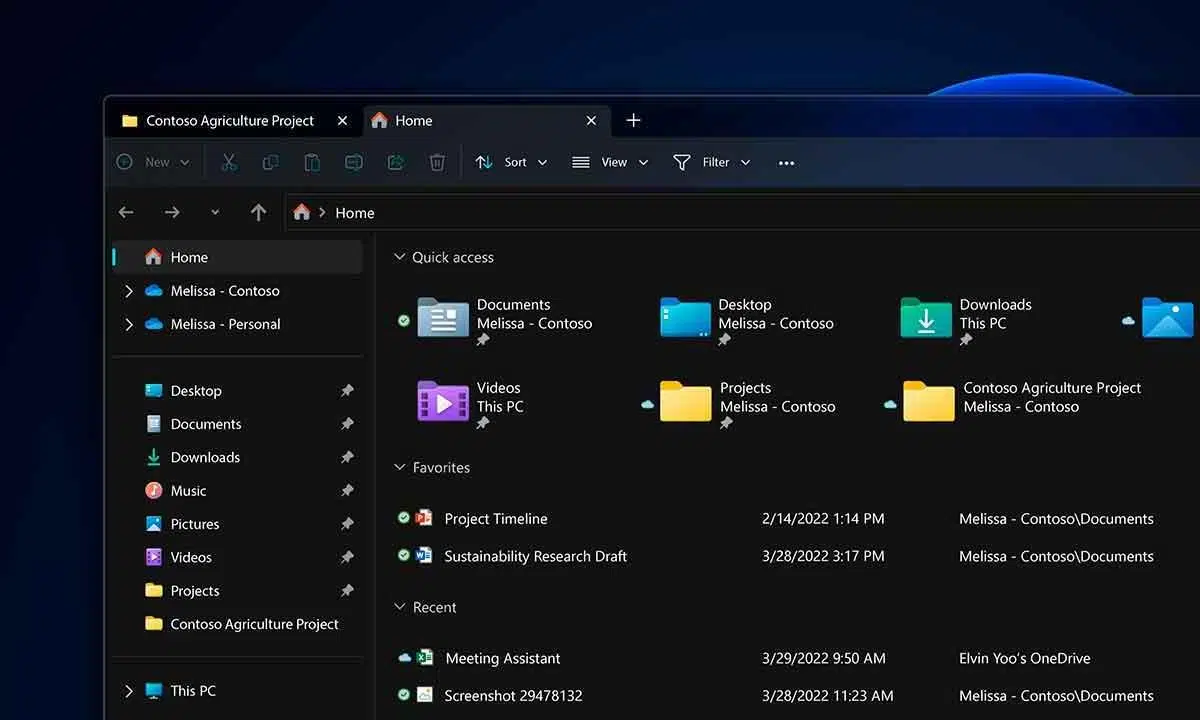
If you've upgraded to Windows 11 and noticed that File Explorer takes forever to open , you're not alone. More and more users are reporting that when they click the Explorer icon in the taskbar, the window hesitates for a second or two, or even longer, before displaying the folder contents. And the worst part is: this often happens on very powerful machines with SSDs and tons of RAM, while an older PC running Windows 10 runs much more smoothly.
This feeling that the browser is "running slowly" in Windows 11 has several possible causes: from bugs acknowledged by Microsoft to configuration problems, search service issues, corrupted thumbnails, conflicting updates, lack of resources, a full disk, or even a CPU that's overheating. The good news is that there are many things you can check before throwing your computer out the window.
Why might File Explorer in Windows 11 be so slow?
One of the key issues is that, with Windows 11, Microsoft has been adding new features and internal changes to Explorer (tabs, cloud integration, visual redesign, etc.), and this has brought with it some performance issues. In fact, the company itself has acknowledged that certain updates have caused slow browser shutdowns and clunky interactions with the title bar buttons.
Specifically, it has been noted that a particular update, KB5052078 for Windows 11 (build 22635.4950, in the beta channel), could cause File Explorer to close very slowly when pressing the X key, and that this issue also affected other elements in the title bar. At the same time, numerous users have reported that File Explorer takes a long time to start, respond, and load folder contents, even on computers with fast SSDs, demonstrating that this is not solely an issue with slow mechanical hard drives.
There are reports from people who, on a PC with Windows 10, 4 GB of RAM, and very basic hardware , see the file explorer open almost instantly, while on a modern computer with 32 GB of RAM and Windows 11, the same action takes two seconds to display the window and another half second or more to load the content. And that's even with clean Windows installations and the system seemingly in perfect working order.
According to some users, Windows 11 Explorer can take up to ten seconds to fully load on certain computers, which is especially frustrating when working with many folders daily. This sluggishness clashes with the expectation that a new version of the system should feel faster than its predecessor, and has led many to complain that this version's Explorer is "the slowest" they've used in decades.
Initial checks: recent changes and system status
Before delving into more technical solutions, it's worth checking if the problem appeared after any specific changes to your PC . For example, installing a major Windows update, a new antivirus program, an interface customization tool, drivers, or even changing hardware such as the hard drive (for example, installing an SSD in a new PC ) or the RAM.
It's also important to know which edition and build of Windows 11 you have installed . To check this, press the Windows key + R, type winver , and press Enter. The window that opens will show the exact system version; this information is useful for determining if it matches a build that has had known issues with the browser.
If the slowdown appeared right after a specific Windows update , there's a good chance that's the cause. Each security patch or cumulative update not only fixes bugs and security vulnerabilities, but also introduces internal changes that can sometimes negatively impact certain computer configurations.
In these cases, it's worth noting the code of the last installed update and considering temporarily uninstalling it, especially if it coincides with the start of the problems. We'll see how to do this step by step later, from the Windows Update section in System Settings.
Restart Windows Explorer and perform a clean boot
One of the simplest and most often effective steps is to restart the Windows Explorer process . Sometimes, it gets "stuck" or has orphaned background processes that don't close properly, causing it to open slowly or freeze the next time.
To restart it, you can press CTRL + ALT + DELETE and open Task Manager. On the Processes tab, find "Windows Explorer," right-click on it, and choose Restart . This will close and relaunch Explorer, refreshing all associated processes. If it's not listed, you can go to File > Run new task, type explorer.exe , check the box to create the task with administrator privileges, and click OK.
If you still notice that the entire system seems sluggish, another very useful measure is to perform a clean boot of Windows . This technique involves starting the computer with only the essential system services and processes, temporarily disabling third-party applications that load at startup and might be interfering with the browser.
A clean boot is configured through the system configuration tool ( msconfig ) and Task Manager, disabling non-essential startup services and programs. This allows you to check if the slowdown disappears when third-party antivirus software, customization utilities, cloud synchronization tools, or similar programs are not running.
If, after a clean boot, you find that File Explorer runs smoothly again , it's clear that some background software is causing the problem. From there, the best approach is to reactivate services and programs one by one until you locate the culprit.
Slow folder opening: memory, background programs, and disk space
Another very common reason for a slow browser is that the system has little free RAM available. Unlike what happens on some mobile systems, Windows doesn't automatically close background applications when memory is low; instead, it keeps many processes running and makes do with what it has.
If you often have many browser windows, heavy programs, games, editing tools, or virtual machines open , it's quite likely that when you try to open File Explorer, it will have to fight for a little memory, causing delays both when starting up and when browsing through folders.
In this scenario, it's advisable to close all applications you're not using , either from their individual windows or directly from the Task Manager. Freeing up memory not only benefits the browser but also improves overall system performance.
Available disk space also greatly impacts performance. If the drive where Windows is installed (usually C:) is almost full, the system has to work with less space for temporary files, virtual memory, and internal operations. This results in slower data access and, therefore, a worse user experience when using the file explorer.
To free up some space, you can clean up unnecessary files from the drive's properties. Right-click on C: and select Properties; you'll see a button called "Disk Cleanup." From there, you can delete items such as temporary files, thumbnails, caches, and other components that Windows marks as unnecessary, which can recover several gigabytes and improve overall performance.
Explorer history, thumbnails, and folder options
Windows 11 maintains a fairly comprehensive File Explorer history , including shortcuts, recent files, and frequently used folders. Over time, this list can grow and become cumbersome, affecting how quickly File Explorer opens and displays content.
From within File Explorer itself, you can access folder options (in the View tab or similar settings) and, on the General tab, go to the Privacy section . There you'll find a button to clear File Explorer's history. Clicking it clears the records used for recent accesses, which in many cases helps the initial window load faster.
Keep in mind that the history will be regenerated as you reopen files and folders, but at least you will have eliminated any potentially corrupted data or excessive buildup that could affect performance.
Another common source of problems is file thumbnails , especially when dealing with folders containing many photos, videos, or documents with previews. If the thumbnail cache is corrupted or full, the file explorer may take a long time to display icons and previews, giving the impression that everything is running very slowly.
To rebuild it, you can go to File Explorer, right-click on drive C:, open Properties, and click on "Disk Cleanup." In the list that appears, make sure to check the Thumbnails box and click OK. Windows will delete the current cache and regenerate it from scratch the next time you access the folders, which usually improves File Explorer's performance considerably.
You can also choose to reset folder options if you've been tweaking many view settings and customizations. From the Folder Options window, on the "View" tab, you'll find a "Reset Folders" button. This returns layouts and views to their default state, which in some cases helps the browser respond more quickly.
Folder optimization and access to external or network drives
Windows allows you to "optimize" each folder for a specific content type (documents, images, videos, music, general items, etc.), and this optimization involves certain internal operations on the files and metadata. When you have very large, poorly optimized folders , this feature can become a hindrance.
For example, if a huge folder full of various files is optimized for "Images," the system will try to analyze and prepare specific views and data that may not be needed, slowing down loading. To alleviate this, you can right-click on the folder, go to Properties, and then to the "Customize" tab.
Inside, you'll see the section "Optimize this folder for…"; there you can select "General items" and check the box to also apply this template to subfolders. This way, Windows stops processing the content so heavily, and in many cases, accessing the folder becomes significantly faster.
It's also important to remember that when working with network folders or external USB drives, the data source may need a few seconds to "wake up." Many NAS devices, USB routers, and external hard drives enter sleep mode when not in use to conserve power. When you try to access them, the device has to restart, spin up, and become responsive, introducing an unavoidable wait.
In situations like this, it's not so much that Windows Explorer 11 is slow, but rather that the drive itself is slow in sending directory information. If this behavior bothers you a lot, you can check the power-saving options of the NAS, the external drive, or Windows itself to try to reduce sleep times or adjust how these devices operate.
Problematic updates, SFC and disk check
As mentioned earlier, some cumulative updates for Windows 11 can introduce bugs that directly affect File Explorer. If, after trying the previous adjustments, you continue to experience significant slowness, especially if it coincides with a recent patch, it might be a good idea to uninstall that update and wait for Microsoft to release a corrected fix.
To do this, go to Settings (Windows + I), enter the Windows Update section, and access Installed Updates . There you will see the list with their dates; identify the most recently installed update, note the code, and, using the Uninstall Updates option, double-click on it to remove it. After the process, it is recommended to restart your computer for all changes to take effect.
Another very useful tool for ruling out deep system problems is the System File Checker (SFC) . This command scans core Windows files for damage or corruption and, if it finds errors, attempts to repair them automatically.
To run it, open Command Prompt as administrator and type sfc /scannow . The scan may take a few minutes, and when it finishes, it will display a report with the problems detected and whether they were fixed. If there were corrupted system files, repairing them will likely restore some speed to File Explorer and other parts of the system.
Nor should we forget the tool Check Disk Integrated into Windows, it checks the status of storage drives and can correct certain logical errors. From the command prompt, you can launch chkdsk /f This scan analyzes and repairs errors in the drive's file system. A disk with errors can cause slower access times and erratic file explorer behavior, so it's worth running this scan if you suspect your disk's health.
Search, indexing, and problem-solving services
In Windows 11, the search and indexing service is crucial for quickly locating files and delivering instant results in the Start menu and File Explorer search bar. However, when this service malfunctions, is misconfigured, or becomes bogged down with data, it can negatively impact File Explorer's speed.
If you notice that using your browser's search bar becomes very sluggish, or that your computer seems to be constantly running in the background, indexing may be having problems. In these cases, it's helpful to go to Control Panel, switch to the small icons view, and access Indexing Options . From there, you can review which locations are being indexed, pause the process, or even rebuild the index.
Windows also offers a dedicated troubleshooter for detecting search errors. Within the indexing options, you can open the Search and Indexing Troubleshooter section , which launches a wizard to select the symptoms you're experiencing, such as "search or indexing is slow," and attempts to apply automatic fixes based on its findings.
In addition to this, the system includes other troubleshooters accessible from Settings, under "Update & Security" and then "Troubleshoot." Running the "Search and Indexing" troubleshooter can be helpful if you find that the browser's slowness is primarily affecting internal searches.
Antivirus, Explorer processes, and overloaded CPU
A less obvious but fairly common culprit for slow browser performance is antivirus software . If you have many folders with files that your antivirus considers suspicious or that require constant scanning (for example, installers, executables, compressed files, or frequently downloaded files), every time you open those folders, your browser is forced to wait for the security engine to finish scanning the contents.
To rule this out, you can temporarily disable real-time protection from your antivirus (whether it's Windows Defender or a third-party program) and try opening the folders that used to be slow again. If you notice that everything becomes faster, it's quite likely that the scanner is the source of the slowdown.
In that case, the wisest course of action is to add the specific paths where you store those files you know are safe to your antivirus exclusions , so it doesn't scan them constantly. However, it's important to do this carefully and responsibly: if the antivirus complains about a file, it usually has a point, so it's a good idea to double-check before excluding it.
It's also advisable to check for any File Explorer processes that may have remained open even after closing all windows. From the Task Manager, with File Explorer seemingly closed, you can search for processes related to explorer.exe and terminate them manually. Sometimes orphaned instances remain in memory and affect the behavior of new windows.
Finally, the computer's CPU can be another key piece in this whole puzzle. If the processor is working at its limit, whether due to excessive tasks or high temperatures, the system can apply protective mechanisms such as thermal throttling, which intentionally reduces its performance to prevent physical damage.
When this happens, any action, from opening a browser window to loading icons or previews, becomes slower than normal. It's important to monitor your CPU temperature using tools like Task Manager or dedicated programs. If you see values above 85-90°C under light loads, you may have a cooling problem.
In these situations, thoroughly cleaning the inside of the PC , removing dust from fans and heat sinks, checking the thermal paste, or even supporting the equipment with an external fan (in the case of mini PCs or laptops that get very hot) can make a big difference in the smoothness of the browser and the system in general.
When all else fails: alternative file explorers
If after adjusting options, clearing caches, checking services, uninstalling conflicting updates, and monitoring the temperature you still notice that Windows 11 Explorer is behaving terribly on your computer, you can always consider using an alternative third-party tool to manage your files.
There are several interesting options, some very lightweight and others designed for advanced users who spend all day moving, copying, and organizing data between folders. One of the simplest is My Commander , a very lightweight file explorer that consumes few resources and yet includes features such as an integrated search engine, filters, bulk file renaming, advanced directory views, and other utilities designed for those who want to go beyond the classic file explorer.
My Commander stands out for its low resource consumption and speed, but it doesn't offer as many advanced features as some competitors; it's somewhat more limited if you're looking for very specific features. Even so, for many users it's a breath of fresh air compared to the sluggish performance of the official Windows 11 file explorer.
Another popular option is Explorer++ , a lightweight, portable, and quite fast browser that allows you to work with multiple tabs, different views, and its own search function. Thanks to its minimalist yet functional approach, it's ideal for those who want something more agile than the built-in browser without sacrificing a relatively familiar and easy-to-use interface.
If you're looking for a more modern approach that's well-integrated into the Windows ecosystem, the Files app is a very interesting alternative. It's a UWP file explorer available in the Microsoft Store, with support for tabs, file tags, dual-pane views, cloud service integration, improved context menus, file previews, and a theme system for customizing its appearance.
Files has the advantage of integrating seamlessly with Windows , installing from the official store, and being optimized for low resource consumption. However, its interface and functionality, being a UWP app, don't appeal to everyone, especially those who prefer the more classic look of a traditional file explorer.
For those who need to copy and move files constantly, there are solutions like Double Commander , a dual-pane file explorer that greatly simplifies working with multiple directories simultaneously. This open-source project, available for Windows, Linux, and BSD, allows you to drag and drop files between panels without opening two separate windows, preventing context loss and improving productivity.
Double Commander offers a multitude of advanced features and a high degree of customization, but in return, it can consume more resources than expected when performing many simultaneous operations. Even so, for users managing large volumes of files, it more than compensates for the limitations of the classic file explorer when the latter becomes a bottleneck.
Windows 11's File Explorer combines useful new features with some performance issues that, according to many users, are still far from resolved. Between bugs acknowledged by Microsoft, stuck search and indexing services, corrupted thumbnails and caches, problematic updates, overzealous antivirus software, disks nearing capacity, and CPUs pushed to their limits, it's no wonder the experience suffers. By adjusting settings, cleaning up the system, checking the hardware, and, if necessary, trying alternative file explorers, it's possible to recover much of the lost speed and make navigating your files quick and easy again, as it should have been from the start.