- LM Studio allows you to run advanced language models locally with a simple graphical interface and is compatible with optimized formats such as GGUF.
- For good performance, a modern CPU with AVX2, at least 16 GB of RAM, and, on Mac, an Apple Silicon processor are recommended.
- The combination of chat, RAG, Developer mode and System Prompt offers great control over the model's behavior and the use of custom documents.
- Running LLM on your computer provides privacy, autonomy, and customization possibilities that are hard to match with purely cloud-based services.
Generative artificial intelligence is no longer the exclusive domain of large corporations , and today anyone can experiment with advanced language models directly from their own computer. Thanks to tools like LM Studio, it's possible to chat with ChatGPT-type models, create summaries, analyze documents, or generate texts without relying on the cloud or exposing your data to third parties.
If you've wondered how to install LM Studio on Windows or Mac and what you need to make it run smoothly on a standard home computer, this guide provides the complete walkthrough: requirements, step-by-step installation, downloading models, using chat mode, RAG for working with your private documents, and advanced options to get the most out of your hardware.
What is LM Studio and why is it worth using locally?
LM Studio is a desktop application designed to easily run Language Models (LLM) on your own computer, using a clear graphical interface and without having to type commands in the terminal. It allows you to download models, load them into memory, and interact with them as if you were using an online chat, with the advantage that everything happens on your machine.
The main difference compared to using purely command-line tools like llama.cpp, KoboldAI, or other similar alternatives is ease of use. Instead of struggling with arguments, paths, and scripts, LM Studio presents you with well-organized menus and sections: Models tab, Chat tab, Settings, Developer mode, etc., making it ideal for less technical users or those who want to get straight to the point.
Another key advantage of LM Studio is that it works with GGUF models , a widely used standard optimized for local execution on both CPU and GPU. This translates into better performance, lower memory consumption, and compatibility with a broad catalog of models such as LLaMA, Mistral, Falcon, Granite, and others available in popular repositories.
Because it operates locally, LM Studio offers a significant privacy advantage : your writing and the documents you use to ask questions remain on your computer. You don't need to send sensitive information to the cloud, making it an ideal option for handling contracts, internal reports, academic notes, or any other sensitive content.
Whether you're a developer, a student, or simply a curious person who wants to tinker with AI , LM Studio combines the best of both worlds: ease of use for everyday tasks and advanced features (Developer mode, local API, generation parameters, etc.) for those who want greater control over the behavior of the models.
System requirements on Windows and Mac before installing LM Studio
Before you download LM Studio, it's essential to check that your computer meets certain minimum requirements , especially if you want a smooth experience and avoid constant crashes and endless waiting. The two key components are the processor (CPU) and RAM.
On a Windows PC, at least 16 GB of RAM is recommended to run mid-sized games smoothly. With 8 GB you can experiment with smaller games and perform basic tests, but you'll notice limitations in speed and the size of the games you can load. Things improve considerably with 16 GB, and 32 GB or more is even better for larger games.
Regarding the processor in Windows, it's important that it supports AVX2 instructions . Most modern Intel and AMD CPUs support it, but it's a good idea to verify. To do this, you can do the following:
- Open the “System Information” tool from Windows (you can search for it from the Start menu).
- Locate the “Processor” section and write down the full name of your CPU.
- Go to Intel's ARK website or the manufacturer's specifications page. (AMD or others) and search for your processor by its exact name.
- In the block of technologies or instruction extensions Check if AVX2 is listed. If it is, you're covered for using LM Studio with good performance.
On Macs, the situation is somewhat different but, in some ways, simpler . LM Studio is optimized for computers with Apple Silicon processors : M1, M2, M3, M4, and their variants. These chips offer excellent performance with local models and low power consumption, making them a highly recommended platform for this type of task.
If you have an older Mac with an Intel processor, LM Studio isn't the best option because its support is focused on Apple Silicon. For these machines, a very interesting alternative is Msty, another tool that allows you to run LLM models locally and is better suited to that architecture. In any case, if you have a Mac with an M1 chip or later, LM Studio is a safe bet.
In addition to CPU and RAM, a dedicated GPU or the one integrated into Apple Silicon is helpful , especially if you want to speed up text generation. LM Studio can leverage these resources to deliver responses in seconds. You'll also need sufficient disk space, as each model can range from a few hundred MB to several GB.
Download and install LM Studio on Windows and Mac step by step
Once you've verified that your computer meets the minimum requirements, the next step is to download the installer from the official LM Studio website. The process is very similar on Windows and macOS, with slight differences in how the file is run.
To begin, go to the official LM Studio website (lmstudio.ai) and locate the downloads section. You'll see versions for Windows, macOS, and even Linux. Simply select the one appropriate for your operating system.
On Windows, the file you download will be a typical executable or installer . Choose a convenient folder, such as Desktop or Downloads, so you can easily find it later. If you use browsers like Edge or Chrome, check the download bar in case the browser has blocked the file for security reasons because it's an executable.
On macOS, the download usually comes as a .dmg file or similar . Just like on Windows, save the file to an easily accessible folder. Once downloaded, double-click to mount it and drag the LM Studio icon to the Applications folder when prompted.
On both systems, the LM Studio installation wizard is quite straightforward . On Windows, double-click the installer and follow the wizard's steps: accept the license, choose the installation folder, and that's about it. You can leave all the options at their default settings if you don't want to complicate things.
During the process, LM Studio will usually suggest downloading a default model , typically a lightweight one like Llama 3.2 1B from Meta or a similar basic model, so you can start chatting without having to search for anything else. Many installations also suggest downloading popular models like DeepSeek R1.
Once the installation is complete, you can check the box to open LM Studio directly or find the application from the Start menu in Windows or from Launchpad and Applications on Mac. The first launch may take a little longer than usual, as the application prepares some internal settings.
First launch of LM Studio and exploration of the interface
When you open LM Studio for the first time, you'll see a clean interface designed so that anyone can get their bearings in just a few minutes . A welcome screen usually appears, and depending on how you installed it, a pre-selected template will be available to start testing the chat.
By default, LM Studio will load the model you installed during the initial setup . This model is usually small and doesn't require much RAM, which is perfect for verifying that everything is working correctly before downloading larger models that might strain your hardware.
In the sidebar, you'll find key sections like "Models," "Chat," and settings . From "Models," you can search, download, and manage available models; from "Chat," you'll have a conversation experience with the currently active model; and in the settings area, you'll find advanced parameters, Developer mode, and other options.
One of the great advantages of LM Studio is that you can communicate with the model in any language you want , including Spanish (Spain), without any problems. Simply type your message or question in the text box and press Enter for the model to start generating a response.
In addition to the pre-installed model, you can search for other models directly from the application by clicking the search icon (usually represented by a magnifying glass) within the models section. There you will see listings such as IBM's Granite and other alternatives from different families (LLaMA, Mistral, Falcon, etc.).
How to download and change models within LM Studio
To get the most out of LM Studio, don't limit yourself to the default model ; the fun is in being able to try different LLMs, compare them, and choose the one that best suits your needs: creative writing, explaining concepts, technical analysis, etc.
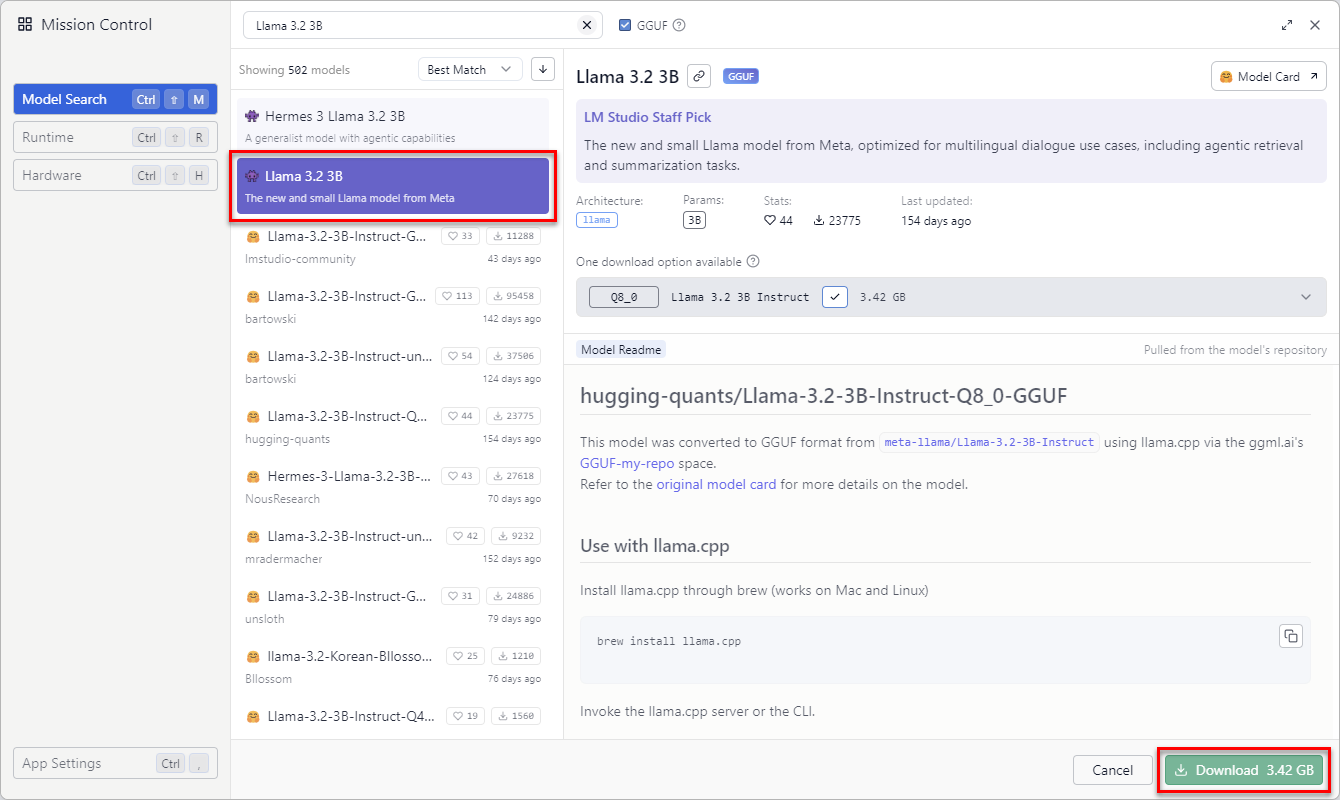
In the “Models” tab, you’ll see a search bar and a list of available models . You can enter the name of the family you’re interested in (for example, Mistral 7B, LLaMA 2, or a specific variant), and LM Studio will show you the compatible options in GGUF format, ready for download.
When you find a model that suits you, click on it to see its versions . Different variants are usually displayed depending on the size and quantization level (which affects memory consumption and response quality). The latest or recommended version is usually at the top of the list.
Make sure you select the right version for your hardware : if you have little RAM, you might be interested in a smaller or more quantized version; if you have plenty of resources, you can opt for heavier variants that generally offer better text quality performance.
To start the download, simply press the "Download" button . You will see a progress bar indicating the download status; the time it takes will depend on both the file size and your internet connection speed. Once complete, the model will be available in your list.
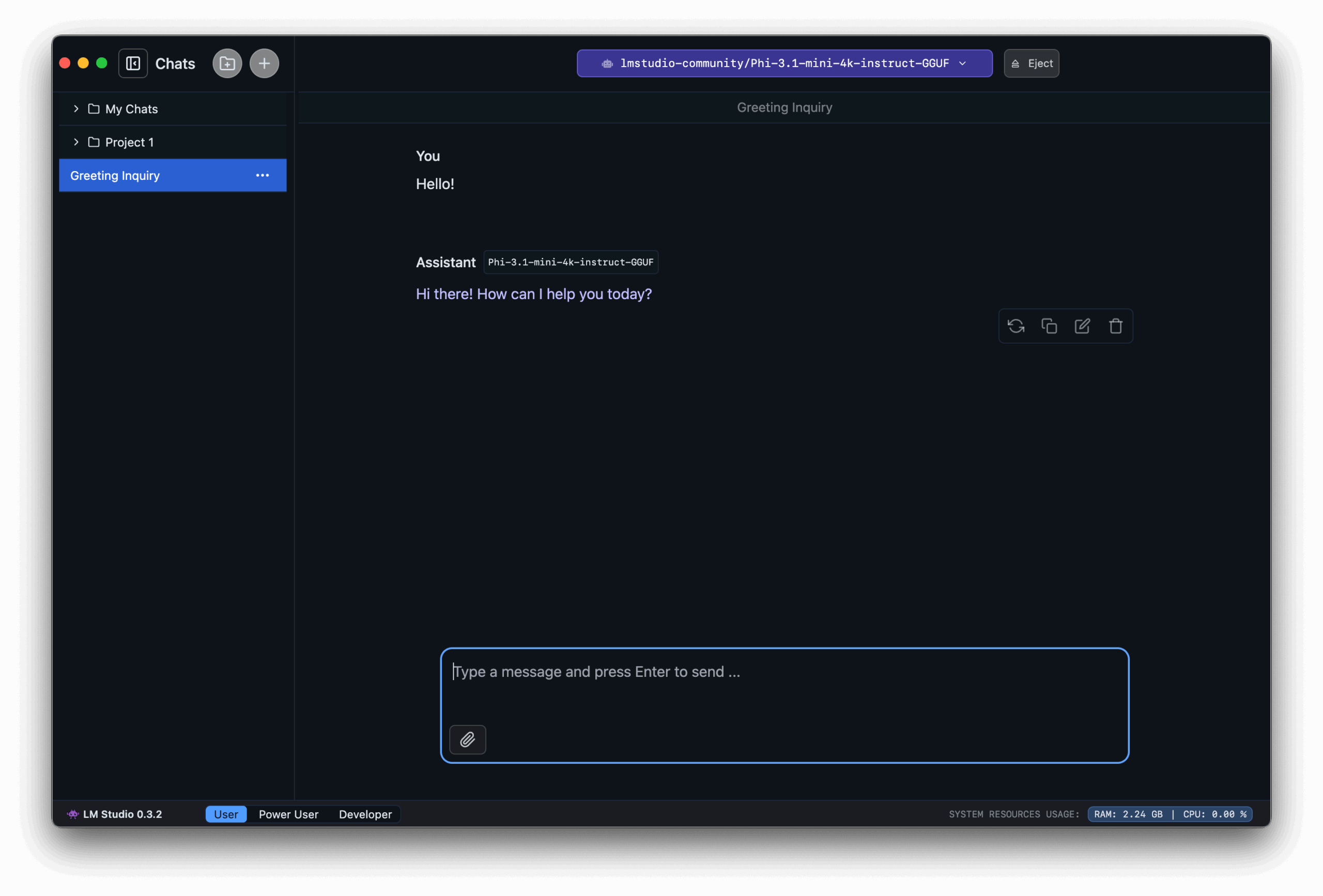
To use any of the models you've downloaded, go to the "Chat" tab . At the top, there's usually a dropdown menu like "Select a model to chat with" where you can choose from all the installed models. Select the one you want to try, and from then on, chat responses will be generated by that specific model.
Don't be afraid to download several models to compare their performance : some will be faster but less accurate, others slower but very detailed. However, remember that each model takes up disk space and consumes RAM and CPU, so it's a good idea to review which ones you actually use and delete the ones you don't need.
Using the chat, practical examples and controlling basic parameters
The chat section of LM Studio is where you'll spend most of your time , as it's the natural entry point for interacting with models. It works much like a traditional chat: you type a message, press Enter, and receive a response generated by the local model.
A very simple example to start with could be asking the model about the tool itself , with something like: "What is LM Studio and what is it for?"; in a few seconds you should see how the model explains that it is an application to run language models locally, without needing to connect to cloud services, ideal for experimentation, development or learning tasks.
In LM Studio's settings, you'll find parameters that greatly influence the style of your responses . One of the most important is temperature: low values (for example, 0.1-0.3) produce more sober, coherent, and repeatable responses; high values (0.8-1.0) generate more creative and varied texts, although they also carry a greater risk of rambling or making mistakes.
Other common parameters are Top-K and Top-P , which control how many word or token options are considered at each generation step. Adjusting these allows you to play with the balance between precision and diversity: more restrictive values make the response more "rigid" and focused, while broader values open the door to more imaginative responses.
You can also modify the maximum number of tokens to generate and the maximum context , that is, the length of the responses and how much previous conversation or input text the model takes into account. Increasing these limits usually improves consistency in long dialogues or extensive summaries, but at the cost of consuming more memory and computation time.
Attach files and use RAG to leverage your own documents
One of the weaknesses of any language model is that it only knows what it was taught during training . It doesn't have direct access to your files or recent private information, so out of the box, it can't answer questions based on your contracts, notes, or personal reports.
This is where Retrieval Augmented Generation (RAG) comes in , allowing you to upload your own documents and use them as the basis for the model's responses. LM Studio incorporates this functionality so you can ask questions directly about your files without having to copy and paste large amounts of text.
In LM Studio, you can attach up to 5 files at once, with a maximum combined size of 30 MB . Supported formats include PDF documents , Word DOCX files, TXT text files, and CSV spreadsheets. This flexibility allows you to work with many types of content without needing to convert them.
Once you've uploaded your documents, it's best to be very specific in your questions . For example, if you've uploaded a lease agreement in PDF format, you could ask something like: "According to the uploaded contract, what notice period do I need to terminate the lease?" Adding specific details helps the system retrieve the relevant section of the document and provide you with a tailored answer.
The model will combine your query with information extracted from the documents and generate a response that, in principle, will be much closer to the reality of your situation than if it were based solely on its general training. You can repeat the process with different documents, try different prompts, and see how the results change.
Developer mode and advanced settings for more demanding users
If you want to go a step further and have fine control over how the model behaves , LM Studio offers a "Developer" mode with advanced options that are very useful for both developers and users who are fine-tuning specific workflows.
From this mode, you can, for example, fine-tune the temperature, Top-K and Top-P settings , define the maximum number of tokens per generation, and optimize how resources are allocated between the CPU and GPU. These changes can make all the difference when it comes to balancing creativity, precision, and performance on your machine.
Another key feature of Developer mode is the ability to set a "System Prompt" : an initial context message that guides the model's behavior throughout the conversation. Here you can tell it things like "You are an expert in Spanish labor law," "Always answer very concisely," or "Include practical examples in all your answers."
By establishing a good System Prompt, you can transform the model into a specialized assistant tailored to your specific needs: drafting formal emails, explaining programming concepts, assisting with academic work, generating reports, and more. This is especially powerful when you combine RAG with well-defined instructions.
Keep in mind that all these settings also affect resource consumption . For example, a very broad context and long response times can significantly increase RAM and CPU usage, which on less powerful machines translates to longer wait times. Ideally, you should experiment with different settings until you find the point where you get good response quality without significantly impacting performance.
Advantages of running LLM models on your own computer
Working with language models locally using LM Studio has a number of significant advantages over always relying on cloud services , both for individual users and for professionals who handle sensitive information.
The first major advantage is privacy . By not having to upload your texts or documents to external servers, you minimize the risk of data leaks or unauthorized use. This is crucial when working with contracts, internal company data, personal notes, or any content you prefer to keep private.
The second advantage is autonomy . Once you have your templates downloaded and configured, you can continue using them even if the internet connection fails or is very slow. It's perfect for those who travel with a laptop and work in areas with poor coverage, or for those who don't want to depend on the availability of an external service.
Furthermore, local execution allows you to customize your working environment much more . You can choose which models to install, how to configure them, which parameters to use for each task, and even combine different tools: LM Studio for day-to-day tasks, Python scripts connected to its local API for automation, and so on.
Another interesting aspect is the cost savings in the medium and long term . If your needs don't require state-of-the-art cloud-based systems, a moderately powerful computer and well-chosen local models may be more than enough, avoiding monthly fees or strict usage limitations on free services.
Finally, working with LM Studio and local models is a great way to learn how generative AI works from the inside out . By downloading different models, adjusting temperature, testing RAG, and interacting with the System Prompt, you gain a much deeper understanding of what you can achieve with this technology and its true limitations.
To get the most out of LM Studio, it's advisable to try different models, check their impact on RAM and CPU , adjust their parameters, and always keep the application updated to the latest version. This way, you ensure you have the latest performance improvements, new features, and bug fixes as they appear over time.
With all of the above, LM Studio becomes a very complete tool for anyone who wants to run powerful language models on their PC or Mac , combining privacy, control, flexibility, and a user-friendly learning curve thanks to its graphical interface. Whether for experimenting, studying, automating tasks, or simply playing with AI, having these models running on your own machine opens up a huge range of possibilities without constantly relying on the cloud.