- Configure shortcuts and native options on mobile and PC to quickly and easily capture and record your screen.
- Organize your screenshots with folders, tags, text search, and automatic deletion rules to avoid chaos.
- Choose capture tools according to your needs: basic, advanced, with powerful editing, or focused on video.
- Consider compatibility, learning curve, and cost to choose the solution that best fits your daily workflow.
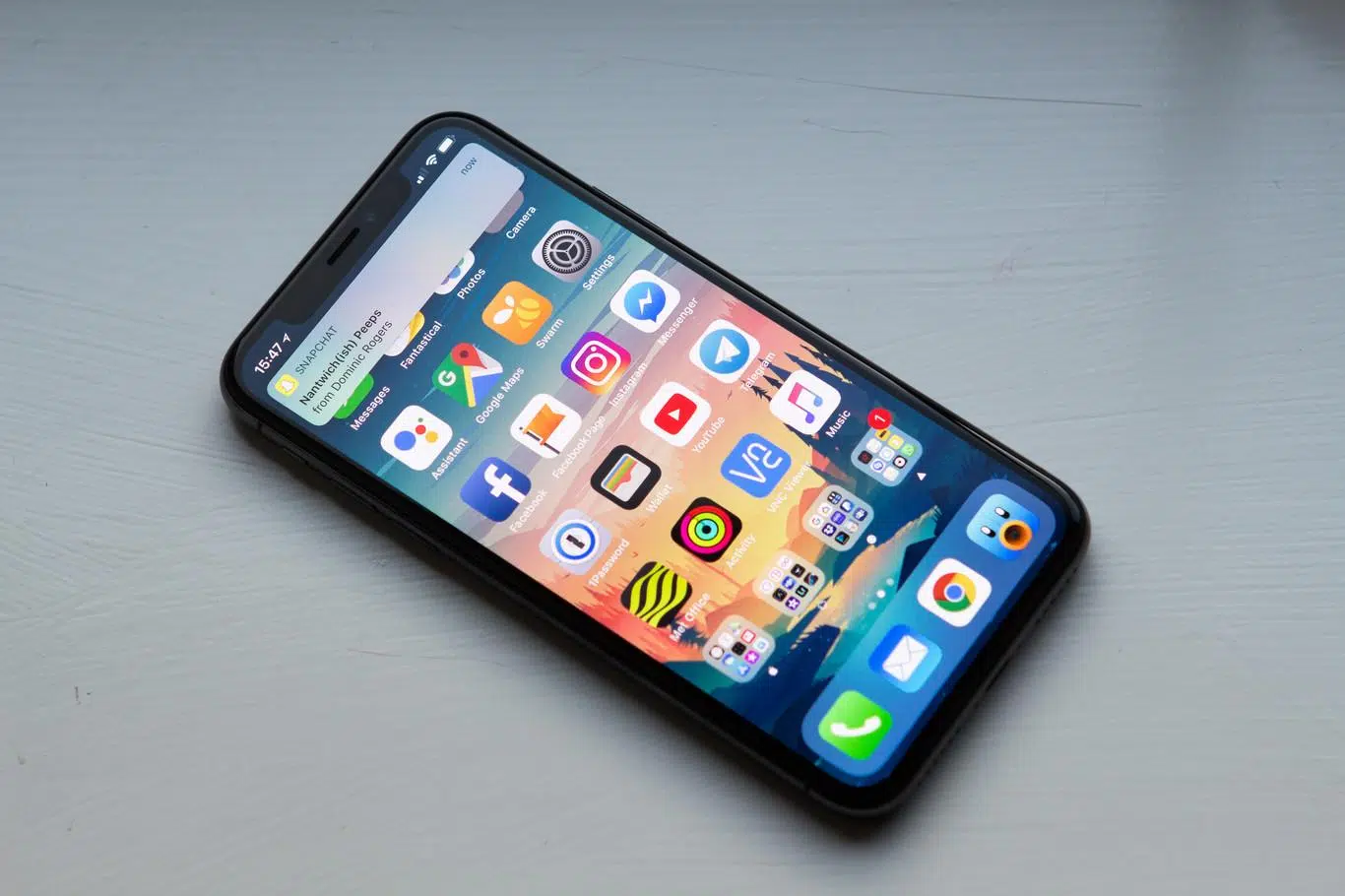
If you're someone who lives by taking screenshots, your phone and computer are probably overflowing with images you took "just in case." News articles, WhatsApp conversations, notes, software errors, quick tutorials… In the end, it all ends up in an endless folder of screenshots that are impossible to review calmly; perhaps it would be wise to organize your digital desktop.
The good news is that there are plenty of ways to get organized without going crazy. From super-fast shortcuts for capturing screenshots to apps that tag, search for text within images, and automatically delete what you no longer need . Let's take a step-by-step look at how to capture, edit, organize, and manage your screenshots on both your phone and computer, and which tools are really worth it.
How to take and manage screenshots on your mobile phone
Smartphones have made taking screenshots almost automatic. With a couple of buttons, you can save a snippet of conversation, a map, or a webpage , but if you don't fully understand how screenshots work and where they're saved, it's easy to lose control.
Taking a screenshot on Android
On most Android phones, the basic method is always the same. Open the screen you want to save and press the power button and the volume down button simultaneously . You'll notice a small animation or hear a sound, and you'll see a thumbnail in a corner.
On some models, if that shortcut doesn't work, there's an alternative: press and hold the power button for a few seconds and tap the "Screenshot" option that appears in the menu. If you still don't see it, it's best to check the manufacturer's support page, as each brand may place the shortcut in a different location.
After taking the screenshot, a preview usually appears in the bottom left corner or an icon appears at the top of the screen . From there, you can quickly edit, share, or delete it without having to go to the gallery.
Scrolling screenshots on Android (wide screen)
When you need to save a long conversation or an entire webpage, a scrolling screenshot is ideal. On Android 12 and later, many devices allow you to "capture more" in scrolling screenshots.
The process is simple: take a normal screenshot by pressing power and volume down , and then, at the bottom of the screen, tap the "Capture More" option (or something similar, depending on your device). Next, use the cropping guides to select how much of the scrollable screen you want to include . This prevents you from taking five screenshots in a row of the same chat and ending up with a jumble of separate images.
View, edit, and share screenshots on Android
On recent Android phones, screenshots are primarily managed through the Google Photos app. Open Photos, go to the collections or albums view, and locate the "Screenshots" folder , where they are automatically grouped.
If your device doesn't have the Photos app or you're using an older version of Android, you'll likely see an app called "Gallery ." Inside, you'll find an album view and a specific "Screenshots" folder where all the pictures you take with your phone's physical buttons are saved.
Record your screen on Android
It's not all about still photos: sometimes you want to show a process step by step. That's what screen recording is for. Swipe down twice from the top to fully open the quick settings and look for the "Record screen" icon.
If you don't see it at first glance, you can usually just swipe to the side of the quick access menu or tap "Edit" to add the recording icon from the list of available buttons. Once you have it, simply:
- Tap “Record screen” and choose whether you want to include audio and show taps by pressing the screen.
- Start the countdown and perform the actions you want to record.
- To stop, swipe up from the top again and tap the recording notification.
Recordings are usually saved in the Photos app itself, typically in a Videos or "Movies" section under "On this device ." It's a good idea to check them occasionally, as they take up quite a bit of space.
Extra control on iPhone: capture previews
On iPhone, in addition to the classic capture methods, there's a small setting that can help you better manage how you view screenshots. By default, screenshots are displayed full screen immediately after being taken , which can be a bit intrusive.
If you prefer that only a discreet thumbnail appears in the bottom left corner, you can change it like this:
- Open Settings on your iPhone and go to “General”.
- Tap the “Screenshot” section.
- Turn off the “Full screen previews” option so that only the temporary thumbnail is displayed.
This detail may seem minor, but it significantly reduces interruptions when you take many captures in a row , for example, when documenting a process or saving several steps of a conversation.
Why you need to organize your screenshots
If you take a second to look at it, you probably take several screenshots a day: a tweet you don't want to miss, an interesting article, event schedules, a map, a receipt… Multiply that by weeks and months, and the result is usually a gallery full of screenshots.
The first problem is obvious: many shots are "use and discard" and only make sense for a few minutes or hours . Others, however, you want to keep as a reminder or long-term reference. When they're all mixed up, you end up wasting time scrolling through your camera roll without finding anything.
Furthermore, the iOS and Android photo systems only offer basic assistance: they create a specific album for screenshots, but they don't allow for advanced organization within that folder . Without external help, it's very difficult to tag, add notes, automate deletions, or search for text within the screenshots.
That's why specific apps have emerged to address this problem. Their goal is simple: to give you a fast system for capturing screenshots and, above all, a user-friendly environment for organizing and cleaning them up . The key is that the saving process should be as immediate as taking the screenshot, without extra steps that you'll end up abandoning out of laziness.
Tools for managing screenshots on your mobile device
Aside from the native Android and iOS features, there are specialized apps that focus solely on your screenshots. On iPhone, one of the most interesting examples is ScreenshotPRO , while on Android there are several alternatives with similar philosophies.
ScreenshotPRO on iPhone
ScreenshotPRO is designed for those whose camera roll is full of screenshots. Its biggest advantage is that it only handles screenshots, both those you take yourself and those that arrive in your photo library from other apps , such as WhatsApp or other applications that save images to your camera roll.
Within the app, you have five key functions for your screenshots: organize, tag, search, delete, and annotate . With "organize," for example, you can move screenshots, copy them to other folders, or delete them in bulk, keeping only what you really want to preserve.
The tagging feature is especially useful if you take screenshots of different subjects or apps. You can create tags like "WhatsApp," "social media," "work," "invoices," "travel," or whatever you want . This way, when you want to find something specific, you won't have to sift through thousands of images.
Another strength is its intelligent search engine. ScreenshotPRO can find text within images ; that is, it recognizes the words that appear in a screenshot and allows you to locate it by typing that text. From there, you can even create new tags with the results.
Finally, the automated deletion option is invaluable for those who accumulate excessive amounts of photos. You can set rules to automatically delete certain types of screenshots after a specific time , or keep only those with certain tags or notes. It also allows you to add links and annotations to each screenshot to remind yourself why you saved it.
However, some advanced features are locked in a paid "premium" version with an annual fee . Even so, there are other similar apps in the mobile ecosystem that offer free, more basic but equally useful options to start cleaning up your camera roll.
Programs for capturing and managing screenshots on a computer
In the PC world, screenshots are also an everyday occurrence: documenting errors, preparing tutorials, creating presentations, sending instructions to a colleague… Here you have a good range of programs, from very simple options to professional solutions with advanced editing and automation.
In the PC world, screenshots are also an everyday occurrence: documenting errors, preparing tutorials, creating presentations, sending instructions to a colleague , or even projecting your mobile screen . Here you have a good range of programs, from very simple options to professional solutions with advanced editing and automation.
Snagit: Advanced Capture and Powerful Editing
Snagit is one of the most comprehensive tools for anyone who works extensively with visual content. It allows you to capture specific areas, the entire screen, windows, take panoramic screenshots, and even record your screen and webcam with audio.
It also includes a powerful image editor. You can crop, rotate, highlight areas, add arrows, text boxes, shapes, stamps, and all kinds of annotations —ideal for creating professional-looking manuals, tutorials, or training materials.
Another great advantage is the ease of sharing. Captures or videos can be saved on the computer or sent directly to services like Google Drive, Dropbox, YouTube, Twitter, and other destinations , reducing intermediate steps.
Snagit is complemented by Screencast, a service that generates links to share screenshots and videos without having to deal with large files . You take the screenshot with Snagit, edit it if you want, and then choose "Share link": Screencast creates the URL and copies it to the clipboard, ready to send to whomever you want.
It's a fantastic solution for professional use, although its main drawback is that it's a paid service and can be expensive for users who only need basic features . Even so, it usually offers trial versions so you can assess whether it fits into your workflow.
Windows Snipping Tool
Windows includes its own built-in utility: the Snipping Tool (or Snipping and Annotation in more recent versions). It allows you to capture the entire screen, a specific window, or a custom area drawn with the mouse.
It's ideal for quick tasks and for those who don't want to install anything extra. After taking the screenshot, you can save the file, copy it to the clipboard, or make simple annotations like underlining or writing over it with basic strokes; plus, if you need to know where screenshots are saved in Windows 10.
Its strengths are clear: it's free, comes pre-installed, and is very easy to use, even for those who struggle with technology . On the other hand, its editing features are quite limited compared to more advanced programs.
Another detail to keep in mind is that not all older versions of Windows include exactly the same tool , so there may be slight differences between computers.
LightShot: speed and simplicity
LightShot is a lightweight solution, ideal for those who simply want to quickly capture and mark something on the screen. It allows you to select an area, make basic annotations (text, drawings, shapes), and instantly copy or save the image.
It has a desktop version and a browser extension, and it's free and open source . Another interesting extra is that it lets you search Google for images similar to the screenshot you've taken , which is sometimes useful for finding sources or related information.
However, its philosophy is simplicity: the editing functions are basic, it doesn't allow video recording or scrolling captures , and if you use the extension you need an internet connection for some functions.
Greenshot: lightweight and very practical on Windows
Greenshot is another classic among free and open-source programs for Windows. It allows you to capture the entire screen, windows, specific regions, and even take scrolling screenshots in some applications.
It includes a small editor for adding text, shapes, and quick notes , sufficient for technical documentation, internal reports, or communication within a team.
Its interface is simple and quite customizable. The combination of being free, lightweight, and offering a variety of export options makes it very attractive to users who want more than just the Snipping Tool but without too much hassle.
The main drawback is that it's only available for Windows, and again, the editing tools fall short compared to professional solutions . It also doesn't allow screen recording.
PicPick: all-in-one with advanced editor
PicPick goes a step further, offering a very comprehensive set of visual tools. It allows you to capture full screens, windows, specific areas, and also take scrolling screenshots , which is very useful for long web pages.
Its built-in editor is one of its greatest strengths. It includes annotations, effects, drawing tools, and color management features such as a color picker, ideal for designers or content creators.
In addition, it allows you to record the screen and export the result in MP4 or GIF format , and its tabbed interface lets you work comfortably with multiple captures at once.
PicPick is free for personal use and open source, although professional use requires a license and the free version includes ads . Some advanced features may take some time to master.
ScreenPal: focused on video and tutorials
ScreenPal (formerly Screencast-O-Matic) is very popular among those who record video tutorials. It allows you to capture your screen and webcam with audio , making it perfect for online training, technical support, or course creation.
It also offers basic image and video editing tools , such as cropping, adding annotations, and making minor adjustments. Captures can be saved locally or easily shared via links and compatible platforms.
It offers a free version with limited features and paid plans that unlock more tools . The free version usually includes a watermark and lacks some advanced options.
SnapDraw: detailed annotations
SnapDraw is geared towards users who need to clearly mark up their screenshots, for example in technical documentation. It offers several capture modes (full screen, windows, regions, scrolling) and a comprehensive set of annotation and drawing tools.
Images are automatically saved to the system's image folder and can be uploaded directly to social networks or cloud services , making it easier to share results.
It's very comprehensive for a free program, although it also offers paid versions with more features . Its main drawbacks: it only works on Windows, it doesn't allow screen recording, and its interface can be somewhat complicated at first.
Nimbus Capture: versatility with cloud integration
Nimbus Capture offers an interesting balance between features and simplicity. It allows everything from basic captures to panning shots and video recording , and also includes simple annotation and editing tools.
It stands out for its integration with cloud services. It works especially well with Google Drive, Slack, Dropbox, and other platforms , making it very practical in collaborative work environments.
It has a functional free version and a paid subscription that unlocks advanced features , such as certain automations or scheduling functions.
ShareX is a true Swiss Army knife, designed for users who want a high level of control. It's free, open source, and offers a multitude of capture modes, including full screen, windows, custom areas, and scrolling.
It includes an editor for cropping, annotating, and adding shapes, but its strength lies in automation. It allows you to define complete workflows: for example, capturing, resizing, uploading to a cloud service, and automatically copying the link to the clipboard.
Furthermore, it integrates with over 80 cloud hosting services , making content sharing almost instantaneous. On the other hand, the interface can be overwhelming at first, and the learning curve is steeper than with other simpler tools.
LightScreen: light and discreet
LightScreen prioritizes absolute simplicity. It runs as a background process, activated by keyboard shortcuts , and automatically captures and saves the image according to your defined settings.
Although it does not offer sophisticated editing, it includes basic functions such as highlighting, annotating, or cropping , which are sufficient for many everyday uses.
Its main advantage is that it's fast, free, very lightweight, and works well even on low-powered computers . Its limitations include being available only for Windows, not recording video or taking scrolling screenshots, and having basic editing options.
Tips for choosing your ideal capture tool
With so many options available, it's easy to get lost. Ultimately, it's about finding the tool that best fits your actual workflow. Someone who only wants a couple of screenshots a day has different needs than someone who documents processes constantly.
Compatibility with your system
The first step is to check if the program works on your operating system. Many tools are designed specifically for Windows, while others also work on Mac or Linux . It's also a good idea to verify compatibility with your specific system version; if you use Windows, check out our guides on Windows tips and tricks to master your PC.
Features you'll actually use
Take stock of what you need: Do you just want to quickly capture and mark up, or also record video, create GIFs, automate cloud uploads, or perform scrolling captures? Not all tools offer the same features.
If you only take occasional screenshots, options like the Snipping Tool or LightShot will probably suffice. If you work creating content, documentation, or tutorials, programs like Snagit, PicPick, Nimbus, or ShareX can offer much more flexibility.
Level of experience and learning curve
Another key factor is how much time you're willing to invest in learning how to use the tool. Simple interfaces with few buttons are usually ideal for those who just need a quick fix.
However, if you want to automate complex workflows or integrate your captures with dozens of services, assume that tools like ShareX or very comprehensive solutions will require an adjustment period . In those cases, having tutorials, guides, or official documentation is very helpful.
Cost and payment model
Finally, there's the cost. Some apps are completely free, others operate on a freemium model, and a few require a one-time payment or subscription . Consider whether you truly need the professional features or if a well-chosen free option will more than cover your daily needs.
If you use it intensively and professionally, investing in a good tool can save you many hours in the long run. However, if you only take screenshots occasionally, lightweight free solutions will likely suffice.
Ultimately, managing your screenshots effectively involves combining three things: a fast and effortless method for capturing them, a convenient system for organizing and cleaning up your saved screenshots, and a tool that truly adapts to your workflow . With the options we've seen for mobile and desktop, you have plenty of room to experiment, stick with what feels most natural, and finally stop getting lost among thousands of meaningless screenshots.
