- There are native methods in Windows, Mac and some mobile brands to project the screen without installing additional apps.
- Third-party applications allow you to mirror and control your mobile phone from your PC via Wi-Fi or USB, with varying qualities and latencies.
- Wired connections (HDMI or USB) offer greater stability and less latency than Wi-Fi, although they usually require compatible adapters.
- The most common problems when mirroring your screen are due to the network, faulty cables, or incompatibilities, and are usually resolved by checking basic settings.
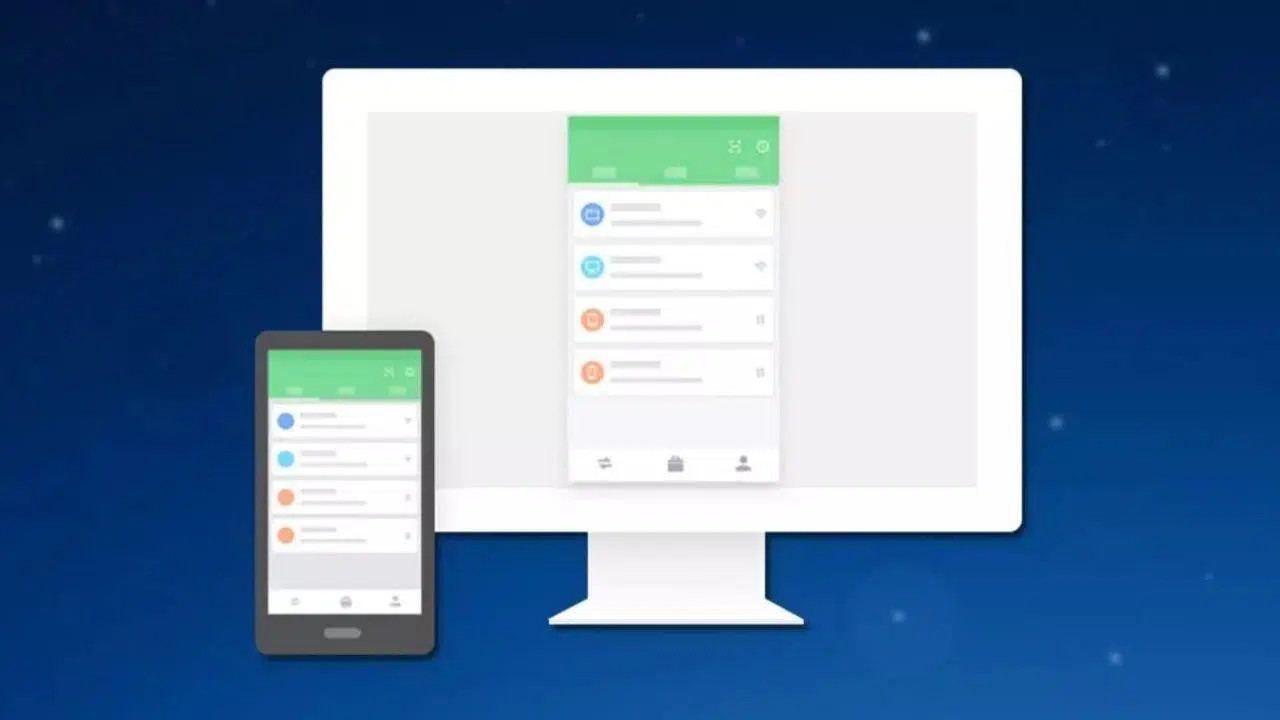
If you've ever wanted to view your phone's screen on your computer to enjoy videos, games, presentations, or simply control your phone with a mouse and keyboard, you've come to the right place. These days, there are so many options that it's easy to get lost among apps, cables, Windows settings, AirPlay, Chromecast, and each brand's own solutions.
In this guide, you'll find all the important ways to project or mirror your mobile phone to your PC : native Windows and Mac methods, third-party applications, Wi-Fi and wired connections, tips and tricks specific to your smartphone brand, and a final section on common problems and how to solve them. The idea is to give you a wide range of options so you can choose the one that best suits your needs.

How to use Windows to project your mobile phone without installing anything
If you have a computer with Windows 10 or Windows 11 , the system itself includes tools to receive the image from your Android mobile as if the PC were a Smart TV or a Chromecast, without needing to download additional programs.
The feature uses wireless projection , allowing you to send your mobile screen to your PC via Wi-Fi. It's very convenient for occasional use, although it's not the smoothest option if you want to play games or do long, high-quality streaming.
Enable projection on this computer in Windows
By default, most Windows PCs have wireless projection disabled , so the first step is to enable it in the system settings to make the computer visible from your mobile device.
Go to Windows settings and open "System > Projection to this PC" . On that screen, you'll see that the option is usually set to "Always off". Change the setting to "Available everywhere on secure networks" so that your PC can be used as a projection destination.
It's important to only leave it available on trusted networks , such as your home or office Wi-Fi, to prevent strangers from trying to connect from the same network.
From this same screen, you can add an extra layer of security to prevent unauthorized access to your PC. Activate the option to protect the projection with a PIN code and decide whether you want to require this code every time a device attempts to project, or only the first time it connects.
Also check that the switch indicating the device is discoverable is enabled . If the PC isn't visible, the mobile device won't display it in the list of devices to which it can send its screen, and it will appear as if it's "not working," when in reality it's just a simple setting.
Open the Wireless Projection app in Windows
Once you've done that, your PC is ready to receive screen mirroring from any compatible Android phone . As soon as the connection is established, the app that manages everything will open automatically, although you can also launch it beforehand to check if your computer is ready.
The app is called “Wireless Projection” (or “Connect” in some versions) and is available from the Start menu. When you open it, you’ll see the name of your PC—which is what will appear on your phone when you search for devices—and a message indicating whether it’s waiting for connections.
Pressing Control + S within the app opens a small settings panel where you can allow or block access for recently connected devices. It's not a screen with a thousand options, but it gives you some control over who's projecting.
Cast your Android screen to your PC (like a Chromecast)
With your PC ready, the following steps are done from your mobile device. On most Android phones, you'll see an option called "Project," "Cast," or "Screen Mirroring ," usually in the quick settings or the display/connections menu.
Activate this feature with your phone connected to the same Wi-Fi network as your PC . Your phone will scan for compatible devices, and if everything is set up correctly, your computer will appear as a projection destination, just like a Smart TV or Chromecast.
When you select your PC, Android will display a notification indicating that your screen will be recorded and streamed . Confirm the message, and if you set up PIN protection on Windows, you'll need to enter the code displayed on your computer to complete the pairing process.
In just a few seconds, you should see your phone's screen within the Wireless Projection app on Windows. The window works best in landscape mode, so it's usually a good idea to rotate your phone to landscape if you're going to watch videos or play games.
Another advantage of this method is that you can use your PC's mouse and keyboard to control your mobile device . Many classic Windows keyboard shortcuts, such as Alt + Tab, are compatible with Android, allowing you to switch between open apps quite easily.
However, if you plan to mirror your screen regularly and need maximum smoothness, this wireless option might fall short: there's some lag, and it's not as stable as dedicated solutions like scrcpy. But for occasionally viewing your phone on a larger screen without installing anything, it's a very handy option.
View your mobile screen on your computer using apps
Beyond the built-in features of Windows and Mac, there are many apps for projecting and even controlling your mobile device from your PC , both via Wi-Fi and USB. Some allow you to simply view what's happening on your phone, while others offer complete remote control. An interesting alternative for Linux users is Deskreen , which facilitates screen mirroring over the network.
AirDroid and AirMirror
One of the oldest solutions is AirDroid , which started as a tool to manage your mobile phone from a browser or desktop app, and now includes screen mirroring and touch remote control features.
To use it, install the AirDroid app on your mobile device (Android or iOS) and download the desktop client from the official website . Create an account or log in if you already have one, and use the same credentials on both your phone and PC to link them.
Within the desktop program, you'll find a "Screen Mirroring" function . Activating it will send the image from your mobile device to your computer via Wi-Fi, provided both are connected to the same wireless network.
Performance depends heavily on the quality and stability of your Wi-Fi network . If you have a good fiber optic connection and a decent router, you'll be able to use apps, watch videos, and even play certain games without too many interruptions; if the signal is weak, you'll experience lag and dropouts.
Related to AirDroid is AirMirror , an application designed to take control of your mobile phone from another screen, including a PC. It works similarly: you install AirMirror, scan a QR code or link accounts, and activate the screen sharing option.
ApowerMirror, LetsView, Mobizen, Spacedesk and other alternatives
Alongside AirDroid, there are other popular apps like ApowerMirror , which works with both Android and iPhone and is available for PC and Mac. It allows you to mirror your screen via Wi-Fi or cable, and in many cases also offers mouse and keyboard control.
The process is simple: download the program for your operating system, install the app on your phone, run both, and choose whether to connect via USB or Wi-Fi. If both devices are on the same wireless network, simply press the screen mirroring button on your phone.
Another free tool is LetsView , which works very similarly to the previous ones. Once installed on your PC and mobile device, you can link devices using a PIN or QR code , and then tap “Connect to Wi-Fi > Reorient” in the application to have your mobile device start broadcasting to your computer.
If none of these options appeal to you, or if the app store reviews don't inspire confidence, you can try Mobizen , also known as a screen recording app. It allows you to view your phone's content on your PC and record videos, and it has a specific version for some Samsung models.
Less well-known, but very powerful, is Spacedesk , which functions more like a multi-monitor remote desktop. Essentially, it turns your mobile phone or tablet into a secondary display for your PC, and can also be used to share, extend, or mirror your screen via Wi-Fi, USB, or LAN. The app itself includes step-by-step instructions for setting up two monitors.
Vysor and the USB connection
If you prefer to use a cable instead of Wi-Fi because you're looking for lower latency and more stability , a well-known option is Vysor, which focuses on displaying the Android screen on your PC via USB.
The first step is to install Vysor on your Android phone and download the program for your computer from its official website. Then you need to enable USB debugging in your phone's developer options and connect it to your PC with a data cable.
When you open Vysor on your computer and mobile device, the program will detect your device and you'll see a "View" button. Clicking it will display your phone's screen in a window on your desktop . The free version has some quality limitations and includes some ads, but it's sufficient for most uses.
Scrcpy: open source, very fast, and for advanced users
Among the free tools, one of the most highly valued by advanced users is scrcpy , an open-source project compatible with Windows, macOS and Linux that allows you to project and control Android mobiles with very little latency.
Its main advantage is that it doesn't require any installation on the phone : you only need to enable USB debugging and connect the phone to the computer via cable. Scrcpy runs from the command prompt on the PC, and when launched, a window opens displaying the device's screen.
The program uses the ADB protocol to capture the image and send mouse and keyboard commands, so the experience is very smooth, even in games. It also allows you to record screen video, take quick screenshots , and even works with phones whose touchscreens are broken.
Native Mac and iPhone screen mirroring options
If you operate within the Apple ecosystem, the brand offers its own methods for mirroring the iPhone or iPad screen to other Apple devices , primarily through AirPlay, which has been integrated into iOS for years.
The downside is that these solutions are practically exclusive to Mac and Apple TV, so you won't be able to take advantage of them directly on a Windows PC, except by using third-party apps that emulate an AirPlay receiver.
Mirror iPhone to Mac with AirPlay
Any iPhone with iOS 4.2 or later includes AirPlay as standard, Apple's technology for sending video, audio, and screen mirroring to other compatible devices. This means that even older models usually work well.
In the case of a Mac, you need a relatively recent computer with macOS that supports AirPlay as a receiver. When both computers share the same Wi-Fi network, the iPhone can see the Mac as the mirroring destination.
The process is very simple: swipe in from the top right corner of your iPhone to open Control Center , tap the “Screen Mirroring” icon (two overlapping rectangles), and select your Mac from the list of available devices.
A code may appear on your computer screen . Simply enter it on your iPhone to complete the connection, and from then on, everything you do on your phone will be reflected on your Mac screen in real time.
When you want to stop sharing, return to Control Center, go to "Screen Mirroring," and tap the option to stop mirroring . It's ideal for showing photos, videos, or apps in meetings without using cables.
AirPlay on Apple TVs and other devices
If you're looking to view your iPhone on a large screen like a TV or monitor with a receiver, AirPlay is also integrated into many Smart TVs from 2019 onwards from brands like LG, Samsung, or Sony , as well as Apple TV and some recent Fire TV models (not all sticks).
The method is the same as with a Mac: from the iPhone's Control Center, choose Screen Mirroring and select your TV or Apple TV. As long as your phone and device are on the same Wi-Fi network , everything should work smoothly.
If you also have other Apple devices, such as an iPad or a MacBook compatible with macOS Monterey or later , you can also use them as a display for your iPhone. The list includes devices like the 2018 and later MacBook Air and Pro, the 2019 iMac, the 2020 Mac mini, and the 2019 Mac Pro.
And if you can't get by with AirPlay or your device isn't compatible, there's always QuickTime with a wired connection: connect your iPhone to your Mac with the Lightning or USB-C cable, open QuickTime, select "New Video Recording," and choose your iPhone as the source to view its screen on your computer.
Project your mobile phone onto a PC or monitor using cables
If you prefer to avoid Wi-Fi because you don't want interruptions, delays, or to depend on network quality, the most reliable way to view your mobile device on a large screen is still with a cable . There are two main options: HDMI adapters and USB-based solutions.
With HDMI, you essentially turn your phone into a kind of "mini PC" that sends video directly to your monitor or TV. With USB, on the other hand, you need a specific app on your computer, but you have more remote control and recording options.
HDMI adapter for Android and iPhone
To connect your phone via HDMI, you need a specific adapter that converts the phone's port into a video output . For iPhones, this is usually an official or compatible Lightning to HDMI adapter, while for Android, it's typically a USB-C or micro USB to HDMI adapter.
The best option is to use an adapter plus a standard HDMI cable instead of an all-in-one cable. This way, you can use HDMI cables you already have at home, and if one breaks, you only need to replace the cable, not the adapter.
Some Android phones also support MHL or DisplayPort Alt Mode via USB-C , which allows you to output video directly through the USB-C port. In these cases, you can use a USB-C to HDMI cable or adapter compatible with these technologies to achieve a stable 60 fps image.
It works simply: connect the adapter to your phone, plug the HDMI cable into the adapter and the screen, and in a few seconds you'll see everything you do on your phone on the monitor . You don't need to install anything on your phone or TV, and the latency is virtually nonexistent. If you have audio or detection problems, see our guide on HDMI audio issues.
However, with this method you won't be able to use your computer's mouse and keyboard to control your phone (except in specific solutions like Samsung DeX or similar desktop modes). It's more of a large-screen "clone" of your phone's screen than a full-fledged remote control.
Which cable or adapter to choose (and which to avoid)
If you want a high-quality experience for cloud gaming, video calls, or live presentations, choosing the right cable is essential. Ideally, you'd want a USB-C to HDMI cable with "Alt Mode" support and these key features:
- HDMI 2.0 or 2.1 certification to ensure 4K at 60 Hz and a competent audio return channel.
- Marked “USB-C DP1.4” on the cable or adapter, indicating that the mobile's port can send video via DisplayPort, which is essential for modes like Samsung DeX, EMUI Desktop, or Motorola's Ready For.
- Maximum length of 1,8 metersbecause from 2 meters onwards it is much more common to experience interference, ghosting or signal loss.
- Chipsets such as VL102 or ANX7530 recorded in the head, which are responsible for negotiating the signal and preventing black screens when changing applications or resolution.
- Avoid the cheap chain adapters USB-C to USB-A to HDMI type, because they usually limit the signal to 720p, add noticeable latency and can overheat the phone's port.
- If your mobile only offers USB 2.0It's often better to use an externally powered active MHL hub: you'll lose some sharpness, but you'll gain a lot of smoothness and stability.
View your mobile screen using USB and desktop apps
Beyond Vysor and scrcpy, there are other tools that allow you to view your phone's screen on your PC via USB . The idea is similar: you enable USB debugging, connect the data cable, and let the program handle the rest.
This type of wired connection is perfect when you want to avoid any Wi-Fi coverage problems or when the network is congested. Furthermore, if the phone's screen is damaged, touch-based solutions are useless, whereas with USB you can still recover data.
The downside is that, with many wired mirroring apps, if the phone isn't rooted or doesn't have certain options enabled, you'll only be able to see the screen but not control the phone from your PC . In those cases, if you need full control, you'll have to resort to tools like scrcpy or pay for advanced versions.
Brand-specific apps and features for screen sharing
In addition to general solutions, many manufacturers have created their own tools to connect the mobile phone to the PC and share screen, files, or even offer a complete desktop mode.
If you take advantage of what your brand already offers, you'll typically have a more polished integration, with less configuration and a more stable experience, especially on relatively new devices.
Screen sharing on Xiaomi (MIUI)
On Xiaomi phones with MIUI, the screen mirroring option is usually integrated into the system settings, typically in the connections section.
To use it, go to Settings and then to “Connections and sharing” . There you should find a section with names like “Screen mirroring”, “Cast”, or “Screen mirroring”. Once you access it, MIUI lets you search for compatible devices, whether they are TVs, monitors, or PCs with receiver software.
Once you've chosen the target screen, follow the instructions on your mobile to complete the connection and you'll be able to mirror or share your smartphone screen quite directly.
Samsung DeX: Your Galaxy turned into a PC
In the Samsung world, one of the most complete solutions is Samsung DeX , a mode that transforms your Galaxy into something very similar to a desktop computer, with windows, a taskbar, and support for a mouse and keyboard.
With DeX, you can work with multiple apps simultaneously, edit documents, manage files in the cloud , and enjoy multimedia content on a large screen. It's also compatible with common applications like Microsoft Office, Google Chrome, and even some Adobe tools.
Using it with a PC is simple: download the Samsung DeX app for Windows or Mac, install it on your computer, and connect your phone to the same Wi-Fi network or via cable. On your phone, you'll see the option to launch Samsung DeX and project to your computer.
Once connected, you'll see a DeX desktop interface on the monitor, from which you can navigate the entire mobile system with a mouse and keyboard , open apps in windows, drag and drop files, and much more.
DeX is compatible with a long list of Galaxy models, from the S8 series onwards, including the current Note, Fold, Flip and S23/S24, as long as the computer runs Windows 10 or macOS 10.13 or higher.
PC Connect on OPPO and realme
OPPO and realme manufacturers have their own tool called PC Connect , designed to wirelessly synchronize mobile and computer and offer features such as screen mirroring and file management.
It's usually accessed from the phone's quick settings panel . By activating PC Connect with your phone and PC on the same Wi-Fi network, you can mirror your smartphone's content on the monitor and use the mouse and keyboard to move files, reply to messages, or perform other quick actions.
It's a relatively recent feature, which started arriving in models with Android 12 or later , so it's not present in all OPPO and realme phones, especially the older or basic ones.
At Huawei, integration is primarily achieved through Huawei Share and the PC Manager app . These tools allow you to share images, videos, and documents, as well as control some of your phone's functions from your computer screen.
For this to work, the phone must have Wi-Fi, Bluetooth, and NFC enabled , and Huawei Share must be turned on from the quick settings panel. On the PC, Wi-Fi and Bluetooth must also be enabled, and PC Manager must be installed.
With both devices unlocked and close together, the PC may detect the phone and allow pairing by tapping the phone against the laptop's NFC area (on compatible devices). From there, you can share your screen and content seamlessly.
Google Pixel and receiver apps like Reflector
Interestingly, despite having a near-stock Android experience, many Google Pixel users are unsure how to mirror their screen to a computer. The most common approach is to use screen mirroring apps on the PC, such as Reflector or similar.
The typical usage flow would be to download and install Reflector on your Windows or Mac computer , make sure your Pixel and PC are on the same Wi-Fi network, open Reflector, and then expand the Pixel's quick settings to tap the "Cast" or "Broadcast" button.
Your phone will display a list of available screens, and your computer should appear among them, identified by the name you configured in Reflector. Once you select it, you'll see the Pixel's screen in a floating window on your home screen without much hassle.
And what about other brands?
Most manufacturers include some form of screen sharing or content casting , whether through Google Cast, Miracast, or proprietary apps. If your brand doesn't have a system as sophisticated as DeX or Huawei Share, you can always use the third-party apps mentioned earlier.
If you can't find a clear option in your phone's settings, look for terms like "Cast", "Screen mirroring", or "Screen mirroring" , and if you're still unsure, consult your phone's manual or user forums for that brand, where they usually detail the compatible methods.
Chromecast and other HDMI devices for screen mirroring
Another very popular solution, especially for TVs and monitors with HDMI, is to use a Chromecast or similar streaming stick . Although we usually associate it with watching Netflix or YouTube on the TV, it can also be used to mirror your mobile phone's screen.
On Android, many devices offer a "Cast screen" option within the Google Home app or in the quick settings. With your phone and Chromecast connected to the same Wi-Fi network , simply select the Chromecast as the destination, and everything you see on your phone will appear on your TV.
The great thing about this method is that there are also solutions for iPhones, either with Chromecast or AirPlay-compatible sticks . Furthermore, some TVs have Google Cast or similar technologies built-in, so you don't even need an external stick.
Even other HDMI devices from lesser-known brands can work similarly, as long as they allow receiving cast or mirroring content and are correctly configured on the same wireless network.
If you see strange colors or a negative image when you turn on your Chromecast, restarting the device or your TV is usually enough . It's also a good idea to check your monitor's image settings to make sure there isn't an unusual mode active.
Microsoft Phone Link and Phone Display
On many PCs with Windows 10 and 11, Microsoft integrates the Phone Link app , which allows you to connect your mobile phone to your computer to view notifications, messages, calls, and in some cases, even the phone's full screen.
The Phone Screen feature within Phone Link lets you interact with Android apps from your PC, provided you meet certain hardware requirements and have a compatible mobile phone, such as certain Galaxy, Surface Duo, OnePlus, OPPO, realme, or HONOR models.
Requirements and compatible devices
To use Phone Screen, you need a PC running Windows 10 October 2018 (version 1809) or later , ideally updated to the latest available version. It must also have a DirectX 11 compatible GPU.
Additionally, your Android device must be compatible and have Link to Windows pre-installed or available. Supported models include many Samsung Galaxy phones (S9, S10, S20, S21, S22, S23, S24, Note9, Note10, Note20, Fold, Z Flip…), Surface Duo, HONOR Magic4 Pro and Magic6, several OnePlus series, OPPO Find and Reno, realme, ROG Phone 8, and vivo X Fold3 Pro, among others.
The mobile device and PC must be connected to the same Wi-Fi network . On the computer, open Mobile Link, go to the Phone Display tab, and follow the setup wizard, granting permissions when prompted so that it can display and control the device's content.
How to interact with your mobile phone screen from your PC
Once set up, you can use your mouse, touchpad, keyboard, and even your PC's touchscreen (if it has one) to open apps, write messages, scroll, and navigate your mobile device as if you were holding it in your hand.
The basic equivalencies are simple: a normal click is equivalent to a touch on the screen, a right click usually goes back, pressing and holding opens context menus, and dragging while pressing selects text or moves items.
Some apps and games don't respond well to the mouse or keyboard because they're designed for touch gestures on the phone's screen. In those cases, if your PC has a touchscreen, you can interact with the phone's screen using your fingers.
To type in different languages on your PC, the language and keyboard layout are controlled by Android in the physical keyboard settings, not the PC's language settings. You can change this in your device settings or by using shortcuts like Shift + Space if you have multiple languages configured.
Black screen and privacy
Phone Link offers an option to turn off or "hide" your phone's physical screen while connected to your PC, so that what's displayed on the desktop isn't visible on your phone. This helps save battery power and protects your privacy if other people are nearby.
If you want to disable the black screen, go to Mobile Link settings on your computer and, under Phone Display, uncheck the option that says " Hide device screen while connected ." You can change this setting at any time.
Common problems when mirroring the screen and how to solve them
As with almost everything related to technology, when trying to project your mobile phone onto your PC or TV, errors can occur. Sometimes they are configuration problems, other times Wi-Fi network issues, or simply inadequate cables.
Often, restarting your device fixes more than you might think, but it's helpful to know the common problems so you can get to the root cause instead of going crazy trying a hundred options at once.
Wireless connection failures
If you're using Wi-Fi and the projection isn't working, keeps cutting out, or your PC doesn't even appear in the list, the first thing to check is that both devices are on the same wireless network . It's very common to have the PC connected by cable and the mobile phone using mobile data or a guest network.
If you've already checked the network and it's still not working, there might be an incomplete configuration. In that case, the best course of action is usually to delete the connection and start the process from scratch : disable projection, restart your mobile device and PC, re-enable the services, and carefully repeat the steps.
The network might also be congested or experiencing interference , especially on the 2,4 GHz band. If your router and devices allow it, try using the 5 GHz band, which is usually cleaner and offers better streaming performance.
Problems with the USB port or cable
When using a USB cable, if your computer doesn't recognize your phone or the image doesn't appear, the problem is most likely with the cable itself or the port . Not all charging cables are suitable for data transfer, and many deteriorate over time.
Try using a different , high-quality cable with data transfer capabilities , and if possible, connect it to a different USB port on your PC. If the phone was already having charging problems, the phone's port might be damaged and need repair.
If the problem only occurs when connecting it to the computer but it charges fine when plugged into the wall outlet, the issue is likely with the cable or the PC's USB connector . In that case, changing the cable or trying a different port is usually the quickest solution.
Video cable incompatibilities and limitations
Not all video adapters and cables are created equal. Many problems such as black screens, low resolution, or lack of signal are due to incompatibilities between the mobile device and the HDMI/USB-C cable being used.
Before you panic, check your phone's technical specifications to see if it supports MHL, DisplayPort Alt Mode, or other video output standards. This information is usually available on the manufacturer's website or in the manual.
It's also a good idea to check out specialized forums or communities for your mobile phone model , where other users may have documented which adapters work well and which don't, preventing you from buying products that then don't work with your device.
Strange colors or poorly calibrated image
If the mirrored screen displays negative, saturated, or very strange colors , the problem may lie with the television or monitor, or with the way the connection was made.
First, check how the TV channels or other HDMI inputs look. If everything looks bad, the problem is most likely with the TV's picture settings , and you may need to adjust the brightness, contrast, color mode, or reset it to factory settings.
If the image only looks bad when you connect your phone, check the devices and accessories involved : the HDMI adapter, the cable, the port you're using, the image mode of that specific input, etc. A simple change of HDMI port or cable might fix it.
In the case of Chromecast and similar streaming devices, sometimes the problem of inverted colors appears when the device is turned on. Usually, restarting the Chromecast or turning the screen off and on again is enough to restore everything to normal.
With all these options available, you have a huge range of ways to project your phone's screen onto your PC or any large display : native Windows, Mac, and AirPlay features, HDMI adapters, Wi-Fi and USB apps, and brand-specific solutions like DeX, Huawei Share, or PC Connect. Choosing one or the other will depend on whether you prioritize wireless convenience, wired performance, or complete remote control of your phone, but by understanding each method, you're unlikely to be without a way to view your phone on a big screen when you need to.