- Soundbars connected via HDMI can be detected by Windows as additional monitors, creating ghosting and cursor loss.
- Disabling that "monitor" from the display settings or the NVIDIA panel usually also disables the soundbar's HDMI audio output.
- Using the NVIDIA Control Panel to clone the main display with the bar allows you to keep the audio without having an invisible extended desktop.
- Checking cables, ARC/eARC ports, audio settings, firmware, and possible alternative connections helps avoid video and sound conflicts.
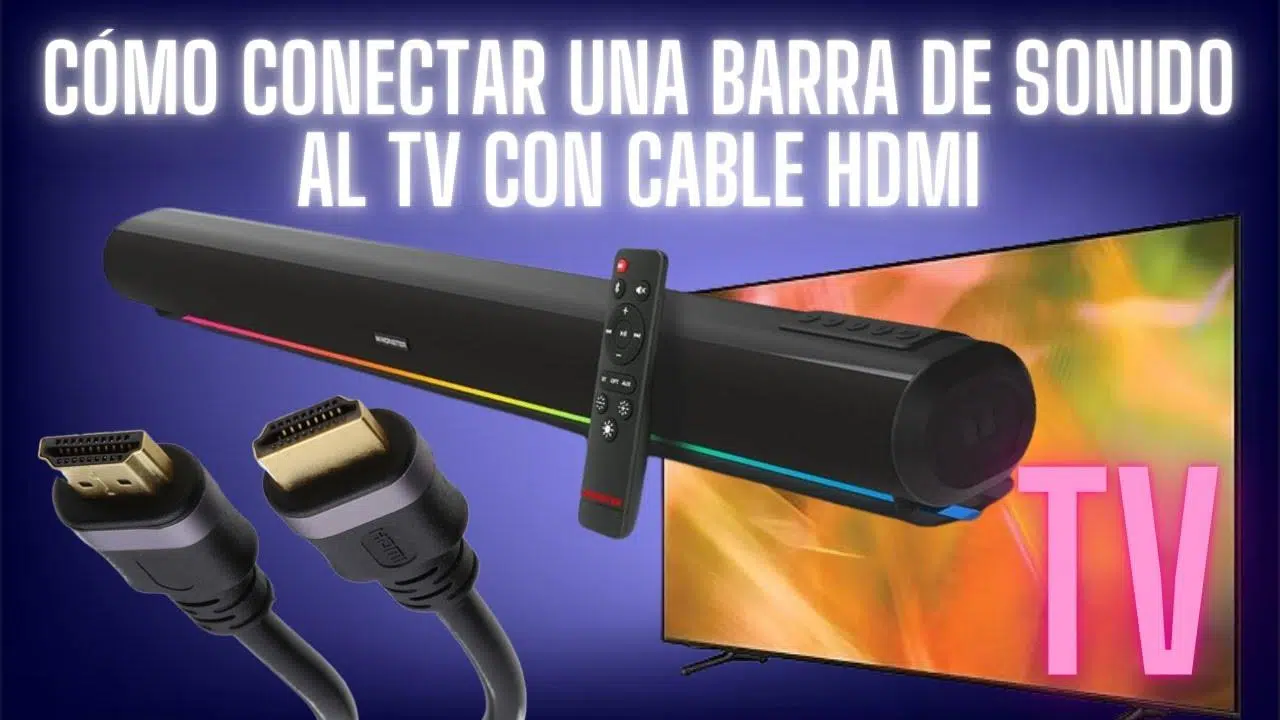
When you connect a soundbar to your PC via HDMI , you'd expect better audio, Dolby Atmos compatibility , and generally a more polished experience than with an optical cable or a mini-jack. However, many users encounter a very strange problem: Windows detects the soundbar as if it were an additional monitor , creating a ghost image where the mouse cursor or windows may "disappear."
This behavior is not only annoying, but it can also cause conflicts with resolution, refresh rate , and even, when the supposed monitor is disabled, the system may stop recognizing the soundbar as an audio device. At first glance, it seems like a silly bug, but it actually has an explanation, and best of all, there are several ways to fix it without giving up HDMI audio, including Atmos.
Why does my soundbar appear as an HDMI monitor in Windows?
The problem stems from the fact that an HDMI connection carries both audio and video . Even if your soundbar only needs audio, the GPU and Windows interpret any HDMI device as a monitor or television by default. Therefore, when you connect a Panasonic, LG, Sony, or any other brand of soundbar to the graphics card's HDMI port, the system identifies it as an additional display.
On many systems, especially those with modern NVIDIA RTX graphics cards (4060, 5080, etc.) and processors without integrated graphics (such as Intel F series), this means the soundbar appears listed as another monitor, usually with a generic name like "Generic Plug and Play Monitor ." Windows treats it as a display, assigns it a resolution and refresh rate, and integrates it into the extended desktop.
The result is that you suddenly have a third, phantom screen where windows or even the mouse cursor can end up. Some users with soundbars like the Panasonic Soundslayer find that they lose the pointer in this invisible area of the desktop, making PC use quite frustrating. And if they try to disconnect that monitor from the display settings, they also lose the HDMI audio output.
This behavior isn't exclusive to any one brand: it also occurs with LG soundbars featuring Atmos (SK9Y, SP2, etc.) and with sound systems connected via AV receivers when using HDMI directly to the GPU. In all cases, the underlying issue is the same: the system is recognizing the soundbar as a complete video device, not just as speakers.
Typical problems when the soundbar acts as a phantom monitor
The most visible symptom is the appearance of an additional screen in Windows settings . It may display with a very low or unusual resolution, but the system treats it as if it were actually connected. This causes several everyday problems that are worth knowing in order to identify them quickly.
On the one hand, it's common for some applications or games to open by default on that phantom screen . To the user, it appears that the program is unresponsive or minimized, but in reality, it's "drawing" on a monitor that doesn't physically exist—the one corresponding to the soundbar. The same thing happens with dialog boxes, menus, and, above all, with the dreaded mouse pointer.
Furthermore, attempting to manage the situation through the standard Windows Display Settings can lead to unexpected side effects. Some users report that when trying to disable the soundbar as a display or configure its layout, the system ends up synchronizing the resolution and refresh rate of their primary monitor with the soundbar's capabilities, which are typically much more limited.
This means losing the 144Hz, 165Hz, or 240Hz refresh rate of a gaming monitor and being stuck at 60Hz, or seeing the monitor's maximum resolution drop because Windows tries to sync it with the soundbar's HDMI output. The most frustrating part is that even if you uncheck the "extend" or "duplicate" display options in Windows, the audio and video behavior remains locked.
In the case of NVIDIA cards, when using the brand's control panel to disable the secondary display , many users find that the soundbar also disappears as an audio output option. There's no apparent way to specify "I want audio via HDMI, but I don't want this to count as a monitor," at least not if you only use basic Windows settings or disable the device entirely.
Real-world examples of affected equipment and typical configurations
This problem isn't limited to a specific soundbar model or a very rare hardware combination. In fact, it occurs in fairly typical current gaming and home theater setups , where a powerful PC is combined with advanced HDMI audio.
A fairly representative case is that of a user with an NVIDIA RTX 4060 , an Intel F-series processor (without integrated GPU), two monitors connected via DisplayPort 1.4 , and a soundbar with HDMI 2.1 and ARC/eARC support. The system recognizes the two actual monitors and, in addition, the soundbar as a third monitor through the graphics card's HDMI port. As soon as the user tries to disable this "third monitor," the soundbar disappears from the audio device list.
Another classic example is those who replace a speaker system connected via S/PDIF (optical) with an LG soundbar featuring Dolby Atmos 5.1.2 (like the SK9Y). To take advantage of Atmos from the PC, there's no alternative but to switch to HDMI, because neither optical nor the minijack supports these rich audio formats. As soon as they switch to HDMI, the NVIDIA panel detects a second screen, and the trouble begins.
There have also been cases with soundbars connected to recent high-end GPUs (for example, a ZOTAC RTX 5080 Solid) in systems with Ryzen processors, where the soundbar is detected as a generic Plug and Play monitor and appears in the display settings. Attempting to "disconnect this device" from the display properties disables the audio output, leaving the user without sound despite everything being properly connected.
There are even hybrid setups with DisplayPort monitors and HDMI audio connected to an AV receiver or soundbar, where the system detects multiple displays even though only one is the actual monitor. Some people report that, with previous generations of AV equipment, the PC would send audio via HDMI without issue, avoiding the extra monitor problems, but with certain newer hardware and Windows 10/11, this behavior has changed.
Failed attempts: what usually doesn't work (or only works partially)
The first thing most people try is going to the Windows Display settings and selecting the "disconnect this device" option for the display associated with the soundbar. In many cases, this also disables the HDMI audio device, leaving the PC without sound output through that soundbar.
Another common approach is to go to Device Manager and look for the "Generic PnP Monitor" item related to the soundbar. While it seems logical to think that disabling this monitor would stop it from functioning as a display, in reality, it usually has no effect . The display device still appears in the settings or retains its audio-related function, so you gain virtually nothing.
Many users try unchecking or completely disabling the secondary display from the NVIDIA control panel . The problem is that audio and video travel together through the same HDMI connector: if the system thinks the display isn't there, it also stops sending the audio signal. Therefore, disabling the display from there also removes the audio bar from the list of audio playback devices.
Sometimes more drastic solutions are considered, such as uninstalling the sound drivers from Device Manager (in the "Sound, video and game controllers" section) and letting Windows reinstall them upon restart. This can resolve driver errors or incorrect recognition after a Windows update, but it doesn't fix the fact that HDMI is being treated as a video and audio device.
Some have even tried uninstalling recent Windows updates from the Windows Update history, in case a patch introduced the problem. While in very specific cases there might be a regression, the issue of treating the soundbar as an HDMI monitor is usually long-standing and not due to a specific update.
Advanced solution with NVIDIA control panel: clone the screen
The most effective way many users with NVIDIA graphics cards have found to maintain HDMI audio without experiencing ghosting is to correctly use the classic NVIDIA Control Panel (not the modern app), taking advantage of the multi-display configuration options at the GPU level.
The typical procedure involves right-clicking on the desktop, selecting " Show more options, " and opening the "NVIDIA Control Panel." Within the panel, go to the "Display" section and then to "Configure multiple displays." This will show the active monitors and also the soundbar as an additional monitor, even though its only real purpose is audio.
In that section, you can drag the screen icons to match the physical layout, and most importantly, you can choose the option to clone the main monitor with the soundbar . That is, instead of having it as an extended or independent display, it's configured as a cloned display that receives the same signal as the actual monitor.
When you clone the main monitor with the soundbar's "monitor," the soundbar stops acting as a separate display . Windows no longer considers it a new desktop for windows or a separate destination for the mouse, but it continues to send the video/audio signal the soundbar needs to function as an HDMI audio device, including support for formats like Dolby Atmos.
The great advantage of using the NVIDIA control panel for this task is that it offers very fine-grained control over display management . It allows you to avoid the typical forced synchronization of resolution and refresh rate with the soundbar's HDMI device, maintaining 144 Hz, 4K, or whatever is appropriate on the main monitor, while the soundbar receives the minimum video signal necessary to remain active as an audio receiver.
Check audio settings, HDMI, and updates
Although the screen cloning trick in the NVIDIA panel works very well, it's also a good idea to check the general HDMI and audio settings in Windows and on the devices themselves, especially if the soundbar isn't outputting audio or the PC doesn't seem to be detecting the device correctly.
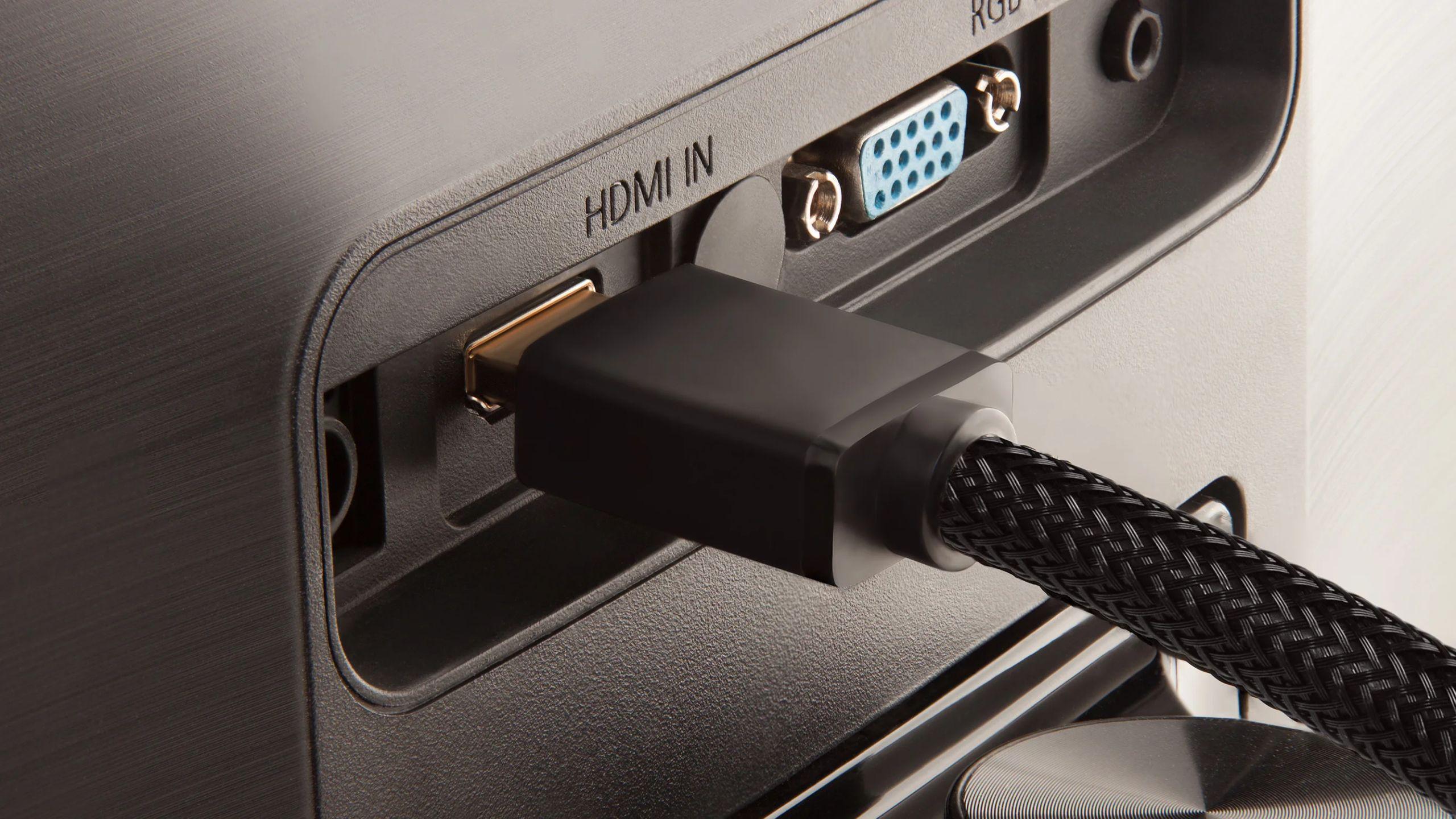
First, it's essential to verify that the soundbar is properly connected : plugged into a working power outlet and connected to the PC or TV via a good quality HDMI cable. If using the classic TV ↔ soundbar connection, make sure the HDMI cable is plugged into both the TV's ARC or eARC port and the corresponding port on the soundbar, as this is what enables the Audio Return Channel.
From the PC side, the HDMI cable connected to the GPU should go into the HDMI IN input of the soundbar or AV receiver, not the HDMI OUT intended for the TV. In more complex setups where the PC connects to the TV via one HDMI cable and the soundbar via a separate HDMI cable, it's important to check for monitor detection conflicts or unusual audio loops with the Audio Return Channel (ARC).
In the operating system, you need to access the Windows sound settings and verify that the soundbar appears as an output device, usually listed under the brand name or as "NVIDIA High Definition Audio" associated with HDMI. Then, in the advanced sound settings menu, you can select the high-quality audio format and, if applicable, enable spatial formats such as Atmos for home theater.
It's also worth confirming in the TV's menu (if using it as an intermediary) that the external speakers are selected as the audio output. By default, many TVs use their own internal speakers, so you'll need to explicitly switch to ARC/eARC or the soundbar. Additionally, you'll usually need to increase the volume on both the TV and the soundbar itself, and make sure neither device is muted.
Other useful diagnostic and maintenance measures
If, despite everything, the soundbar still isn't producing audio or the system is behaving erratically, there are several simple diagnostic steps that can help narrow down the problem. One of them is to cross-test with other devices : for example, try sending audio to the soundbar from a mobile phone via Bluetooth or from a game console connected to the same HDMI port, to rule out a hardware failure in the soundbar.
Similarly, it can also be helpful to connect the soundbar to another TV or PC to see if the ghosting behavior persists or if it's specific to a particular device. If it works without issues on another system and doesn't appear as a separate screen, the problem may lie with the graphics drivers, Windows , or a recent update.
Another basic but effective technique is to perform a complete power cycle : turn off the TV, soundbar, and PC, unplug them for a few minutes, and then turn them back on. This resets many intermediate layers (EDID, HDMI handshake, etc.) and sometimes allows the device to be detected correctly again.
It's also advisable to ensure your soundbar has the latest firmware installed . Most manufacturers release updates in the downloads section of their product page, which can be installed via USB, mobile app, or network connection, depending on the model. These updates typically fix HDMI compatibility issues and improve the handling of formats like Atmos and eARC.
As a last resort, some users opt for a factory reset on both the soundbar and the TV. This erases all custom settings, but also removes any unusual configurations that may have accumulated over time. Each model has its own reset procedure, described in the help guide or on the manufacturer's website.
Connection alternatives: when HDMI gets complicated
If, after all the testing, the coexistence of HDMI, a soundbar, and Windows remains a headache, it's possible to consider alternative connection options, although some may involve certain compromises. One of these is to revert to using an optical cable (S/PDIF) or a 3,5 mm analog audio connector from the motherboard or GPU (if present).
These connections are generally much less problematic in terms of monitor detection, as they only carry audio. The drawback is that S/PDIF cannot transmit advanced formats like Dolby Atmos or certain high-resolution multichannel audio profiles; it remains limited to Dolby Digital, DTS, and stereo PCM in most cases.
Another option is to use a modern HDMI 2.1 AV receiver with support for 4K HDR, VRR, and other features, connecting the PC directly to the AV receiver and then to the TV. This way, all audio and video traffic passes through a single central device designed for this purpose. However, this requires investing in additional equipment, which is bulkier and more expensive than a soundbar, but in return, it offers more freedom to set up a 5.1.2 or higher system with dedicated speakers.
In setups where the PC connects to the TV via an HDMI port on the graphics card to avoid losing 4K HDR , and audio is output via another HDMI port to an AV receiver from the motherboard or an additional port, concerns may arise about potential audio-video conflicts or desynchronization. In practice, as long as the video and audio outputs are properly managed in Windows and on the AV receiver, and the processing latency of each device is taken into account, these configurations are usually viable.
Finally, you can use an external Bluetooth adapter or dongle connected to your PC, wirelessly sending the audio to the soundbar if it supports it. It's not the ideal solution for gaming or Atmos content, but for more casual use, it can completely eliminate HDMI detection and ghosting issues.
This whole problem with soundbars being detected as HDMI monitors arises because the standard was designed to carry both video and audio , and operating systems assume that any HDMI device will be a display. Understanding why this happens, the limitations of alternative connections, and how to leverage tools like the NVIDIA Control Panel allows you to manage these configurations without sacrificing good surround sound or the capabilities of your main monitor.
