- App permissions control access to sensitive data and critical device functions, such as camera, microphone, location, or files.
- Android and Windows include privacy panels to review, grant, or revoke permissions by app and by permission type at any time.
- There are different types of permissions (normal, dangerous, special) with different impacts on privacy and the system.
- Additional tools such as Bouncer, permission managers, and activity dashboards help to better monitor and limit what each application does.
Controlling what apps can do with your phone or computer has become almost as important as choosing a strong password. Every time you install something new, notifications appear requesting access to your camera, microphone, contacts, or location, and we often accept without reading because we're in a hurry. The problem is that if you don't review these permissions, you end up giving away more account information or allowing certain apps to make unwanted changes to your system.
The good news is that you have far more power than you might think to manage app permissions , both on Android and Windows, and there are even extra tools that make this task even easier. In this comprehensive guide, you'll see, step by step, how to review and change permissions on your mobile device, how the different types of Android permissions work, what risks some advanced access permissions entail in Windows, and which specialized apps you can use to keep everything under control without complicating things.
What are app permissions and why do they matter?
App permissions are the barrier that protects your private data and sensitive device functions . Thanks to them, an app cannot read your contacts, record audio, access your calendar, or connect to other devices unless you explicitly authorize it.
Android and Windows use permissions to limit access to restricted data , such as personal information, and restricted actions, such as modifying system settings or installing other programs. For example, a camera app cannot turn on the microphone without permission, and a game should not connect to Bluetooth or use your location unless it has requested and you have granted permission.
The main goal of the permissions system is to give you control, transparency, and minimize the use of your data . In other words, it allows you to decide what you share, know how it's used, and ensures that apps only access what they need for the specific function you're using at any given time.
If you don't pay attention to permissions, you end up granting access that isn't necessary , such as games that want to read your text messages, flashlights that request your location, or photo editing apps that demand full access to all your files. At best, it's an excess of shared data; at worst, a security and privacy vulnerability.
How to manage app permissions on Android
Android lets you change app permissions at any time , either individually or by permission type (for example, camera, microphone, or location). You're not bound by what you agreed to the first time you opened the app.
Change app permissions on a per-app basis
If you want to check what a specific app can do and adjust its permissions , follow this general path (the names may vary slightly depending on the customization layer, but the logic is the same):
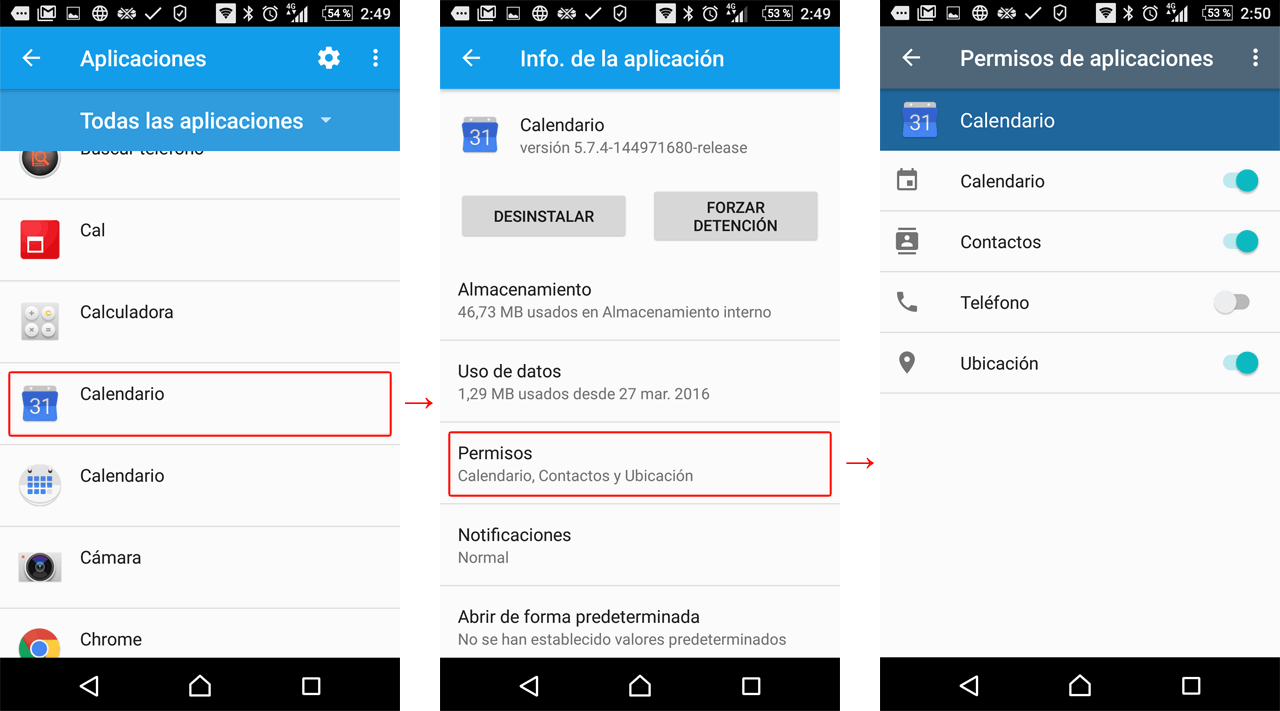
- Open the Settings app from your Android device.
- Go to "Applications" or "Apps".
- Find and tap the app you want to modifyIf it doesn't appear in the initial list, tap on "View all apps" and select it there.
- Go to the "Permissions" sectionHere you will see which permissions have been granted and which have been denied.
- Tap each permission to change its settings and choose between options like "Allow" or "Don't allow". For sensitive permissions (location, camera, microphone) you'll see additional options.
For location, camera, and microphone, Android usually offers finer control modes that go beyond a simple yes or no:
- All the time / Always (location only)The app can use your location even in the background, even if you're not using it.
- Allow only if the app is in useThe application only accesses that permission while you have it open on the screen.
- always askEach time the app wants to use the permission, a notification will appear so you can decide at that moment.
- Do not allowThe application cannot use that permission under any circumstances.
A good practice is to use "Allow only when the app is in use" whenever possible , as this greatly reduces background access and maintains functionality when you really need the app.
See which apps share the same type of permission
Android also lets you review which apps have access to a specific type of resource , for example, all the apps that can see your calendar or use the microphone. This is very useful for quickly detecting abuse.
- Open Settings on your Android.
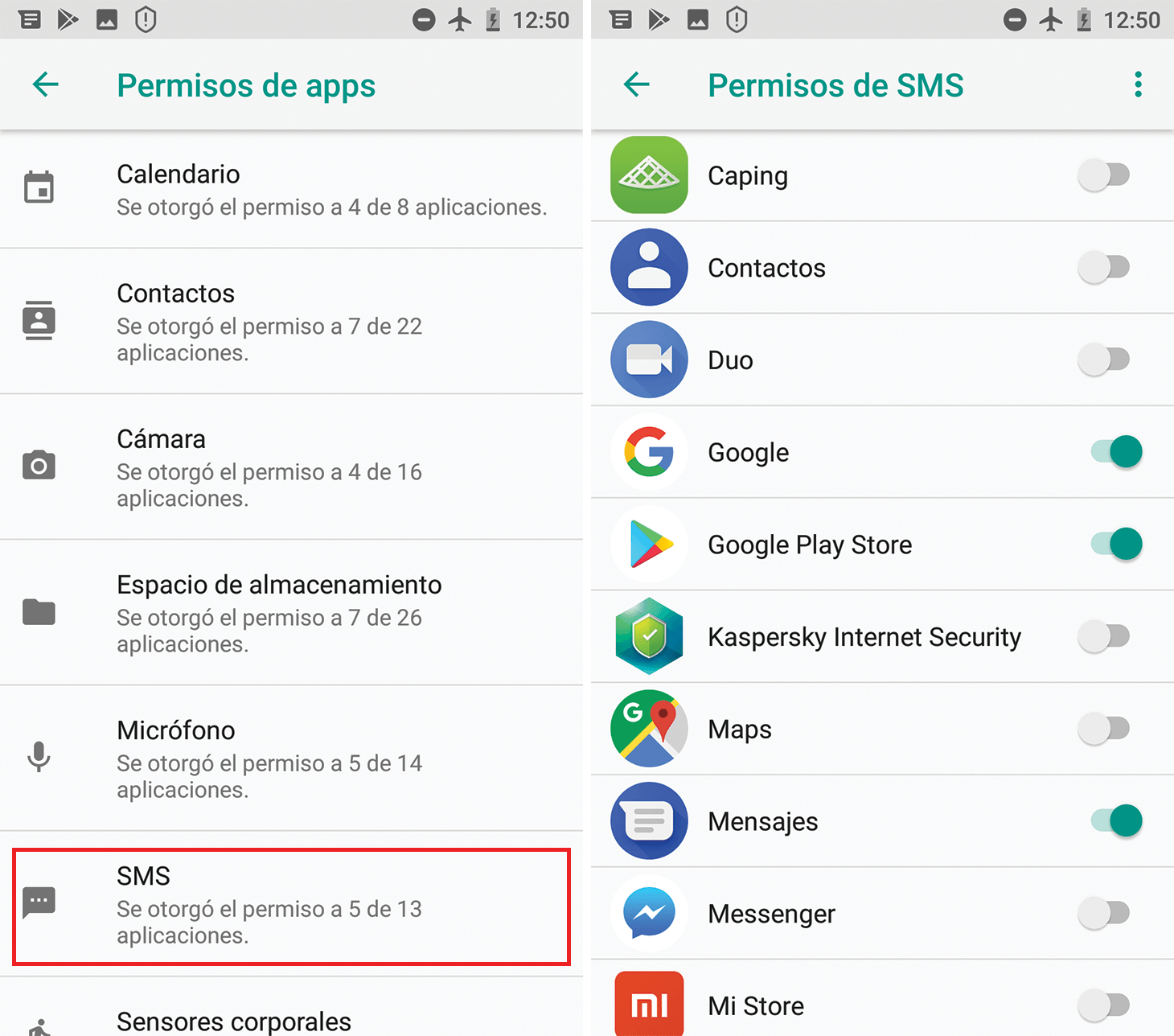
- Go to "Security and privacy" and then to "Privacy" (According to the manufacturer, these names may change slightly).
- Access "Permission Manager" or "Permission Administrator".
- Choose a type of permit (for example, Calendar, Camera, Location, etc.). You will see a list of the apps that are allowed and those that are denied.
- Tap an app in the list to modify its permission settings about that specific type.
This centralized panel saves you from blindly going app by app and allows you to quickly detect which applications have access to sensitive categories such as SMS, calls, files, or physical activity.
Types of permissions in Android and what each one allows
Android categorizes permissions based on the type of data or action they grant access to . Understanding what each permission entails helps you make better decisions about when to grant or revoke it.
Standard user permissions
Among the most common permissions you'll see when managing apps on Android are the following :
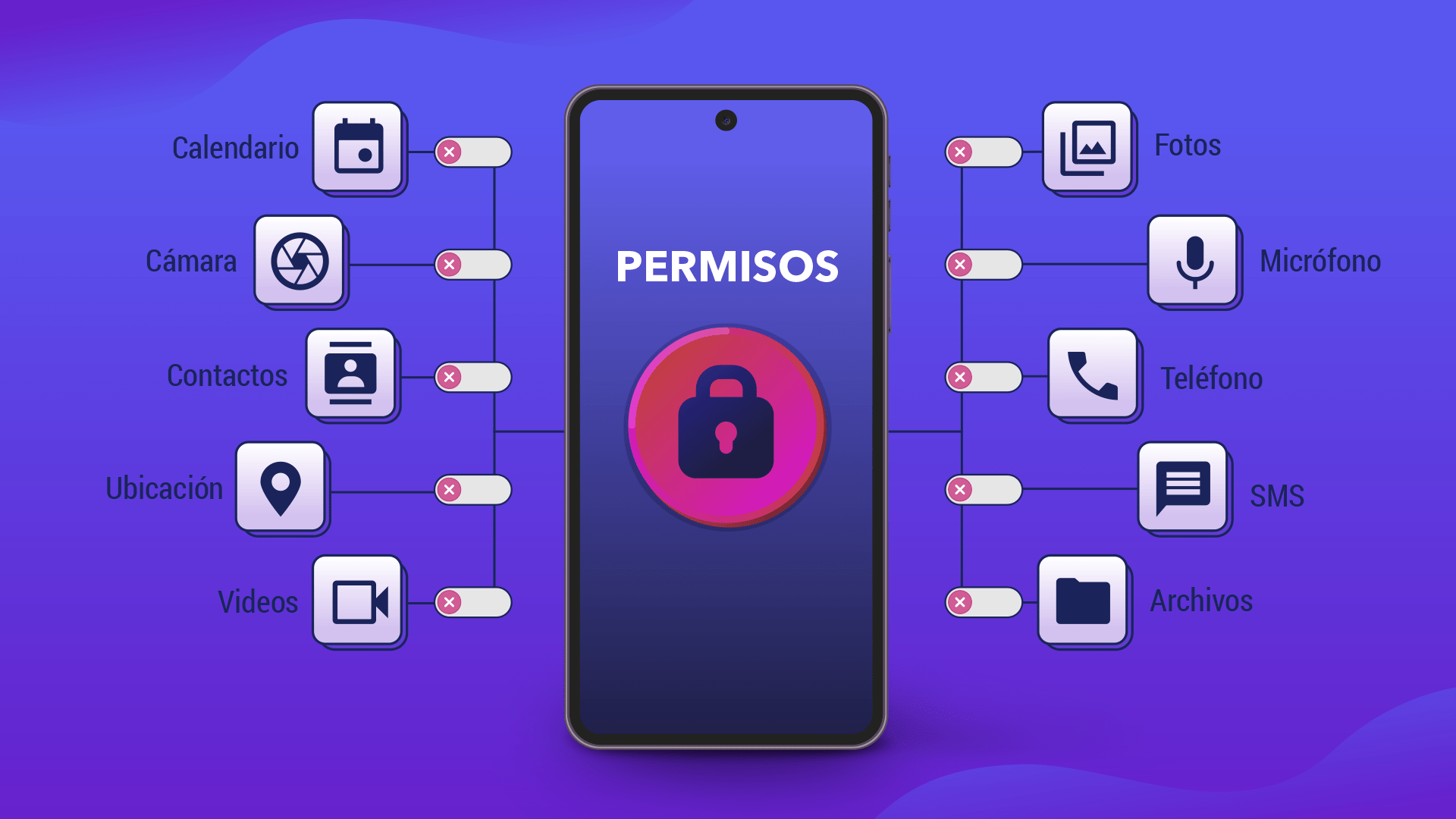
- Calendar: allows the app to access your calendars, read and, in some cases, create or modify events.
- Call logs / Call history: provides access to the log of calls made and received, and the ability to write in it.
- Camera: authorizes taking photos and recording video using the device's camera.
- Contacts: allows you to read and, sometimes, edit your contact list.
- Files or File System: grants access to the files stored on the device (documents, images, music, etc.).
- Health, wellness and fitness / Body sensors: authorizes the reading of health data, physical activity and sensors related to your vital signs.
- Location: allows access to your device's location, whether via GPS, WiFi or mobile networks.
- Microphone: enables recording audio through the device's microphone.
- Music and audio / Music library: gives access to your locally stored audio files.
- Nearby devices / Bluetooth / Proximity communications: allows you to search, connect and communicate with other nearby devices (Bluetooth, NFC, etc.).
- Notifications: authorizes sending and displaying notifications.
- Contact Us: allows you to make and manage phone calls from the app.
- Photos and videos / Image library / Video library: gives access to your photos and videos stored on the device.
- Physical activity / Movement: allows reading movement data (steps, routes, car journeys, etc.), usually through the accelerometer and other sensors.
- SMS / Messaging / Email: authorizes sending, reading and managing text messages or emails associated with your accounts.
Many of these permissions fall into the category of private user data , as they allow for the reconstruction of habits, personal relationships, frequent locations, or communication content. Therefore, it's advisable to carefully review which apps have access and decide if they truly need it.
Installation permits, execution time and specials
From a technical point of view, Android distinguishes several types of permissions based on how they are granted and their level of risk :
- Permissions at installation timeThese permissions are granted automatically when you install the app from the store. They usually provide limited access and have little impact on privacy or the system. Examples of this group include "normal" and "signature" permissions.
- Normal permitsThese allow access to functions outside the app's isolated area, but with very low risk. The system assigns them a protection level.
normal. - Signature permissionsThese permissions are only granted when the app is signed with the same certificate as the app or system that defines the permission. They are used for privileged services, such as VPN or Autofill, and their level of protection is
signatureSome are not even available for third-party apps. - Runtime permits (hazardous)These are the cookies that grant access to sensitive data or actions (location, contacts, camera, microphone, etc.). The system asks the user to confirm in real time when the app needs them. They have a level of protection.
dangerous. - Special permissionsThese are reserved for very specific and delicate operations, such as drawing on top of other apps or accessing special system settings. Only the platform or manufacturer can define them, and the system treats them as such.
appopor similar.
The "Special app access" settings found in Settings encompass many of these special operations , such as battery optimization, system settings modification, or access to all files. Several of these are implemented internally as special permissions and typically require you to access a specific system panel to activate them.
Additionally, Android groups some permissions into logical groups (for example, several related to SMS). From the user's perspective, this reduces the number of dialogs: if you grant a permission in a group, the system can consider others as granted. However, these groups can change with new versions, so as a developer, it's not advisable to assume that a permission will always belong to the same group.
Configuring permissions in Windows 10 and Windows 11
On Windows, many modern Microsoft Store ( UWP ) apps also use a permissions system similar to Android's . A photo app will request access to the camera, a restaurant guide will request location access, a video calling app will need microphone and camera access, and so on.
Choosing which apps can use each feature in Windows 11
Windows 11 centralizes permission management in the Privacy and Security section :
- Click on the Home.
- Go to Settings > Privacy and security.
- Select the application permission you want to review. (Location, Camera, Microphone, etc.).
- Enable or disable access for each application in the list. as it suits you.
The Windows Privacy page doesn't control classic desktop applications , which typically have full access to system resources and aren't listed there. To learn what a specific app can do, you should check its listing in the Microsoft Store and its privacy policy, and understand user accounts in Windows.
Managing permissions in Windows 10
In Windows 10, the logic is similar, although the path changes slightly :
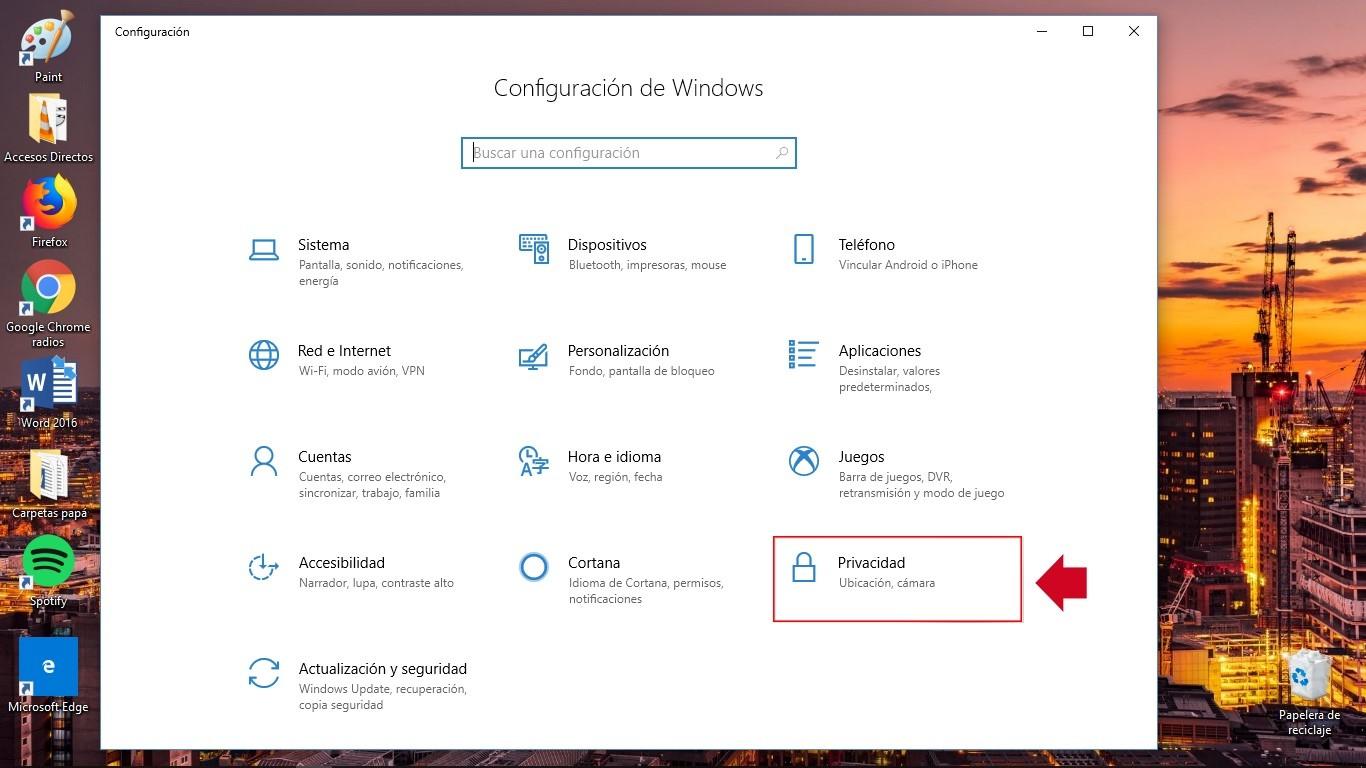
- Opens Configuration from the Start menu.
- Sign in Privacy policy.
- Select the relevant category (Calendar, Camera, Microphone, etc.).
- Within each category, you can enable or disable permissions for compatible apps..
Many traditional desktop apps have broader permissions and are not regulated from this panel . These applications can read and write to your files, use peripheral devices (cameras, printers, microphones), access the Registry, connect to the Internet, or install background services without appearing in the Privacy section.
Examples of advanced permissions in Windows
Some Windows applications may require very powerful capabilities that you should understand well before installing them :
- Access to all your files, devices, apps, programs, and RegistryThe app can read and modify any user file, change settings, use all peripherals without warning, and access data such as location history or diagnostics.
- Allow lifting: authorizes it to run with administrator privileges without requesting confirmation each time.
- Application diagnostics: can read diagnostic information about other running apps.
- Custom Installation Actions and Local/Packaged System ServicesThey allow the installation of additional software or services that run with high privileges on the computer.
- Non-virtualized resources and write redirection: They allow you to create or modify files and Registry entries that are not deleted when you uninstall the application.
Even if an app has the capability to do all of this, it doesn't necessarily mean it will , but it does mean you should fully trust the developer. Ideally, you should always review the privacy policy and other users' opinions before installing this type of software.
Apps to better manage permissions on Android
Although Android offers many native options, sometimes you'd prefer a more convenient and visual panel for managing permissions . That's where specialized apps like App Manager come in , which aggregate information, categorize risks, and allow you to revoke access more quickly.
Bouncer: Temporary permissions and automatic revocation
Bouncer is one of the highest-rated paid apps for managing permissions on Android . Its core idea is simple yet powerful: it allows you to grant temporary permissions that are automatically revoked when you close the app.
When an app requests permission, Bouncer displays a notification with advanced options . For example, if a social network asks for microphone access, you can grant it to use that specific function and let Bouncer revoke the permission as soon as you close the app.
This approach is ideal for apps that only need a permission on a one-off basis (upload a photo, send an audio message, share your location briefly) and shouldn't have it running all day in the background.
Application permissions manager
Another interesting tool is a free, Android-specific permissions manager that analyzes your apps and assigns them a security rating . It classifies applications into several risk levels: no risk, low, medium, and high.
In addition to listing permissions, these types of apps detect background processes that may be consuming resources or data without your knowledge. They usually offer buttons to stop these processes and shortcuts to uninstall problematic applications.
These solutions also integrate information on which permissions are considered most dangerous to your privacy , clearly showing which ones you should review more carefully.
Privacy Dashboard: Modern Android-style privacy panel
Privacy Dashboard is an app that replicates the privacy panel of the latest versions of Android , designed primarily for mobile phones that do not yet have these features as standard.
Its interface is simple and very similar to that of the system itself , showing which apps have recently accessed the camera, microphone or location, and when they did so.
Whenever an app uses one of these permissions, Privacy Dashboard displays an indicator in the top right corner of the screen , similar to the green or orange dot on modern Android devices, so you always know if something is using the microphone or camera.
GlassWire: Data usage and network activity monitor
While GlassWire isn't a permissions manager per se, it is a network activity monitor that complements access management very well . Its main function is to show which apps are using your data or Wi-Fi connection and when.
It alerts you when an app tries to connect to the internet, especially using mobile data , helping you avoid surprises on your bill and detect apps that are running too much in the background.
By identifying which apps are consuming data without your knowledge, it also gives you clues about which ones you could review in terms of permissions , especially regarding background activity or network access.
App Permission and Tracker
App Permission and Tracker is another tool designed to centralize all granted permissions in one place . It gathers information about your installed apps and allows you to revoke access you no longer need with a single tap.
In addition, it usually includes a usage panel that monitors if something is working in the background without your knowledge , helping you detect suspicious behavior or simply poorly optimized apps.
Although its design is simple and may include ads in the free version , it is very practical for those who want to go a step beyond what the default system offers without getting bogged down in advanced menus.
Automatically remove permissions from apps you don't use (Android)
Android includes a very useful feature for revoking permissions for apps you haven't opened in a while . This prevents forgotten apps from continuing to access sensitive data or sensors.
- Open Settings and go to "Applications".
- Select the app you want to reviewIf you don't see it right away, go to "View all apps".
- Look for a section like "Unused app settings" or something similar.
- Enable the option to pause app activity when not in useThis usually involves automatically revoking permissions after a period of inactivity.
With this feature enabled, Android will pause inactive apps, free up resources, and remove permissions that are no longer needed , thereby improving security and battery life.
Completely block camera and microphone on Android
If you want to go a step further, Android lets you disable camera and microphone access for all apps at once . This is useful in situations where you need maximum privacy, such as sensitive meetings or travel.
- Open Settings on your mobile.
- Go to "Security and privacy" and then to "Privacy".
- Access "Privacy Controls".
- Disable "Camera access" and/or "Microphone access".
By turning off these master switches, no app will be able to use the camera or microphone until you turn them back on , even if their individual permissions are set to "allowed".
Best practices for developers when using permissions
If you develop Android apps, responsible permission management is key to building trust and avoiding app store rejections . Android's own documentation provides a series of clear recommendations.
Request only the permits that are strictly necessary
Your application should request the minimum number of permissions necessary to fulfill its functionality . Before declaring a permission, ask yourself if there's another way to achieve the same result without accessing sensitive data, for example, by using APIs that don't require additional permissions.
Link runtime permissions to specific actions
Don't request all permissions when the app is opened for the first time if they aren't needed at that moment . It's much better to wait until the user initiates an action that actually requires it: for example, only request microphone access when they tap "Send audio message."
This contextual approach helps the user understand why each permission is being requested , increasing the likelihood that they will grant it and reducing the feeling of privacy invasion.
Controlling dependencies and libraries
Each library you add to your project may have its own permission requirements . Review what permissions each dependency needs and what it uses them for, because ultimately the user will hold you responsible, not the library.
Be transparent and offer clear indicators
When requesting permissions, clearly explain what data you will use and for what purpose , and which features will become unavailable if the user denies access. Honest and direct text in the preceding dialog or on the explanation screen makes all the difference.
Furthermore, if your app accesses sensitive resources like the camera, microphone, or location, it's advisable to display a visible indicator while they're in use (icons, status bars, etc.), especially if the system doesn't do so automatically. This builds trust and reduces the feeling that the app is "spying" without warning.
Properly managing app permissions, both as a user and a developer, is one of the best ways to protect your privacy and keep your device under control . With the tools offered by Android and Windows, along with specialized apps like Bouncer, permission managers, and privacy dashboards, you can decide at any time what data you share, with whom, and for how long, without sacrificing the functions you truly need in your daily life.