- The Windows 11 taskbar centralizes access to applications, search, notifications, and quick system options.
- It is possible to pin, unpin, and rearrange icons, but the freedom to move the bar or create toolbars has been reduced.
- Registration and third-party apps allow you to recover some of the classic customization, with changes in position and appearance.
- The location and style of the bar influence productivity depending on the type of monitor and the user profile.
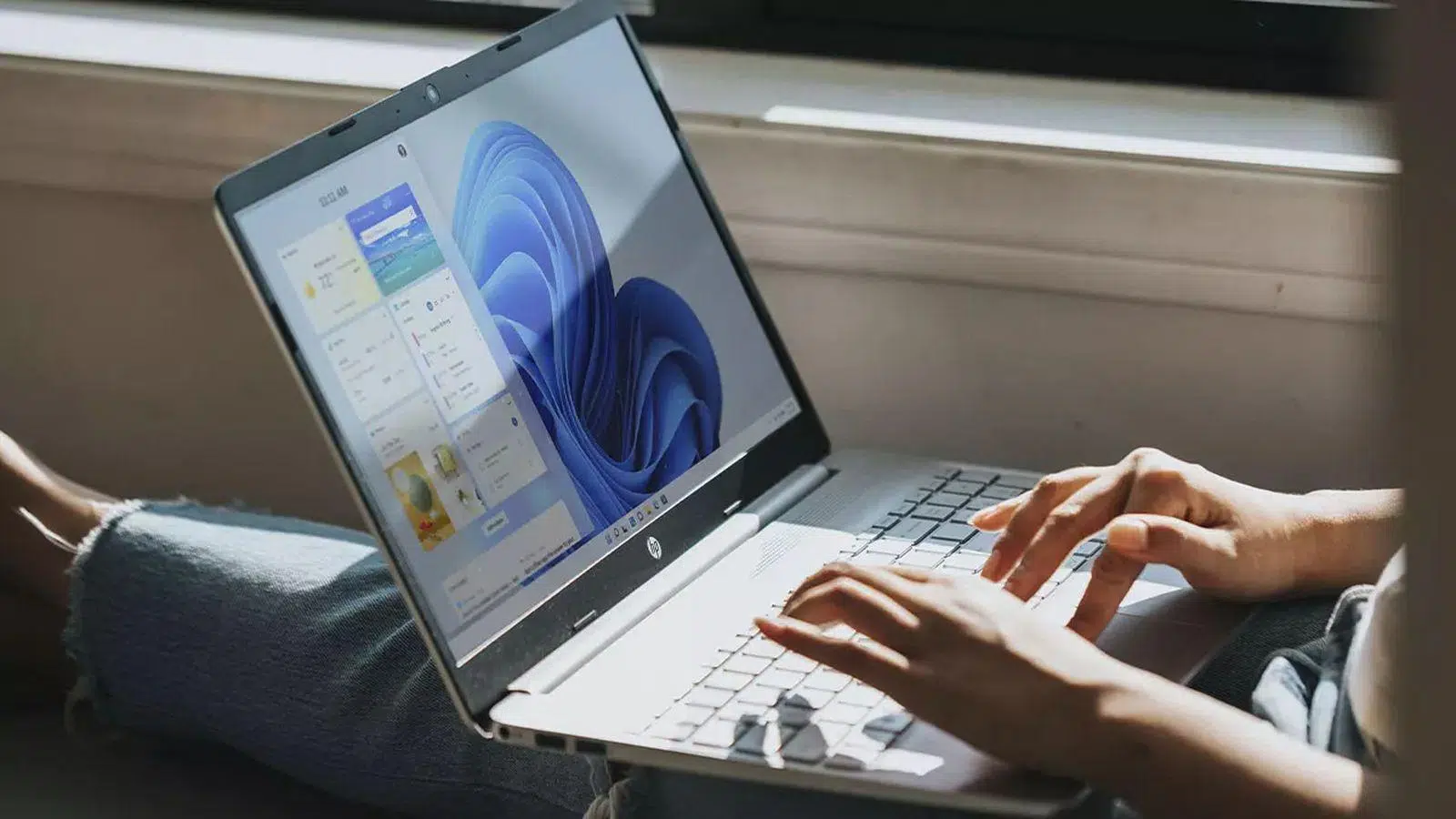
The Windows 11 taskbar has become one of the most talked-about elements of the system, for better or for worse. It's always visible, the hub for multitasking and quick access, but it has also received considerable criticism for its changes compared to previous versions.
In this article you will find a complete guide to the Windows 11 taskbar : how to pin and unpin applications, how to rearrange icons, what main elements it includes, how to move it or try to change its position, what advanced options the registry offers, how to use third-party applications to customize it (including transparency) and, above all, how to get the most out of it according to your workflow.
What is the Windows 11 taskbar and how does it work?
The Windows 11 taskbar acts as a central panel for accessing applications, functions, and notifications . It is normally displayed at the bottom of the screen, although in this system its position is much more restricted than in Windows 7, 8, or 10.
In the main area of the taskbar, you can pin your favorite programs to keep them readily accessible and also see which applications are running. The icons can be moved simply by dragging and dropping, allowing you to organize the taskbar to your liking and keep your most frequently used applications at the top of the screen.
When an application is open, Windows 11 displays a small line or underline beneath its icon in the taskbar. The currently active window is highlighted, usually using the system theme's accent color, making it easy to identify which program is in the foreground.
This entire design is intended to make navigating between apps and multitasking seamless: a single click to switch windows, another to open the Start menu, search, or notification area. The problem, for many veteran users, is that several classic features have disappeared or been significantly limited.
How to pin, unpin, and rearrange apps on the taskbar
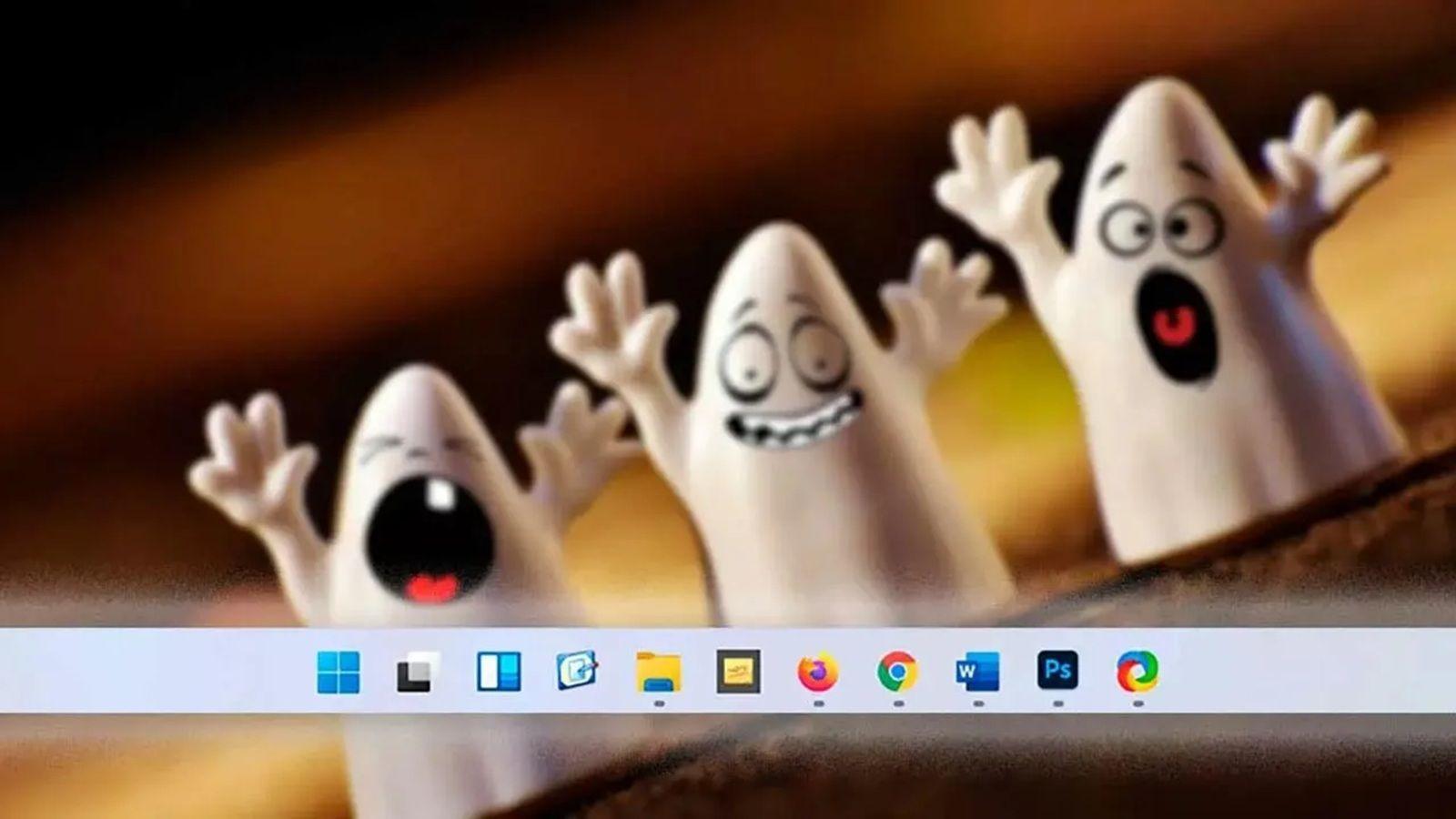
One of the most common actions in Windows 11 is pinning applications to the taskbar for permanent shortcuts. There are several ways to do this, and they are all easy.
The first option is to use the search box on the taskbar . Type the name of the application you want to pin, right-click on the result, and choose the "Pin to taskbar" option . From that moment on, the icon will remain pinned even if you close the app.
If the application is already open, the process is even faster: right-click on its icon in the taskbar and select Pin to taskbar again . The behavior is the same, but you avoid having to search for it.
When you want to free up space, simply unpin the application . To do this, right-click on the pinned icon and select Unpin from taskbar . The program will remain installed; only the shortcut will disappear.
Organization is also important: if you're tired of the current arrangement, drag any icon to a different position on the taskbar and release. Windows 11 instantly rearranges the other icons , so you can group work tools, games, browsers, or other categories according to your preferences.
Main elements of the Windows 11 taskbar
Beyond the program icons, the Windows 11 taskbar includes several key components that make everyday tasks easier . Some are very visible (like the Start button) and others are less noticeable, but all contribute to the overall experience.
Start button
The Start button is the classic Windows icon located, by default, in the center of the taskbar (although conceptually it's considered the first one on the left). From here you can access applications, pinned files, and settings.
You can open the Start menu by pressing the Windows logo key on your keyboard or by clicking the corresponding icon in the taskbar. If you are using a screen reader, you will hear a "Start button" prompt when you hover over it.
Once the menu is open, simply type the name of any application, setting, or document you want to find. Use the up and down arrow keys to navigate through the suggestions, and press Enter to launch the selected action.
Search
The search icon or box is located to the right of the Start button. It allows you to quickly find files, applications, settings, or even web results , depending on your search preferences.
To launch it using the keyboard, use the Windows + S combination . You can also click the search icon in the taskbar and start typing. Then, use the Tab key to switch between categories of results and the arrow keys to navigate the list.
View of tasks and virtual desktops
The Task View button provides access to a very useful feature: virtual desktops , complementing tools like the Windows Task Manager . They allow you to organize your workspace by opening, for example, one desktop for leisure, another for personal projects, and another for work.
Press Windows + Tab to open Task View. You'll see a grid of open windows and, at the top or bottom, thumbnails of available desktops. Use Tab and the arrow keys to navigate between options, and press Enter to switch desktops.
System tray (notification area)
At the far right of the bar is the system tray , or notification area. Important icons appear there, such as your internet connection, audio volume, battery status, OneDrive, clock, and notification center.
If you prefer the keyboard, you can use Windows + B to jump directly to the system tray and start navigating through icons with the left and right arrow keys. Pressing Enter opens the menu associated with each item, such as the Wi-Fi network selector or the sound panel.
Another key combination is Windows + N , which opens the Notification Center, where system alerts, app notifications, and reminders are grouped. All of this is part of the taskbar experience, even though it visually appears to be a separate area.
Quick setup, Wi-Fi and accessibility
Next to the system tray, Windows 11 integrates the Quick Settings panel . It opens with Windows + A and displays shortcuts to Wi-Fi, Bluetooth, airplane mode, volume, brightness, and other customizable controls.
Within this panel, the Manage Wi-Fi Connections button allows you to refresh the list of available networks. Simply select it, press Enter, and then use the refresh icon to have the system search for nearby access points again.
The Accessibility shortcut also appears in Quick Settings . From there, a floating menu opens with a magnifying glass, color filters, Narrator, mono audio, live captions, and various options designed to make it easier for people with different needs to use the app.
If you want to go further, there is a specific accessibility support service from Microsoft (Answer Desk Accessibility), available to home users, businesses and public administrations, with support even in sign language in several languages.
Safely remove hardware and use the on-screen keyboard
The Safely Remove Hardware icon usually appears in the system tray . Its purpose is to ensure that all read and write operations on an external device (such as a USB drive) are completed before physically removing it.
Pressing Windows + B opens the system tray, and using the arrow keys, you can find the Safely Eject icon. Pressing Enter displays a list of connected devices; select the one you want to remove, press Enter again, and the system will indicate that it is safe to disconnect.
In addition, Windows 11 includes an on-screen keyboard (OSK) that appears as a visual keyboard on the screen. It's very useful if you don't have a physical keyboard or have difficulty using one: simply click the mouse or tap the on-screen keys to type.
How to change the position of the taskbar in Windows 11
One of the most controversial aspects of Windows 11 is that the taskbar has lost much of the flexibility it had in previous versions. It can no longer be moved to any side of the screen with a simple drag, at least not officially.
In older versions of Windows, you could simply unlock the taskbar , left-click, and drag it to another edge of the screen: top, left, or right. This classic behavior is no longer available in modern Windows 11.
Even so, there are several approaches: from tinkering with the system registry in older builds of Windows 11, to resorting to third-party applications that simulate many of the customization options that Microsoft has been removing or hiding.
Change the taskbar from the registry (older builds only)
There is a method to change the position of the taskbar in Windows 11 using the Registry Editor , although it should be made very clear that it only worked (and with nuances) in earlier versions of the system, such as 22H1 or test builds, and that touching the registry always involves risk.
Before you begin, it's advisable to create a system restore point . That way, if something goes wrong, you can revert to the previous state. Once the backup is complete, the standard steps are as follows:
- Press Windows + R to open the Run box.
- Write regedit and confirm to open the Registry Editor.
- Navigate to the route HKEY_CURRENT_USER > Software > Microsoft > Windows > CurrentVersion > Explorer > StuckRects3.
- Find the value called Settings and open it.
- In the editing window, locate the corresponding column or position (usually the "FE" column is mentioned within the binary data).
- Change the value that normally appears as 03 by one of the following, depending on the desired position:
- 00 to position the bar on the left.
- 01 to place it on top.
- 02 to send it to the right side.
- Save the changes, close the Registry Editor, and Restart the system.
This trick was very popular among those who wanted to get the taskbar back on the top or side edge , but Microsoft has been closing doors in later updates, so nowadays it may not work, cause visual glitches, or simply be ignored by the system.
Unlocking and moving the bar in older versions of Windows
In Windows 10 and earlier versions, it was common to unlock the taskbar to move it freely. The process involved right-clicking on the taskbar and unchecking the "Lock the taskbar" box, which is enabled by default.
Once unlocked, you could left-click on any empty area, hold down and drag the bar to any edge of the screen: top, bottom, right or left, always close to the edge of the monitor.
Once you found the ideal position, it was best to re-enable the Lock taskbar option . This prevented you from accidentally moving it when clicking or dragging windows near the edge.
In Windows 11, this behavior isn't natively available for repositioning the taskbar. The lock option controls other aspects, but it doesn't allow you to drag it freely like in the old days, which has caused considerable frustration among users accustomed to that flexibility.
External applications to move and customize the bar
Due to all these limitations, many users have opted to use third-party software to restore some of the taskbar's former power . These programs allow users to move the taskbar, change its behavior, or recover removed functions.
One example mentioned in some tutorials is a tool known as StarAllBack (or similar variants), which offers the possibility of placing the taskbar on different sides of the screen and restoring the classic style of Windows 10 or even earlier versions.
These apps typically replicate the original functionality: you can modify the location, size, and behavior of the icons, and even change the Start menu to make it more like the old one. The best part is that in many cases the changes are applied instantly and without restarting.
On the other hand, there's a whole ecosystem of tools designed to configure the taskbar, such as utilities focused on transparency, advanced grouping, or creating custom icon zones. The drawback is that you'll be dependent on third-party developers and hope that each Windows update doesn't break their work.
Why change the location of the taskbar?
Many people think that moving the taskbar is simply an aesthetic choice, but it can actually significantly improve productivity and comfort . Depending on the type of work you do and the monitor you use, one position or another can make a lot of sense.
If you work with multiple monitors or screens in portrait orientation , placing the taskbar on a specific side can help reduce mouse movements and keep the most important windows or tools visible. It won't be a widespread solution, but for certain professionals, it makes all the difference.
Some users prefer to have the toolbar vertically on the sides because they feel it frees up valuable height at the bottom of the screen. This is especially useful if you frequently work with long documents, extensive lists, or web pages that are read from top to bottom.
Others find it convenient to place the bar at the top , especially those who work in design, video editing, or tasks where timelines and tool palettes benefit from occupying a large part of the central and lower area without interruptions.
On ultrawide monitors, many people choose to place the taskbar on one side to make better use of the extra horizontal space. This way, the interface adapts better to the screen's proportions, and you don't waste height on a very wide bottom strip.
Advantages according to your user profile
Not everyone uses their computer the same way, and that directly affects how we should configure the taskbar . Depending on whether you program, design, write, or simply browse, you'll prefer one position over another.
Those who program, write, or work with long text documents often benefit from maximizing vertical space . For them, placing the taskbar on the left or right side is very practical because it leaves more lines visible on the screen and reduces the need for constant scrolling.
For graphic designers and video editors , it's common to prefer the toolbar at the top. This frees up the lower area for timelines, effects panels, and audio tracks, minimizing accidental clicks and making workflow smoother.
Users of ultrawide monitors, as we mentioned before, benefit from placing the taskbar on one side , taking advantage of the horizontal width for icons, shortcuts or information panels without taking up so much space from the main view of the content.
Ultimately, there's no single "best" position. It all depends on your habits, your workflow, and how you view the screen . Having the option to move the slider was precisely what allowed everyone to customize Windows to their liking, something many miss in Windows 11.
Transparency and appearance of the bar: TranslucentTB and company
Beyond its position, another topic that has generated debate is the visual appearance of the taskbar . Some users like the Windows 11 design as is, while others are not convinced by the background, color, or level of transparency.
If you're someone who wants to see your desktop background in full screen without the taskbar covering part of the image, tools like TranslucentTB can be perfect for you. This small, free program can be downloaded from the Microsoft Store and is compatible with both Windows 10 and Windows 11.
Its main function is to make the taskbar transparent or semi-transparent , but it also allows you to apply blur effects, opacity adjustments, and color changes. All of this with minimal resource consumption and without the need for complex configurations.
After installation, the program places an icon in the system tray . From there, a right-click provides access to various appearance options. You can configure a style for the desktop, another for when a window is active, another for the Start menu, and another for maximized applications.
The result is a bar that blends seamlessly with the background, highlighting only the icons you truly need . For those who appreciate a carefully curated wallpaper (such as a personal photo or illustration), this solution allows them to showcase it without sacrificing functionality.
Among veteran users, there's a recurring complaint: the disappearance of the classic toolbars from the taskbar and the radical change to the Start menu. For many, the new approach is less practical and more geared towards content they're not interested in.
Some users haven't used desktop shortcuts for decades because they prefer toolbars nested in the taskbar . Previously, they could create folders with shortcuts, turn them into toolbars, rename them and change their icons, and have highly organized hierarchical menus.
With Windows 11, that possibility has been severely curtailed. You can now pin a folder to the taskbar, but you can no longer customize icons or names in the same way , nor build truly nested toolbars with multiple levels.
Those who relied on that function to replace the Start menu since the days of Windows Vista now find themselves with a Start menu full of promoted items, recommendations and apps they don't use , and with a search function that, in their opinion, doesn't always focus on installed applications.
Currently, there is no official code or Microsoft-supported workaround that exactly restores the nested toolbar functionality in Windows 11. Some third-party programs come close, but many are not designed to replicate that specific use case.
Behind these complaints lies a fundamental idea: the taskbar and Start menu were previously highly configurable , allowing users to tailor them to their workflow. With the changes in Windows 11, this customization capability has been reduced and, in part, shifted to external tools.
Today, if you want a similar experience to the old one, the most effective approach is still to combine Windows 11's internal options (pinning apps, organizing icons, automatically hiding the taskbar, etc.) with external utilities like TranslucentTB or alternative Start menu solutions, always taking care to check their reliability and maintenance.
Overall, the Windows 11 taskbar remains the hub of multitasking and offers many powerful features, but the general feeling among demanding users is that Microsoft has sacrificed some customization freedom in favor of a more uniform design, which has opened the door to an ecosystem of third-party tools trying to restore the bar's ability to truly adapt to each way of working.