- APK files are Android app installation packages and allow you to install applications outside of Google Play.
- Since Android 8, permissions to install APKs are granted per application, which provides more control and security.
- Installing APKs carries malware risks, so only use trusted sources and perform prior checks.
- Specific tools make it easy to manage APK, XAPK and split APK, as well as revoke permissions and clean up leftover files.
If you use an Android phone, you'll usually go to Google Play to download your apps, but Android is much more flexible than it seems; check out the best Android tricks . You can also install apps using APK files downloaded from other sources , which opens the door to trying out new features early, accessing apps that aren't available in your country, or installing software on phones without Google services.
That freedom comes with a catch: Android blocks the installation of apps from unknown sources by default to prevent malware and Trojans . Therefore, if you want to install APKs on your smartphone or tablet, you need to understand what an APK is, how the permissions system works depending on your Android version, and what risks you take to avoid ending up with a phone full of malware.
What exactly is an APK file?
An APK file is, simply put, the standard installation package for any Android application . Its acronym stands for Android Application Package, and it performs a similar function to an EXE file in Windows or a PKG/DMG file in macOS: it contains all the necessary elements for the system to install and run an app on your device.
An APK file contains the application's graphical resources, code, libraries, and manifest . In other words, everything necessary for the app to function correctly when installed by Android. From the user's perspective, all you see is an .apk file that, when tapped, launches the system installer.
Many alternative repositories and stores work precisely with these packages. Websites like APKMirror, APKPure, Uptodown, developer forums, and even GitHub offer original or trial APKs to install or share applications outside of Google Play. Some manufacturer stores, such as the Amazon Appstore or Galaxy Store, also manage APKs internally, although this detail is hidden from the user.
Over time, Google has changed its distribution system. Now, the Play Store primarily uses Android App Bundles (AABs) , a format that "splits" the app and allows for the generation of APKs adapted to each mobile device (language, architecture, resolution, etc.). Ultimately, what gets installed on your phone is still an APK or a set of split APKs, but packaged more efficiently.
In addition to "classic" APKs, formats like split APKs and XAPK files have emerged . Split APKs are multiple APK files that, together, make up the complete application (for example, a base APK plus others for language, CPU, screen size, etc.). XAPKs, widely used by tools like Uptodown's APK Installer, bundle the base APK, the split APKs, and any OBB data (large files containing extra content like videos or audio) into a single file.
Why you might be interested in installing APKs on Android
Installing apps from Google Play is the most convenient, but using APKs makes sense in more cases than you might think . It's not just for advanced users or tinkerers.
One of the main reasons is access. Some apps aren't available in your country, have been removed from Google Play, or are blocked on your company phone . If the developer offers the APK on their website (as ExpressVPN, TrueConf, and Protectstar do), or if there's a reliable repository, you can still install them manually.
It's also very common to use APKs in development. During the testing and development phases of an Android app, developers distribute APK versions to testers, clients, or internal teams for testing before publishing them in official app stores. In these cases, manual installation is practically the norm.
Another common use is to take advantage of newer or specific versions. Repositories like APKMirror often publish updates before they reach everyone through the Play Store . If you don't want to wait for the staggered rollout, installing the APK can be the quick way.
On devices without Google services or with restricted access to app stores (for example, some corporate phones or devices without Google Play Services or AppGallery), APK installation is often the only way to add new applications . Many security software vendors, such as Protectstar or ExpressVPN, offer their APKs directly for these scenarios.
Real risks of installing applications via APK
This all sounds great, but let's be clear: most Android malware infections come precisely through APKs downloaded from suspicious sites . The protection offered by Google Play (automatic scanning, security filters, reviews) disappears as soon as you leave its ecosystem.
When you download an APK from an unknown website, it's difficult to know if that file has been modified to add spyware, Trojans, or aggressive advertising . This is especially dangerous when it comes to "cracked" paid apps, modified versions of popular games, or tools that promise things that seem too good to be true.
As a general rule, it is only recommended to install APKs from sources you control and consider reliable : official developer websites, reputable repositories, and, in a professional context, packages supplied by trusted technical or development teams.
Even in those cases, it's a good idea to add an extra layer of security. Services like VirusTotal allow you to upload an APK file and analyze it with multiple antivirus engines before installing it . If any of them detect malicious code, the sensible thing to do is delete the file immediately, and if you have any doubts, consult how to tell if your phone has been hacked.
Companies specializing in development, such as ABAMobile, recommend using APKs only in specific testing scenarios and always knowing the exact source of the file . Downloading APKs from random websites because they are "free" almost always ends up being a bad deal in terms of security and privacy.
How APK installation works depending on your Android version
The way to grant permission to install apps from unknown sources has changed considerably over the years. Since Android 8 (Oreo), the global "Unknown sources" setting has disappeared and been replaced by per-app permissions , which provides much more control.
Before Android 8, the process was much simpler but also riskier. You activated a single checkbox, and from then on, any app could start installing an APK without restrictions. If any malware managed to run, it had a much easier time sneaking in extra files.
Currently, with Android 8 and later versions, permission to install APKs is granted individually to the app that initiates the installation process . If you download a file with Chrome, you have to allow Chrome to install apps. If you use a file explorer, you'll have to authorize that explorer, and so on for each app you want to use to open APKs.
The advantage is that you only need to grant this permission once per app . From then on, Android will remember your decision, although you can always go back and revoke the permission if you no longer need it or prefer to close doors.
Depending on the manufacturer (Samsung with One UI, Xiaomi with MIUI, etc.), the menus may change name or location , but the concept is exactly the same on all modern Android devices: you choose which apps can act as external package installers.
Steps to install an APK on Android 8 or higher
In recent versions of Android, the process is usually very similar regardless of whether you use Chrome, a file manager, or a messaging client. The important thing is that the first time, you'll need to grant that application permission to install software from unknown sources.
In practice, the standard process is this: you download the APK file with the app you want, tap on it, and Android will display a security warning indicating that the installation is blocked . From that alert window, there's usually a shortcut to Settings to change the configuration.
When you enter that menu, you'll see an option like "Allow from this source" or "Allow app installation." By toggling that switch for the app in question (for example, Chrome or your file explorer), you're giving it permission to install APKs on your device . Once you've accepted, go back and tap the file again to launch the installer.
Manufacturers like Samsung and companies like ExpressVPN describe a very similar process, only with slightly different menu paths. On many phones, you access it from Settings > Applications > Special access > Install unknown apps , where you'll see a list of apps (browsers, file managers, email clients, etc.) and can enable "Download from this source" for the one you need.
Once the APK is installed, the app will appear in your app drawer like any other. There's no need to repeat the entire process each time: as long as you keep permission enabled for that source, future installations from the same app will be much more straightforward , with no prompts other than the typical Android installation dialogs.
It is advisable, however, that after using a specific source (for example, the browser to install a VPN APK or TrueConf), you disable the "Download from this source" option again if you don't plan to continue installing APKs frequently . This reduces the attack surface in case something goes wrong.
Install APK on Android 7 and earlier versions
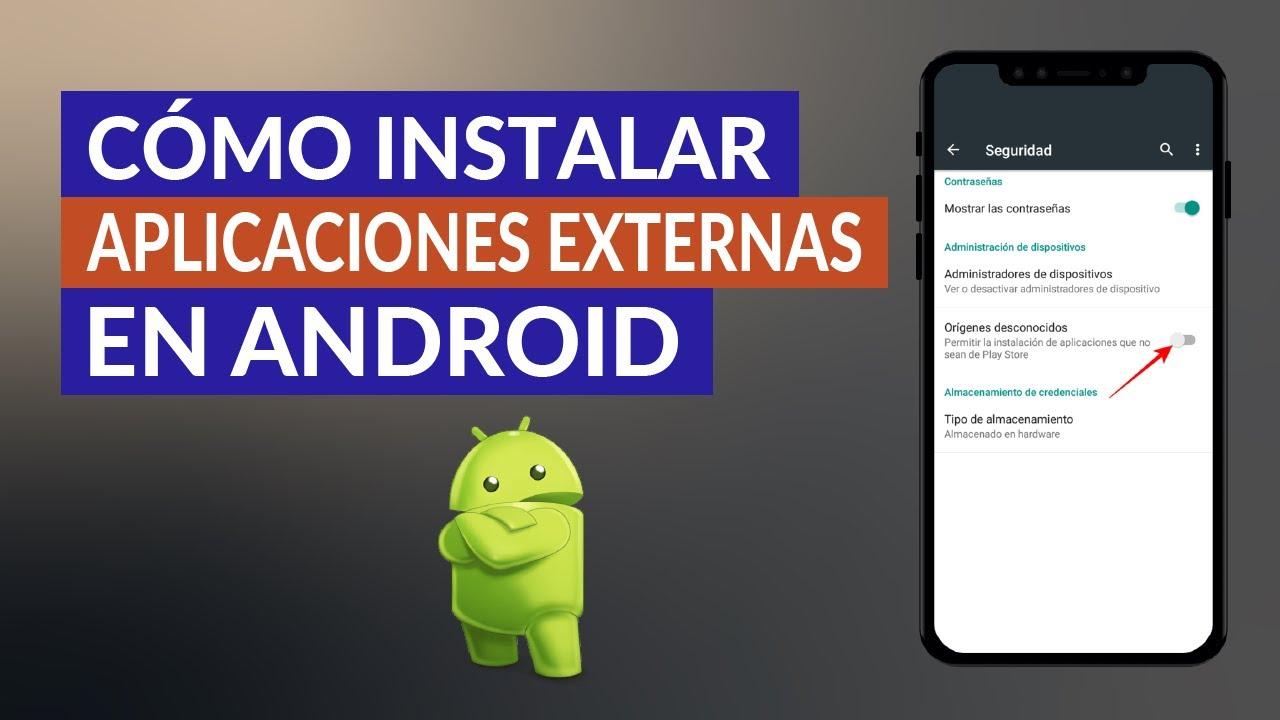
If your mobile phone still runs on Android 7 or an earlier version, the mechanism for allowing the installation of apps from unknown sources is global and much simpler , although less secure from a fine control point of view.
On these systems, you need to go to your device's Settings and look for the Security section . There, you'll find an option called "Unknown sources," which enables the installation of apps from sources other than Google Play.
By enabling this option, Android will display a warning indicating that you are increasing the risk of installing malware , since from that moment on, any application capable of opening an APK file can launch the installer. If you accept, the box will be checked.
From there, simply open the APK file from your file explorer (File Manager, Explorer, etc.) or from the browser where you downloaded it . The system will immediately display the installation screen with the app's name, the permissions it requests, and the Install button.
In these older versions, if you see a message like "Installation is blocked," you'll usually also see a shortcut button to Settings . From there, you can enable "Unknown sources" as described above, accept the warning, and return to open the APK again.
Since this is a general switch, it's highly recommended to disable "Unknown sources" again once you've finished installing the app you needed . This prevents malicious applications from exploiting this global permission to sneak other packages onto your device without your knowledge.
Where to get APKs in a reasonably safe way
When searching for APK files, you need to be selective. Ideally, the application developer should offer the file directly on their official website , as TrueConf does with its video conferencing app, ExpressVPN with its VPN client for Android, or Protectstar with its Anti Spy, Antivirus AI, and iShredder security solutions.
In these cases, you usually receive a direct download link and, sometimes, an activation code to unlock premium features . Since these are official servers, the likelihood of the file being tampered with is very low, provided you use the correct website and not a counterfeit one.
Another common source is reputable third-party repositories like APKMirror, APKPure, or Uptodown . These platforms typically verify the cryptographic signatures of APKs to ensure they match the original versions on Google Play and, in many cases, specify the exact version.
You can also obtain APKs from cloud services (Google Drive, Dropbox, etc.) by uploading the file from your computer and then downloading it to your mobile device . This is a very convenient way to move packages between devices, especially in testing environments or when you want to share your own app with someone else.
Locally, some applications, such as Google Files or backup tools, allow you to extract the APK of already installed apps and share it with other devices . This is useful when you want to send a specific version to someone who doesn't have access to the Play Store or when you want to create a private copy of your apps.
Managers and tools for handling APK, XAPK and split APK
It's not always as simple as just touching a single file. With modern formats, many applications are distributed as split APK sets or as XAPK packages that include additional data , so a tool that understands that structure is needed.
One of the most popular utilities for this is APK Installer by Uptodown, a free manager designed to install Android applications in any format that the default Android package installer does not natively recognize.
This tool is able to scan internal storage and SD card for all APK and XAPK files present , show you how many there are, indicate which ones are already installed, and allow batch installations with a single step.
In addition, it has a built-in file explorer to browse device folders , create backups of installed apps, and package them into a single XAPK file that includes both the base APK and split APKs, and, if available, the necessary OBB data.
In this way, installing private copies of complex applications is reduced to selecting a single file and starting the installation , without having to worry about specific folder paths, loose data files, or rare formats.
Other apps, such as advanced file explorers, also offer features like multi-installation, bulk deletion of stored APKs you no longer need, and file sharing with nearby devices using the same network. All of this helps maintain some order when you download and test many apps from outside of traditional app stores.
Good security practices when using APKs
Installing APKs doesn't have to be a risky activity as long as you follow some basic guidelines. The first and most important thing is to be wary of any file that comes from an unknown source or one with a poor reputation . If someone sends you an APK via message saying "install this, it's awesome," the sensible thing to do is simply delete it.
Whenever you have any doubts, upload the file to an online analysis tool like VirusTotal before transferring it to your phone . This check gives you a quick overview of whether several security engines agree that the file is suspicious or if it appears clean.
On the other hand, it's advisable to limit as much as possible the number of applications that have permission to install unknown software . If you only use Chrome or a specific file manager to download APKs, there's no point in granting that permission to messaging clients, email apps, or any other tool you rarely use.
Once you've installed a third-party app and confirmed it's working correctly, consider whether you need to keep or revoke the installation permission for the source app . You can disable this option for any app at any time by going to Settings > Apps > Special access > Install unknown apps (the exact path may vary).
Finally, it's always a good idea to occasionally check the APKs stored on your phone's memory. It's common to accumulate files from old installations, betas, or tests that are no longer needed . Tools like APK Installer or other file explorers allow you to locate these files and delete them in batches to free up space and reduce clutter.
This entire APK installation ecosystem, with its advantages, risks, and nuances depending on the system version, makes Android a very flexible platform that, when used properly, allows you to go far beyond what the official store offers , as long as you keep a cool head, control where each file comes from, and review the permissions you grant at every moment.