- Enhance security and privacy with native Android features, advanced locking, and app-by-app permission management.
- Improve performance and battery life by adjusting refresh rate, power modes, expanded RAM, and background app control.
- Boost productivity and convenience with advanced notifications, split screen, gestures, shortcuts, and Digital Wellbeing.
- Take advantage of your camera, Google Photos, and the cloud by combining backups, AI-powered editing, and smart search.
If you have an Android phone and feel like you're only using half of what it can do, this article is for you. Here you'll find a huge collection of tips, hidden features, and key settings to give you the feeling of having a brand new phone without having to change devices.
Throughout this guide, you'll find everything from official Google tips on security, privacy, and battery life to advanced Android 14 features, including shortcuts, gestures, extensive customization, productivity tools, camera features, hidden games, and much more. Everything is explained in a clear and practical way , with menu paths and clear examples so you can apply it right away.
Privacy and security: Don't let anyone snoop on your phone
Protecting your phone is essential: it stores personal photos, conversations, banking information, and sensitive documents . Android includes many features to secure your device, and Google recommends taking full advantage of them.
A key first step is to use the official tool to locate your phone if it's lost or stolen . From a browser, access the Find My Device service with your Google account and you'll be able to see its location on a map, make it ring, remotely lock it, or even erase all its contents to prevent unauthorized access to your information.
You should also use the password manager built into your Google account . This will allow you to log in faster to apps and websites, avoid reusing weak passwords, and reduce the risk of having your account stolen by always using the same password.
Recent versions of Android include advanced theft protection . On compatible phones, you can activate this feature in Settings > Google > All services > Anti-theft protection. The system can, for example, automatically lock your device if it detects a snatch or suspicious movement, which is very useful on the street or on public transport.
Another essential security measure is setting up a truly secure screen lock . Avoid insecure gestures or overly simple unlock methods and opt for a PIN, complex pattern, or password. If your phone allows it, combine it with a fingerprint or well-configured facial recognition, but always maintain a robust method as a backup.
To go a step further, it's recommended to use trusted security apps from the Play Store that add extra layers like malware scanning, remote locking, data wiping, and browsing protection. Never download APKs from random websites if you don't know exactly what you're doing.
Also, disable installation from "unknown sources" unless you absolutely need to and know exactly why. You can check this in your security or app settings to prevent software from being installed from outside the Play Store without your permission.
Another key pillar is keeping everything up to date: update Android and your apps frequently . Many updates include important security patches, privacy improvements, and bug fixes that prevent attackers from exploiting system vulnerabilities.
In Settings > Security and privacy, you'll find a panel where Android uses color-coded indicators to show the overall security status of your device . From there, you can check if you have screen lock enabled, app scanning, Google Play security updates, and more, as well as quickly access any areas that need improvement.
Accessibility and control of your mobile device with less effort
Android's accessibility features are designed for people with vision, hearing, or mobility problems , but they can actually be great for anyone who wants to use their mobile phone more comfortably.
In Settings > Accessibility > Text-to-speech output, you can choose your voice engine, language, speed, and pitch . This allows you to listen to text instead of reading it, which is perfect if you're on public transport, have tired eyes, or simply find it more comfortable to listen than to read.
If you use Gboard, Google's keyboard, you have the option to dictate what you want to write . Just tap the microphone icon on the keyboard and start speaking, making sure beforehand that voice dictation is enabled in the settings. This saves you from typing long paragraphs, messages, or quick notes.
Many people don't know that they can change the size of text and screen elements . In Settings > Display (or Display & Brightness) you'll find options like "Font size" or "Display size" to adjust the interface: larger if you need to see it better, smaller if you want more information to fit.
In Android 14 you also have a very useful setting in Settings > Display > Display and text size, from which you can adjust icons, typography and elements in more detail to find the perfect balance between comfort and amount of visible content.
Another interesting trick is to use camera or screen flash notifications if your phone doesn't have a notification LED. In Settings > Notifications > Flash notifications, you can make the screen change color or the camera light up when a notification comes in—useful if you usually keep your phone on silent.
Finally, if your smartphone is large, activate one-handed mode in Settings > Accessibility > System controls > One-handed mode. This mode adapts the interface so your entire thumb can reach it without contortions, which is very useful when you only have one hand free.
New Android, advanced options and tricks “for pros”
Android 14 and recent versions of the system bring a good number of advanced features that many people never use . If you're coming from an older version or haven't explored the settings in depth for years, this will open up a lot of possibilities.
One of the best tricks is learning how to use Android's built-in search function . In the app drawer, start typing and you'll see apps that match your search. In the system settings, the search function takes you directly to the exact option (for example, "smart battery," "flash notifications," or "dark mode") without having to search through menus.
Dark mode is now a must-have. From Settings > Display, you can activate the system-wide dark theme , have it turn on automatically at night or at certain times, and even squeeze out some extra battery life on OLED screens, where black consumes less power.
For several versions now, Android has allowed the interface colors to adapt to your wallpaper . When you change the wallpaper, in Settings > Wallpaper & style you can choose color palettes related to that image, and even apply that style to the supported icons. The result is a much more aesthetically pleasing and cohesive mobile device.
In Android 14, you can also customize the lock screen . Press and hold on an empty space on the lock screen and tap "Customize lock screen": you can change the clock style, colors, some shortcuts, and other visual details to make it look more like yours.
Among the interesting customization options is the ability to create a wallpaper using emojis . In Wallpaper & Style > More Wallpapers > Emoji Workshop, you can choose from various emojis and create a background to your liking, with different patterns and colors. It's a fun and quite original touch.
You can also change the app grid on your home screen . In Wallpaper & style > Home screen > App grid, you can choose how many rows and columns you want. More grid space means more small icons, while less grid space means larger icons and a less cluttered home screen.
If you enjoy tinkering and tweaking every last setting, you can enable Developer Options . Go to Settings > About phone and tap "Build number" seven times in a row until they are activated. In the new Developer Options menu, you'll find settings for animations, debugging, network limits, and much more, but be careful: only touch anything you know what it does.
A useful example of this advanced menu is the network download rate limit , which allows you to limit download bandwidth on WiFi from Developer options > Network download rate limit, preventing a full download from saturating your entire home connection.
Performance, RAM and system fluidity
If you find your phone sluggish or slow, there are several settings and tricks that can make a difference without needing to change devices . Many are hidden and only require a few taps.
The first step is to check your installed apps . In the app settings, you can sort the list by installation date and easily see what you've installed recently. If your phone has been acting strangely lately, review the latest apps, uninstall anything you don't recognize or use, and you'll free up space and improve stability.
On some phones, especially those from brands like Xiaomi, there's an option to expand RAM using internal storage . It's usually called "Memory Extension," "Increase RAM," or something similar, and is typically found in Settings > Additional Settings. When activated, the system reserves some storage space for use as virtual memory, improving multitasking at the cost of taking up more space.
Another common feature is high-performance mode , accessible from the battery settings. When activated, the processor runs at full capacity and animations are smoother, but the battery drains faster and the phone may get hotter, so it's something to use only occasionally, for example, when you're playing games or editing video.
If you want to maximize your screen's refresh rate without draining your battery, go to Settings > Display & Brightness (or similar) and look for Adaptive Refresh Rate . This option increases the screen's refresh rate when you need it (for games, fast scrolling) and decreases it when you don't, saving energy without sacrificing smoothness.
In developer options, you can adjust the animation scale for windows, transitions, and the animator . Reducing them to 0,5x or even disabling them makes the phone seem faster because it eliminates some of the visual "drama" between screens.
Battery: Make the most of the day without being constantly tethered to the charger
Battery life is one of the things we're most obsessed with. Luckily, Android has several tools to extend battery life without turning your phone into a useless brick.
The first thing is obvious but effective: lower the screen brightness or turn on automatic brightness. The screen is the biggest energy hog, so keeping it at maximum brightness all day makes a huge difference to battery life.
Another good habit is to check and close apps that are running in the background and consuming resources. Open the recent apps view and swipe up or to the side of any you don't need. There's no need to be obsessive, but it's a good idea to clean things up occasionally if you notice your phone is sluggish.
When you notice your battery draining quickly and you're not near a power outlet, go to Settings > Battery and turn on Battery Saver mode . This setting reduces processor performance, limits syncing, and restricts certain background tasks to maximize the remaining battery life.
Android also includes Smart Battery , a feature that analyzes your usage patterns to prevent apps you rarely use from unnecessarily consuming resources. You can activate it from Settings > Battery > Battery saver > Smart Battery to allow the system to better manage power consumption based on how you use your phone.
Android 14 brings back a much-requested feature: detailed battery usage since the last charge . In Settings > Battery > Battery usage, you can see how many hours of screen time you've had since charging your phone and which apps have consumed the most battery. This helps identify battery-guzzling apps and adjust their usage or uninstall them altogether.
Notifications, productivity, and time management
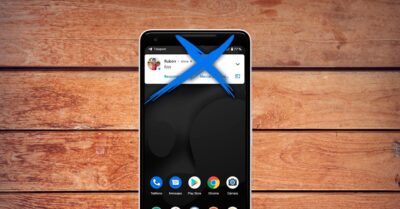
Notifications are both a blessing and a curse: they keep you up-to-date, but if they get out of control, they turn your phone into a constant source of distractions . Android offers many tools to manage them, such as floating notifications.
One of the most useful features is automatic notification grouping , which prevents a single app from cluttering the entire notification bar with individual alerts. It groups them by app or conversation, as needed, making it easier to clear or address several at once.
Many apps now support real-time updates in the notification bar , for example, to see the progress of a ride, an order, or a shipment without having to open the app. This is displayed as a live notification that updates with the changes.
Android also includes a very handy notification history for those who accidentally close things. You can activate it from Settings > Notifications > Notification history, and from there you'll have a record of recent alerts to refer to when you mistakenly dismiss something important.
In that same section, you can decide whether or not to show silent notifications in the status bar. If you find it annoying to see low-priority alerts (updates, minor reminders, etc.), you can hide them so they don't clutter the top area.
Each app has several notification channels (messages, mentions, promotions, etc.), and you decide which types of notifications you want to receive and which you don't . In Settings > Notifications > App notifications, you can go into each app individually and fine-tune what you want to allow and how.
Android 14 also adds specific controls to manage which apps can create alarms and reminders . In Settings > Apps > Special access > Alarms and reminders, you can revoke this permission for apps that use it to send you annoying notifications.
One very powerful feature is conversation priorities . Within Notifications > Conversations, you can mark certain chats as priorities so that their notifications are given preferential treatment in the notification bar, while others remain in a secondary category or even go unnotified.
You can also protect your privacy on the lock screen. In Settings > Notifications > Lock screen notifications, you can choose whether to show sensitive content only when you unlock the screen or hide all notifications when the screen is locked.
If you're in control, head to the Digital Wellbeing and Parental Controls section . There you can see how many hours you spend on your phone, which apps you use most, how often you unlock it, and how many notifications you receive. You can also activate a sleep mode or set usage limits for certain apps if you want to take a break.
Connectivity, ecosystem, and sharing between devices
Android is getting better and better at working with other devices in the Google ecosystem and third-party devices, allowing you to share content, connection, and experiences very quickly.
If you have a TV or device with Google TV, you'll see a row called "Continue Watching ," from which you can resume series, movies, or videos right where you left off, regardless of whether you started on your mobile, TV, or another device compatible with your account.
In the car, Android Auto has become much more comprehensive. In addition to the classic navigation, calling, and music apps, it now includes small games designed for when you're stopped , for example, while charging your electric car or waiting in a parking lot, provided safety is guaranteed.
To share photos, videos, and documents between Android phones, tablets, or even some computers, Quick Share is your best friend. For audio sharing, check out Auracast . Simply select the file, tap Share, and choose Quick Share to search for nearby devices. For even easier access, you can generate a QR code that the other person scans with their phone—no need to add contacts or adjust visibility settings.
Sharing your Wi-Fi password is also very easy. From the settings of the Wi-Fi network you're connected to, tap "Share" to display a QR code . The other person scans it and connects automatically, without needing to dictate a complicated password. On some phones, you can also use Nearby Share to send the connection directly to another nearby device.
Split screen, multitasking, and tricks for using multiple apps at once
If you use your phone for work or study, multitasking, when used effectively, can save you a lot of time. Android allows you to view and use two apps simultaneously by splitting the screen.
To activate split screen, open the recent apps view, tap the icon of the app you want to pin to the top, and select "Split screen ." That app will then occupy the top half of the screen, and you can choose another app for the bottom half. It's ideal for chatting while watching a video, consulting a document while writing an email, or comparing data between two apps.
There's also the option to pin an app to the foreground, which is very useful if you lend your phone to someone else and don't want them snooping around. In Settings > Security and privacy > More security and privacy > Pin apps, you can activate this option and require your PIN or pattern to exit the pinned app.
In the recent apps view, Android lets you copy text from an app without fully opening it . Tap "Select" (bottom right on many models) or press and hold on the text in the preview, and you can copy, share, or search on Google what you've selected.
Something similar happens with images: when a preview shows a photo, you can use the image or Google Lens icon to extract that photo, analyze it, copy it, or save it without fully entering the original application.
If you use gesture navigation, swiping the bottom bar left or right lets you quickly switch between apps , just like flipping through open applications. It's an ideal gesture for switching between two or three apps you're using at the same time.
Customization: personalize your Android to your liking
One of the great virtues of Android is how easy it is to customize it exactly how you want it , both in appearance and organization.
The most basic thing to do is change the wallpaper and theme . You can use images included by the manufacturer, your own photos, or wallpapers downloaded from specialized apps like Zedge or Walli. Many phones also include their own theme store to change system icons, effects, fonts, and colors.
Organize your apps into themed folders by pressing and holding an icon and dragging it onto another. This way you can group apps like "Social Media," "Games," "Work," "Banking," and more. Keeping your home screen clean saves you time and makes everything look tidier.
Widgets are the icing on the cake: small, interactive modules that show you live information without opening the app . From the home screen, press and hold on an empty space, choose "Widgets," and add the ones that interest you most: weather, calendar, notes, music, to-do lists, etc.
Another very practical customization is deciding whether you want to see the battery percentage in the status bar . In Settings > Battery, you can enable or disable this option, depending on whether you prefer to have the exact figure or simply use the icon to avoid constantly checking it.
If you don't like the default browser, keyboard, or phone app, you can change the default apps for web browsing, calls, SMS, launcher, etc. in Settings > Apps > Default apps, and choose the ones you prefer from the Play Store.
Gestures, shortcuts, and a personal dictionary
Android allows you to perform many actions with fewer touches thanks to gestures and shortcuts , which ultimately saves you a lot of time on a daily basis.
In the system settings, under Gestures, you can activate various actions: for example, invoking Google Assistant by holding down the power button instead of saying "Ok Google", or configuring gestures to open the camera, take screenshots, or silence calls.
Apps also allow shortcuts. Press and hold the icon of a compatible app on your home screen to see shortcuts like "New Message," "Search," "Scan," or "Navigate to Home ." You can drag these shortcuts to your home screen as individual icons for even faster access.
Some manufacturers include custom gestures, such as drawing letters on the off screen to directly open certain applications (C for camera, M for music, etc.) or double-tapping to turn the screen on or off without pressing physical buttons.
In Settings > System > Personal Dictionary, you can create text shortcuts . For example, you type "miem" and the keyboard automatically replaces it with your full email address, or "dircasa" with your complete address. It's perfect for phrases you repeat frequently.
If you don't get along with gesture navigation, in Settings > Accessibility > System controls > Navigation mode you can revert to the three classic Android buttons (Back, Home and Recents), which many people still find more comfortable.
Camera, cloud photos, and AI editing
For many, the mobile phone camera is the most used app. Android and Google offer several tools to help you take better photos, organize them, and edit them without going crazy.
The first thing to do is make sure you have a backup of your photos in the cloud . Google Photos syncs your images with your account, allowing you to access them from any device and preventing you from losing them if your phone breaks, gets lost, or is stolen.
Google Photos also has a powerful search engine: you can find photos by people, places, objects, or events , thanks to advanced recognition. Tagging faces or searching for "beach," "car," "Christmas," or "dogs" usually yields quite accurate results, preventing you from getting lost in a chaotic gallery.
Furthermore, it integrates AI-powered editing tools , such as object and people erasers, automatic light and color adjustments, more natural blurring, and smart filters, as well as options for creating stickers on Android . You don't need to be an editing expert to make a photo look much more striking in seconds.
In your phone's camera app, you'll find modes like HDR, Night, Portrait, and Panorama, which adapt the capture to each situation . Night mode improves photos in low light, Portrait blurs the background for selfies and portraits, and HDR helps when there are very bright and very dark areas at the same time.
If you want even more control, the Play Store offers alternative camera apps, such as Open Camera or ProCam, which provide advanced manual controls (ISO, shutter speed, manual focus, etc.) for those who want to get the most out of the sensor.
And for selfie lovers, little tricks like finding good light, avoiding strong backlighting, using portrait mode and taking advantage of timers or gesture shooting help to achieve much more effective selfies effortlessly.
Easter eggs and curiosities of Android
Beyond the practical aspects, Android hides little secrets and hidden games that prove that developers also have fun.
The most famous is the dinosaur game in Chrome . When you lose your internet connection and the dinosaur appears, tap the screen or press the spacebar (on the desktop version) to jump over cacti and beat your own record. It's perfect for killing time when you don't have data.
Each Android version includes its own visual easter egg . Go to Settings > About phone and tap repeatedly on "Android version" until a hidden animation or logo related to that version appears. It's a classic Easter egg that changes with each major update.
In some versions, the developer section also hides a Flappy Bird-style minigame or other interesting variations, which you access by repeatedly tapping a certain icon. It's not always available, but when it appears, it's quite addictive.
If your phone is compatible with ARCore, you can install augmented reality apps to draw in the air or interact with virtual objects in your real-world environment. Games and apps like the ARCore demos let you experiment with this technology in a visually stunning way.
Finally, although it's not exactly an "Easter egg," many people are unaware of service codes like ##4636## , which on many mobile phones displays advanced information about the device, battery, network, and other technical data. It's advisable to use them with caution and only to access information, not to change settings you're not familiar with.
This arsenal of tricks, hidden menus, new Android 14 features, and official Google tools lets you go from using your phone halfway to using it almost like a power user . By combining security, battery, customization, gestures, multitasking, camera, connectivity, and notification control settings, your Android can become a much faster, more secure, and more convenient tool, tailored precisely to your daily needs.