- Explorer crashes in Windows 11 are usually caused by corrupted cache, corrupted system files, outdated drivers, or third-party software.
- Restarting the explorer.exe process, clearing the history, and running SFC, DISM, CHKDSK, and Memory Diagnostic resolves most cases.
- Updating Windows and drivers, performing a clean boot, and, in extreme cases, tweaking the Registry drastically reduces crashes.
- If files are lost during the repair, it is possible to recover many of them using specialized data recovery utilities.
When Windows 11 File Explorer stops responding , it feels like you're completely locked out: you can't access your documents, the taskbar flickers or disappears for a few seconds, and no matter how many times you click on the icon, nothing opens. If you also use the computer for work or study, the situation can become incredibly frustrating.
The good news is that you can almost always fix it at home , without needing to take your laptop to a repair shop. In many cases, the problem is due to temporary errors, a corrupted cache, outdated drivers, corrupted system files, or third-party programs interfering where they shouldn't. In this guide, you'll see, step by step, how to address all these causes and restore a stable and smooth File Explorer in Windows 11.
Why is File Explorer not responding in Windows 11?
Before you start tinkering with things, it's important to understand that explorer.exe is a key system process : it controls File Explorer, the taskbar, the Start menu, and much of the Windows graphical interface. Any problems there are immediately noticeable in the form of crashes, momentary black screens, or windows that fail to open.
The most common issues being seen in Windows 11 are those where, upon clicking the Explorer icon, the taskbar disappears for a few seconds, reappears, but the window never actually opens . Sometimes a black Explorer window appears briefly and then closes abruptly. It can even happen that Explorer becomes unresponsive immediately after logging in.
Behind this strange behavior are several potential culprits: corrupted system files, problematic updates, outdated graphics drivers, corrupted cache, RAM failures, or third-party software such as antivirus, customization utilities, or newly installed applications.
Some users who upgraded from Windows 10 to Windows 11 have also reported losing features such as the search box in File Explorer and the "Copy to" and "Move to" shortcuts . On many computers, these interface changes, combined with File Explorer crashes, create the impression that "nothing works as it used to."
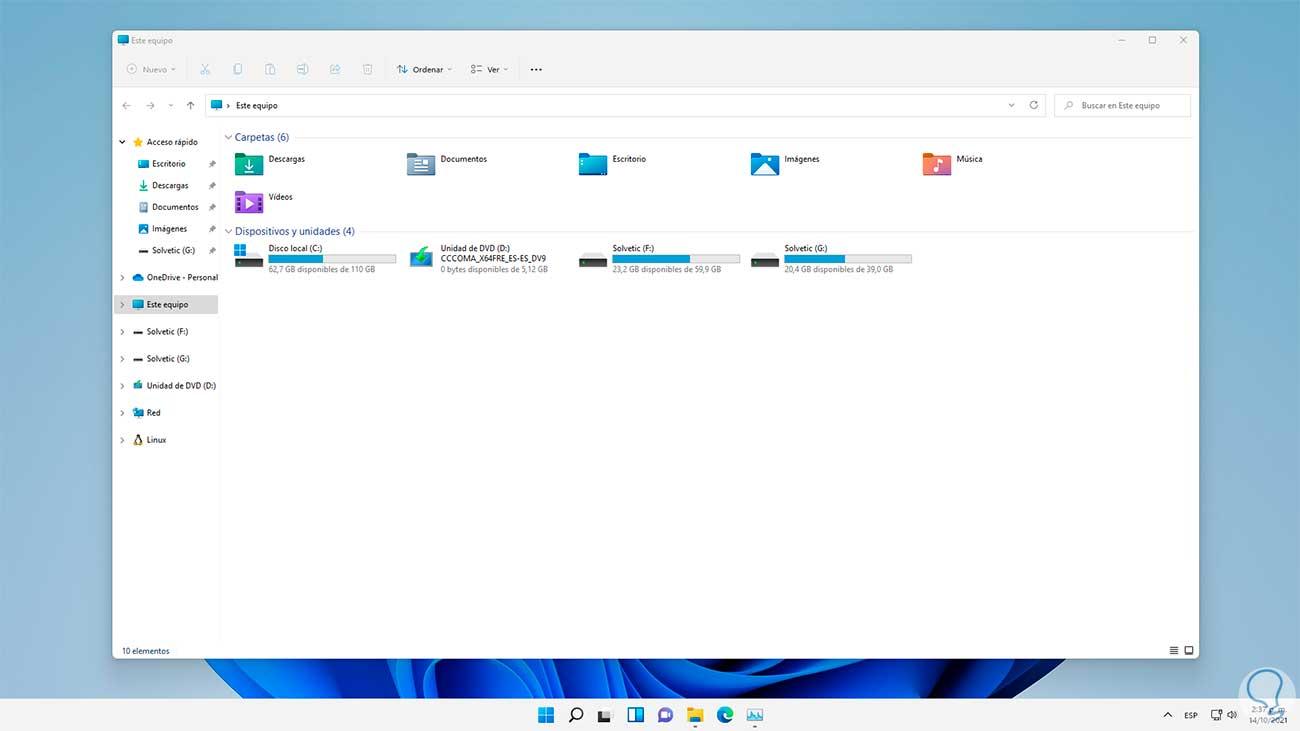
In short, the problem could stem from either internal Windows errors or external interference. Therefore, the most effective strategy is to try different solutions, from the simplest (restarting the process) to the most advanced (modifying the Registry or using repair tools).
Restart File Explorer from Task Manager
The first attempt should always be to restart the Windows Explorer process , rather than turning the entire PC off and on. This resets the graphical interface and in many cases brings Explorer back to life in a matter of seconds.
To do this quickly, press CTRL + ALT + DELETE and select “Task Manager,” especially if you suspect a bug that multiplies Task Manager processes . In the “Processes” tab, locate “Windows Explorer ,” right-click on it, and select “Restart.” It’s normal for the taskbar and desktop to disappear briefly and then reappear.
If the process isn't listed, you can create a new task manually . In Task Manager, open the "File" menu and select "Run new task." Type explorer.exe , check the box next to "Create this task with administrator privileges," and click "OK" to restart Explorer.
After restarting the process, check if Explorer opens normally from the taskbar or search bar. If it does, the problem was probably temporary and you won't need to do much more, except keep an eye on whether it happens frequently.
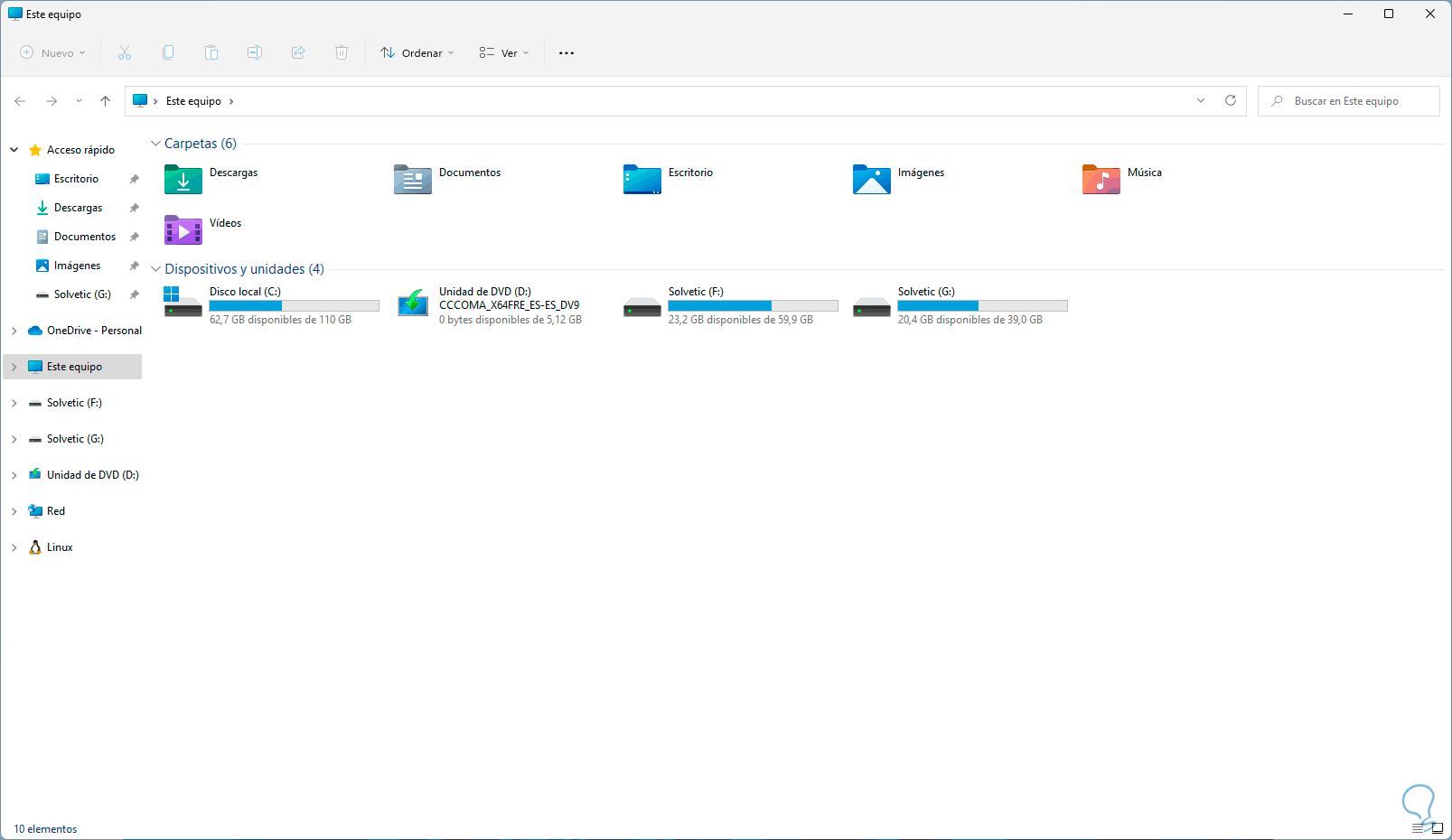
Clear the cache and history of File Explorer
Windows Explorer keeps a history and cache of locations, views, and shortcuts to make everything load faster. When this data becomes corrupted or overloaded, it's very common to experience crashes, extreme slowness, or the feeling that Explorer "isn't working."
A simple way to lighten this load is to use File Explorer Options . From the Start menu, search for “File Explorer Options” and open the first result. On the “General” tab, click the “Clear” button next to “Clear File Explorer history” to remove recently used paths and shortcuts.
If the problem stems from a deeper issue, you can directly delete the Automatic Destinations folder that Windows uses to store pinned and recent items. Open the "Run" window by pressing Windows + R , type the path to the AutomaticDestinations folder (you'll find it documented in many technical guides), and delete all its contents. Then, restart your computer.
After clearing this type of data, the system may take a little longer to display frequently accessed items at first, but in return, it eliminates potential cache conflicts that could be blocking the Explorer . If it opens without freezing after restarting, you know the problem originated there.
Run SFC and DISM to repair corrupted system files
When the message or symptom is that File Explorer is "not responding," a very common cause is corrupted system files . Windows includes two powerful tools for this: the System File Checker (SFC) and DISM, which repairs the system image.
The easiest way is to open a Command Prompt with administrator privileges . Press Windows + R, type cmd , and instead of pressing Enter, use Ctrl + Shift + Enter . Accept user account control if prompted.
First, launch the image repair using the command DISM.exe /Online /Cleanup-Image /RestoreHealth and wait until it reaches 100%. This process can take several minutes, so it's best not to touch anything while it's running to avoid interruptions.
When DISM finishes, run the SFC scan with `sfc /scannow` . This utility will check essential Windows files and, if it detects errors, replace them with healthy copies. Many users report messages such as "Windows Resource Protection found corrupt files and successfully repaired them ," which is a good sign.
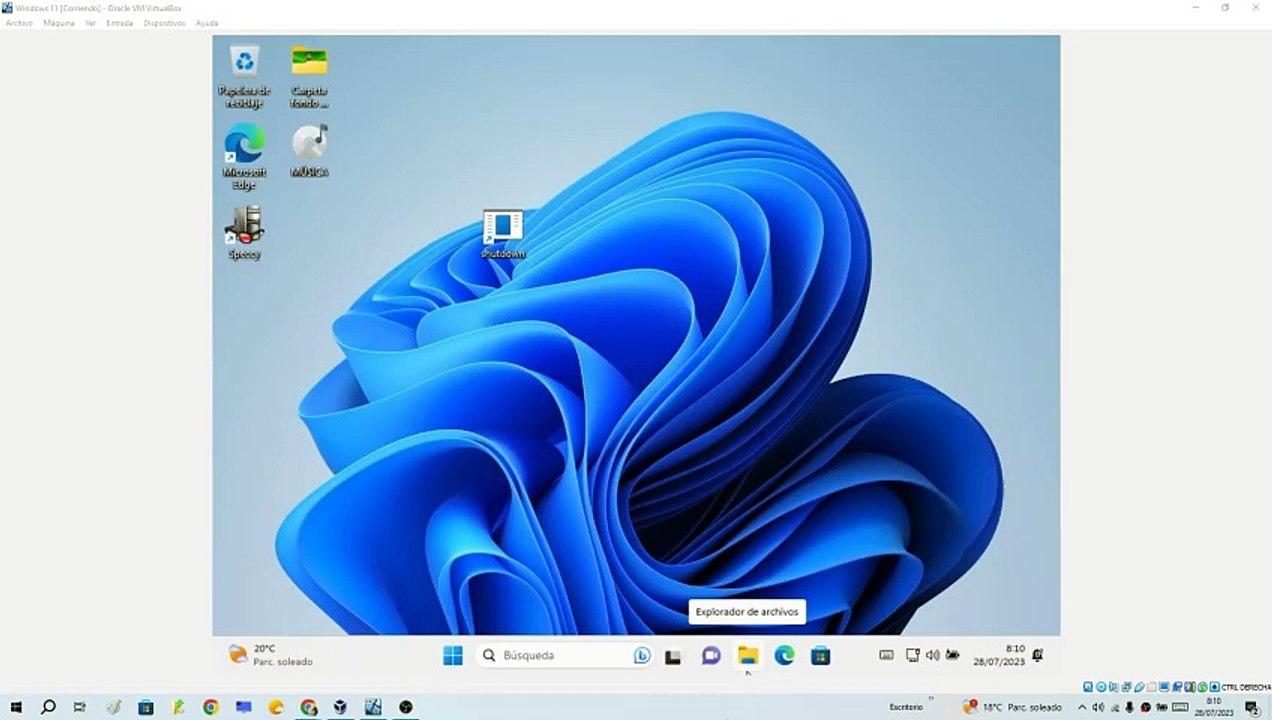
Once both checks are complete, restart your computer to apply all changes and test File Explorer again. If the problem was due to internal Windows 11 corruption, the crashes should be reduced or disappear completely.
Check the disk and RAM memory (CHKDSK and Memory Diagnostic)
If Explorer frequently closes or freezes, it's also possible that there are bad sectors on the disk or RAM failures affecting system processes. This is where CHKDSK and the Windows Memory Diagnostic tool come in.
To check the disk, type "Command Prompt" in the Windows search bar, right-click, and select "Run as administrator ." Then use the command ` chkdsk C: /f /r` , confirming with the Y key if prompted to run the check after restarting. Next, restart your computer and let Windows scan the disk for physical and logical errors.
Once the hard drive is secured, it's a good idea to check the RAM. Press Win + R , type mdsched , and press Enter to open the Windows Memory Diagnostic . Select the option "Restart now and check for problems (recommended)" and wait for the scan to finish.
If this tool detects memory errors, you'll need to consider replacing the RAM module or checking for dirty or loose connections. Faulty memory can cause random crashes of explorer.exe and many other applications without the hardware appearing to be the problem at first glance.
Keep Windows 11 and drivers updated
Another source of errors comes from having an outdated system or one with conflicting patches . Although Windows Update can sometimes be a nuisance, updates fix many internal bugs that affect File Explorer.
Open Settings with Windows + I and go to "Update & Security". Then, go to "Windows Update" and click "Check for updates". If any pending updates appear, install all important ones and restart your computer to ensure the stability fixes are applied.
Similarly, the graphics card (GPU) driver shouldn't be overlooked . File Explorer relies heavily on the graphics layer to display icons, previews, and animations, so an outdated or corrupted driver can cause sudden crashes or fleeting black screens.
The best approach is to go directly to the GPU manufacturer's website (NVIDIA, AMD, Intel, etc.) and download the latest driver compatible with your version of Windows 11. Install the driver following the wizard's instructions and restart your computer when finished. Third-party tools like Driver Easy offer automatic driver scans, but it's always preferable to verify the download on the official website.

If you find that the problem started right after a specific Windows 11 update, you can also take a step back and uninstall that update . From Settings > “Update & Security”, go to “Windows Update” > “View update history” > “Uninstall updates”, locate the most recent update, double-click on it, and confirm with “Yes”.
Perform a clean boot of Windows 11
Many Explorer crashes are related to third-party programs that load at startup and interfere with normal system operation. An overly aggressive antivirus, a taskbar customization utility, or a poorly programmed application can cause explorer.exe to freeze.
To check if this is the case for you, you can perform a clean boot , which simply means starting Windows with only the essential services and programs. Open the Run dialog box (Windows + R), type msconfig , and press Enter to open System Configuration.
On the "Services" tab, check the box "Hide all Microsoft services" and click "Disable all" to leave only Microsoft services active. Then go to the "Startup" tab and open the "Task Manager," where you can disable each program that runs at startup.
Once you've disabled only the essential programs, close Task Manager, confirm with OK in the System Configuration window, and restart your PC. If File Explorer now works normally, it's almost certain that one of the disabled programs was causing the problem.
In that case, it's advisable to reactivate startup items one by one until you find the culprit, or simply uninstall the applications you installed just before the problems started.
Fix the problem from the Windows Registry
When cache clearing, SFC/DISM repairs, and clean boot fail, there's a more advanced option: modifying the Windows Registry . Some corrupted values stored there can prevent Explorer from functioning correctly.
Before anything else, it's crucial to create a system restore point or export the portion of the Registry you're going to modify, in case something goes wrong. Then, open Run (Windows + R), type regedit , and press Enter, accepting the elevated privileges when prompted.
In the Registry Editor, navigate to the path documented in the technical guides for resolving these blocks (it usually involves keys related to BagMRU and Bags , which store information about folder views). Once there, right-click on the problematic key (for example, BagMRU) and select "Delete," confirming the security warning.
Next, locate and delete the other associated key (such as Bags or Sacs, as applicable). When you're finished, close the Registry Editor and restart your computer. Windows will then automatically recreate these keys with clean values , which often resolves persistent Explorer issues.
Use automatic repair and try to restore the system
If the system has more serious internal damage, you may need to use Windows Automatic Repair , which attempts to correct errors in the Registry and other startup components. To launch it, go to Settings > Update & Security > Recovery. Under Advanced startup, click Restart now.
When the blue "Choose an option" screen appears, select "Troubleshoot" > "Advanced options" > "Startup Repair" . Choose your account, enter your password if prompted, and let Windows do its work; it's normal for your computer to restart several times during the process.
Another option is to restore your system to a previous point . Press the Windows key, type rstrui , and press Enter. In the System Restore window, choose a restore point where you remember File Explorer working normally. If a recommended restore point appears, it's usually the best choice.
Keep in mind that this procedure won't delete your documents, but it can uninstall programs or drivers installed after the restore point date. Even so, it's a fairly safe way to undo significant changes that may have triggered the Explorer problem.
On computers upgraded from Windows 10, many users wonder if it wouldn't be better to revert to the previous system. This return to Windows 10 is only possible for a limited time after the upgrade, so if too much time has passed, you'll need to focus on stabilizing Windows 11 by following the steps in this guide.
What if the problem is malware or a serious bug?
When you've tried several methods and File Explorer still won't open, the taskbar disappears, windows turn black, or the system behaves strangely, it's normal to wonder if malware is involved . Some viruses or potentially unwanted programs latch onto File Explorer to display ads, change icons, or intercept your actions.
In these cases, it's advisable to perform a full scan with Windows Defender (or your preferred antivirus software) and, if possible, with a secondary disinfection tool. If malware is detected, follow the recommendations for removing it and restart your computer before trying Explorer again.
If that doesn't solve the problem, and especially if you notice other symptoms like unexpected shutdowns, frequent blue screens, or strange hard drive noises , it might be time to have your hardware checked at a repair shop. A hard drive about to fail or faulty RAM can cause problems that are very difficult to diagnose using only software tools.
Common causes of File Explorer freezing
By compiling the most common cases, it becomes clear that there's a set of recurring factors that cause Windows Explorer to frequently crash in Windows 11. Understanding these factors helps you choose which solution to try first in your specific situation.
On one hand, there are temporary operating system failures , minor internal errors that interrupt Explorer processes for a moment and make it unstable. These usually appear after configuration changes, recent installations, or power outages.
Then there are conflicting updates , which occur when different parts of Windows or other programs receive incompatible versions. This can cause certain components to not "speak the same language," resulting in File Explorer crashing or even external drives no longer appearing in it.
Corrupted system files are also very common , whether due to forced shutdowns, disk errors, or malware. If the files that Explorer uses to function become corrupted, the user will notice unpredictable behavior, unexpected crashes, and frequent freezes.
Finally, we mustn't forget problematic graphics drivers . Since Explorer is a graphical application that relies on the GPU to display content, an outdated or incompatible driver can trigger visual artifacts, flickering, or unexpected restarts of the explorer.exe process.
Data loss and recovery programs
During the process of attempting to repair File Explorer, it's relatively easy to experience some data loss , especially when clearing history, deleting cache folders, or uninstalling updates. Usually, only recent shortcuts disappear, but in more complex situations, documents may become inaccessible.
If you suspect that important files have been deleted, it's always a good idea to stop writing to the affected disk and use a data recovery tool . Specialized solutions like EaseUS Data Recovery Wizard or iMyFone D-Back for Windows perform a deep disk scan to find deleted files that can still be recovered.
The process is usually simple: first, you download and install the program on a stable computer (or a USB drive), then you select the location where the lost files were stored and run a full scan. When finished, the software displays a list of recoverable files grouped by type, allowing you to preview and save the ones you want.
These tools don't work miracles if the disk is physically damaged, but in many cases they allow you to recover documents deleted by mistake, affected by Explorer crashes or system failures without having to resort to a professional laboratory.
Although Windows 11 File Explorer can become a headache when it's unresponsive, with a combination of restarting the process, cleaning the cache, running SFC/DISM checks, checking the disk and memory, updating drivers, performing a clean boot, tweaking the Registry, and, if necessary, using data recovery tools, it's perfectly possible to get your system back to a stable, functional state and keep your files safe without having to give up on Windows 11 or live in fear of File Explorer crashing every time you click.
