- The optional update KB5067036 causes Task Manager not to close the process when pressing X.
- The flaw affects Windows 11 24H2 and 25H2 and is acknowledged by Microsoft with mitigations.
- The impact grows with accumulated instances: more RAM, CPU, and energy consumption.
- Temporary solutions: Use "End task" or the taskkill command until the official patch.
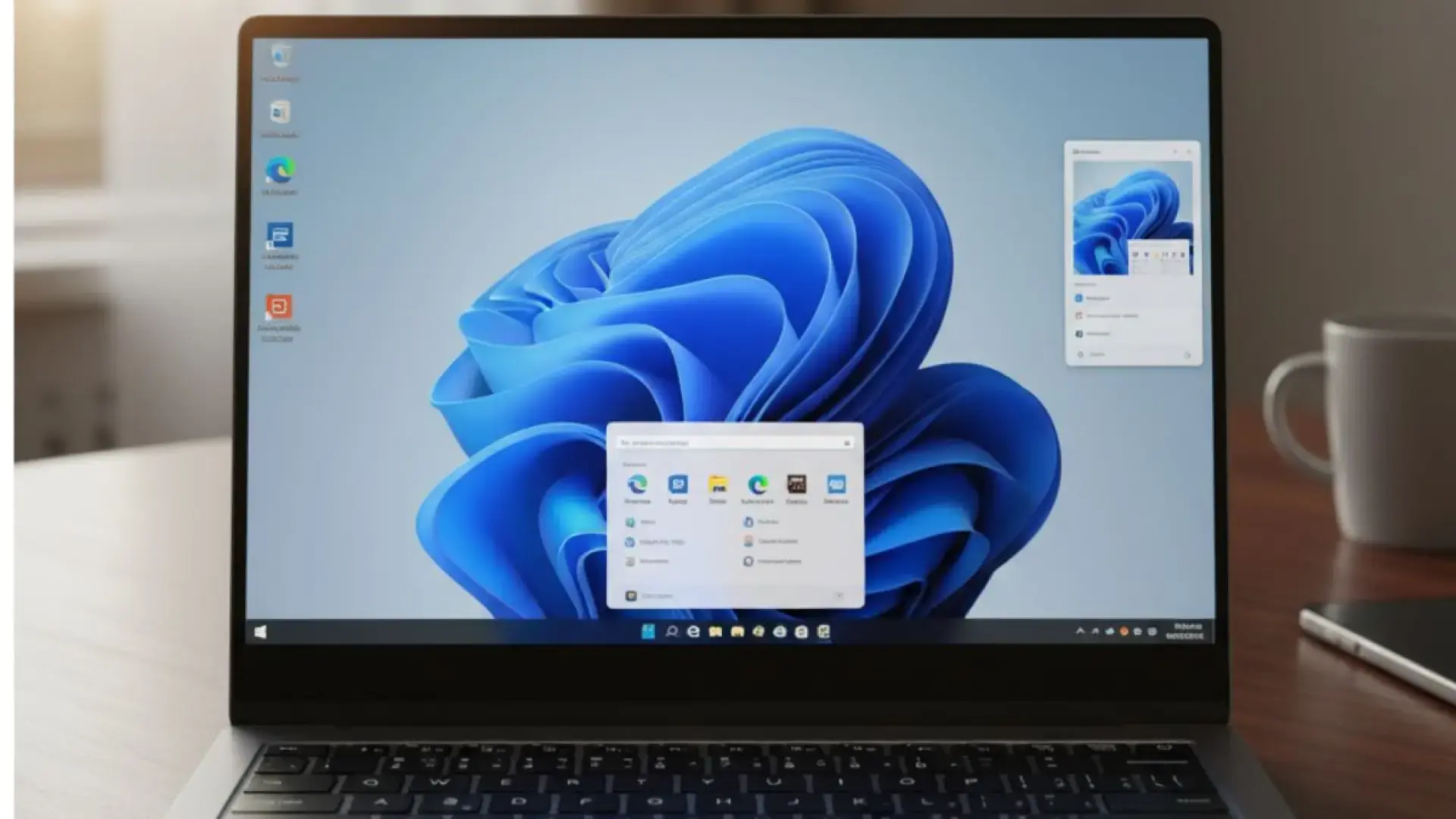
If you've recently updated your PC, you may have encountered strange behavior in Task Manager: you close it with the X, the window disappears, but the process remains running. This stems from the optional Windows 11 update KB5067036 and affects the 24H2 and 25H2 branches, where cases have been reported in which closing the Task Manager doesn't terminate the process, and instances of taskmgr.exe continue to accumulate in the background.
Besides being inconvenient, this can lead to increased resource consumption and, over time, a noticeable slowdown if you repeatedly open and close the tool. Microsoft has already acknowledged the problem as a "known issue" on its release status page and has released temporary workarounds while preparing a full fix. Some Windows 11 builds where the bug has been observed include 26100.7019 and 26200.7019, as noted by Windows Latest, although the common factor is having installed the KB5067036 patch from late October.
What exactly is happening
The problem occurs when you close the Task Manager window using the button in the upper right corner. The window closes, but taskmgr.exe doesn't terminate ; it remains hidden in the background. When you reopen it, a new instance is created and visible on the desktop. If you repeat this process several times, you end up with multiple processes running, some visible and others invisible.
If you go to the Processes tab in Task Manager, you'll see several entries for "Task Manager." And if you open the Details tab, they'll appear as "taskmgr.exe ." This behavior doesn't affect other Windows applications; the bug seems specific to the tool's closure logic, not the general Windows system.
The exact cause has not yet been publicly revealed. Evidence gathered by advanced users and community contributions points to UI-thread errors (0xc000041d) involving KERNELBASE.dll , which is more typical of a system-level regression than a hardware or driver issue. Events suggesting a possible buffer overflow have also been observed in registry calls when Task Manager queries performance counters after the update.
In any case, the accumulation of processes doesn't require any unusual actions: simply using the X key repeatedly is enough to leave behind "ghost" instances. The more windows you open and close, the more processes remain active , and the impact will be more noticeable if you're working with a computer that's running low on memory or if you spend a lot of time monitoring tasks.

Who is affected and what versions are involved?
The pattern shared by virtually all those affected is having installed the optional October update for Windows 11, identified as KB5067036. The reports cover devices with Windows 11 24H2 and 25H2 , and Microsoft has marked the problem as known on its official Windows Release Health portal.
On that page, the issue is listed as associated with KB5067036, build 26100.7019 (and also reported in 26200.7019), with a status of Mitigated (there are workarounds) and a notice that they are working on a permanent fix . According to Microsoft, the scope is limited to Windows 11 clients (servers are not affected).
It's worth noting that KB5067036 is a non-security update focused on functionality and reliability improvements. Among other things, it brought visual changes to the Start menu, battery icon adjustments, improvements to File Explorer, and a fix for process grouping in Task Manager itself . Ironically, it's precisely in this tool where the crash bug we're discussing has appeared.
Some specialized media outlets and journalists, such as Windows Latest and Tom Warren (The Verge), have corroborated the failure pattern. On certain computers, the close button stops working as expected , leaving residual processes running without a visible interface.

How to check if you are affected
The verification is quite simple and won't take more than a minute. The goal is to reproduce the shutdown behavior and check if processes accumulate.
- Press Ctrl+Shift+Esc to open Task Manager.
- Close it with the X in the upper right corner.
- Reopen it (using the previous shortcut or from the security context menu with Ctrl+Alt+Delete).
- On the Processes tab, check if there are multiple entries for "Task Manager" and if the number increases each time you open and close it.
If you see the instance counter increase with each opening, you're experiencing the bug. You'll also notice it if the tool suddenly takes longer to respond or the system feels sluggish for no apparent reason, especially after several consecutive attempts to close and reopen it.
An additional way to confirm this is to open the Details tab and sort by name; if there are multiple "taskmgr.exe" instances active, the process has not been terminated . Under normal circumstances, only one instance should remain: the one in the visible window.
Real impact on performance, consumption and temperature
On its own, a single instance of Task Manager isn't a resource hog. Typical consumption is around 20 to 30 MB of RAM, and CPU usage is usually negligible. The problem arises when you accumulate many "ghost" instances : that's when it starts to become noticeable.
The reports gathered indicate that each additional process can consume around 0,5–1,6% of CPU time, depending on the processor's power and the system's state. If you open and close these processes dozens of times throughout the day, the added cost ceases to be negligible and becomes a measurable burden, increasing power consumption and temperature in laptops.
In stress tests, around 100 simultaneous instances have been accumulated. In that extreme scenario, consumption can approach 2 GB of RAM and cause CPU saturation, which can be critical for systems with 8 GB or less if they were already at their limit due to other applications.
However, it's important to put things into perspective: it's not usually a security issue or a bug that will cause system crashes on its own. Its main drawbacks are the wasted resources, increased heat, and potential performance drops , and even the fact that Windows can take minutes to shut down if the system is overloaded with residual processes.
In stress tests, around 100 simultaneous instances have been accumulated. In that extreme scenario, consumption can approach 2 GB of RAM and cause CPU saturation, which can be critical for systems with 8 GB or less if they were already at their limit due to other applications.
However, it's important to put things in perspective: it's not usually a security issue or a bug that will cause system crashes on its own. Its main drawbacks are the wasted resources, increased heat, and potential performance drops if you spend a lot of time monitoring or constantly switching between tasks.
Temporary solutions and recommended mitigations
While we wait for the final patch, there are several safe ways to prevent instances from accumulating. Microsoft recommends not using the X to close the window until the fix is released , and instead explicitly closing the process.
Option 1: From the Task Manager itself. Open the Processes tab, search for "Task Manager," right-click, and choose "End task ." If there are multiple tasks, repeat this process for each one. It's slower, but it works and prevents processes from hanging.
Option 2 (faster): Use Command Prompt with administrator privileges. Type "cmd" in Start, open "Command Prompt" as administrator, and run :
taskkill /im taskmgr.exe /f
With that single command, you'll close all open copies, visible or hidden, at once. It's the most efficient way to do this when you've accidentally accumulated many instances and want to clear the state in a second.
In addition to the two main mitigations, the Microsoft technical community has suggested maintenance actions that may help if you suspect minor corruption or third-party interference. First, check for pending updates after installing KB5067036 (Microsoft has occasionally released out-of-band fixes and maintenance stacks): Settings > Windows Update > Check for updates.
Check the disk with: chkdsk /f /r (will run after restarting), in case there are damaged sectors. And repairs components with CFS and DISM if you haven't already, especially on systems with a recent history of changes.
Another advanced suggestion: re-register shell components in case user experience integration has been affected. Open PowerShell (Admin) and run :
Get-AppxPackage Microsoft.Windows.ShellExperienceHost | Reset-AppxPackage
If you suspect third-party software, try a clean boot (msconfig) with minimal services and no non-essential applications. The goal is to rule out anything that might be interfering with closing windows and exacerbating the problem.
Finally, if you need maximum stability and none of the above convinces you, you can always uninstall the optional October update and wait for the next round of patches. This is a temporary solution if you rely heavily on Task Manager and don't want to deal with manual shutdowns.
Microsoft's official status and fix schedule
On the official Windows Release Health page, Microsoft has listed this behavior as a known issue. The text describes how closing the tool with the X does not terminate the process, and that reopening it causes instances to accumulate, potentially impacting performance if this happens repeatedly.
The current status is listed as Mitigated (there are provisional solutions) and “we are working on a resolution”. The mitigations proposed by Microsoft coincide with those we have explained.Use "End task" from the Processes tab or the bulk command to close all instances: taskkill.exe /im taskmgr.exe /f.
Several sources indicate that a permanent fix should be released on the next Patch Tuesday following the initial release of the issue (scheduled for November 11). Until then, the best course of action is to avoid closing the program with the X and apply the workarounds as needed.
Other recent Windows 11 issues that are already resolved (or in the process of being resolved)
October has been eventful. KB5067036 fixes several bugs carried over from previous months, but it also introduced a Task Manager bug. To put everything into context, here's a recap of the most relevant issues and their status :
- Red tint in videos and games (HDR): Appeared after KB5064081 (August). Caused an unexpected reddish tint in HDR content. Fixed in the optional October update (KB5067036).
- The screen does not update properly when scrolling.With apps or browsers after switching from an app to full screen (for example, a game). Microsoft has implemented fixes in KB5067036; text rendering issues in editors like Word were also addressed.
- IIS sites and localhost not loadingFollowing the September 29 update (KB5065789), server apps that depend on HTTP.sys could fail with ERR_CONNECTION_RESET. This was resolved in the October non-security update (KB5067036) and later.
- Playback of protected content in Blu-ray/DVD/Digital TV apps: Crashes, black screens, or HDCP/DRM errors in certain applications. Fixed between KB5065789 (September) and additional improvements in KB5067036 (October).
- USB keyboard/mouse do not work in WinREFollowing the October 14 security update (KB5066835), USB devices became unresponsive in the recovery environment. This was resolved with out-of-band update KB5070773 (October 20) and later.
- Smart card authentication (CAPI/CNG)Crypto changes related to CVE-2024-30098 require the use of Key Storage Providers (KSPs) instead of Certified Service Providers (CSPs) with RSA certificates. Errors such as "invalid provider type" and "CryptAcquireCertificatePrivateKey" were reported. A permanent solution involves updating apps to the Key Storage API; a temporary workaround exists via the registry key DisableCapiOverrideForRSA=0 (scheduled to be removed in April 2026 updates).
- Installation with WUSA from shared resourceERROR_BAD_PATHNAME when running .msu from network folders with multiple packages. Mitigated; recommended workaround: copy the .msu locally and install from there. KIR available for managed environments.
- Family Safety: Parental consent and blocking of unsupported browsersWindows closing when opening Chrome or other browsers with reporting disabled; and newer versions temporarily not blocking until added to the list. Mitigated and fixed in the July non-security preview (KB5062660), with a phased rollout.
- Incompatibility with sprotect.sys (SenseShield)In 24H2 it caused crashes (blue/black screen). There was a safeguard hold; recent software versions using the driver have resolved the compatibility issue and the hold was lifted on October 15, 2025.
- Background customization appsAfter installing 24H2, some apps failed to launch or exhibited abnormal behavior (icons, virtual desktops, previews). The safeguard was lifted on October 15, 2025; it is recommended to update the apps or uninstall them if problems persist.
If you need immediate support, remember the official channels: the Get Help app, the Microsoft Support Community, and the Feedback Hub for reporting issues. In enterprise environments, the version status in the Microsoft 365 admin center and the Windows What's New API in Microsoft Graph allow you to programmatically monitor these alerts.
Frequently Asked Questions (FAQ)
Does Alt+F4 work to close processes without leaving any in place? On some systems, Alt+F4 doesn't prevent the problem if the internal closure path is the same as the X's. Definitive confirmation is obtained by using "End Task" or the taskkill command.
Is it a security flaw? There's no indication that it's a security vulnerability. It's a functional bug that leaves residual Task Manager processes running , primarily impacting resources and performance.
Can I uninstall KB5067036? Yes, it's optional. Uninstalling it removes both the improvements it provides and the Manager bug. If you prefer to wait for the patch, use the mitigations and avoid closing with the X.
Does it affect Windows Server? The issue, as documented by Microsoft, affects the Windows 11 client (24H2 and 25H2) . Server editions are not listed as affected.
How do I report this to Microsoft? Open the Feedback Hub app and describe the behavior, including replay steps (open, close with X, reopen, check Processes/Details). Add screenshots and logs if possible.
It's clear that the KB5067036 update has had its ups and downs: it fixes annoying problems like the red tint in HDR or partial refreshes when scrolling, but it has introduced a glitch in the Task Manager that, while not critical in itself, is still a drawback. It can slow down the computer if you use it a lot and get used to closing it with the X.The good news is that there are simple mitigations, and Microsoft has already included it in its list of known issues with guidance on how to work around it. Until a solution is released, the best course of action is to close the tool using "End Task" or via [unclear - likely a separate, unclear, and possibly a separate, unclear, section]. taskkillMonitor the number of open instances and keep the team up to date in case an out-of-band fix appears or is released on the next Patch Tuesday.
Table of Contents
- 1 What exactly is happening
- 2 Who is affected and what versions are involved?
- 3 How to check if you are affected
- 4 Real impact on performance, consumption and temperature
- 5 Temporary solutions and recommended mitigations
- 6 Microsoft's official status and fix schedule
- 7 Other recent Windows 11 issues that are already resolved (or in the process of being resolved)
- 8 Frequently Asked Questions (FAQ)