- Identify the source with clean boot, Safe Mode, and status messages.
- Adjust power: Turn off Fast Startup and run the power troubleshooter.
- Repairs disk and file system; updates Windows and drivers.
- Optimize shutdown: terminate rogue processes and adjust page times/files.
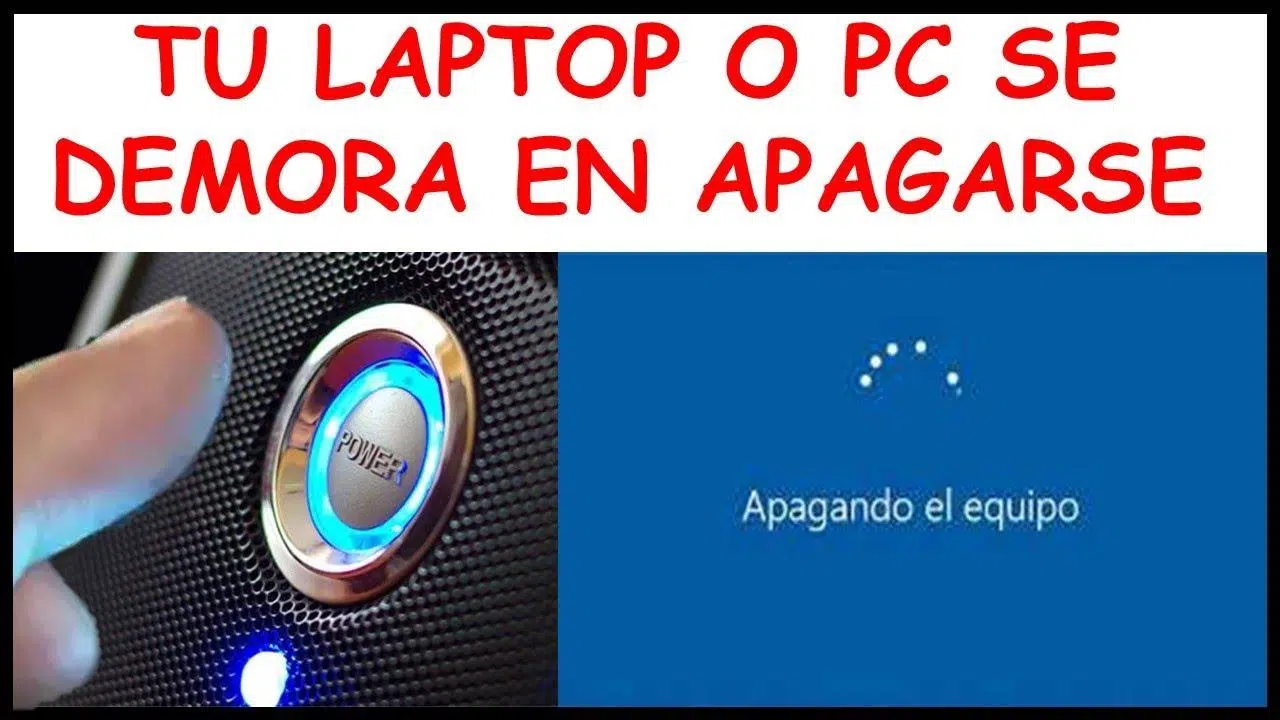
Is your desktop or laptop stuck on the "Shutting down" screen with the spinning circle? You're not alone: in Windows 10 and 11, it's relatively common for shutdown to take too long when something is blocking the login, a service is refusing to terminate, or power management isn't properly configured.
Even if your computer starts up quickly, a slow shutdown can be frustrating. Before resorting to drastic measures, it's worth understanding what might be causing it: background programs, a faulty hard drive, power settings like fast startup, drivers, or even the page file could be prolonging the shutdown process unnecessarily.
Why can Windows take so long to shut down?
When you click Shut Down, it's not like "cutting the power": Windows saves data, closes processes, and clears memory . If something gets stuck, the system waits a while before "killing" troublesome services, which lengthens the process.
A common cause is applications that remain running in the background (updaters, utilities, tools that stay minimized). Windows asks each program if it can close, and if one doesn't respond, you have to wait.
Storage also plays a role: a disk with errors or bad sectors can cause endless reads just when the system is trying to write the latest changes. In older HDDs, fragmentation further worsens access times.
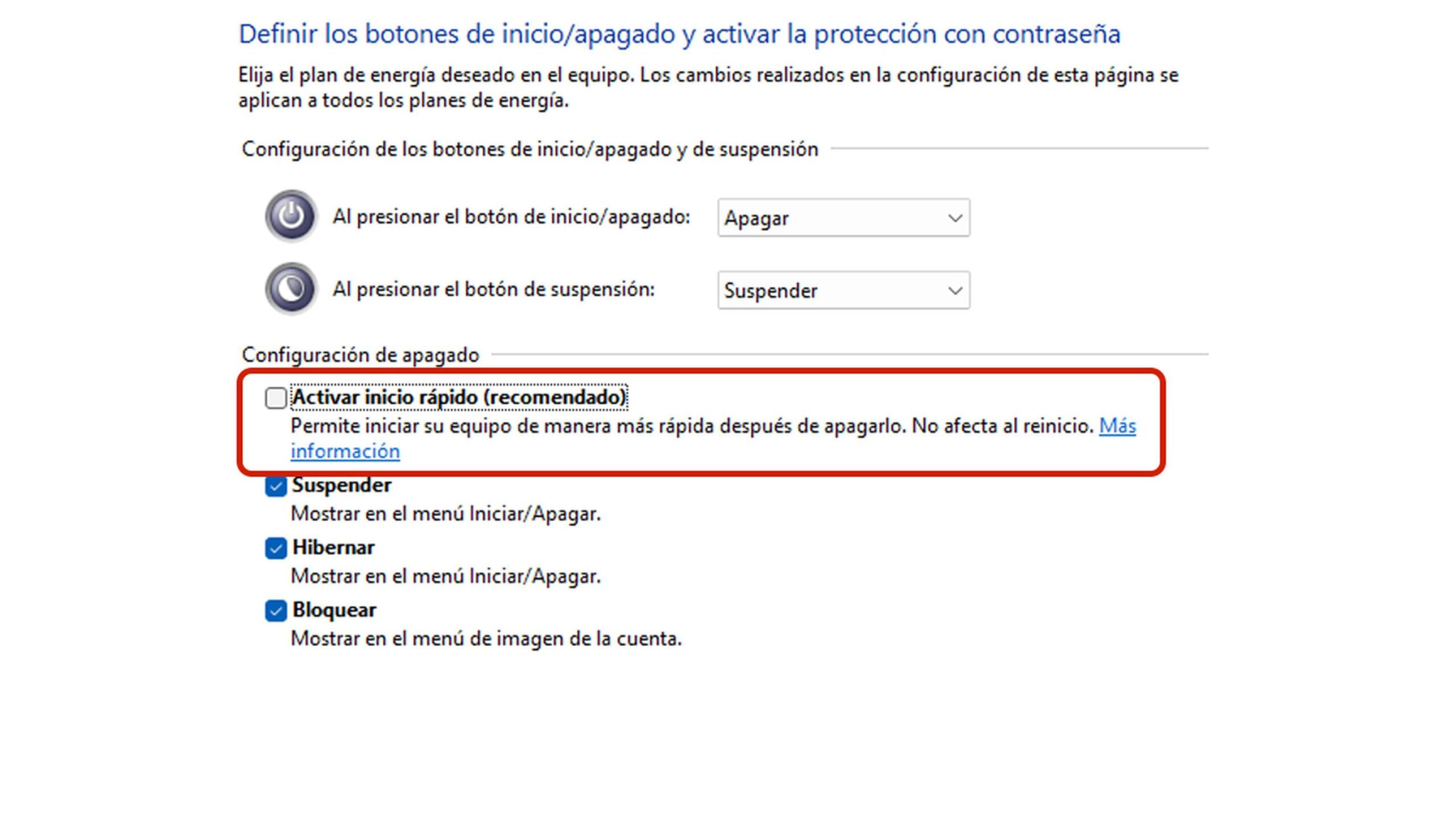
Another factor to consider is Fast Startup . This feature saves a "semi-hibernation" state to boot faster, but it can lengthen the shutdown time because it requires preparing that state before shutting down.
Finally, there are low-level parameters that dictate the pace of the shutdown, such as the timeout for services (WaitToKillServiceTimeout) or whether the system cleans the page file on shutdown, something as safe as it is slow.
Quick checks and diagnostic tests
Before touching the Registry or changing policies, it's worth running a few simple checks. These tests help you narrow down whether the problem originates from third parties, the system, or the hardware.
- Do a manual “cleaning”: Save your work and close all visible apps (browser, office software, games, etc.). Then try shutting it down. If it improves, the problem points to specific programs.
- Look at the Task Manager: with Ctrl + Shift + Esc or from Ctrl+Alt+Del, check in “Processes” if something is still running Unusually high CPU, disk, or memory; terminate the suspicious task and try the shutdown again.
- Clean Boot: Temporarily disables third-party startup programs and services (System Configuration and Task Manager on the “Startup” tab). If with clean start it turns off quickly, you already have a clue: a third-party app is the culprit.
- Boot into Safe Mode: If the computer is in Safe Mode it turns off at the first tryThe cause is usually additional software or drivers; if it doesn't improve even in Safe Mode, there's a system or disk problem.
- Power troubleshooter: In Windows 10/11, go to Settings > Privacy & Security > Troubleshoot > Other troubleshooters > Power on, and run the tool. You can correct power parameters that block the closure.
In any external guide you consult, remember to be cautious with advertising and pop-ups: always prioritize steps in the official documentation and run tests with an administrator account.
Settings that speed up shutdown (safe and effective)
These actions have the greatest impact. We recommend applying them calmly, one by one, and testing the results to identify which one resolves your bottleneck.
- Turn off Fast Startup: Open Control Panel > Power Options > Choose the behavior of the power buttons > “Change settings that are currently unavailable” and uncheck “Turn on fast startup.” Some equipment greatly reduces shutdown time after removing it.
- Force quit stuck processes: If you see the message “Programs need to be closed”, close everything and Use Task Manager to end tasks that don't respond. Avoid pressing the power button if there are still apps asking to save.
- Enable verbose status messages: Run “gpedit.msc” as admin and navigate to Computer Configuration > Administrative Templates > System; go to “Show status messages” and select “Enabled”. You will see at what exact step it remains the shutdown, a valuable clue to act.
- Adjust the timings and the paging file (Registry): open “regedit” with Windows+R and locate HKEY_LOCAL_MACHINE \ SYSTEM \ CurrentControlSet \ Control. In the “WaitToKillServiceTimeout” value, set it to 2000 (milliseconds). Then, in …\Control\Session Manager\Memory Management, open “ClearPageFileAtShutdown” and enter 0. This reduces the wait and avoids clearing the pagefile on shutdown., two typical causes of eternities.
IMPORTANT: Modifying the Registry requires caution . Create a restore point or export the keys before making any changes, and restart your computer for the changes to take effect.
Disk and file system review
If there is logical damage to the drive, the shutdown process may get stuck waiting for responses from storage. It's best to rule out and repair errors before continuing to troubleshoot.
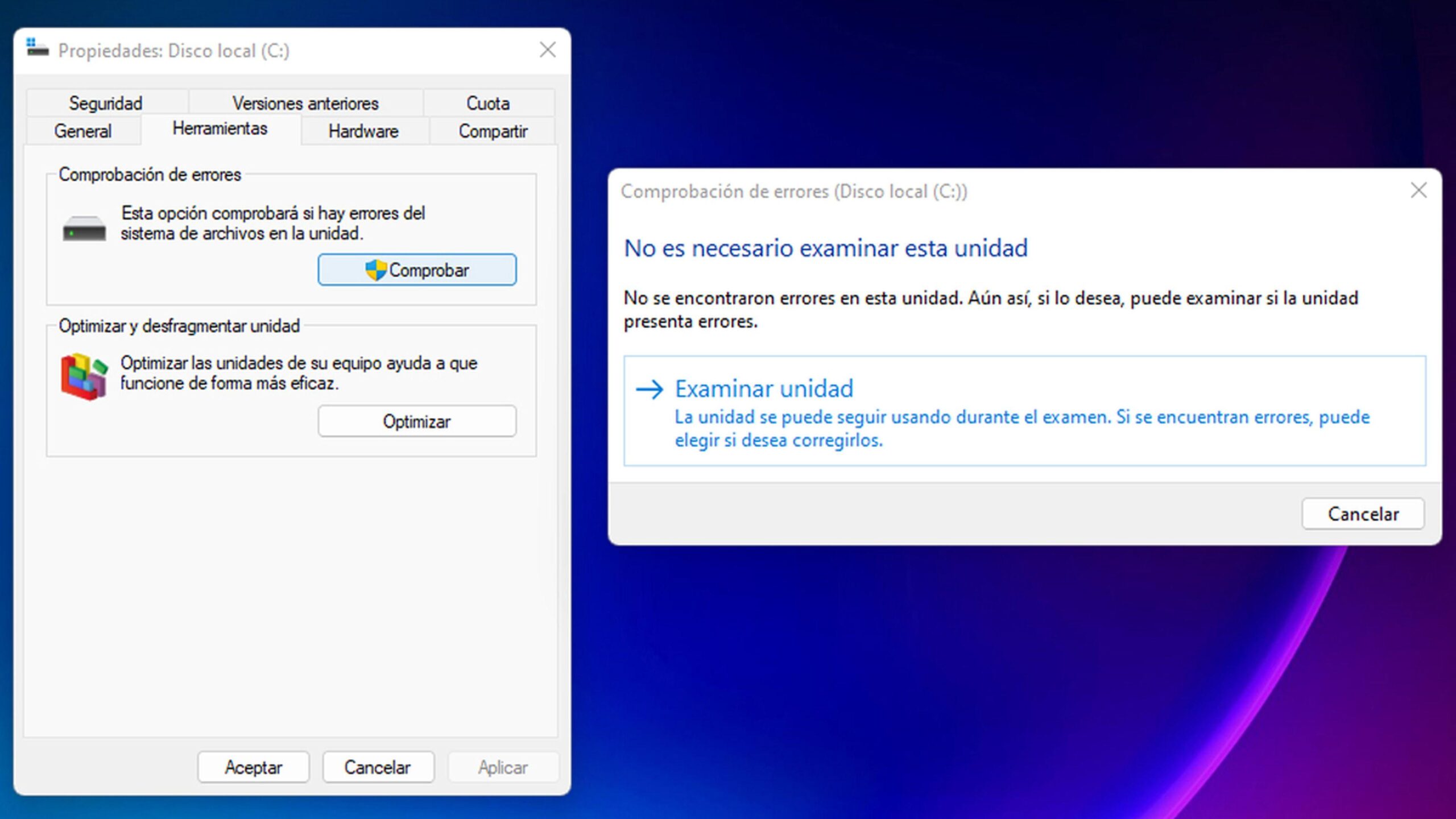
- Integrated error checking: Open Explorer, right-click on the system drive (usually C:), Properties > “Tools” tab > Check and then “Browse Drive”. Windows will detect and correct file system errors.
- Defragment/Optimize: On traditional HDDs, fragmentation slows down access. Use “Optimize Drives” and periodic optimization programOn SSDs, the tool performs TRIM; it's not a classic defragmentation.
- Third-party tools: If you prefer, specialized utilities such as EASEUS Partition Master They include file system checkers with an "attempt to fix errors" option. This is an additional option if the built-in one doesn't work for you.
If the computer shuts down normally after the repair, that's a clear clue: the problem was with the hard drive . If not, continue with the power and services sections.
Power, drivers and updates
Another classic: outdated drivers and firmware that prevent devices from being unlocked on time, or a pending update blocking the shutdown. It's worth checking this out.
- Windows Update: In Settings > Windows Update, tap “Search for updates" and installs everything available. Fixes often arrive. specific shutdown.
- Power Troubleshooter: Run it again if you didn't do so before; reapply profiles and default values that may be corrupted.
- Drivers: Update chipset, storage (AHCI/RAID), graphics, and network. An unresponsive driver may hold the shutdown. Do this from Device Manager or the manufacturer's utilities.
With brand-name equipment, proprietary support suites also help. Even so, avoid installing more utilities than strictly necessary to prevent adding unnecessary background processes.
When the paging file delays the farewell
The pagefile extends RAM with disk space. If the system is configured to clear the pagefile on shutdown , the wait can be very long, especially on an HDD or if the file is large.
We've already seen the direct way to prevent this: in the Registry, set “ClearPageFileAtShutdown=0”. With this setting, shutdown stops clearing the pagefile and usually saves a significant amount of time. Always maintain some RAM availability so the system doesn't rely too heavily on the pagefile.
What if it also starts very slowly and the apps are laggy?
Some users report the opposite at startup: taking more than 30 minutes to reach the lock screen , slow Task Manager to open, and unresponsive programs. If that's your experience, take note of these checks.
- Disc Health: Symptoms of Very slow startup and apps crashing These usually indicate problems with the drive. Repeat “Check for errors” and check the SMART status using diagnostic tools from the drive manufacturer.
- Real-time Load: Open Task Manager and monitor the CPU, Memory, and Disk columns. If the disk is at 100% sharp for no reason, identify the responsible process and uninstall or reconfigure it; and take advantage of this check CPU temperature while diagnosing performance.
- Clean Boot + Safe Mode: Same as before, but focused on startup. If in clean or safe mode it runs smoothly, culprit located: disable or uninstall excessive startup software.
- Updates and drivers: install pending patches and recent driversA poorly tuned storage driver or antivirus can cause both slow startup and shutdown.
If the problem persists, consider performing deeper system checks (system file restoration and DISM checks). You don't need to format the first time ; often, a solution is a combination of software and disk issues.
Solutions by “blocks”: software, processes, disk, energy and system
To avoid getting lost, organize the intervention into blocks and cross them off as you go. It's the most effective way to avoid shooting in the dark.
- Software Block: close apps, uninstall unnecessary items, check background and startup programs.
- Block Processes: Detect in Task Manager what eats resources when closing and end it if it does not respond.
- Disk Block: checks for errors, optimizes drives and, if HDD, avoid running out of space so as not to force pagination.
- Power/OS Block: Disable Fast Startup, run the troubleshooter, Update Windows and drivers.
- Advanced Block: adjust WaitToKillServiceTimeout and ClearPageFileAtShutdown, activate status messages to see where it gets stuck.
When to use third-party tools
Windows comes with almost everything you need by default, but on the disk front, programs like EaseUS Partition Master can be useful for checking and correcting the file system with a simple interface.
Use them as a complement: first, use the native tools , and if something isn't clear or you prefer an extra layer, then use a reliable utility. In any case, avoid downloading software from dubious sources.
Tips to avoid suffering from endless power outages again
Prevention is better than cure. With a few easy habits, you can keep eyelids at bay for a long time.
- Before turning off, close apps that have unsaved work (editors, projects, heavy tabs).
- Review your login: less is more. Disable what you don't need at startup.
- Keep Windows and drivers up to date; plan restarts after major updates so you don't get caught shutting down.
- Take care of storage: leave free space, runs error checking from time to time and don't neglect backups.
If you're working with external guides or forums, remember the obvious but important: double-check the steps and be wary of pop-ups and urgent downloads . Haste makes waste when it comes to systems.
There's no need to resign yourself to staring at the "Shutting Down" screen forever: with a combination of diagnostics (clean boot and Safe Mode), power adjustments, disk checks , and, if necessary, a couple of registry tweaks (service times and pagefile), the vast majority of cases are resolved. And if you're also experiencing slow startup and sluggish apps, applying the same steps in stages usually restores system speed without formatting or any other hassle.
