- Identifying the real cause of 0x80070035 involves reviewing name resolution, services, and security policies.
- The Private network profile, active discovery, and fdPHost/FDResPub/SSDP/UPnP services are key for SMB access.
- SMBv1 only as a last resort: Prioritize SMB 2/3 and adjust LAN Manager and firewall for maximum compatibility and security.
- In corporate environments, Admin$, permissions, and firewalls determine stable remote deployments without breaking security.
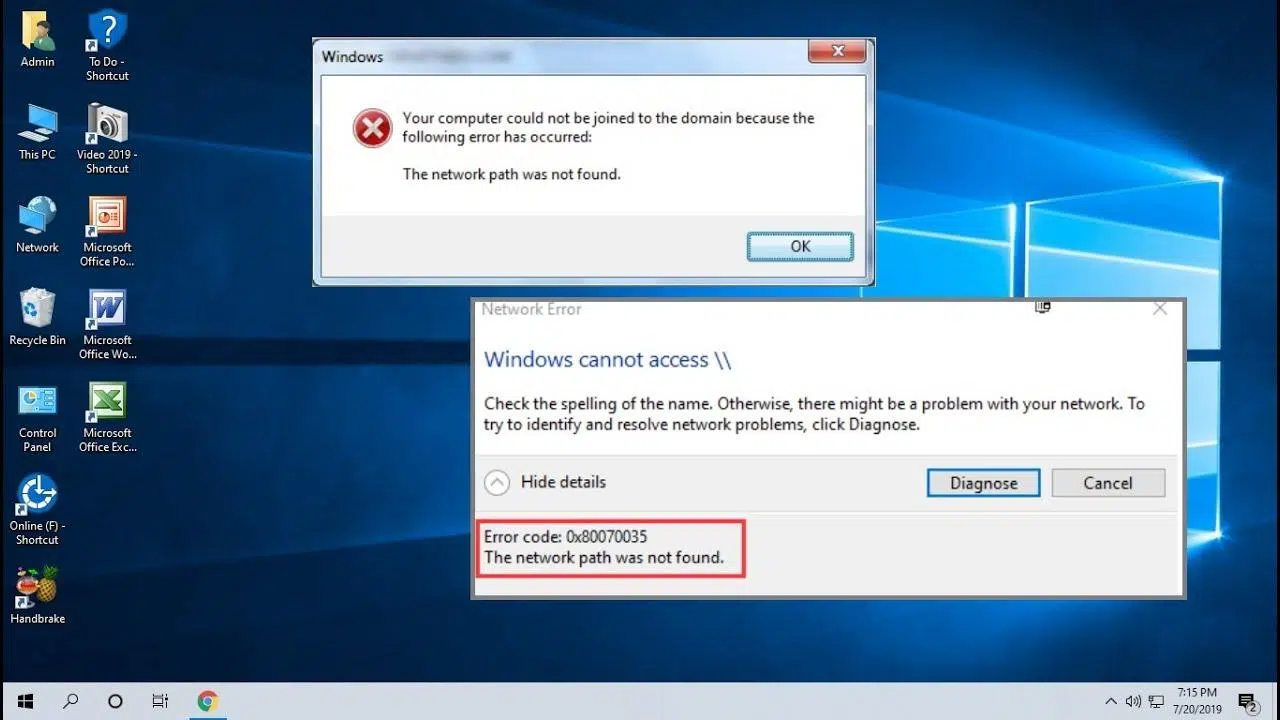
If Windows displays the "Network path was not found" error with code 0x80070035 , you're not alone. This failure to access shared folders or devices is more common than you might think on home and office networks, and it often indicates problems with name resolution, permissions, services, or security.
Before you start tearing your hair out, it's important to understand that this error doesn't usually mean the machine "doesn't exist," but rather that something is interrupting the path: there could be a NetBIOS name conflict, a disabled service, a stringent security policy, or a firewall blocking SMB . Below you'll find a comprehensive guide with causes, diagnostics, and solutions tested on Windows 10 and Windows 11.
What error 0x80070035 really means and what symptoms does it present?
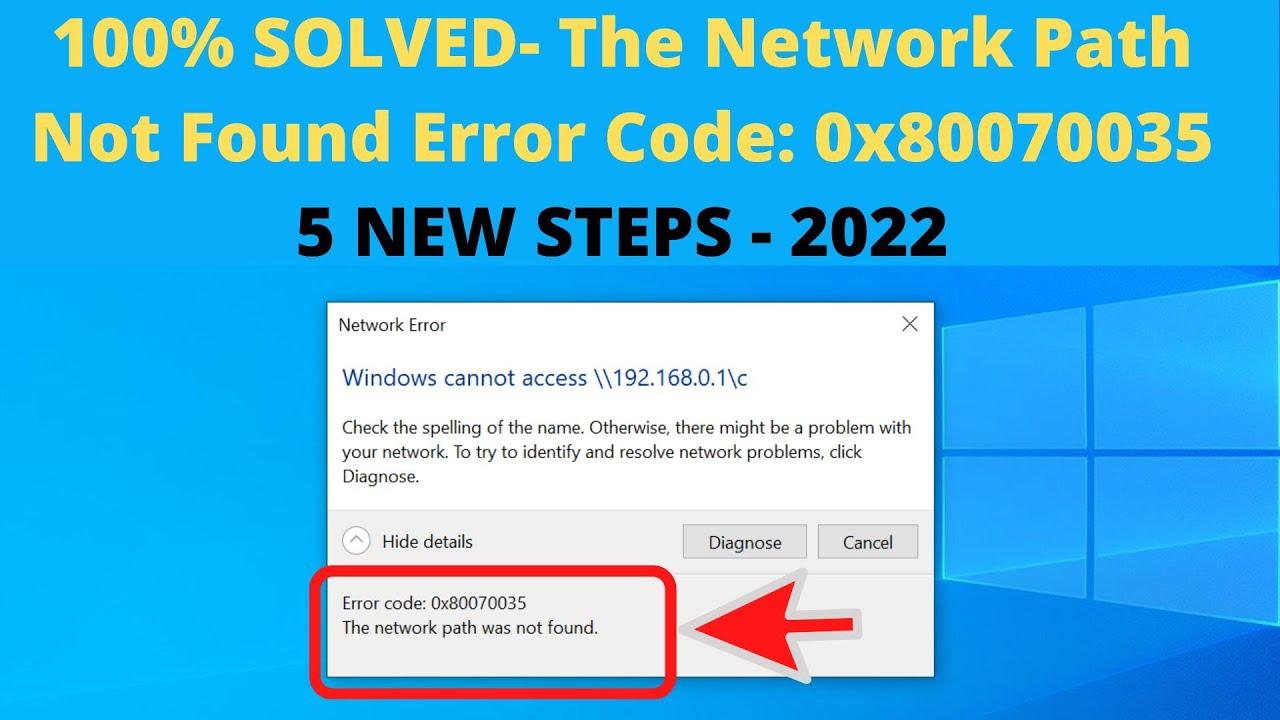
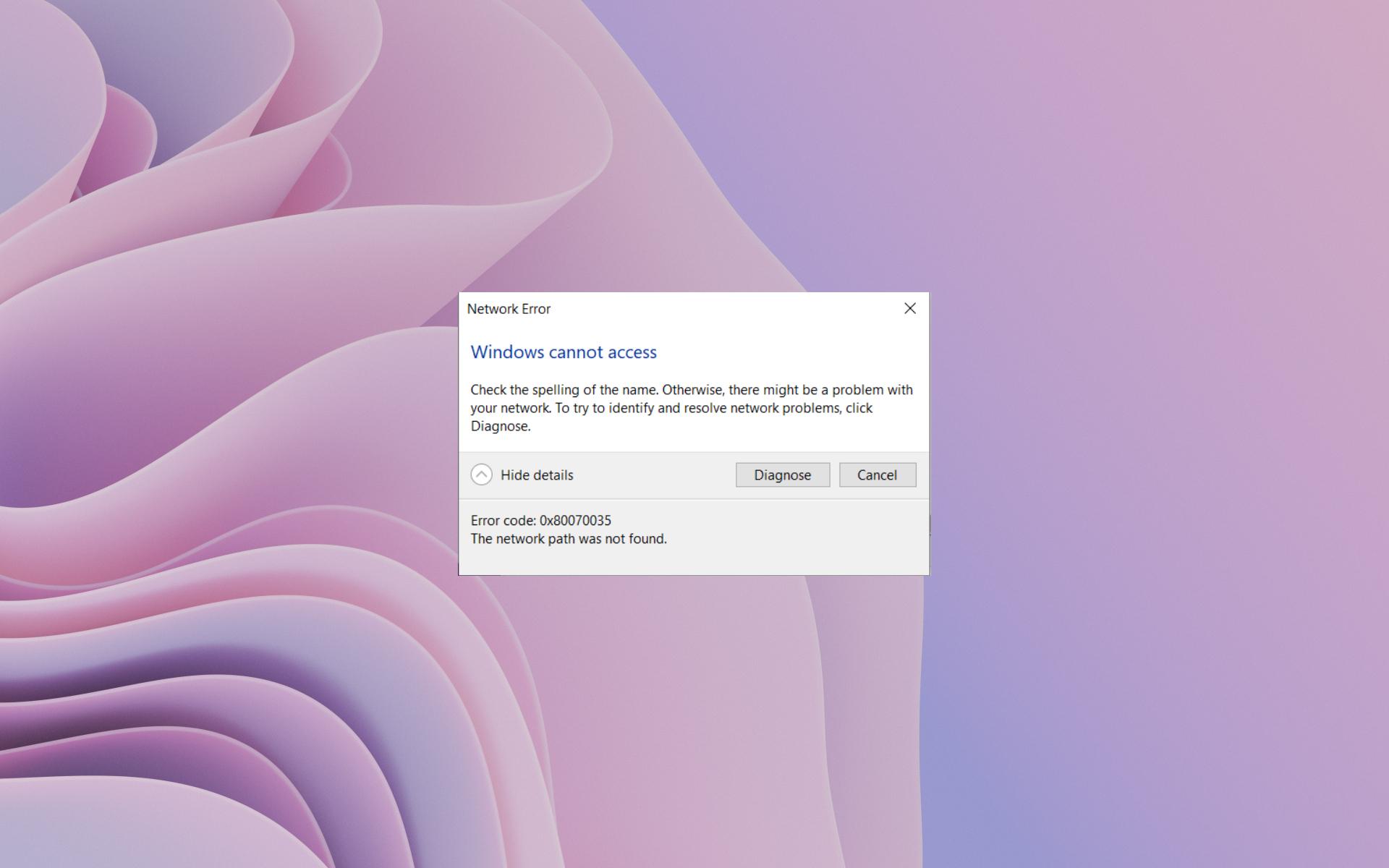
The typical message is "Windows cannot access \\computer" followed by the code 0x80070035 and the text " Network path was not found ." It is also common to see a NetBT 4321 event in the Event Viewer, under Windows Logs > System: " The name WORKGROUP:1d could not be registered because another computer did not allow it to be claimed." This symptom indicates a network (NetBIOS) naming conflict.
In many scenarios, the destination machine responds to ping and appears in the browser, but expanding its shared resources fails. This is more consistent with discovery issues, LAN Manager policies, SMB, or NetBIOS/WINS problems than a complete network outage.
In mixed environments with NAS devices (such as Unraid) or multiple Windows PCs, you might also see a computer appearing as a media device instead of a network device. This is a side effect of UPnP/DLNA discovery, and while noticeable, it doesn't prevent SMB access from being resolved.
Common causes that trigger the failure
The range of causes is broad, but there are recurring patterns. Knowing what they are will help you prioritize solutions and avoid guessing when the problem is simply a name conflict or a service outage.
- network controllers outdated or poorly installed.
- Misconfigured sharing: permissions, unshared resources, or missing password on the accessing account.
- Discovery Services (fdPHost, FDResPub, SSDP, UPnP) stopped or starting Manually.
- Windows or third-party firewall blocking SMB (port 445) or the discovery.
- LAN Manager or guest security policies too restrictive for older computers or NAS.
- NetBIOS disabled where needed or configured inconsistently with DHCP/static.
- SMBv1 disabled in networks with very old devices that only speak SMB1 (be careful with security).
- Corrupted DNS/NetBIOS cache or modified network parameters.
- Disabling the Admin$ administrative resource in remote deployment/support scenarios.
Quick checks that clear up doubts
Before delving into more complex configurations, it's a good idea to check the basics. This section can save you a lot of time if the problem is a network issue or related to credentials.
- Check the name and network: confirm that you typed \\ComputerName correctly and that both computers are on the same subnet/network profile (preferably Private).
- Test by IP: In Run (Windows+R), type \\Computer_IP (for example, \\192.168.1.50). If the IP address works but the name doesn't, the problem is the name resolution.
- Passwords: If you use the same account on both computers, make sure it has a password on both. Windows 10/11 restricts remote access to accounts without Password.
- Remap drives: Delete old mappings and recreate them with the correct path, to avoid broken routes after IP changes.
- Same workgroup: Confirm that the computers are in the same workgroup (default is "WORKGROUP"). If the computer name is generic, try rename it to avoid collisions.
If your Windows 11 is a recent version and you don't see the resources even though everything seems correct, check if you are on the 24H2 branch: security changes have been reported that tighten access to older shared resources, forcing you to adjust policies or credentials.
Correctly configure sharing and network profile
Windows distinguishes between public and private networks. For file sharing, ideally the network should be private on both computers, with network discovery enabled, along with file and printer sharing.
Go to Settings > Network & Internet and, for the active connection, click Properties to verify the profile. Then, under "Advanced sharing settings," turn on Network Discovery for the relevant profile and enable " File and printer sharing " on the computer hosting the folders.
In the properties of the folder to be shared, under the Sharing tab > Advanced sharing, check "Share this folder" and review the Permissions. You can add " Everyone " with read permissions (or the necessary permissions) if you want simplicity on a trusted network.
Important: If you intend to access the system without credentials, be aware that Windows 10/11 restricts guest access. In practice, it's much more stable and secure to use accounts with matching passwords on both computers or dedicated credentials on the NAS.
Services that must be running (and in Automatic)
If the computer appears as a "media device" or is not discovered at all, key services are usually stopped. Open services.msc and confirm that they are running and set to Automatic startup.
- Function Discovery Provider Host (fdPHost).
- Function Discovery Resource Publication (FDResPub).
- SSDP Discovery.
- UPnP Device Host.
- DNS Client (DNS Client) to cache and resolve correctly.
If any service isn't running, go to its Properties, change the Startup type to Automatic, apply the changes, and start the service. After that, restarting the computers will help stabilize the discovery process .
NetBIOS over TCP/IP, DHCP, and the famous NetBT 4321 event
NetBIOS still has an impact on small networks. By default, the network adapter is usually set to "Use NetBIOS settings from the DHCP server." If the computer has a static IP address, Windows automatically enables NetBIOS; if it uses DHCP, it will use the router's settings.
How do I manually enable NetBIOS on my laptop? If your router isn't advertising a NetBIOS configuration or you're experiencing name resolution issues, you can enable "NetBIOS over TCP/IP" in IPv4 > Advanced > WINS. However, it's best to keep the default setting and only force it when DHCP doesn't provide the option or if older devices require it.
Should it be enabled on all devices? It's not necessary in modern networks if DNS/WS-Discovery resolution is working properly. Enable it where absolutely necessary (for example, on a legacy server or NAS) and avoid making massive changes unless justified by the network inventory .
If you see NetBT event 4321 mentioning the name "WORKGROUP:1d" without being able to register, it usually indicates a NetBIOS name conflict or a host that "owns" the group name. Check for duplicate hosts, review the network switches , clear the cache with `nbtstat -R` , and reboot. It also helps to check the router's DHCP/WINS server and avoid duplicate hostnames.
SMBv1, LAN Manager, and Compatibility: Security First
SMBv1 is obsolete and insecure. While enabling SMB 1.0/CIFS might temporarily fix access issues on very old NAS devices or equipment that only support SMB1, or on legacy systems , Microsoft advises against installing it due to its vulnerabilities . Prioritize SMB 2/3 whenever possible and update the firmware of the NAS or device.
If you have no alternative, temporarily enable "SMB 1.0/CIFS File Sharing Support" from "Windows Features" only on the computer acting as the server, validate access, and once you migrate the legacy device, uninstall it to reduce the attack surface.
Regarding the security policy "Network security: LAN Manager authentication level" (secpol.msc), a setting that maximizes compatibility is "Send LM & NTLM – use NTLMv2 session security if negotiated." Adjusting this setting may allow access to older services , but remember that lowering security carries risks; apply it carefully and with proper documentation.
Firewall, antivirus and ports to consider
Windows firewalls and third-party security suites sometimes block SMB traffic and discovery. Ensure that "File and printer sharing" is enabled on your current network and that port 445/TCP is not filtered.
As a test, you can temporarily disable the firewall/antivirus on both the sharing computer and the client. If access works, create rules to allow SMB and then re-enable the protection. Don't leave the system unprotected any longer than necessary.
If the problem arose after an update, install all pending patches or, as a last resort, try uninstalling the most recent update that coincides with the onset of the issue. There are cases where an update changes default policies and breaks compatibility.
Network commands that reset the stack and cache
When the DNS/NetBIOS cache becomes corrupted or contains remnants of old configurations, a reset often works wonders. Open Command Prompt as administrator and run these commands in this order :
ipconfig /flushdns
ipconfig /release
ipconfig /renew
netsh winsock reset
netsh int ip reset
After restarting your computer, try accessing \\IP or \\ComputerName again. If the issue is a "phantom path" or poisoned cache, access to the shared resources should be restored.
NIC drivers, IPv4/IPv6 and other protocols
Check in Device Manager that the network card is working correctly and that there are no warning signs; review basic concepts such as the OSI model . Installing the latest driver from the manufacturer may resolve intermittent adapter drops or packet loss.
In the connection properties (ncpa.cpl), confirm that "Internet Protocol Version 4 (TCP/IPv4)" is enabled. If not, enable it. On networks where IPv6 causes occasional problems, you can try temporarily disabling IPv6 (on all affected devices) to rule out incompatibilities.
As an advanced fix, some environments have resolved issues by enabling "Reliable Multicast Protocol". It's not the norm, but if the problem persists and everything else is working correctly, it's a low-risk test .
Corporate Scenarios: Admin$, Deployments and Remote Control
Management tools like Endpoint Central require copying binaries to the Admin$ administrative share before installing the agent or running inventories, patches, or remote control. If Admin$ is disabled, you'll see error code 0x80070035 when attempting to connect.
To reactivate Admin$ on workstations, check the registry: HKLM\SYSTEM\CurrentControlSet\Services\LanmanServer\Parameters and the value AutoShareWks = 1 (DWORD). On servers, the value is AutoShareServer = 1. If they don't exist, don't create them; it's enough that they aren't set to 0, and if you change them, you must restart for the change to take effect.
Additionally, you need to enable "File and printer sharing" on the client's network adapter and open the corresponding rules in the firewall . On older domains (for example, 2008 R2), this can be applied via a startup script to force Admin$ on clients, always with appropriate security controls in place.
Finally, check that the computers are turned on and accessible (\ComputerName from Run), as the agent needs a valid path to copy and start the installation.
Permissions, passwords, and mappings: details that make the difference
Windows 10/11 prefers authentication with password-protected accounts. If you don't use one, access may fail due to policy. Create or assign a password to the account accessing the system, or use dedicated credentials on the device with the necessary resources.
Verify that the NTFS permissions match the sharing permissions: granting "Full Control" for sharing is useless if the user doesn't have read access to NTFS . And remember: old mapped drives store credentials; delete and remap them to avoid conflicts.
The case of the device that appears as a "multimedia device"
If a PC is listed as a "Media Device" instead of a network computer, check that Discovery Services is enabled and that the network profile is set to Private. Sometimes, renaming the computer and confirming that it belongs to the correct workgroup will reclassify it as a computer.
It's also helpful to confirm that both computers belong to the same WORKGROUP (SystemPropertiesAdvanced.exe > Computer Name). If none of this helps, access by IP address should continue to work while you adjust the discovery settings.
When to touch the registry and the insecure guest policy
Some older NAS devices/printers operate as "guests." Windows may block them if `AllowInsecureGuestAuth=0` is set in `HKLM\SYSTEM\CurrentControlSet\Services\LanmanWorkstation\Parameters`. Changing this to ` 1` may restore access, but be aware that it enables insecure guests; use this only on trusted networks and document the change.
Modifying policies and logs requires caution. Back up your data beforehand, and if you're on a domain or within a company, coordinate with the security team to avoid breaking compliance.
Final checklist for hunting 0x80070035
To avoid getting lost: validate access by \\IP , set the network to Private, enable discovery and sharing, start fdPHost/FDResPub/SSDP/UPnP, try with correct passwords, open port 445, check LAN Manager and NetBIOS, clear cache with ipconfig/nbtstat, update NIC, and temporarily consider SMB1 only if the device requires it.
If you're still stuck, remap drives, check Admin$ in enterprise scenarios, remove duplicate names, and check the Event Viewer for recurring NetBT 4321 errors or others that might give you the missing clue .
This roadmap covers the typical (and not-so-typical) causes of 0x80070035: from NetBIOS conflicts and stopped services to authentication policies, intrusive firewalls, and SMB compatibility, always prioritizing a secure and maintainable configuration in Windows 10/11.
