- 25H2 is activated in 24H2 with an eKB (e.g., KB5054156) and only requires a reboot.
- There are official ways to install it now: Windows Update, Installation Wizard, and ISO/Media Creation Tool.
- Gradual deployment with documented incidents and mitigations; it is advisable to review known problems.
- Improvements in security, AI and interface; no changes in requirements compared to 24H2 and extended support.
The update known as Windows 11 25H2 is now available in a phased rollout, representing the next major step for the system. Microsoft began releasing it on September 30, 2025, but it's not appearing simultaneously for everyone: the manufacturer is prioritizing systems that have demonstrated stability in previous releases. If you don't want to wait, there are several official ways to install it now, with clear differences depending on your current version and the update method you choose.
The key distinction is that Windows 11 24H2 and 25H2 share the same operating system foundation. In practice, 25H2 features are included as part of the monthly quality updates for 24H2, but they remain dormant until the so-called enablement package (eKB) is activated. This package acts as a small "switch" that installs quickly and activates the new features with a single restart, whether you update through Windows Update or if your environment uses WSUS. There is one non-negotiable prerequisite for using this eKB: you must already be running 24H2 , and after applying the update, you will need to restart your computer.
What is 25H2, how is it enabled, and what does it offer?
The most interesting aspect of this release is its activation model: on systems already running 24H2, the upgrade to 25H2 is not a complete reinstallation , but rather the activation of components that were already present. This reduces installation time, minimizes risks, and shortens system downtime to a single restart. Furthermore, Microsoft does not indicate that this eKB replaces any previous update: it is a specific add-on that enables new and refined system features.
For reference, several Microsoft portals and documentation indicate the eKB as the recommended path when upgrading from 24H2, and specifically mention the KB5054156 package as the 25H2 activator in those scenarios. If you're coming from 23H2 or Windows 10, the process changes; if you need help migrating from Windows 10 to Windows 11, the installation will be completed using the Setup Wizard, the Media Creation Tool, or an official ISO image.
In terms of new features, 25H2 refines security and performance with a focus on reducing legacy components and strengthening vulnerability detection. Visually and in terms of user experience, there are improvements to the Notification Center (visibility on secondary screens), adjustments to the Start Menu with new layout options and a collapse button, and the addition of a simple command-line text editor called "Edit." The system's integrated AI capabilities also expand , with intelligent actions in File Explorer (for example, for quick image manipulation) and a more prominent Copilot feature. However, some AI capabilities remain exclusive to Copilot+ PCs.
In the professional and IT sectors, there is support for Wi-Fi 7 and new options for removing pre-installed apps from the Microsoft Store in corporate environments. All of this is delivered without changes to hardware requirements compared to 24H2, simplifying the upgrade for already compatible systems and reducing issues related to drivers and peripherals.
Prerequisites and considerations before updating
If your PC is already running Windows 11 24H2, you can upgrade to 25H2 using the shortcut: an enablement package and a restart . Being on 24H2 is essential to activate 25H2 with the eKB, and Microsoft confirms that the device must restart after applying the update. In environments managed with WSUS, computers automatically obtain the eKB when installing the 25H2 feature update from the corporate update service.
The rollout is still gradual and in waves , meaning that even if you meet the requirements, notifications may take some time. You can speed up the process by enabling the "Get the latest updates as soon as they're available" option in Settings. Microsoft's logic in staggering the waves makes sense: this allows them to detect conflicts with drivers, sensitive software, or specific hardware before reaching all users.
Before attempting any manual method, it's advisable to create a full backup of your data and drivers. If you don't know how to do this, you can learn how to back up drivers . Although the 25H2 update to 24H2 is a relatively minor upgrade , there's always a chance of encountering issues with a sensitive driver or application. If you're upgrading from 23H2 or Windows 10 and require a complete reinstallation, the backup recommendation is even more crucial.
A bit of background: Windows 10's security support ends on October 14, 2025 (except for LTSC, which is being extended), so upgrading to Windows 11 is becoming increasingly necessary. If you're coming from very old versions or your computer doesn't meet the requirements, we'll review alternatives and warnings for those special cases below.
Method 1: Windows Update from Settings (ideal if you are already on 24H2)
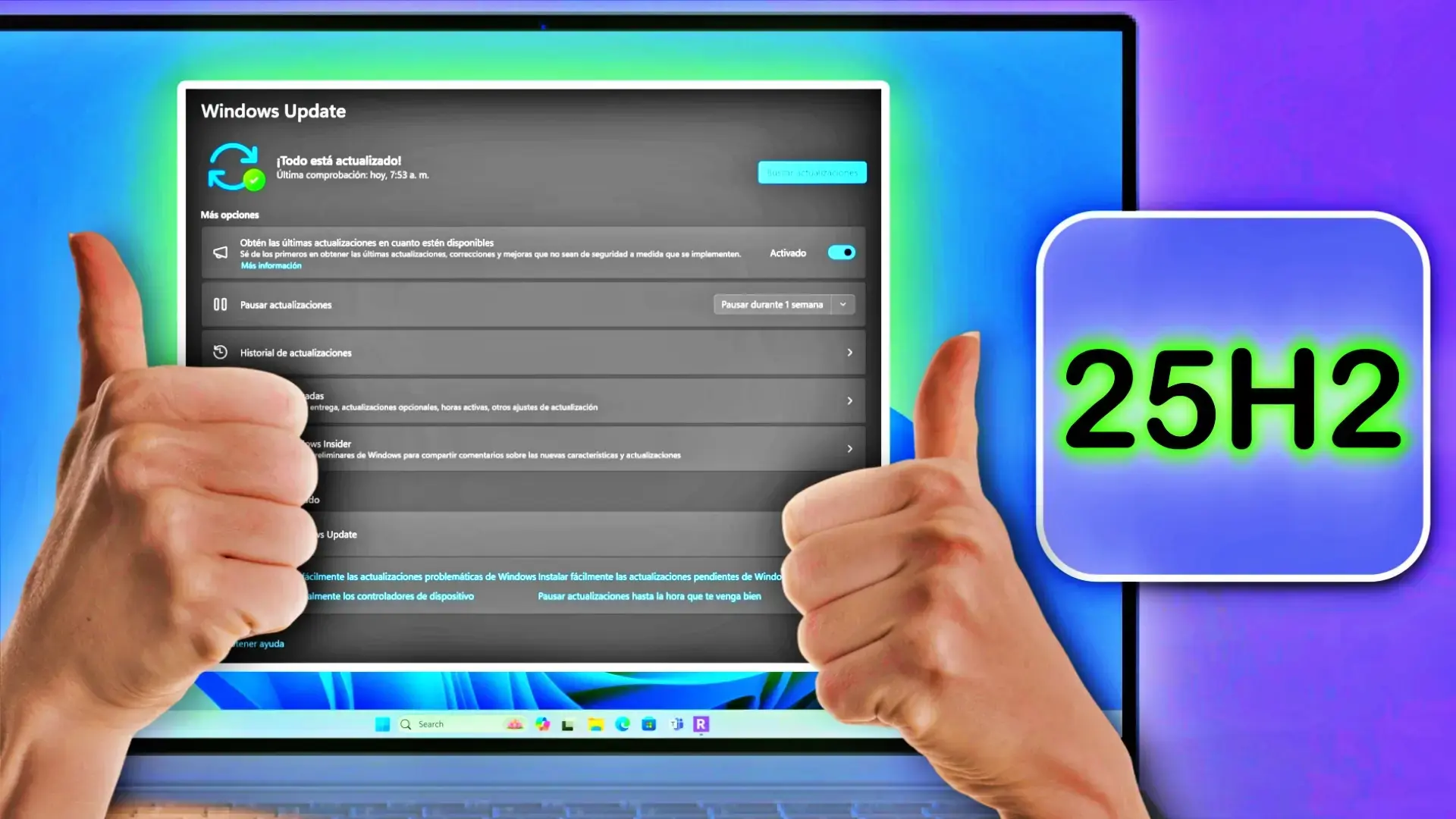
This method is the most direct and the one Microsoft recommends for 24H2 . Open Settings, go to Windows Update, and enable the "Get the latest updates as soon as they are available" switch. Then click "Check for updates." If your computer is already part of the update wave, you'll see the 25H2 notification with a "Download and install now" button. After the download, the system will prompt you to restart to complete the activation.
The experience is very similar to any monthly cumulative update: no clean install required, and files, apps, and settings are preserved. In organizations using WSUS, upon approving the 25H2 feature, customers will automatically receive the eKB and will only need to restart.
If nothing appears, don't despair: the phased rollout can take weeks to reach your region or PC model. However, with the switch to receive updates earlier, the wait is often shortened because you'll be included in the early distribution rings.
Method 2: Installation Wizard for large leaps (23H2 and Windows 10)
For systems running Windows 10 or later (23H2), the natural path is the Windows 11 Installation Assistant , available on the Microsoft website. This utility downloads the complete 25H2 image and guides you through the entire process. Designed to preserve your data, apps, and settings, it effectively behaves like a full reinstallation and takes longer than the eKB tool; the restart and final phase are also longer.
The wizard is useful if 24H2 isn't available, if you've had problems with Windows Update, or if you prefer a guided process . While it's a more involved process, it's usually reliable and avoids having to manually create USB media unless you're performing a clean installation from scratch.
Method 3: Official ISO and Media Creation Tool (local or USB installation)
If you want complete control or need to create a recovery drive, you can use the Media Creation Tool or download the official 25H2 ISO. The tool creates a bootable USB drive for upgrading or reinstalling. With the ISO, simply mount it on your current system and run "setup.exe" to start a local upgrade. If you need to repair the image, learn how to repair Windows with DISM.
Both methods work well and are especially useful if you're coming from Windows 23H2 or Windows 10. In that context, the operation is equivalent to a complete reinstallation rather than a simple patch. If your goal is a clean installation, boot from the USB drive you created and follow the wizard; if you prefer to keep your data and apps, run "setup.exe" from the ISO within your current Windows installation.
Practical tip: Check the box to download updates, drivers, and optional features during the process. This reduces the number of pending patches after the first boot and ensures that critical drivers arrive as soon as possible.
Bypassing requirements with Rufus (only if your PC does not meet the requirements)
There are ways to install Windows 11 on unsupported computers, and the most convenient is usually Rufus , which allows you to create an installation USB drive with options to bypass checks like TPM 2.0, Secure Boot, and other requirements. This can be useful if your PC is incompatible due to a motherboard or CPU limitation, or if you need to install offline and create a local account without going through the online login process.
In summary, the process is as follows: download Rufus from its official website, use the built-in Download option to obtain the Windows 11 ISO (choose Release 25H2, x64 edition and architecture), and then create the USB drive with the bypass boxes checked. In the advanced options , Rufus allows you to enable TPM 2.0 removal, Secure Boot, and, depending on the template, disable the 4 GB VRAM requirement, as well as bypass the internet connection during installation and force the creation of a local user account.
After creating the USB drive, boot your computer from it and complete the wizard. It's important to note that this approach, while practical, is not the official method and may lead to driver or security feature incompatibilities. Use it only as a last resort and always with a backup beforehand; if you later want to restore full security, follow the guide to enable Secure Boot.
Known problems in 25H2 (and 24H2) and their status
With each major release, Microsoft documents open issues and their progress. Below is a summary of the most relevant bugs recently described in versions 25H2 and 24H2, along with mitigations and patches where available.
Task Manager remains running in the background after closing
After installing the October 28, 2025 preview update ( KB5067036 ), some computers are experiencing an issue where closing Task Manager with the "X" doesn't terminate the process, leaving a single instance of taskmgr.exe running in the background. Opening and closing it repeatedly can accumulate instances and degrade performance.
Mitigation: Close Task Manager itself from the Processes tab using "End task," or use the command prompt (as administrator) to run taskkill.exe /im taskmgr.exe /f and close all instances. Microsoft indicates it is working on a resolution; the problem affects Windows 11 25H2 and 24H2 . More details on the Task Manager multiplier bug.
IIS websites are not loading due to issues with HTTP.sys
Following the September 29, 2025 update ( KB5065789 ), some server applications that rely on HTTP.sys may experience incoming connection failures, resulting in errors such as “ERR_CONNECTION_RESET” even on local sites. Microsoft recommended checking for updates, installing them, and restarting the device (even without downloading new ones) to resolve the issue.
Status: The issue is resolved in the October non-security update ( KB5067036 ) and later. If you manage enterprise environments, you can use KIR (Known Issue Rollback) or documented Group Policy to roll back the affected portion to versions prior to that date.
Authentication with smart card and RSA certificates (CVE-2024-30098)
The October 14, 2025 security update ( KB5066835 ) and later strengthened Windows cryptography, requiring RSA-based smart card certificates to use KSP instead of CSP . As a result, certain 32-bit apps or signing workflows may fail if they rely on CSP, displaying messages such as “invalid provider type” or “CryptAcquireCertificatePrivateKey”.
Solutions: A permanent fix requires developers to adopt the Key Storage API . As a temporary measure, Microsoft documents setting the registry value DisableCapiOverrideForRSA=0 in HKEY_LOCAL_MACHINE\SOFTWARE\Microsoft\Cryptography\Calais (after restarting) to restore compatibility, although this workaround will be removed in the April 2026 updates. Editing the registry involves risks, so make a backup before making any changes.
USB mouse and keyboard do not work in WinRE
After the October 14, 2025 security patch ( KB5066835 ), some users reported that USB devices such as keyboards and mice were unresponsive within the Windows Recovery Environment (WinRE), despite functioning normally in Windows. Microsoft released an out-of-band fix on October 20, 2025 ( KB5070773 ), and the fix was included in subsequent updates.
Playback of protected content in TV/Blu-ray/DVD apps
Certain applications that use the enhanced video renderer with HDCP compliance or audio DRM experienced crashes, black screens, or protection errors. This issue did not affect streaming services . The situation improved in the September 2025 preview update (KB5065789) and was further strengthened in the October update (KB5067036) and subsequent updates.
Error ERROR_BAD_PATHNAME when installing .msu with WUSA from a shared path
Installing updates using WUSA or opening an .msu file located on a shared resource with multiple .msu files can result in the error ERROR_BAD_PATHNAME . This does not occur if there is only one file in the folder, or if the .msu files are on the local disk. Additionally, after restarting, the Update History may take a few minutes to accurately reflect the update status.
Mitigation: Save the .msu files locally before installing them . Microsoft has enabled a KIR rollback for consumers and unmanaged devices; in enterprises, administrators can implement the specific group policy that reverts the change pending a final resolution in a future update.
To stay up to date on release status and issues, Microsoft recommends following @WindowsUpdate , checking the Release Health page, and, if you're an administrator, using the Windows Release Health API in Microsoft Graph. For direct help from a Windows computer, open the Get Help app or visit support.microsoft.com.
Support, lifecycle, and pathways for businesses
Upgrading to 25H2 from 24H2 using the eKB extends the support period for your current version: Microsoft specifies 24 months for consumer editions and 36 months for Enterprise/Education editions. In managed environments, the feature update can be approved from WSUS or Microsoft Endpoint Manager, and devices will automatically download the corresponding enablement package; you can use Group Policy to control options.
Important: This enablement package does not replace previous updates ; its purpose is to activate features already present in the system. Installation requires a mandatory restart, and there are no changes to hardware requirements compared to 24H2, which simplifies fleet planning and reduces the risk of incompatibility.
quick questions
Can I activate 25H2 without reinstalling? Yes, if you're on 24H2. The eKB (for example, KB5054156) activates the new features with a single restart. From 23H2/Windows 10 onwards, you'll need a full installation using the Wizard, ISO, or Media Creation Tool.
What should I do if 25H2 doesn't appear in Windows Update ? Enable "Get the latest updates as soon as they are available" and click "Check for updates." If you're still stuck in the queue, you can force the update using the Installation Wizard or the official ISO. Remember the recommendation to back up your data beforehand.
Is it advisable to force the installation ? Microsoft uses waves to detect conflicts before reaching everyone. You can force it, but it's worth considering stability (some users have reported performance issues and initial visual artifacts) and, if you have any doubts, try it in a virtual machine first or wait for cumulative patches.
What notable improvements does 25H2 bring ? Security enhancements (fewer legacy components like PowerShell 2.0 and WMIC), interface improvements (notifications on secondary screens, Start settings), AI more integrated into everyday tasks, and support for Wi-Fi 7 in modern environments.
All of the above translates into a flexible upgrade path: if you're already on 24H2, 25H2 is activated with a lightweight package and a single restart; if you're coming from 23H2 or Windows 10, choose between the Wizard, ISO, or Media Creation Tool for a guaranteed reinstall. Remember the warnings about the phased rollout , check for known issues in case they affect you, and if your PC doesn't meet the requirements, consider Rufus as a last resort, keeping in mind that it's not the official method. With a backup and the right path for your starting point, making the jump to 25H2 becomes a well-organized process.
