- Check compatibility with PC Health Check and requirements such as TPM 2.0, UEFI and 64-bit CPU.
- Three official methods: Windows Update, Installation Wizard, and installation media (USB/ISO).
- If your computer is not compatible, you can either stay on Windows 10 or take risks by forcing the installation.
- There is an option to revert to Windows 10 for 10 days after the upgrade.
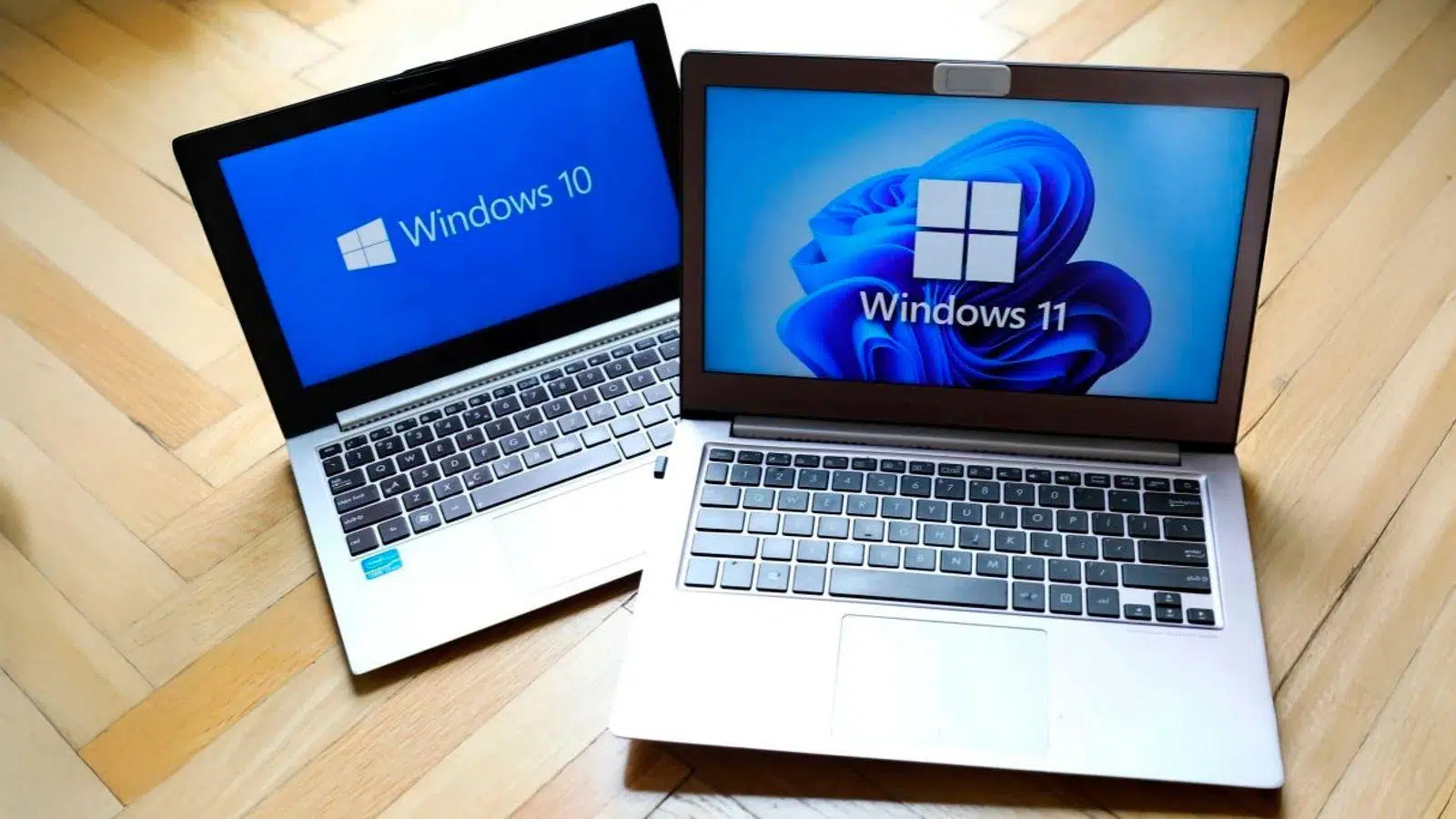
Upgrading to Windows 11 can be a great idea if you want a more streamlined, organized, and modern experience. In addition to a refreshed design, Microsoft's operating system incorporates features that improve performance, productivity, and even entertainment. Make the most of your time with a more intuitive interface, windows that almost organize themselves, and utilities that reduce unnecessary clicks.
Now, before you touch anything, it's important to understand exactly what you're going to do. Migrating from Windows 10 to Windows 11 is an in-place upgrade process: you change versions without formatting, keeping your files and programs. A backup beforehand (in the cloud or on an external drive) is essential to avoid surprises if something doesn't go as planned.
Check if your PC is compatible with Windows 11
The first step is to check compatibility. Windows 11 rollouts are happening in waves, and some features require specific hardware, so not all computers receive the notification at the same time. Check the minimum requirements and validate your hardware with the official tool to see if you meet the criteria.
- CPU: 1 GHz or more, 2 or more cores, 64-bit or compatible SoC.
- RAM: at least 4 GB.
- Storage64 GB or more free space.
- Firmware: UEFI with Secure Boot.
- TPM: version 2.0.
- Recorders: Compatible with DirectX 12 or later and WDDM 2.0 driver.
- Screen: 9 inches or larger, 720p, 8 bits per color channel.
- Internet connection: required to sign in with your Microsoft account during setup.
To find out in a minute, download and run the official PC Health Check application from the Microsoft website. Once open, click "Check now" and you'll see an immediate result. This is done through official channels without having to touch any advanced settings.
Keep in mind that, although there are workarounds to install Windows 11 on unsupported hardware, there's one non-negotiable requirement: the processor must be 64-bit. 32-bit CPUs won't work, so if your computer is old, that's where the official path ends.
Prepare your Windows 10 before updating
Updating your system daily reduces errors during migration. Go to Windows 10 Settings and check for updates to install all available cumulative patches. This will make the jump to Windows 11 smoother .
Also check your drivers. The latest driver versions usually include specific compatibility for Windows 11. Updating key drivers (graphics, chipset, network, and audio) minimizes crashes, freezes, and freezes during the process.
Some programs can interfere with the installation, especially third-party antivirus software. It's recommended to temporarily uninstall them and leave Microsoft Defender active. Removing sensitive software like antivirus programs or tuners from the system prevents problems, and you can reinstall them later without issue.
And of course, back up your important data. Use OneDrive, another cloud service, or an external hard drive. Your information will remain safe , and you can resume work without loss.
Official methods to upgrade from Windows 10 to Windows 11
1) Update via Windows Update
If your PC meets the requirements, Windows Update will display an availability notification. You can force a search by going to Start > Settings > Windows Update and clicking Check for updates. Download and install to begin.
- Open the Start menu and go to Settings (gear icon) or use the shortcut Windows + I.
- Go to Update & Security (Windows Update in recent versions).
- Locate the banner that informs you that Windows 11 is available for your device.
- Select Download and install and follow the wizard's steps.
This method also applies if you're running Windows 10 under Boot Camp on a Mac with an Intel processor. You can update via Windows Update and shouldn't lose any data.
2) Windows 11 Installation Wizard
If Windows Update isn't offering you the update and your computer is compatible, use the Windows 11 Installation Assistant, which you can download from the official Microsoft website. Run Windows11InstallationAssistant.exe , accept the terms, and let it do the work.
You'll see intermediate restarts and a progress bar that advances in stages. Although the wizard is designed to preserve your applications and files, it's best to be safe: make a backup in case something goes wrong during the process.
3) Installation media: Bootable USB or ISO
For more experienced users, the media creation tool allows you to create a Windows 11 installation USB drive. Use it to create the USB drive (minimum 8 GB), run setup , or boot your computer from it.
If you're running the installation media within Windows 10, open File Explorer, go to This PC, double-click the USB drive, and launch setup.exe. Proceed through the screens to "Ready to install." Keep personal apps and files , although you can change this in Change what to keep.
- Maintain files and applications: preserves everything (recommended option).
- Keep only files: keep your documents, delete apps and settings.
- Nada: clean installation, delete data and programs (make a backup first).
If you prefer to boot from the USB drive, shut down your computer, connect the USB drive, and turn it on using the boot menu key (often F1–F12 or Delete, depending on the manufacturer). Select the USB drive and follow the on-screen Windows 11 installation wizard. In upgrade scenarios, be sure to choose Upgrade instead of Custom to preserve your data.
Not seeing the update? Options to force it
On compatible devices, the Windows 11 update should appear through Windows Update sooner or later. If it doesn't arrive, it's usually due to compatibility issues or because your model isn't yet included in the update rollout. The installation assistant allows you to expedite the migration without waiting for Microsoft to release the phased update for your device.
Download the wizard, run it, and let it validate requirements and perform prerequisite checks. The total time will depend on your hardware and storage type (HDD or SSD). Ensure the system is connected to a power source to avoid interruptions during installation.
If your PC is not compatible: what you can do
When key components like TPM 2.0, supported CPUs, or Secure Boot are missing, the official support path ends. In that case, you can continue using Windows 10 with complete peace of mind until its end of mainstream support , scheduled for October 14, 2025 , without security patches except for paid extended support options in certain enterprise scenarios.
If you're coming from Windows 7, remember that its support ended in January 2020 and that the security update cycle for Office also ceased in 2023. Upgrading your computer is a wise investment: manufacturers like Acer offer modern ranges that exceed the requirements of Windows 11, from thin laptops like the Swift 3 for work and study to gaming models like the Nitro 5 family with 15,6-inch screens and Intel Core i5/i7 processors.
There is a method tolerated by Microsoft for installing on unsupported hardware, although it is not recommended. It involves editing the Registry to allow the update on computers without TPM 2.0 or with an unsupported CPU. Proceed at your own risk , as this carries risks.
- Potential loss of security updates to future.
- Instability and malfunctions.
- Guarantees that may not cover incidents.
- No official support if problems arise.
If you still decide to continue, open the Registry Editor (regedit) and navigate to: HKEY_LOCAL_MACHINE \ SYSTEM \ Setup \ MoSetupCreate (if it does not exist) the key MoSetup and within it a 32-bit DWORD value called AllowUpgradesWithUnsupportedTPMOrCPU with value 1. try the update againAlways keep a backup in case you need to revert to a previous state.
What's new in Windows 11
Microsoft Teams integration appears in the taskbar for quick calls and chats, even with users on other devices. When working remotely , you'll gain agility in launching meetings or resolving issues on the fly without opening cumbersome applications.
In the gaming arena, Windows 11 brings DirectStorage technology to reduce loading times in compatible titles and Auto HDR to expand the dynamic range in DirectX 11 or higher games, resulting in shorter wait times and bringing the PC experience closer to that of next-generation consoles.
Another major advantage is the ability to run Android apps natively (depending on availability in your region and app store). This allows you to run mobile applications on your desktop without using emulators, with better window and resource integration.
Migrating from Windows 7 or 8: the path to follow
If you're still using Windows 7 or 8.1, the most reliable way is to upgrade first to Windows 10 and then to Windows 11 using any of the official methods. Activation will be maintained when switching between versions on the same computer.
Recommended actions after installing Windows 11
Once you're on the Windows 11 desktop, open Settings > Windows Update and check for all updates, including optional ones. Installing newly released drivers and patches completes the migration and irons out any minor compatibility issues.
Check the activation status in Settings > System > Activation. If there are any warnings, follow the instructions to resolve them. To extract the OEM key registered in BIOS/UEFIYou can open Windows Terminal (CMD) and launch: wmic path softwarelicensingservice get OA3xOriginalProductKey.
If you don't use Cortana, prevent it from loading at startup. Open Task Manager (Ctrl + Shift + Esc), go to the Startup tab, locate Cortana, and disable it. This saves memory and speeds up startup without losing critical features.
The taskbar can be customized to your liking from Settings > Personalization > Taskbar. Hide icons you don't use (Teams, Widgets, etc.) and, if you prefer, align the icons to the left from Taskbar behavior. Small adjustments bring back familiar Windows 10 habits without sacrificing new features.
To quickly switch between speakers and headphones, click the sound icon next to the clock and use the device selection arrow. This allows you to change the audio output without navigating through complex menus.
If you want to change default programs (for example, your browser), go to Settings > Apps > Default apps, select the program, and tap Set as default. You can also assign apps by extension if you need finer control by file type.
Would you like to create a local account during the initial setup? A useful trick is to enter a fake email address like [email protected] and any password when prompted. After the login fails, the system will offer to create a local user. Creating a local user will prevent you from associating the PC account with an email address if that's what you prefer.
If after a while you notice slowness or strange behavior, you can reset the system from Settings > System > Recovery > Reset this PC. You can choose to keep your files or start fresh and opt for a cloud download to reinstall the latest version.
Not convinced by Windows 11? How to go back to Windows 10
For 10 days after the update, Windows offers an easy way to revert. This option disappears once the temporary files from the previous installation are deleted. Decide within that timeframe and make a backup just in case.
- Check that no more than 10 days have passed since you updated.
- Open Settings (Windows + I) and go to System > Recovery.
- Look for "Go back to the previous version of Windows" or "Go back to Windows 10".
- Click on Back, answer the short questionnaire and confirm.
- Save your work and close applications: the process may take some time.
This rollback preserves your personal files, but you will lose applications and settings changed in Windows 11. Back up anything you don't want to risk before starting the rollback procedure.
FAQ
Can I upgrade from Windows 7 or 8.1?
Yes, but with an intermediate step. Upgrade to Windows 10 first , and then follow any of the official methods to install Windows 11.
Will Windows 10 stop working when its support ends?
No. The system will still boot and be usable, although without security patches or improvements. Paid extended support programs are available for businesses , and in a home environment, you can use it at your own risk.
How much does the upgrade cost?
The upgrade is free as long as you have a valid Windows 10 license. Your activation is retained when migrating on the same computer if the hardware does not change substantially.
Will I lose my files and programs when I update?
Using Windows Update, the Wizard, or setup from the installation media with the "keep" option will preserve your documents and applications . Even so, back up your data before starting.
Choosing the right migration path will make all the difference: confirm compatibility with PC Health Check, prepare your Windows 10, choose the official method that best suits your needs (Windows Update, Assistant, or installation media), and follow the recommendations below. Transition to Windows 11 with the option to revert if something doesn't work for you.

Table of Contents
- 1 Check if your PC is compatible with Windows 11
- 2 Prepare your Windows 10 before updating
- 3 Official methods to upgrade from Windows 10 to Windows 11
- 4 Not seeing the update? Options to force it
- 5 If your PC is not compatible: what you can do
- 6 What's new in Windows 11
- 7 Migrating from Windows 7 or 8: the path to follow
- 8 Recommended actions after installing Windows 11
- 9 Not convinced by Windows 11? How to go back to Windows 10
- 10 FAQ