- PC Manager centralizes cleaning, performance, and security in Windows 10 and 11 into a single tool.
- It allows you to free up space, manage large files, startup apps, and resource-intensive processes.
- It integrates key features such as Windows Update, Windows Defender, browser protection, and pop-up blocking.
- It can be installed from the Microsoft Store or via the APPX/MSIX offline installer for offline computers.
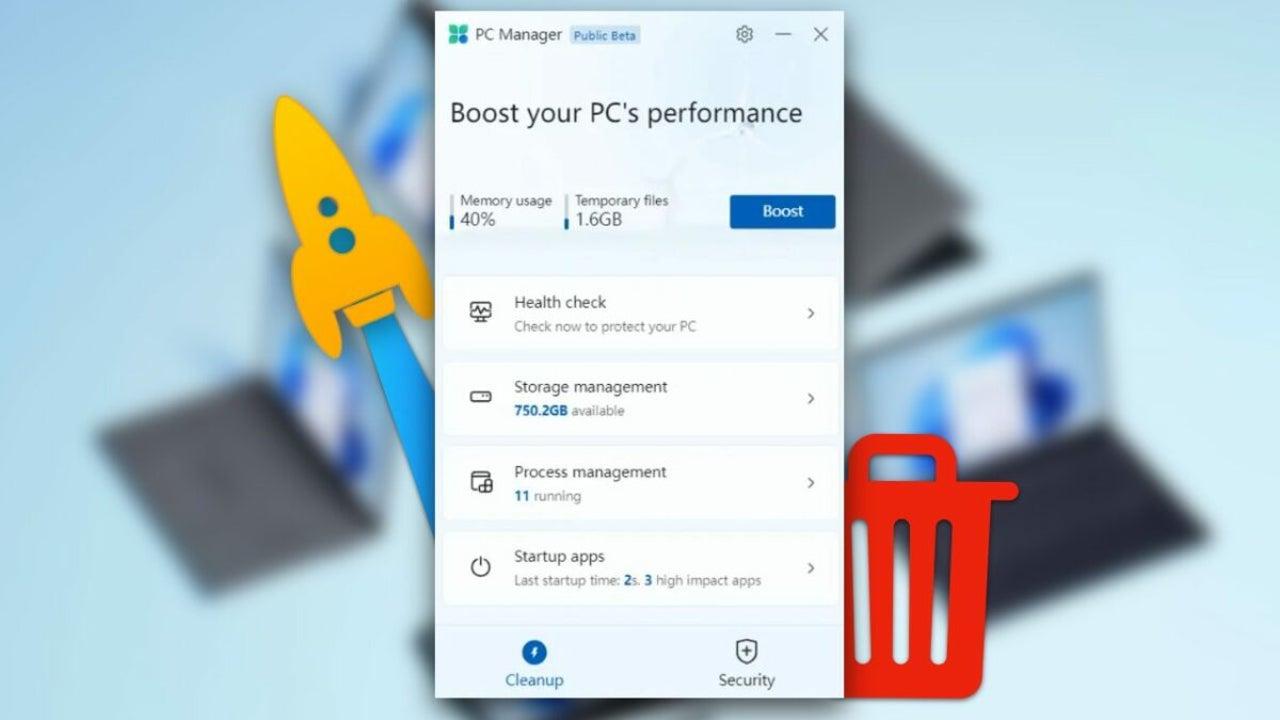
If your Windows 10 or Windows 11 computer is getting slower and slower, cluttered with temporary files, background programs, and annoying notifications , you're probably thinking about formatting or installing a ton of different tools. But Microsoft already has its own all-in-one solution to avoid these problems: PC Manager.
With this official utility, you can clean, optimize, and improve system security from a single source, without relying on third-party programs that sometimes cause more problems than they solve. Let's take a look at exactly what PC Manager is, what it offers, how to download it from the Microsoft Store, and how to use it even offline with an offline installer.
What is Microsoft PC Manager and what is it used for?
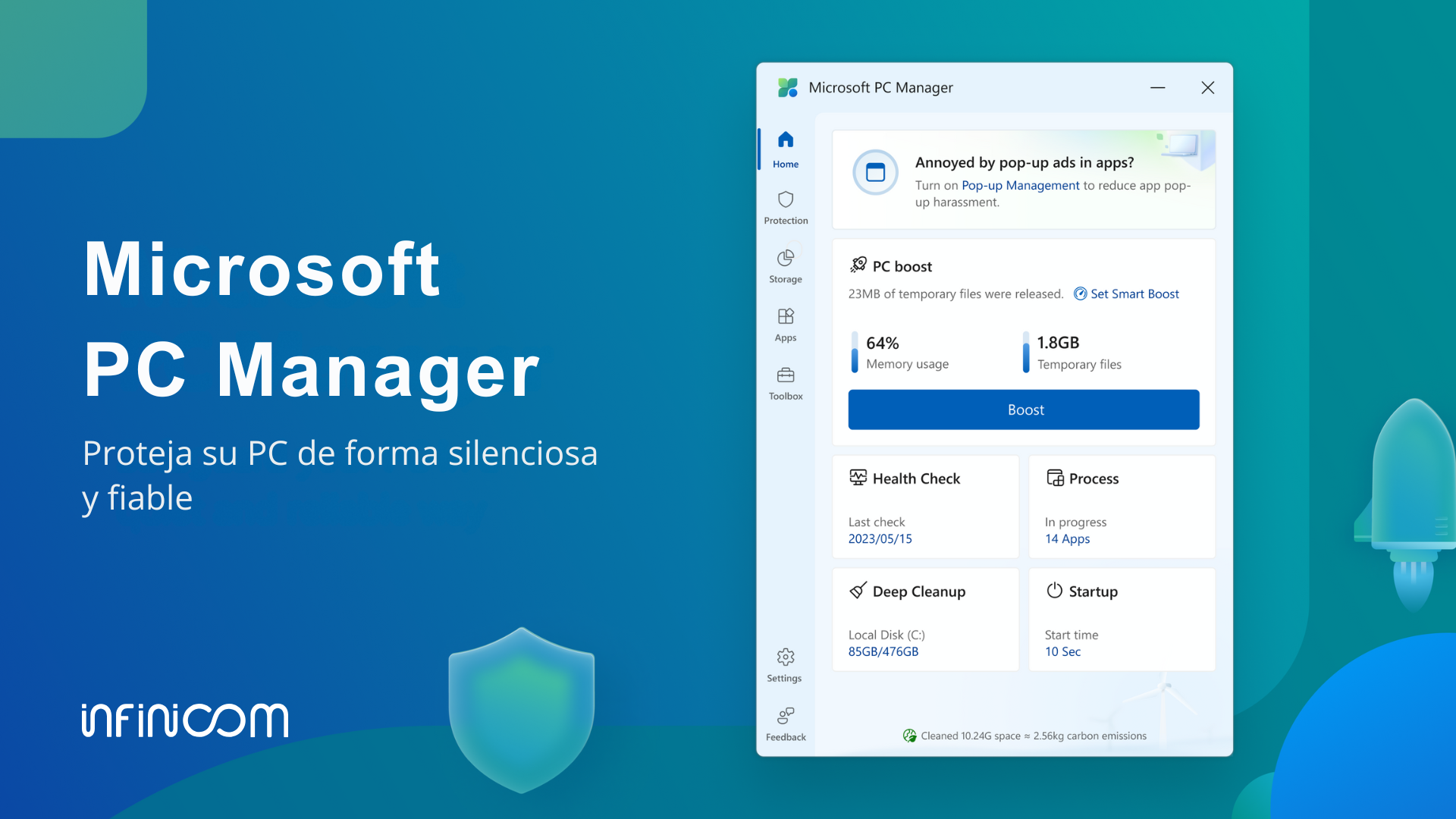
PC Manager is an application developed by Microsoft to quickly fine-tune your Windows 10 or Windows 11 computer , bringing together in a single interface many of the maintenance and security tools that were scattered throughout the system.
Instead of jumping between Settings, Control Panel, Windows Defender, Disk Cleanup, or Task Manager, PC Manager presents these sections in a single program, with a simplified design and guided options designed for users of all levels.
Traditionally, performing a thorough cleanup of Windows required lengthy processes with multiple steps and different utilities . This has led many users to turn to third-party apps like CCleaner or BleachBit. Some of these tools have had issues, such as malware problems in specific versions, which has generated some distrust.
PC Manager aims to prevent this situation by offering an official solution, integrated with the system and Microsoft security. Its goal is to help you eliminate digital junk, improve performance, strengthen security, and control what runs on your computer without complicating things.
With daily use, Windows accumulates temporary files, caches, error logs, update remnants, and other unnecessary data. All of this takes up space and can affect performance. PC Manager detects and deletes these unnecessary items , and also offers tools to monitor system health and block annoying behavior, such as pop-ups within some applications.
Requirements to use PC Manager on your PC
Before you download anything, it's important to know if your computer can run PC Manager. Microsoft states that the application is compatible with Windows 10 version 1809 and later, and with all current editions of Windows 11.
To check your Windows version, you can use the `winver` command from the system search box . If you're running Windows 10 version 1809 or higher, or if you're already using Windows 11, you shouldn't have any problems installing it from the Microsoft Store or using the offline installer.
At the hardware level, PC Manager isn't particularly demanding; it's designed to run smoothly even on modest computers , as its primary purpose is to help the system run more efficiently. Even so, it's advisable to have some free disk space so that the cleaning and storage management tasks can be performed correctly.
Main functions and sections of PC Manager
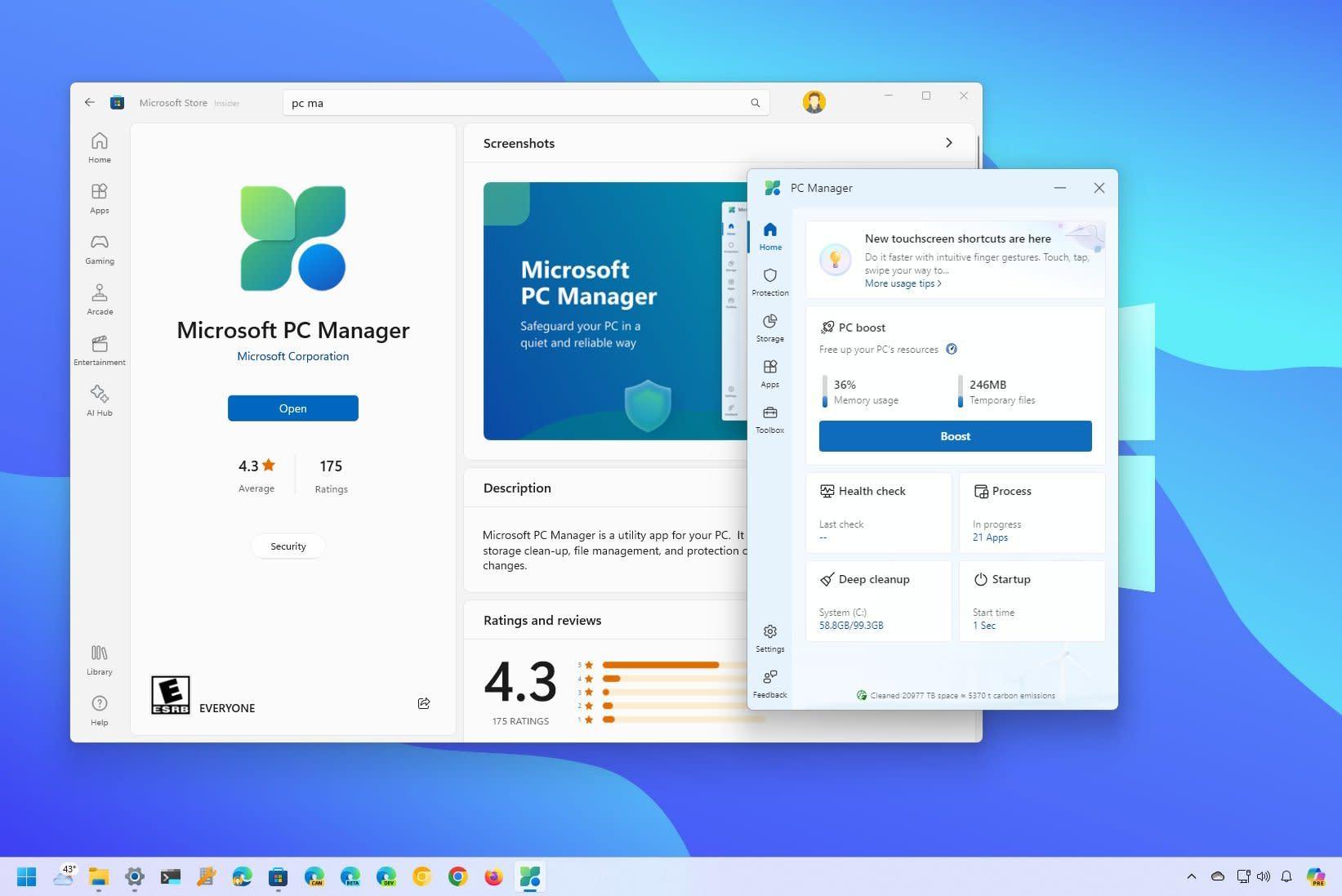
When you open PC Manager, you'll see that the interface is primarily organized into several sections accessible from a left-hand column . The names may vary slightly depending on the version, but generally you'll find sections such as Protection, Storage, Apps, and Utility Box, in addition to a Home screen.
The Home screen displays a summary of the device's status: memory usage, open applications, recent cleanups, recent restarts, and health checks . From here, there's usually a quick button to free up resources or run a quick system scan.
The Protection section groups together security-related options: integration with Windows Defender, review of critical updates, and tools like Health Check , which analyzes potential performance and security issues.
The Storage area brings together the equivalent of the traditional Disk Cleanup tool, the Windows Storage Sense, and other advanced features, such as managing large files or deep cleaning of temporary data and update remnants.
Finally, the Apps and Utility Box sections (or Utilities, depending on the translation) contain shortcuts and small tools to manage installed programs, control what starts with Windows, manage processes, take screenshots, or change basic settings such as battery behavior or the calculator.
Cleaning and storage management tools
One of PC Manager's strengths is its ability to free up disk space and control what's taking up your storage . Microsoft has brought together several features that already existed in Windows, but were somewhat hidden or scattered across different menus.
On one hand, we have the classic Disk Cleanup, a veteran tool that was already present in Windows 98 and was responsible for reviewing temporary files, caches, and other dispensable data to remove what wasn't needed. With Windows 8 came Storage Sense, a more modern evolution that automated part of this process.
In PC Manager, both ideas are integrated under options such as Deep Clean, Storage Sense, and Large File Management. Deep Clean scans the system for temporary application files, update remnants, error reports , and other items that can be deleted without affecting the computer's performance.
Storage Sense, also accessible from the classic Windows settings, constantly monitors disk usage and automatically deletes temporary files or items from the Recycle Bin after a certain period, if configured to do so. PC Manager provides more direct and simpler access to these options.
In addition, the Large Files Manager tool lets you quickly locate documents, photos, videos, audio files, and other large files , sorting them by size from around 10 MB to over 1 GB. This feature is reminiscent of Android optimizers that show you what's consuming your internal storage.
Health Check: Quick PC Status Check
Health Check is one of PC Manager's most visually appealing features. It's a quick scan that analyzes your system for junk files, temporary files, unnecessary startup applications, and potential security risks.
When you run Health Check, PC Manager scans various areas of the system and displays a list of items that can be optimized: files that can be safely deleted, apps that load at startup and consume memory, small errors or minor problems that can be fixed with a click.
This review also relies on Windows Defender to provide a quick overview of the antivirus protection status; each time Health Check is run, Microsoft's antivirus integrates and displays recent quick scan results , giving a more complete picture of the overall health of the computer.
For many users, Health Check becomes the go-to "update your PC" button. Instead of going through each option individually, you simply run this scan and apply the recommendations that PC Manager suggests, always being able to review what will be deleted or disabled before confirming.
Management of startup applications and background processes
One of the most common reasons a computer seems to run slowly is the number of programs that start with Windows without the user being fully aware of it. Until now, this configuration was mainly managed through the Task Manager, in the Startup tab.
PC Manager simplifies all of this with a dedicated Startup Applications section, where you can clearly see which programs run when you turn on your PC and enable or disable them by simply checking or unchecking a box . There's no need to understand technical jargon or delve too deeply into the details.
In addition, within the processes section, PC Manager includes a simplified Task Manager that shows which applications are currently consuming the most memory. From there, you can safely terminate these problematic processes with a single click.
This approach is very useful for users who get lost in the more advanced interface of the classic Task Manager: they have the most important functions presented in a simple way and with less risk of touching something critical to the system.
Application list and quick uninstall
Another key aspect of system maintenance is knowing which programs you have installed and which ones you no longer need. PC Manager includes shortcuts to the Windows application list so you can view and manage all your installed software from a single panel.
From this list, you will be able to uninstall applications you no longer use, see how much space they occupy, and even identify programs that may have been installed without you paying much attention to them (for example, packages included with other installers).
Instead of navigating through Settings > Apps > Installed apps, PC Manager acts as a shortcut that takes you directly to that view, saving time and centralizing everything related to PC organization in one tool.
Windows updates and built-in security
Security is another key pillar of PC Manager. The application integrates features already present in Windows, such as updates through Windows Update and Windows Defender protection , but presents them in a more straightforward format.
In the Security section, PC Manager displays the latest updates available for your system, especially those related to protection and new features. From here, you can initiate the download and installation of critical updates without having to go to the traditional Settings menu.
On the other hand, the integration with Windows Defender allows you to quickly see, from PC Manager, whether your computer is protected, when the last scan was performed, and if there are any pending threats or recommended actions . It doesn't replace the full Security Center, but it does offer a very convenient layer of control.
The purpose is to prevent you from having to jump between different Windows menus: PC Manager centralizes the most relevant information about system updates and basic security.
In addition to performance features, PC Manager incorporates functions designed to improve the daily user experience, especially when it comes to browsing the Internet and enduring intrusive advertising or unwanted changes to the default browser.
The Browser Protection option lets you choose and set which browser you want to use by default in Windows , preventing malicious programs or aggressive installers from changing this setting without your permission. It also helps block suspicious browsing-related applications.
Another interesting new feature is Pop-up Management, a tool that focuses on blocking pop-up windows generated by certain applications within Windows . We're talking about those annoying advertising windows, alerts, or notifications that appear on the desktop itself or within third-party programs.
With its pop-up management, PC Manager helps create a cleaner work environment, preventing you from constantly closing ads or intrusive messages . It's not a browser ad blocker, but rather a filter for pop-ups generated by system software or installed applications.
Other practical utilities included in PC Manager
In addition to all the cleaning, security and application management functions, PC Manager brings together several small tools that, separately, already existed in Windows, but are now offered as quick access from within the optimizer itself.
Among these utilities you can find options to better manage battery usage on laptops, access to the screenshot tool and the folder where they are saved , the calculator, and other basic system functions that can be useful to have on hand.
The general idea is that PC Manager becomes a kind of "toolbox" for the average user, from which they can perform frequent maintenance tasks and access typical Windows functions without having to remember which menu each thing was in.
All of this is presented in a non-intrusive interface, with a clean design that doesn't overwhelm the user with advanced options only relevant to highly technical users. That's why Microsoft describes it as a simple, non-intrusive, and security-oriented optimizer.
How to download and install PC Manager from the Microsoft Store
The primary and recommended way to get PC Manager is through the Microsoft Store , the official Windows app store. The process is quite simple and very similar to installing any other official app.
First, open the Microsoft Store from the Start menu or by searching for it by name. In the search box, type "PC Manager" and locate the official Microsoft app . You can verify this by looking at the publisher (Microsoft Corporation) and the details on the product page.
Once on the product page, simply click the Get or Install button to begin the download and installation. A stable internet connection is essential during this process , as the installer downloads the necessary components from Microsoft servers.
Once the installation is complete, you can open PC Manager directly from the Store or from the Start menu, just like any other application, and start exploring its different sections, accessible from the left sidebar where all the organized sections appear.
In some regions or at certain times, PC Manager may not yet be widely available in the store, or it may be in beta. In these cases, you might see the listing, but without an install button, or it might only be accessible to certain users. Therefore, there is also the option of using an offline installer in APPX or MSIX format.
PC Manager Offline Installer: What it is and how to use it
In addition to the direct download from the Microsoft Store, it is possible to obtain PC Manager via an offline installer, which is especially useful if you want to take the file on a USB drive to a computer without internet access or if you need to install it on multiple devices without repeating downloads.
This method involves generating an APPX or MSIX package from the application's official link in the Microsoft Store. Tools like the Adguard website, cited by outlets such as Neowin, allow you to enter the PC Manager URL (for example, "https://apps.microsoft.com/detail/9PM860492SZD" ) and obtain a list of downloadable files corresponding to different versions.
The procedure involves copying the link from the Store, pasting it into the URL field of the page, and clicking the generate button (usually a checkmark icon). A list of available downloads will then be displayed, typically ordered from newest to oldest.
It's recommended to always choose the first option that corresponds to the latest stable version of PC Manager. Clicking on that APPX or MSIX file will download the complete installer, which you can save to an external device and run on any compatible PC , even without an internet connection during installation.
When you run the file on the target computer, Windows will show you the typical application installation screen for the platform, and in a few steps you will have PC Manager ready to use, as if you had installed it directly from the Microsoft Store.
Differences between a standard installer and an offline installer
As for the user experience of the program, there are no relevant differences between installing PC Manager from the Microsoft Store or via an offline installer; the application you get is the same in both cases, with the same functions and the same appearance.
However, there are some nuances to consider. For one thing, the file you download for offline use is usually much larger than the online installer , as it includes all the necessary components to avoid connecting to Microsoft servers during installation.
On the other hand, updates are handled differently. If you use the Microsoft Store, new versions of PC Manager are downloaded and installed automatically (or semi-automatically, depending on your settings), so you'll always have the latest version without having to worry about anything.
With the offline installer, however, you'll need to keep an eye out for new versions and repeat the process each time you want to update: download the new APPX or MSIX package and reinstall it . It's not complicated, but it does require a little more attention on your part.
Furthermore, it's important to keep in mind that these downloads generated from the Store are obtained through third-party services, so even if the source is legitimate, it's always a good idea to take basic precautions and check the origin of the files before running them.
That said, the recommended method in most cases remains direct installation from the Microsoft Store. The offline installer shines in specific scenarios: computers without permanent internet access, controlled corporate environments, or situations where PC Manager isn't available in your region (although forcing installations in unsupported regions isn't always advisable).
What changes in PC Manager depending on the installation method?
Functionally, using one installer or another doesn't change what PC Manager can do. You'll be able to clean temporary files, check system health, manage applications and processes, block pop-ups, and strengthen security in exactly the same way.
The only practical difference is how updates are delivered and the initial download size. In day-to-day use, you won't notice any changes: the interface will be the same, with its Protection, Storage, Apps, and Utility Box sections, and the same way to launch Health Check, manage large files, or configure Browser Protection.
The decision between an online or offline installer depends more on your circumstances than the application itself. If you have a stable internet connection and access to the Microsoft Store, it's more convenient to let everything be managed from there. If you work with multiple computers without internet access or want to keep a complete installer for occasional use, the offline package offers extra flexibility.
In any case, the most important thing to understand is that PC Manager is an official tool designed to improve performance, security, and user experience in Windows 10 and 11 from a single location, reducing the need to install multiple third-party utilities with similar functions.
By understanding its sections and taking advantage of options like Health Check, large file management, startup application control, browser protection, and pop-up blocking, it's easy to keep your computer in better condition and avoid many of the typical problems of PCs that become filled with junk and background processes over time.