- Managing modern applications from the Privacy panel in Windows 10 and Advanced options in Windows 11.
- Optimizing critical system services using the services.msc console to reduce telemetry and indexing.
- Control of third-party processes and startup applications through msconfig and Task Manager.

Does your computer feel a bit slow, or is the battery draining faster than usual? It's very likely you have a lot of processes running silently while you're trying to do something else. Windows is a very complete system, but sometimes it goes overboard and keeps services active that are useless for your daily tasks, consuming valuable RAM and CPU resources.
The good news is that you don't need to be a computer expert to get things organized. There are several ways to clean up your system of unnecessary processes , from simple adjustments in the privacy menu to more in-depth interventions in system service management. Let's see how to get your computer running smoothly.

How to manage applications running in the background

Windows allows certain modern apps to continue running even when they're not open, so they can send you instant notifications or sync data. To restrict this in Windows 10, simply go to Start, then Settings, then Privacy, and find the Background apps section. From there, you can turn off the switch entirely to block all apps, or choose which apps are allowed to remain active.
If you're a Windows 11 user, the process is slightly different. You need to go to Settings, then to Apps, and then to Installed apps. For the app you want to mute, click the three dots, choose Advanced options, and find the dropdown menu for Allow this app to run in the background and turn it off. If you notice that the system is still sluggish, you can optimize Windows 11 for slow PCs to improve performance.
A golden tip: don't be afraid to disable things like the Weather, Maps, or Twitter apps if you don't use them. However, I recommend leaving the Settings and Security Center apps enabled to avoid any surprises. Oh, and take a look at the Tips app, which is basically an ad channel and should be one of the first things you uninstall.

In-depth intervention: Optimization of system services
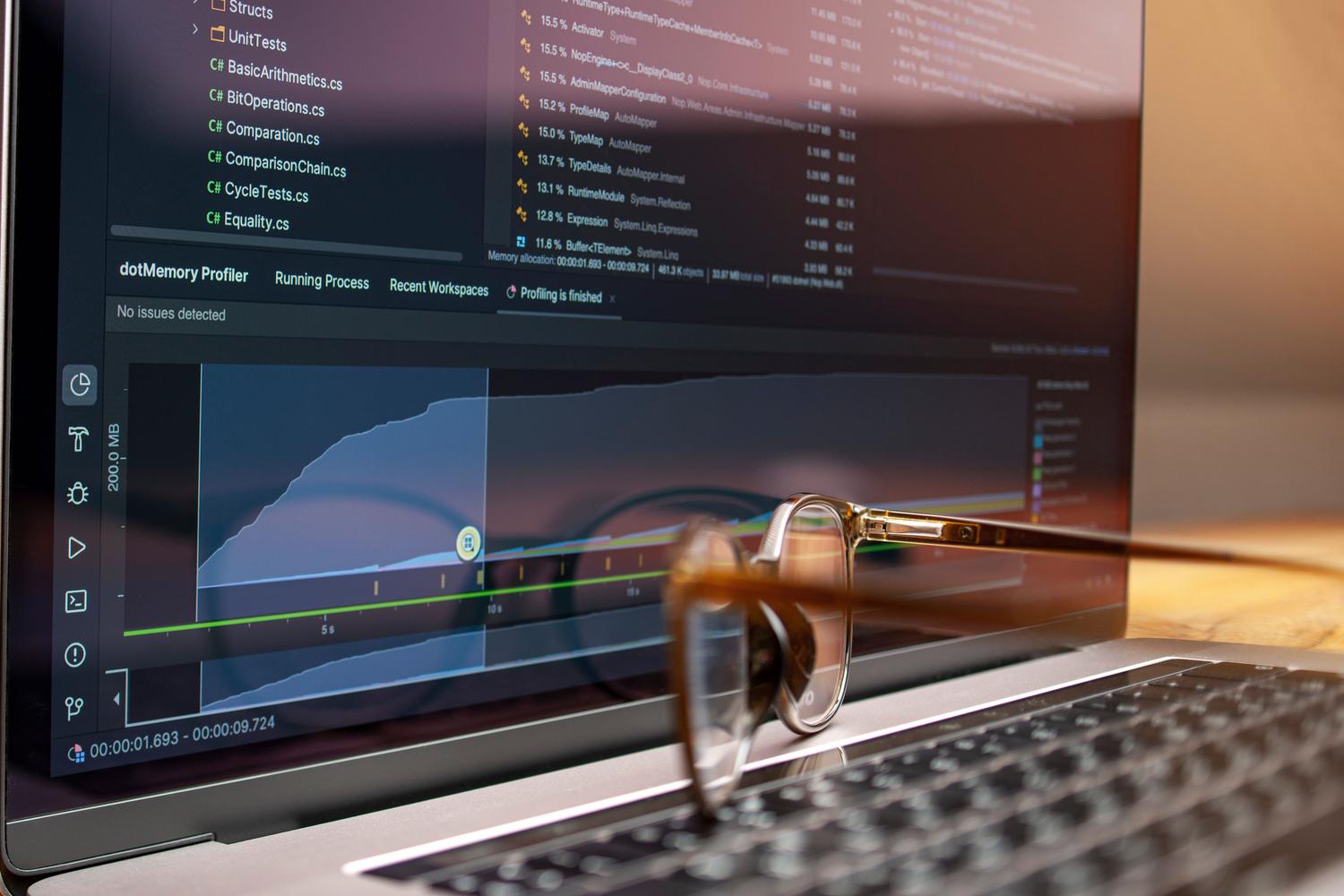
If you want to go a step further, there's a tool called services.msc that lets you control the core of Windows. To access it, press Windows + R, type that command, and press Enter. Here, you can change a service's Startup type to Manual or Disabled. However, proceed with caution; ideally, create a system restore point before making any changes in case the system malfunctions. For more technical control, you can consult an advanced guide to optimizing the Windows kernel and performance.
- Telemetry and diagnostics: Windows collects data about how you use your PC to improve the system. If you find this excessive, look for Connected User Experiences and Telemetry, stop the service, and set it to Manual or Disabled. You reduce the data transmission constant.
- Bug reports: The Windows Error Reporting Service is useful if something goes wrong, but if your PC is stable, you can set it to Manual so that do not consume resources without reason.
- Compatibility Assistant: If you only use current software, the Program Compatibility Assistant Service is useless to you. You can Deactivate it without fear. to gain lightness.
- Search indexing: Windows Search is what makes finding files quick, but on slow drives or with little RAM it can be a hindrance. If you don't search for files constantly, Turn off indexing It will free up a lot of disk space.
- Biometrics and Windows Hello: If you don't have a fingerprint reader or a compatible camera, the Windows Biometric Service is useless. You can remove it from the equation without you noticing any difference.
- Diagnostic guidelines: This service attempts to automatically fix network or configuration issues. For users, it's a good way to reduce activity invisible to the system.
Third-party software cleanup and startup
Sometimes the problem isn't Windows, but the programs we install. Many apps install their own services that stay running, monitoring for updates or managing peripherals. To clean this up, use the msconfig command in the Run dialog box and go to the Services tab. It's very important: check the box next to "Hide all Microsoft services" to avoid breaking anything essential, and uncheck any services you don't need.
To finish the job, open Task Manager with Ctrl + Shift + Esc and go to the Startup Applications tab. Here you'll see everything that launches as soon as you turn on your PC. Disable anything that isn't essential ; remember that this doesn't delete the app, it just prevents it from loading automatically at startup, helping to speed up Windows boot time and optimize startup , making the desktop appear much faster.
By combining control of modern applications, debugging of internal Microsoft services, and management of third-party programs, you enable the operating system to manage RAM much more efficiently and prevent the processor from having to deal with phantom processes, resulting in a more responsive computer and longer battery life.
