- Microsoft Ink Canvas integrates artificial intelligence and Copilot to transform sketches and handwritten notes into structured documents or images.
- The Windows 11 ecosystem allows for full pen integration in almost any text field in the system and productivity applications.
- There is a wide variety of tools, from OneNote and Journal to specialized software like Scrivano, for managing digital writing.
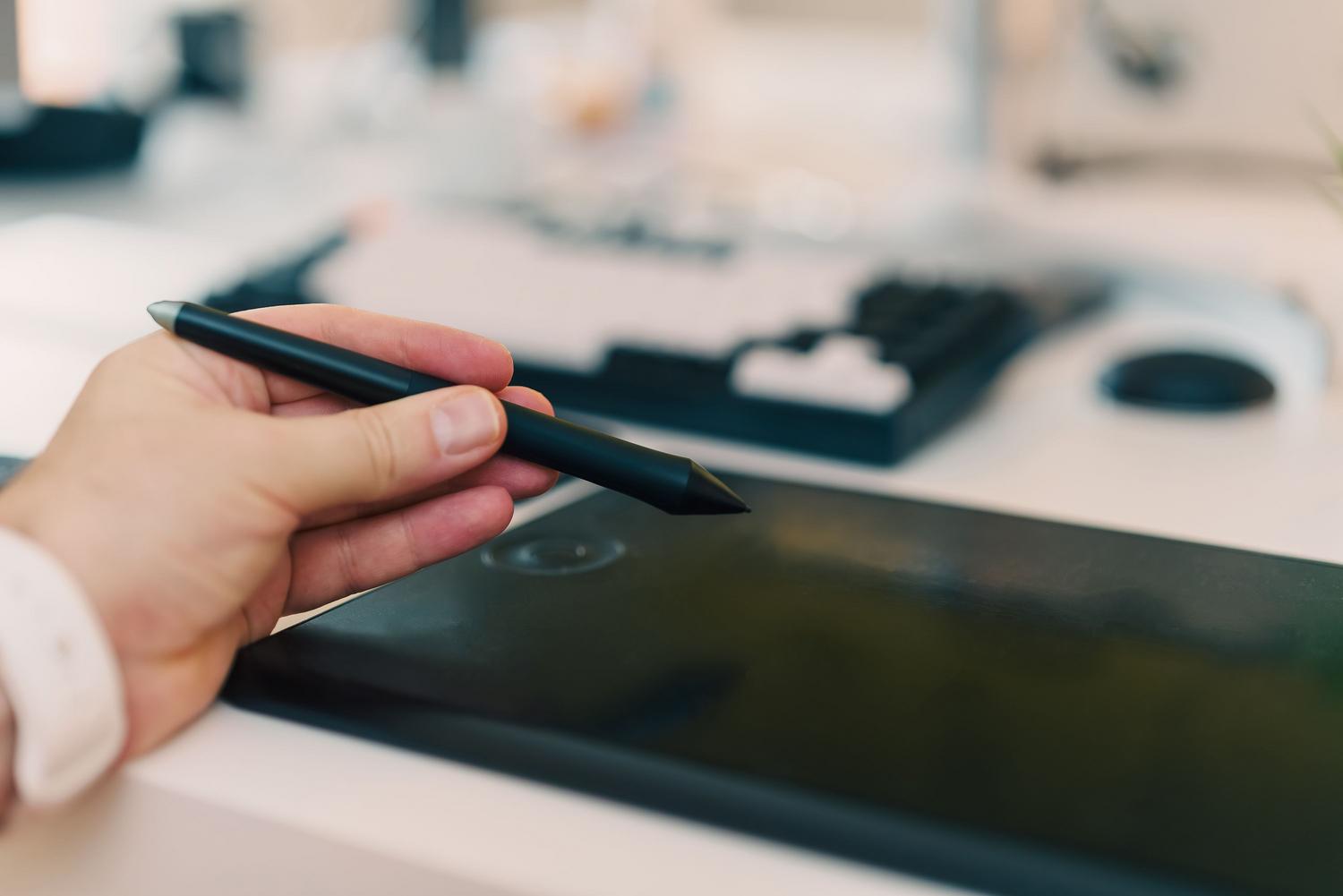
If you have a device with a touchscreen, you've probably realized that a digital pen isn't just another accessory, but a tool that can completely transform your workflow . Forget struggling with a mouse to create a quick sketch or lugging around notebooks that always seem to get lost; the fluidity of writing directly on the screen mimics the feel of paper, but with the added benefit of being fully editable and easily organized.
In Windows 11, this experience has taken a significant leap forward thanks to the integration of AI and improvements to the operating system. It's no longer just about doodling, but about using advanced stroke recognition so the PC understands what you want to say, allowing you to annotate PDFs or generate complex images from a simple sketch, letting creativity flow without technical barriers.
What exactly is Microsoft Ink Canvas?

We could define Ink Canvas as a digital workspace designed for visual thinkers. It's that in-between space where an idea is still a draft and hasn't yet become a formal document. Thanks to artificial intelligence technology , this canvas allows you to sketch, organize concepts, and, most incredibly, interact with Copilot to bring your notes to life.
What makes this tool special is its iterative capability. You can start with a blank canvas, drop images onto it, and annotate them. Then, using the Lasso selection function , you can tell the AI which part of the drawing you want it to analyze and convert into a text summary or even a digitally generated image. It's essentially a bridge between analog thinking and digital productivity.
Pen setup and calibration
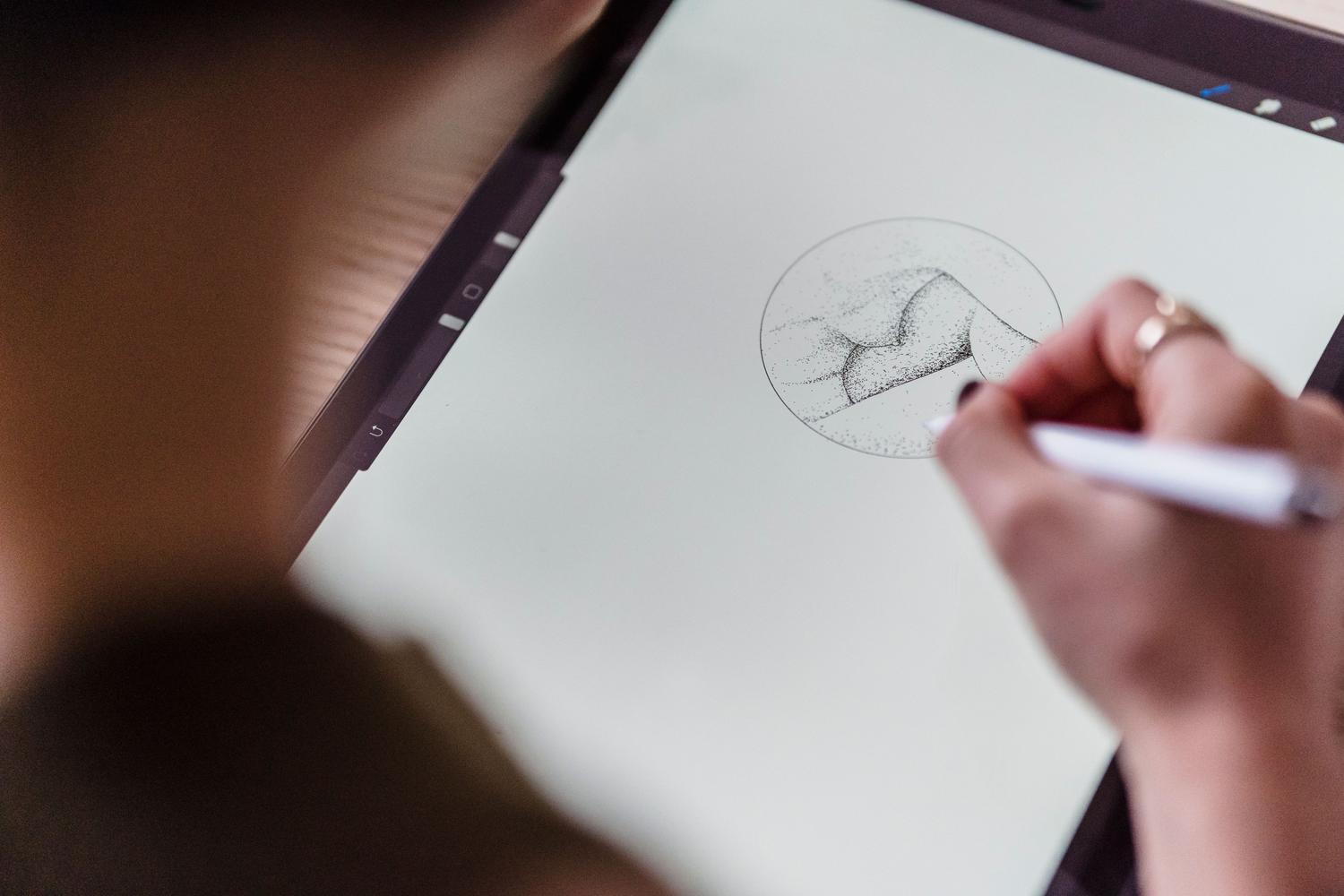
To ensure everything runs smoothly, the first step is pairing. Most of these devices use Bluetooth, so you should go to Settings > Bluetooth & devices and activate pairing mode on your pen (in the case of the Surface Pen, this is usually done by pressing and holding the top button for a few seconds). Once connected, Windows allows you to customize the experience in the Pen & Windows Ink section , where you can choose which hand you write with or assign specific functions to the pen's buttons.
One detail that makes a difference is the Pen Menu in the taskbar. If you don't see it, you can activate it by right-clicking on the taskbar and going to the system tray icon settings. This menu is a shortcut to apps like OneNote, Whiteboard, or the Snipping Tool , and you can customize it to add up to four of your favorite applications, saving you from having to search for the program in the Start menu every time.
The writing ecosystem in Windows 11
One of the most powerful new features is that you can now handwrite in almost any text field on the system. Thanks to recent updates, you're no longer limited to drawing apps; you can type a search in the Start menu or fill out a form in Settings, and the system will automatically convert your strokes into digital text. In addition, intuitive gestures for deleting , merging, or splitting words have been implemented, making editing much more natural.
Native tools and the Windows Ink Workspace
The Windows Ink Workspace is the command center for creatives. From here, you can launch Full Screen Clipping to annotate whatever you're currently viewing. Meanwhile, Microsoft Whiteboard offers an infinite canvas ideal for team brainstorming, allowing you to change brush thickness in real time and automatically save everything to the cloud.
Alternatives and apps for note-taking
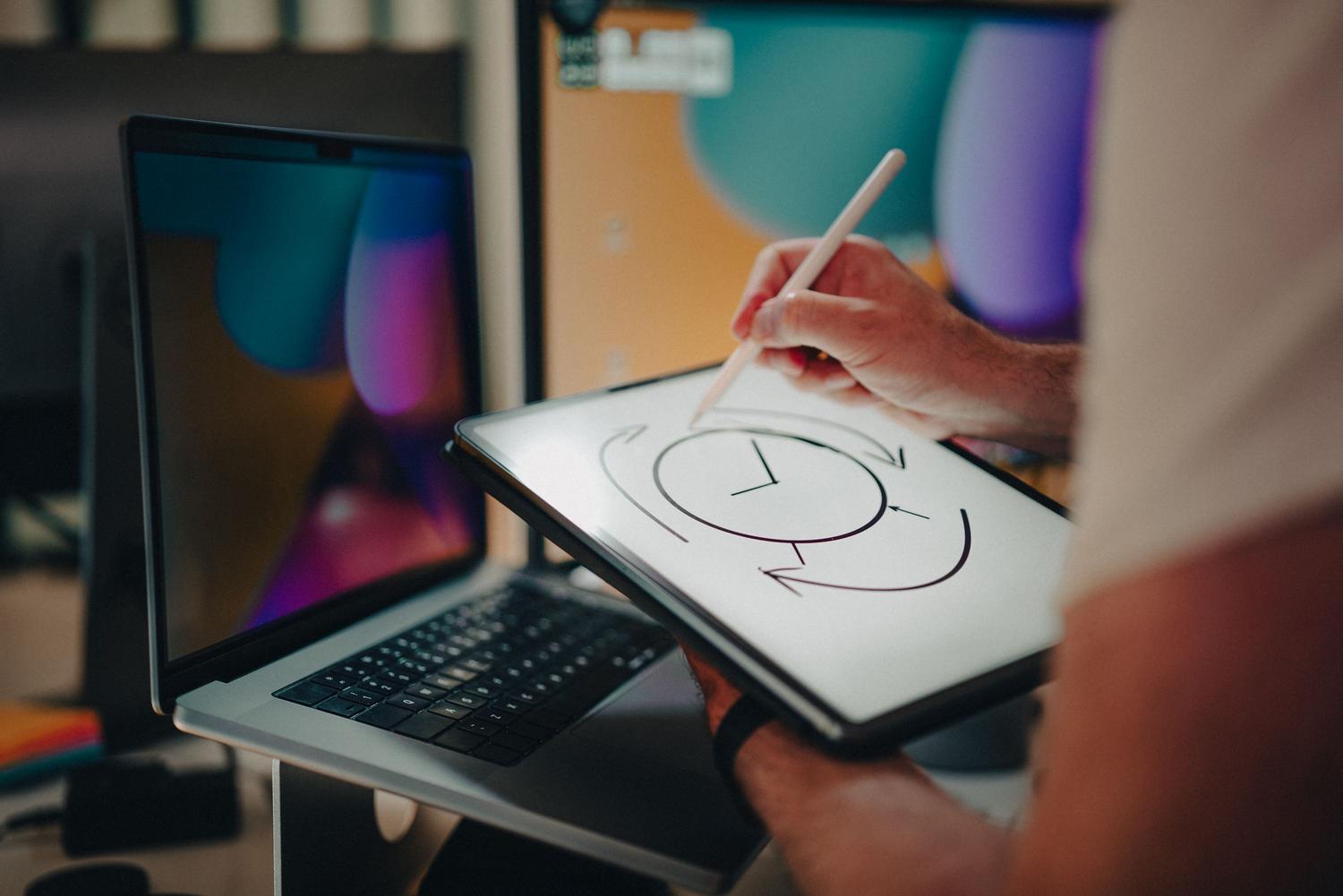
While OneNote is the standard choice, it's not the only one, nor is it always the most convenient for everyone. For those seeking cleaner PDF management and smoother vertical scrolling, there are options like Scrivano , which stands out for its intuitive interface and grid snapping features. Meanwhile, Journal by Microsoft is a powerful free alternative that uses ink-recognition gestures, such as crossing out to erase.
If you're looking for something more geared towards professional organization, Evernote or Google Keep remain safe bets, although less focused on artistic drawing. For iPad users who integrate their workflow with Windows, the drawing tools in Word and PowerPoint allow you to use the lasso tool to move hand-drawn objects, making it easier to create dynamic presentations.
Hardware: Graphics tablets and Surface
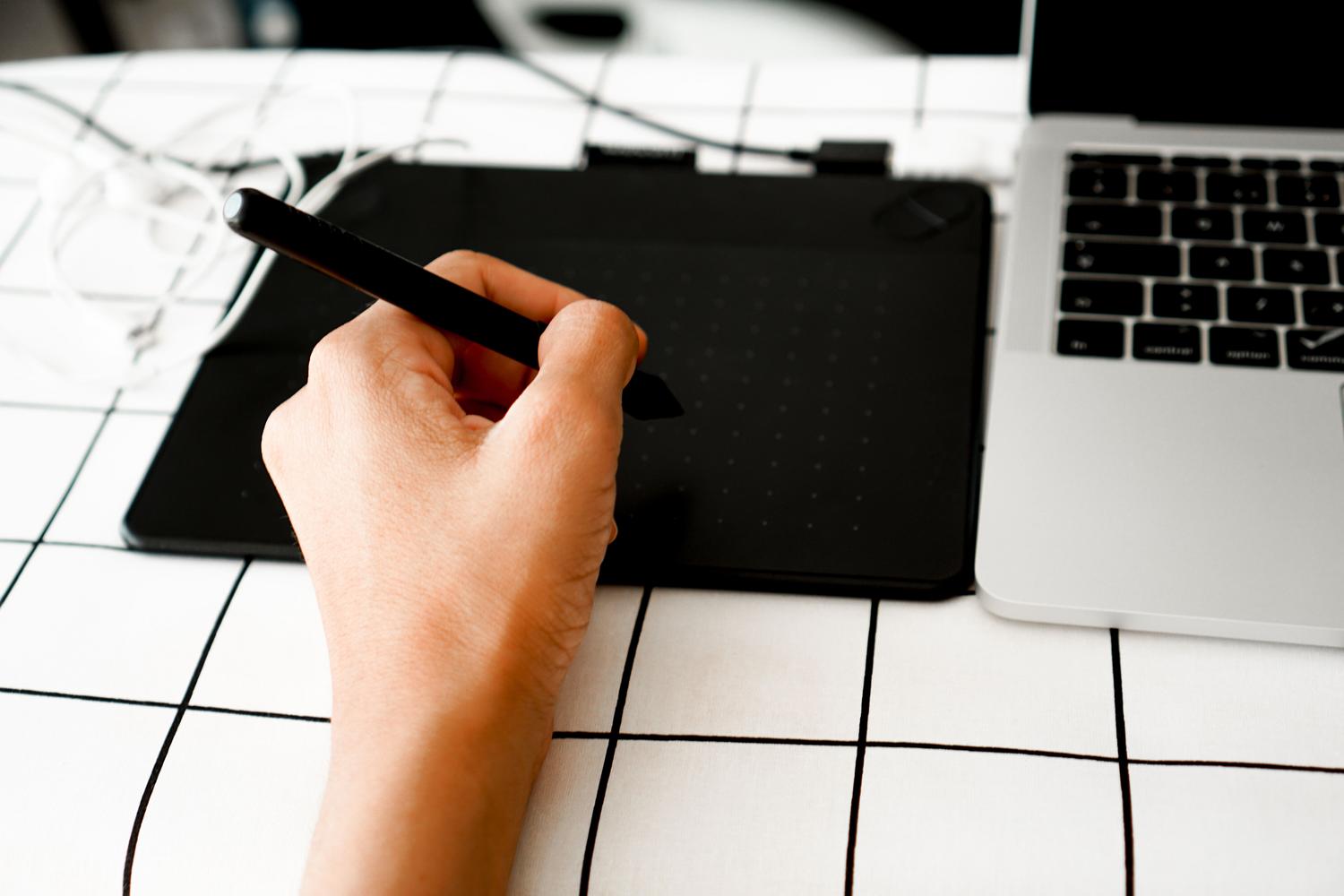
Not everyone has a 2-in-1 device. For those who use a traditional laptop, graphics tablets (with or without a screen) are the perfect solution. Brands like XPPen offer devices with thousands of levels of pressure and tilt sensitivity, allowing for thick or thin strokes depending on how you hold the stylus, mimicking the experience of charcoal or graphite.
The integration of these tablets with software like OneNote is seamless: simply import a class PDF and use the drawing tab to add mathematical equations or complex diagrams. This is not only faster than typing, but it also improves information retention and drastically reduces paper consumption in educational settings.
The versatility of ink tools in Windows 11 allows any user, from a student to a professional designer, to transform their computer into a smart notebook. Whether harnessing the power of AI in Microsoft Ink Canvas, configuring the Slim Pen's quick access button, or choosing the note-taking app that best suits their style, the key is leveraging pressure sensitivity and system integration to make digital work feel as organic as analog.