- It allows you to add an extra layer of security using access keys, push notifications, or OTP codes.
- You can configure it from the Google Account Security section by following the on-screen steps.
- It offers advanced options for organization administrators, including the enforcement of security.
- It includes backup methods and physical devices to prevent phishing attacks and identity theft.
These days, leaving the door to our digital lives unlocked is a risk no one should take. Two-step verification , also known as two-factor authentication, acts as an extra lock, preventing any unauthorized person from accessing your data even if they've managed to steal your password.
Basically, it's about adding an extra layer of security so that when you try to log into your account, Google doesn't rely solely on your password and asks for a second proof of identity. Depending on how you configure it, this can range from a simple tap on your mobile screen to the use of physical security devices.

How to set up two-step security
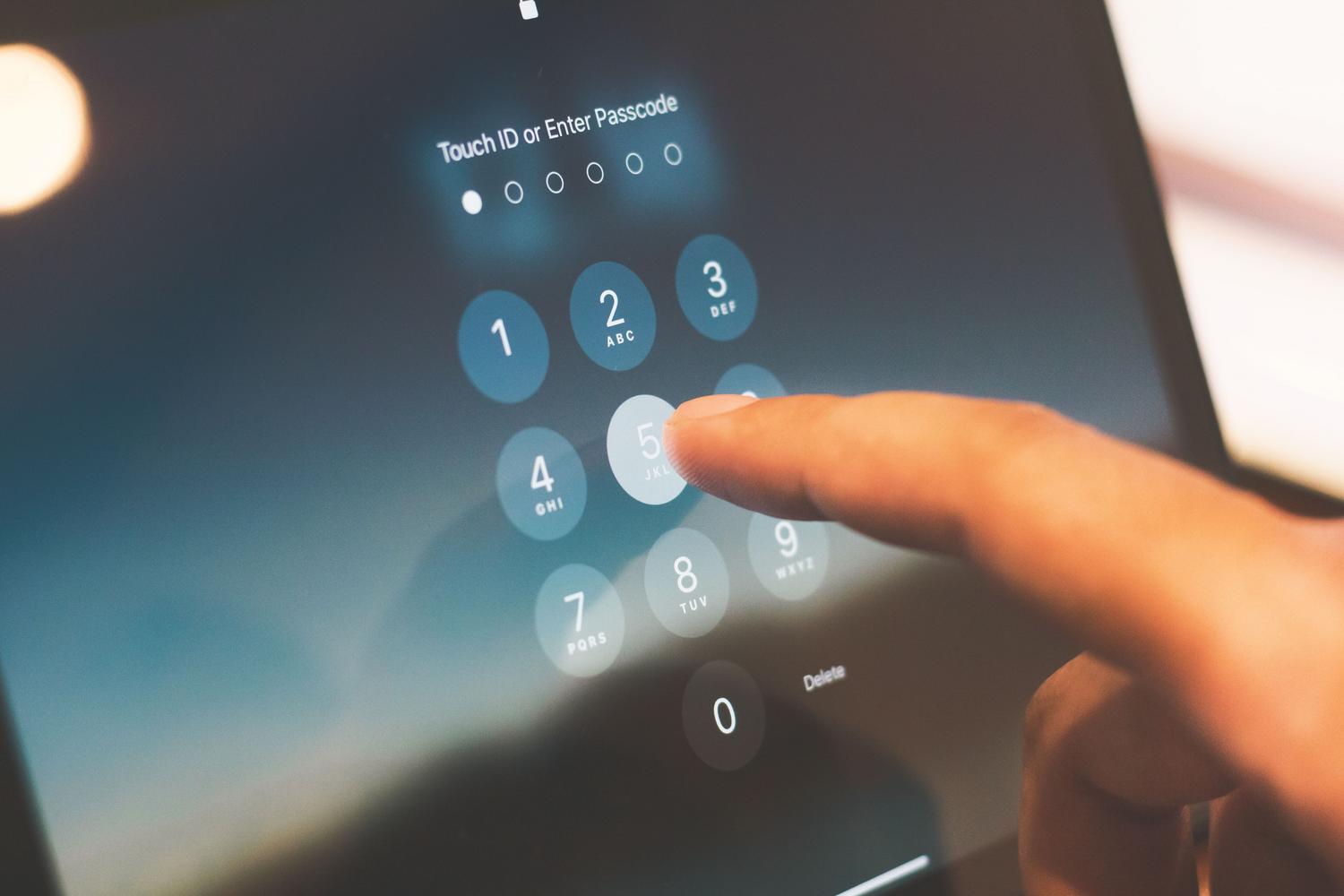
If you want to activate this feature, the process is quite simple. First, go to your Google Account settings and navigate to the Security section. Once there, find the section that explains how you sign in and click on Turn on two-step verification . From there, just follow the on-screen instructions.
There's one important detail: if your account is one you were given at work or school , these options might not appear. In that case, don't worry and contact your system administrator directly for assistance.

Methods to prove it's you

Google is quite clever and, depending on the situation, will suggest the method it considers most convenient and secure. One of the most modern options is access keys , which allow you to log in using your fingerprint, facial recognition, or your phone's PIN. The great thing about these keys is that they can't be written down or accidentally given to someone else, since they're stored on your device.
If you prefer not to use access keys, push notifications are the most practical option. Instead of typing in cumbersome codes, you'll receive an alert on your mobile phone (Android or iPhone with Google apps), and you simply tap the Yes button to confirm that it's you trying to log in. This method is especially useful because it protects you against SIM card cloning.
Other verification alternatives
For those seeking total protection or who sometimes find themselves without coverage, there are other options:
- Google authenticator: This app generates temporary one-time (OTP) codes that work even if you don't have internet access no mobile signal.
- SMS and calls: You receive a six-digit code on your phone. However, keep in mind that this method is somewhat less safebecause some expert hackers can intercept these messages.
- QR codes: Sometimes, Google will ask you to scan a code with your camera to more robustly validate your phone number.
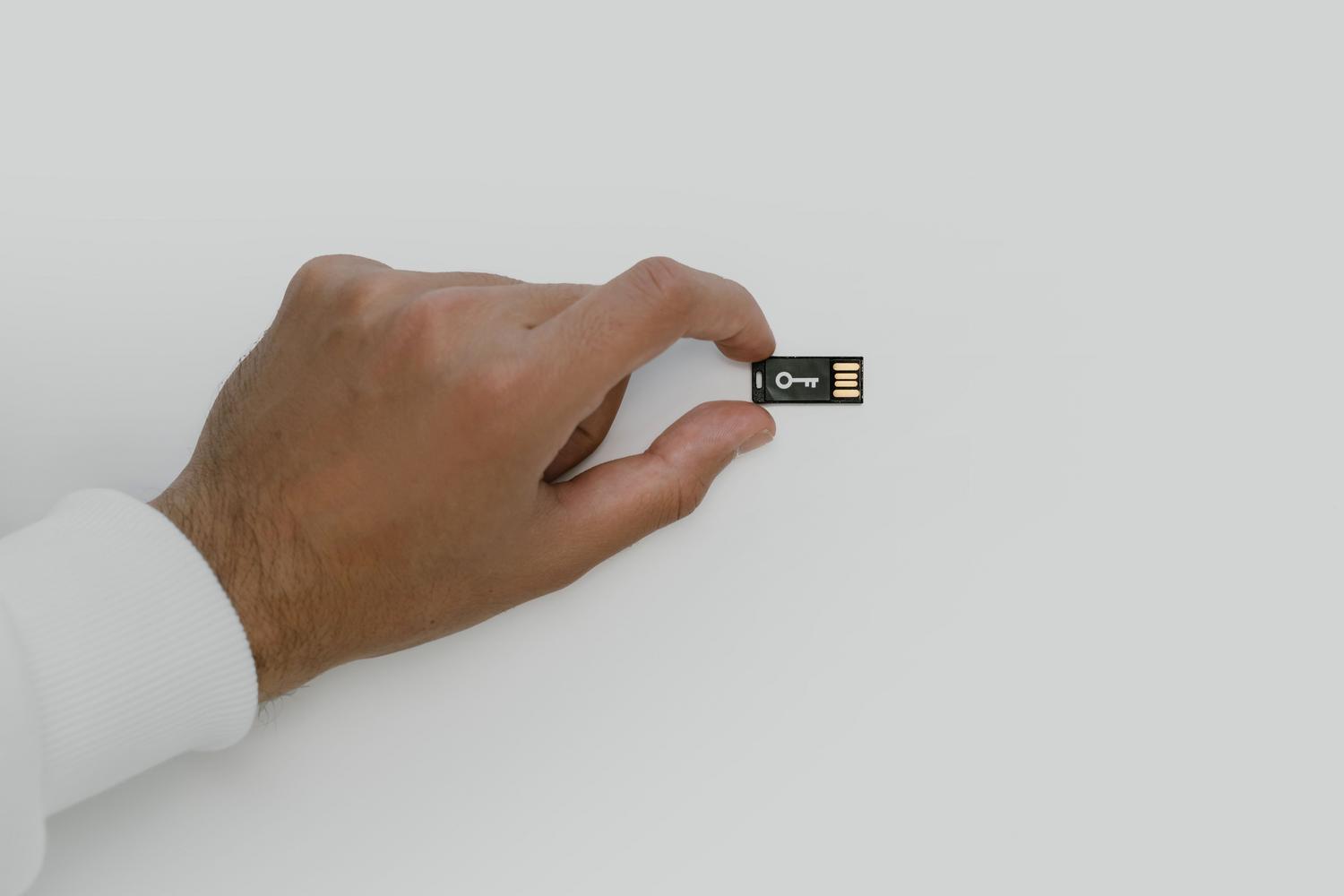
- Physical security keys: They are small USB devices that you connect to your computer or mobile phone. They are the best defense against phishing that currently exists.
There are also backup codes , which are keys that you should keep in a safe place in case you lose your phone or cannot access your other verification methods.

Management for business administrators
If you're in charge of an organization, the process is different. You can decide whether two-step verification is optional or mandatory for your employees. From the Admin Console, you can enforce implementation for specific groups, such as the sales team, requiring them to use strict methods like security keys.
The recommended workflow for businesses begins by notifying users , allowing them to voluntarily enroll, and finally, making it mandatory on a specific date . Administrators can monitor who has complied and who hasn't through security reports, and can even generate temporary security codes for those who have lost their physical key.
Final Tips and Warnings
To avoid having to go through this entire process every time you log in from your home computer, you can check the box for " Don't ask again on this device ." But be careful, only do this on machines that are yours and that you don't share with anyone , or you'll be overriding the security you just set up.
It's crucial to remember that Google will never call you to ask for a verification code. If someone does, it's a scam. Also, keep in mind that when you add a new phone number, it can take Google up to seven days to fully trust it to prevent an intruder from quickly changing your information.
Properly configuring two-factor authentication using digital keys, authentication apps, or push notifications ensures that your personal information is safe from external attacks, while also allowing you to manage exceptions on secure devices and administer advanced permissions in corporate environments to protect the identity of each user.
