- Native support and emulation of Xbox, PlayStation, and Nintendo controllers via the Steam Input layer.
- Importance of udev rules to enable hot detection and firmware updates.
- Advanced diagnostic and customization tools to optimize the gaming experience.
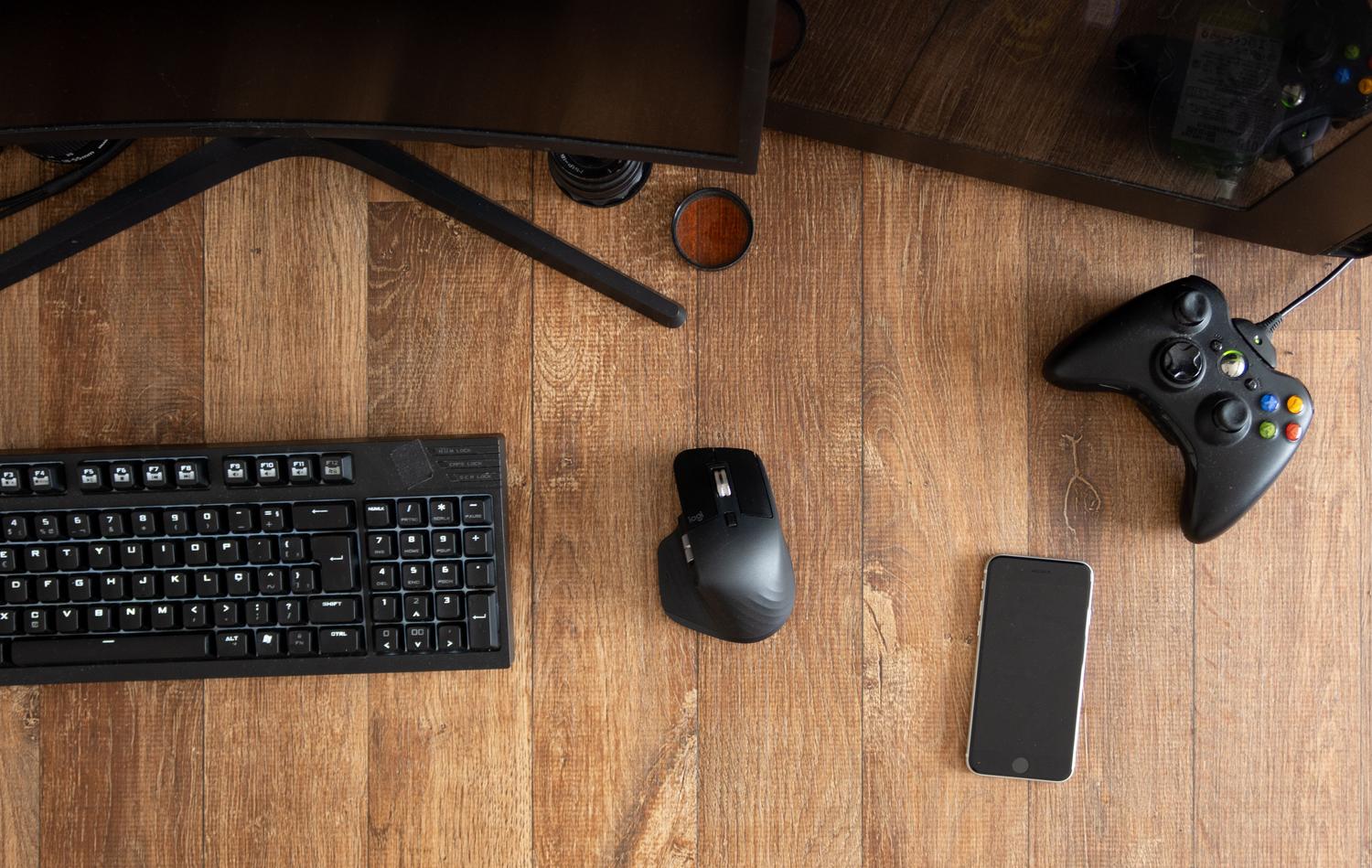
If you've switched to Linux or are really enjoying a Steam Deck with SteamOS, you've probably noticed that controller support can be either a joy or a real headache. Fortunately, Steam Input comes to the rescue as an all-rounder that translates your controller inputs into something the game understands, whether it's emulating an Xbox controller, a keyboard, or even a mouse.
The magic of this system lies in its ability to play almost any game, regardless of the controller you're using. Whether you're using Valve's official controller, a PlayStation controller, or a Switch controller, the idea is universal compatibility , so you don't have to struggle with system drivers every time you want to play.
How does Steam Input emulation actually work?
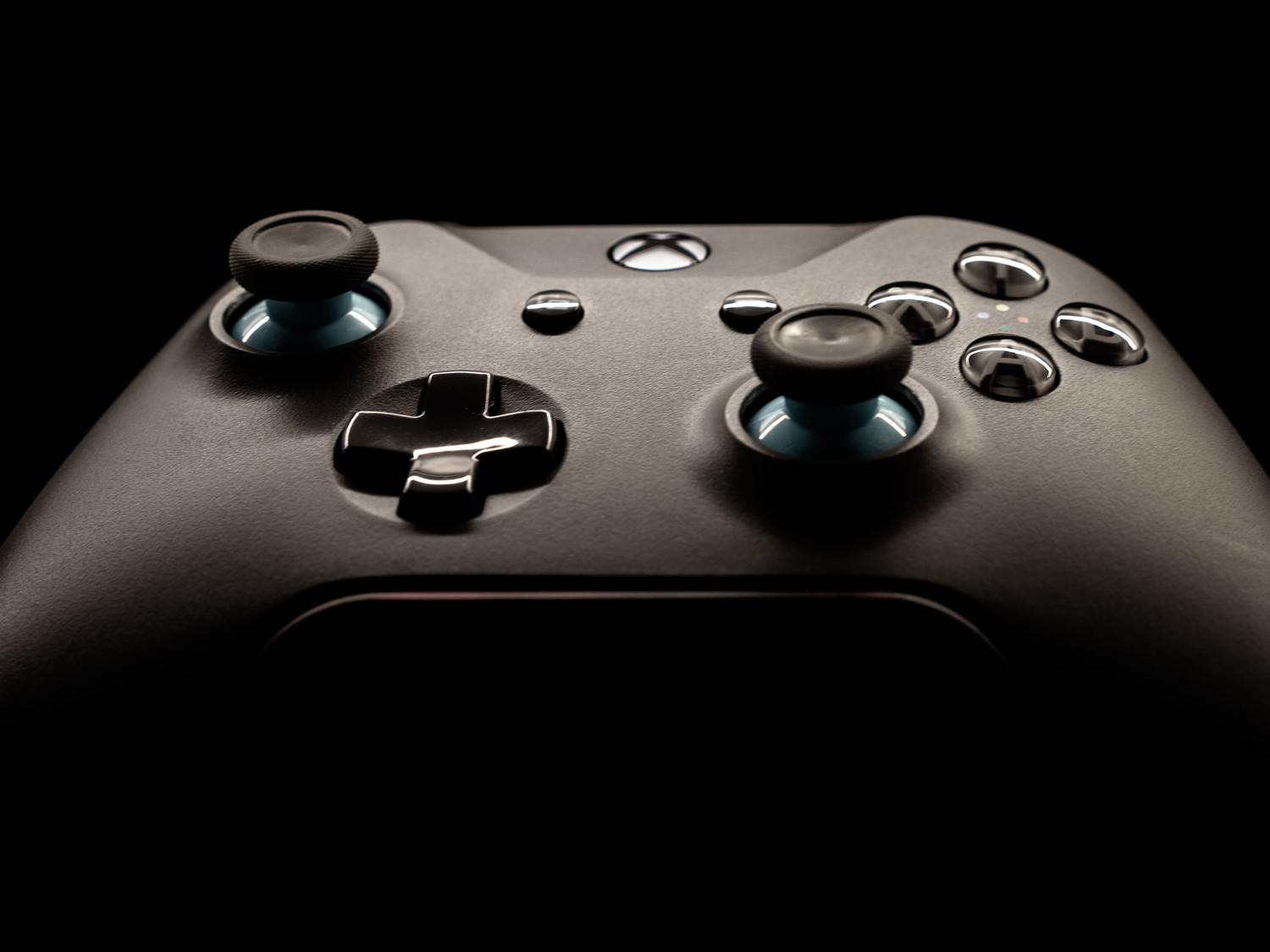
In the Windows environment, Steam intercepts traditional APIs like XInput to inject a virtual Xbox controller. However, on Linux and macOS, this process is handled through a dedicated driver that tricks the game into thinking you have an Xbox controller connected, ensuring it works in the vast majority of cases.
Keep in mind that when emulating an Xbox controller, some additional buttons on controllers like the PS4 controller might be duplicated or assigned to standard functions such as the START button. A major advantage is that you can assign the gyroscope of Switch or PlayStation controllers to control the camera like a mouse, although this usually works best in single-player games.
Troubleshooting detection and permissions issues (udev rules)
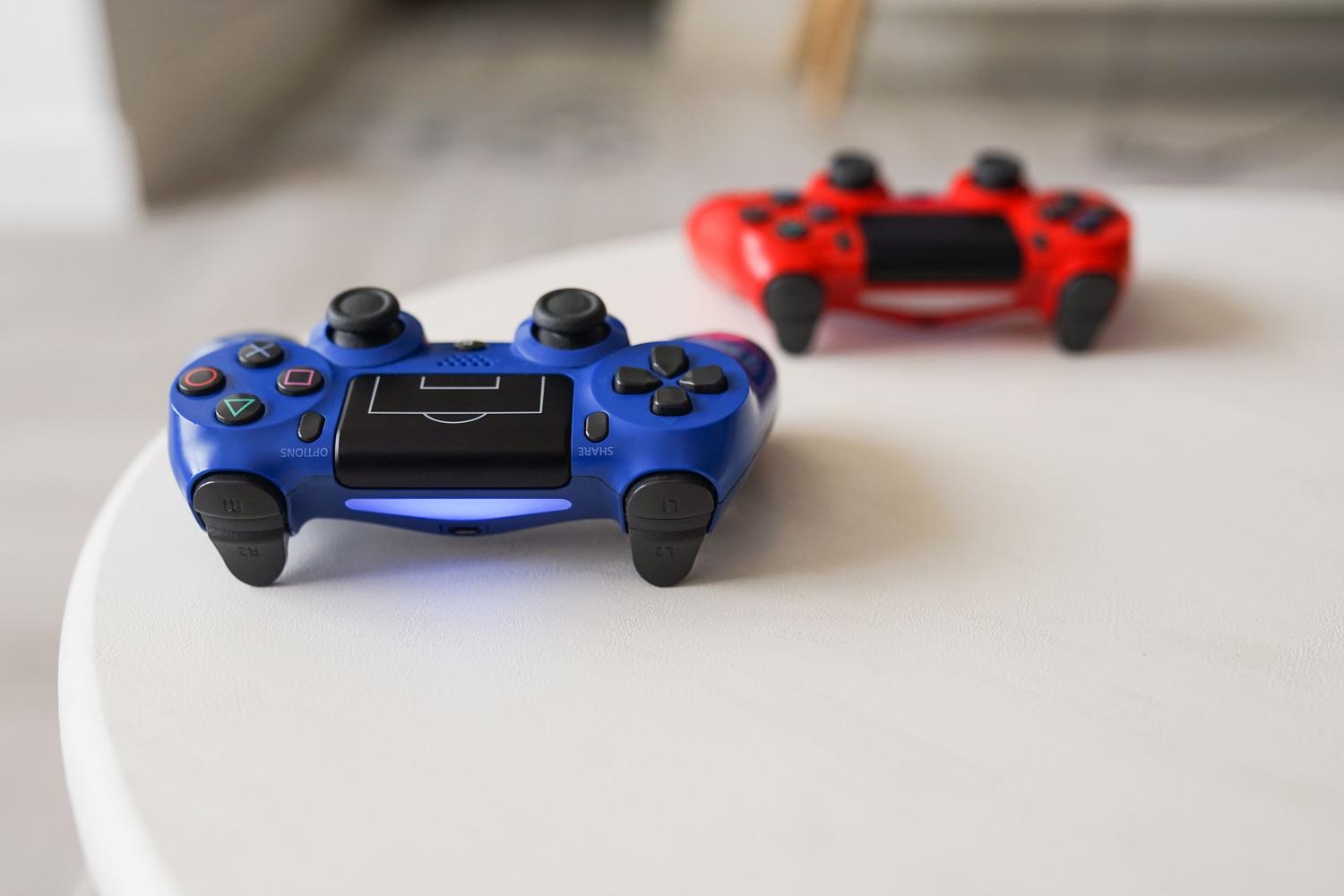
A very common problem, especially on distributions other than Ubuntu or Debian, is that the controller isn't recognized when connected or that you can't update the firmware. This happens because the udev rules are missing ; these are basically the instructions that tell the system who the device is and what permissions it has.
To solve this at its root, it is necessary to create a file in /lib/udev/rules.d/99-steam-controller-perms.rules with root privileges. Within this file, you must define the rules for USB and uinput devices. A critical point is that on the line of KERNEL==\"uinput\", You Replace the group with one that your user belongs to. (such as the "video" group or creating a specific one called "steamcontroller").
If you prefer to play it safe, you can add your user to a new group with the command usermod -a -G steamcontroller tuusuario and then assign that group in the rules file. Once this is done and after Restart the systemThe controller should be detected instantly without any fuss when turning on the PC.
Support according to the type of controller
- Xbox controllers: Xbox One and Series X|S models are usually plug-and-play Thanks to the kernel's xpad driver. If you're using Bluetooth, you just need to pair them normally from the system.
- PlayStation controllers: The DualShock 4 and DualSense work perfectly. Steam recognizes them instantly and allows you to use the touchpad as a mouse, in addition to supporting haptic feedback.
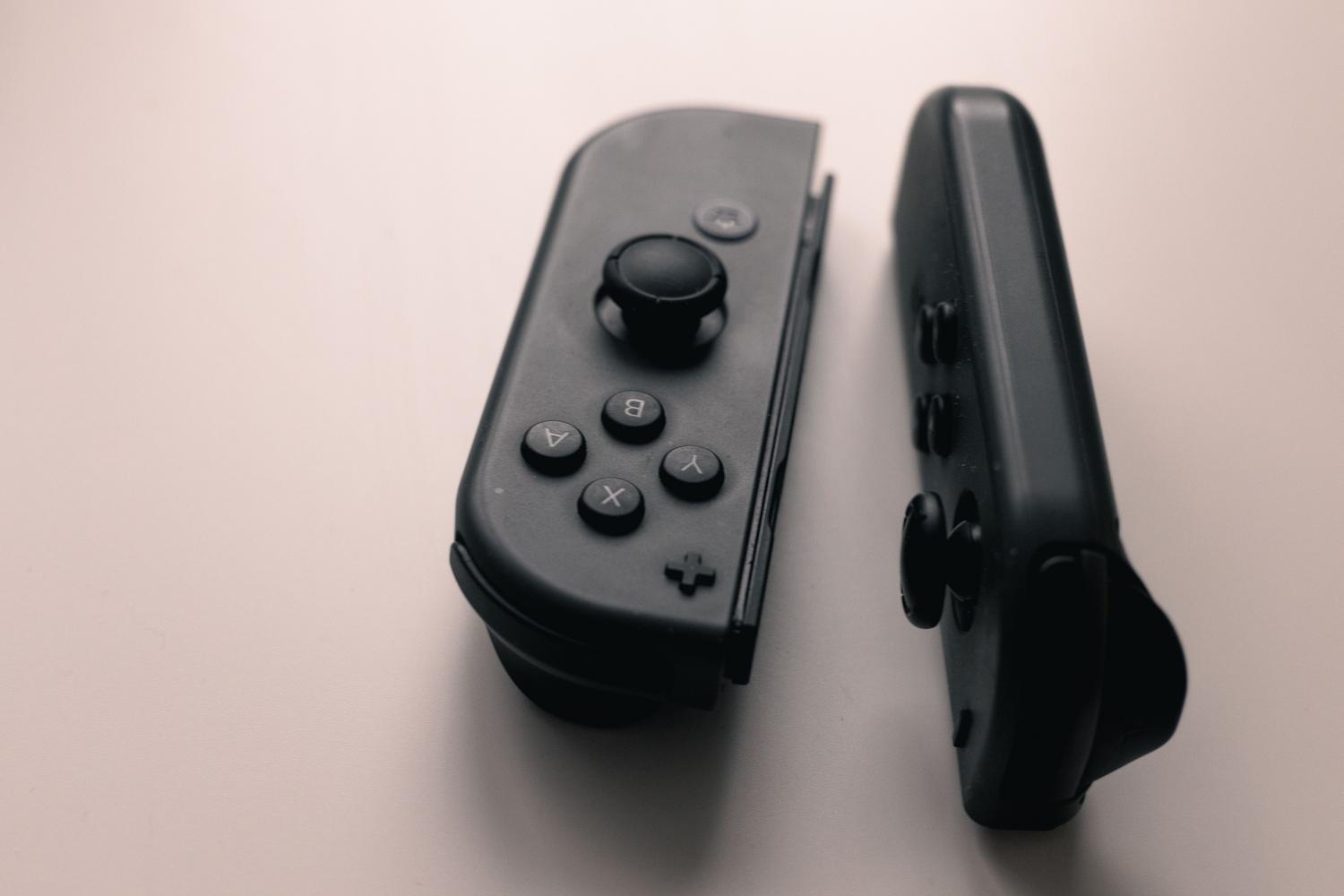
- Nintendo controllers: The Joy-Con and Pro Controller are compatible, but to get the most out of them and use the motion controls, it's highly recommended to install Joycond.
Advanced customization and useful tools
For those who want to go further, Big Picture mode is the ideal place to map buttons and create profiles Customized. If you notice that a controller isn't responding as it should, you can use jstest-gtk, a magnificent tool for visualizing in real time which button is pressed and calibrating the axes if the joystick has drift.
If you encounter games that are not on Steam or older emulators, a very effective solution is AntiMicroX , which allows you to assign any key on the keyboard to a button on the controller, thus bypassing native compatibility limitations.
Considerations for developers and advanced users
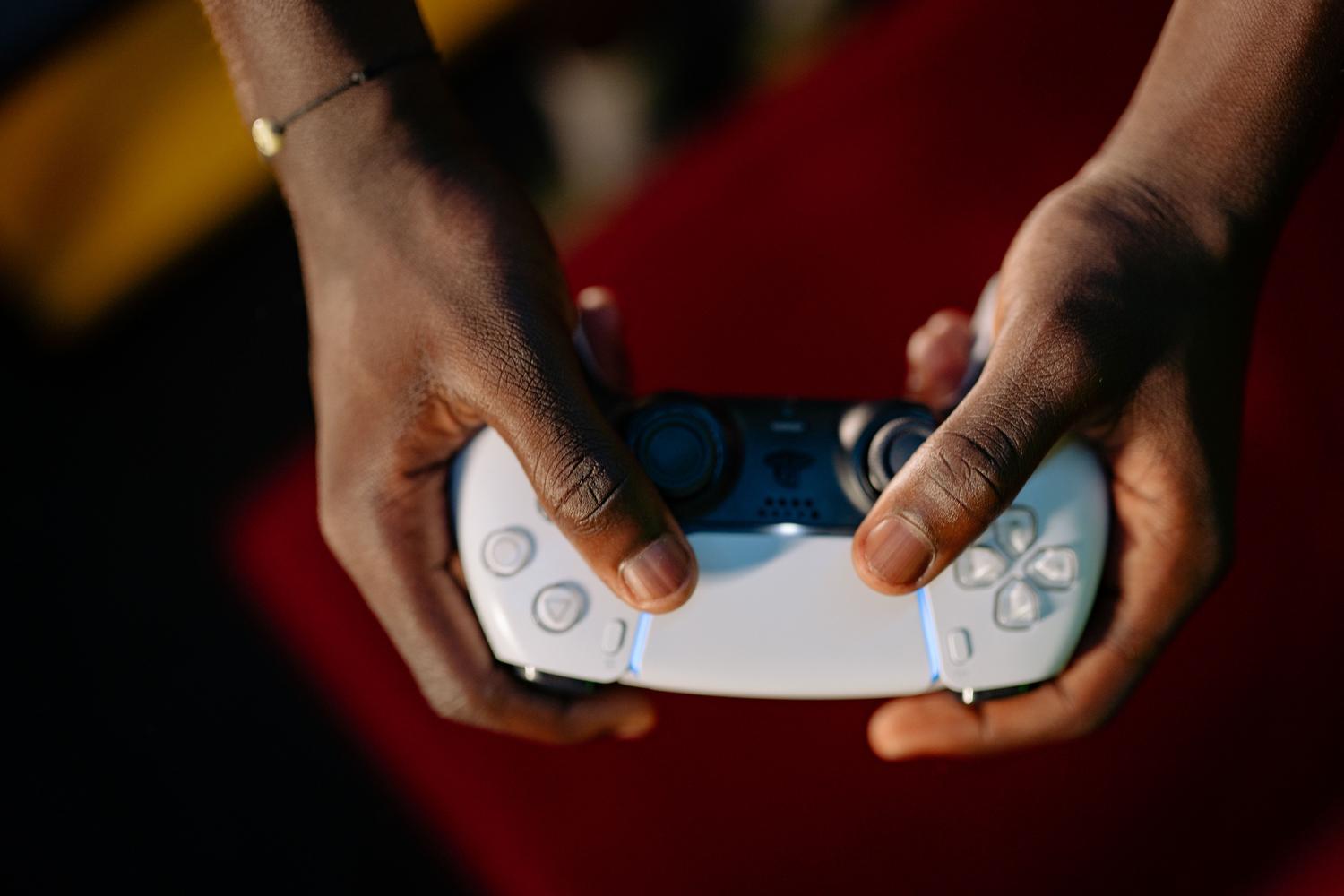
For content creators, Steam offers the possibility of integrating the Steam Input API to display dynamic glyphs (button icons). This means that if the player uses a PS5 controller, they will see the cross and circle instead of the Xbox A and B. This is achieved by initializing the interface with SteamInput()->Init() and checking the type of controller connected.
In very specific cases of modern distributions or Proton forks that use Wayland, some users have tried running Steam with the parameter -steamos3 and activate the Steam beta to force the use of Steam Linux Runtime 3However, the stability of these tricks may vary depending on the software version.
Configuring controllers on Linux has gone from a terminal nightmare to a remarkably smooth experience thanks to Valve's translation layer. Whether it's adjusting udev permissions so the system recognizes the hardware, installing utilities like JoyCond for Nintendo, or taking advantage of Big Picture mode to customize every button press, it's now possible to have complete control over any peripheral and enjoy games without the controller being an obstacle.