- Access keys replace passwords with unique credentials stored on the device and protected by biometrics or PIN, making them highly resistant to phishing.
- Its major weakness is device dependency: if you lose it, it breaks, or you use it on a shared computer, your account is exposed or inaccessible without an alternative method.
- Synchronizing keys between different platforms remains complicated, which is why a third-party password manager becomes the most reliable and best-supported option.
- Reviewing and deleting old keys, keeping the screen lock active, and not running out of a second access method are key to not losing control of your accounts.
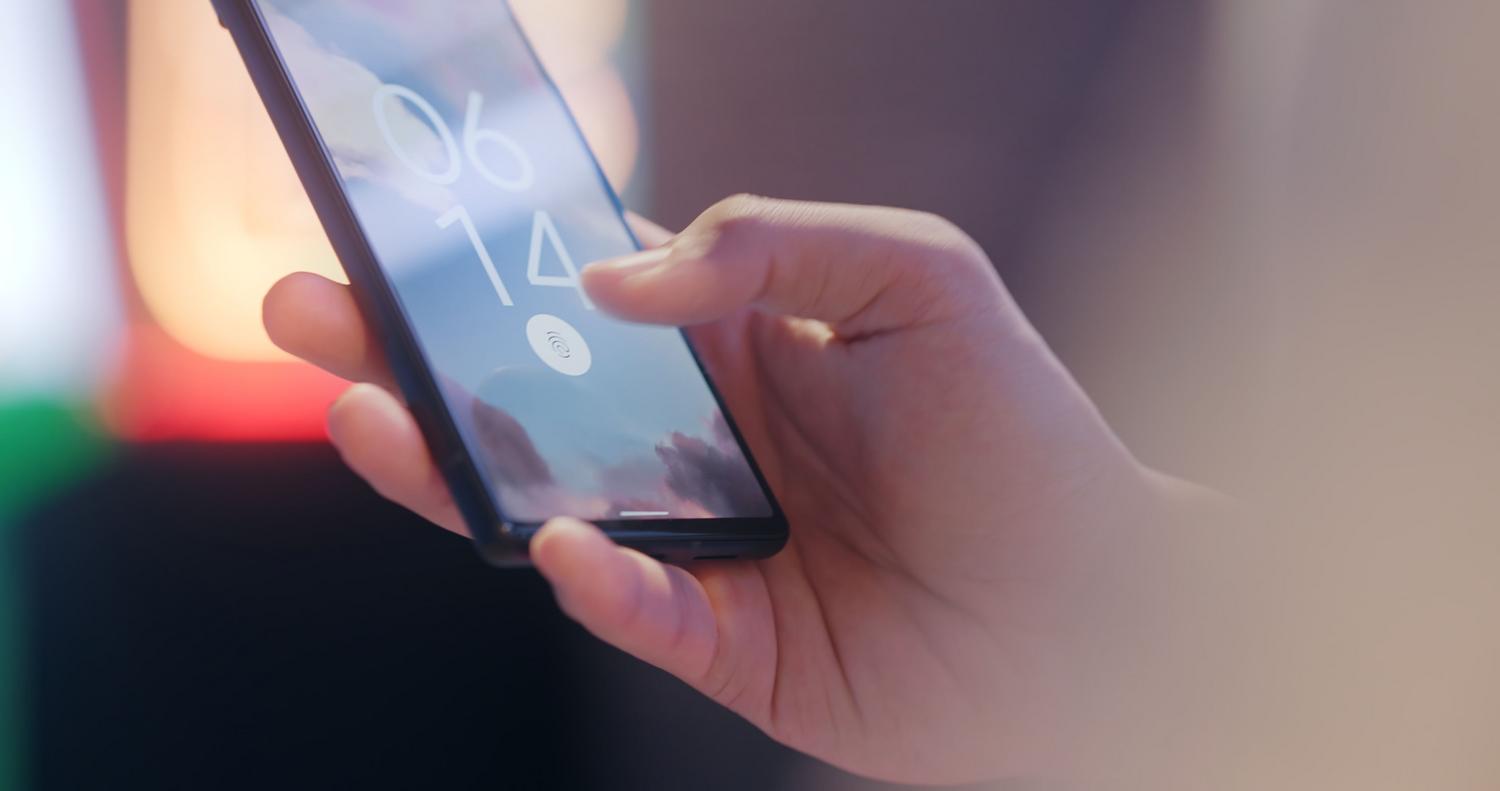
By now, anyone who spends even a little time online has heard about access keys, those digital credentials that promise to consign passwords to the dustbin of history. The idea is incredibly tempting: instead of memorizing impossible combinations or waiting for an SMS that takes forever to arrive, you unlock your phone with your fingerprint, face, or a PIN and you're instantly in your account. It sounds almost like science fiction, but the technology has been around for a while , and more and more services are adopting it, to the point that many tech giants are now enthusiastically recommending it.
However, switching to access keys without fully understanding how they work can be costly. Being locked out of an account is a real headache , and if that account is your primary email, the problem multiplies to unimaginable proportions, because half the internet's recovery codes are linked to it. In the following lines, we'll calmly review what they are, how they're created, how they're managed, what real advantages they offer, and, above all, what traps they hide to prevent you from losing access to your services.
What is an access key and why has it become fashionable?
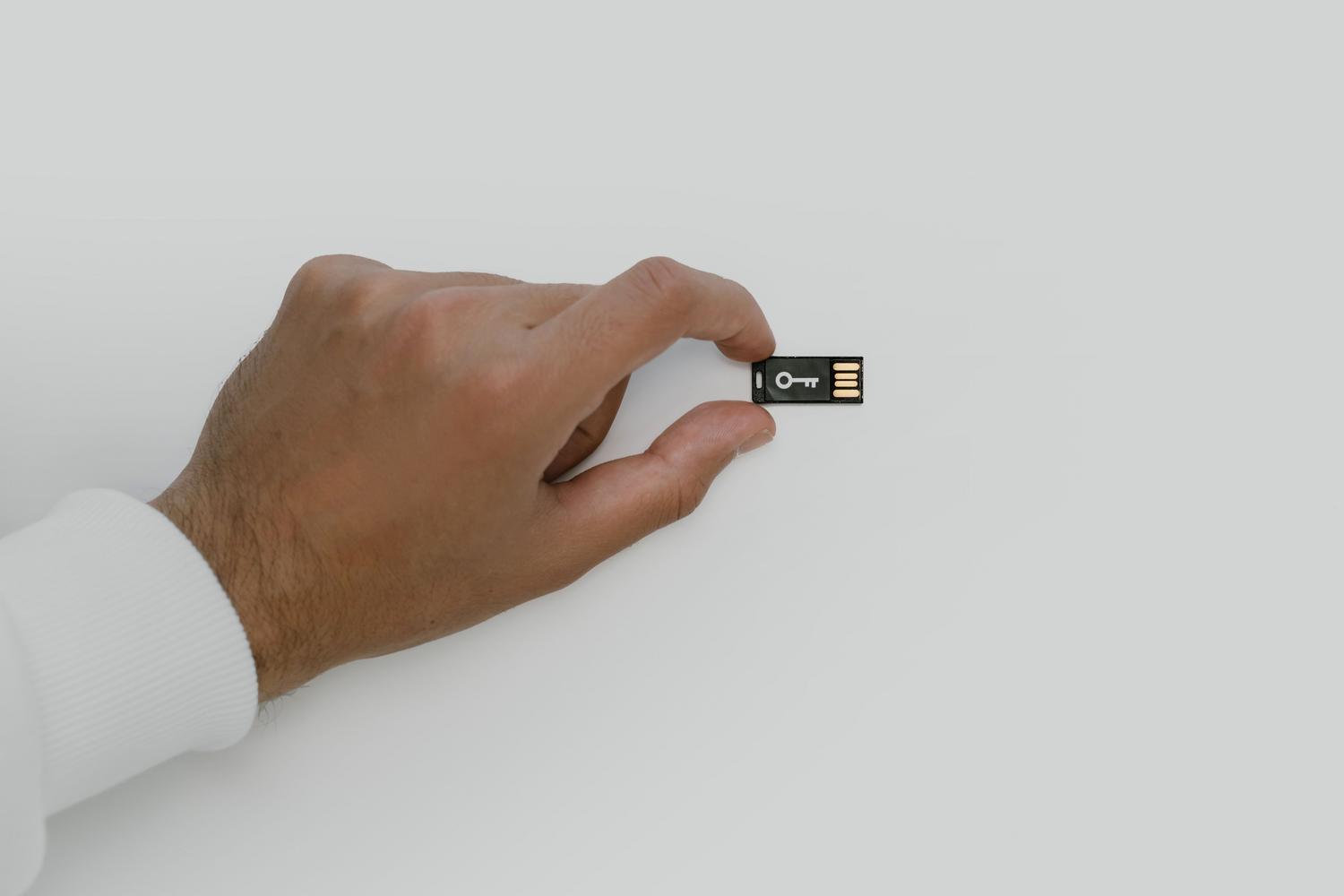
An access key is simply a one-time login credential, created specifically for a particular website or application. It's securely stored on your device , whether it's a phone, computer, or a dedicated USB key like a YubiKey or Google Titan security token. When you log in to a service, the device verifies your identity using biometric data or a PIN. Once your identity is validated, it sends the site a secure response generated from this unique key , which cannot be used for any other service.
The result is a fairly robust shield against account theft, because there's nothing to copy or guess , unlike traditional passwords. Neither a phishing attack nor a massive data breach is of much use to cybercriminals. Apple, Google, and Microsoft support this standard, and in theory, cloud synchronization should allow you to have your credentials available on all your devices—something that, in practice, doesn't always work as smoothly as one might expect.
Real advantages: more safety and less friction
- Enhanced protection against phishingEven if they try to pass off a fake website, the key isn't given to just anyone.
- More convenient loginSimply unlock your device to access your Google account, and this also works with certain third-party apps and services.
- It helps to speed up procedures related to the incorporation of new authentication factors or trust recovery.
In the specific case of Google, adding an access key doesn't remove or modify any authentication or recovery factors you already have active. If you have two-step verification enabled or are enrolled in the Advanced Protection Program, your access key will automatically skip the second step , because using it proves that the device is yours. However, your biometric data, such as that used for facial recognition or fingerprint unlocking, always remains on the device and is never shared with Google.
Before you start creating keys, it's important to have a clear understanding of the requirements, because not all tools will work . These are the minimum requirements that Google asks for:
- A computer with Windows 10, macOS Ventura, or ChromeOS 109, or later versions of any of them.
- A phone with Android 9 or iOS 16, or later versions.
- A hardware security key compatible with the FIDO2 protocol.
Note a detail that many people overlook: you can create an access key within a FIDO2 physical security key that was already associated with your Google account before May 2023, although you may first need to remove that key and add it again to make everything fit.
As for browsers, here's what you need: Chrome 109 or later, Safari 16 or later, Edge 109 or later, and Firefox 122 or later. Older versions will run into problems , so check for updates before you lose patience.
And before you get started, there are a few preparations that will save you a lot of trouble :
- Keep the screen lock active on your phone.
- If you're going to use a key saved on your mobile phone to log into another computer, turn on Bluetooth.
- On iPhone, iPad, and macOS, turn on iCloud Keychain.
- Check that your operating system and browser are up to date.
- Keep in mind that in some systems and browsers you cannot create or use access keys in incognito mode.
Access keys in Google Workspace
If your account is a Google Workspace account, meaning the one provided by your company or school, you might not be able to sign in using only an access key , as the administrator has the final say on those matters. However, you can create access keys to use in three different ways:
- As the second factor within two-step verification.
- As an option for account recovery.
- As a method to execute certain sensitive actions that force Google to re-verify your identity.
Within your account settings, under the setting called "Skip password when possible," you can check if your administrator allows you to log in with just your key . If you are the Workspace administrator, you'll need to review the relevant documentation on how to enable passwordless login for your users.
How to create your access keys step by step

Here's the tricky part. Creating an access key activates a login mode that prioritizes keys , making a password unnecessary. Therefore, it's best to create keys only on devices that are yours and for personal use. And be very careful: even if you sign out of your Google account, anyone who can unlock that device will be able to access your account , no questions asked.
To set up a key, you may need to log in to your account or verify your identity. Here are the steps for the phone or computer you're currently using:
- Go to myaccount.google.com/signinoptions/passkeys.
- Tap the Create access key option. You will need to unlock the device.
If you want to have keys on multiple devices, repeat the same procedure on each one . And if you're looking to store it on a physical security key, the process is slightly different:
- Go to myaccount.google.com/signinoptions/passkeys.
- Tap Create access key and then Use another device.
- Follow the on-screen instructions. You will need to insert the security key and enter your PIN or touch your fingerprint sensor.
Remember that for this, you need a FIDO2-compatible hardware security key . And there are several points worth noting:
- Once you've created your first key, the next time you log in to a compatible device you may be asked to create another one for that device.
- To protect your account from other people, do not create keys on shared devices.
- You may have to wait seven days for a newly created key to be ready to log in. If you already have another key or a trusted physical security key, you can speed up the process so Google trusts your new key sooner.
- If Google detects a suspicious key, it will disable it and notify you. You have 30 days from the date of notification to confirm that you added it; if you do nothing, it will be removed from your account.
Log in with an access key
The day-to-day process is simple, although each operating system and browser has its own way of displaying on-screen instructions. These are the general steps:
- Open the Google sign-in page.
- Enter your username. Tapping the field may display a list of access keys; if so, choose the one you want.
- If you already created a key on that device, follow the instructions to verify your identity and unlock it.
There's a curious behavior in Android that's worth knowing. If you log out of an Android device, you can log back in with your access key on that same device up to six hours later . After that time, you'll have to use another method, and when you log back in, the device will automatically generate a new key, and the old one will expire . However, if you log out of a non-Android device, you can log back in with your key at any time, without any time limits or restrictions.
Log in to a computer using your mobile phone's key
You can use an access key to log in to a compatible computer as long as the key is on an Android device, an iPhone or iPad, or a hardware security key. The process is as follows:
- On the Google login page on your computer, enter your username.
- Click Try another way, then click Use your access key. A QR code will appear on the screen. If you use a physical security key, you will be given the option to select it.
- Scan the QR code with your phone's camera or a scanning app. Make sure Bluetooth is turned on.
- On your phone, tap Use Passkey to Sign In. If you have an iPhone or iPad, the option is called Sign In with a Passkey.
- Verify your identity on the phone with your fingerprint, face unlock, or PIN.
The next time you repeat that computer and phone combination, you'll automatically receive a notification on your mobile to confirm your identity without having to scan anything.
Go back to the password if you find it more convenient.
By default, creating a key activates a mode that prioritizes keys and ignores the password, but you still have the option to use your password to log in to the account. If you prefer the password to always come first, you can easily change this preference:
- Log into your Google account.
- Tap Security and login.
- In "How you sign in to Google", turn off "Skip password when possible".
With that option disabled, you'll be asked for your password when you log in . And if you also have two-step verification enabled, you can use any of your access keys as the second step, combining the old and new methods as you wish.
View and delete your access keys
If your account already has keys, they'll appear among the sign-in options. To view them, go to myaccount.google.com/signinoptions/passkeys and verify your identity if applicable. If you have multiple accounts open, be sure to verify the one you're interested in , as it's easy to get confused and end up looking at the wrong account. Also, be aware that if you've signed in to an Android device with that account, there may be keys automatically registered without your input.
When you lose a device with your key on it, or when you accidentally created one on a shared computer, you need to remove it. Getting rid of a manually created key is quick :
- Go to your Google account.
- Tap Security and login.
- In "How you sign in to Google", go to Access keys and security keys.
- Select the key you want to remove.
- Click Remove.
For keys generated only by your Android device, the process is different:
- Go to your Google account.
- Tap Security and login.
- Within "Your devices", tap Manage all devices.
- Tap the device you want to remove, then tap Sign out.
If you see multiple sessions with the same device name, they may all belong to the same device or to several different ones. To be safe, close all sessions associated with that name to ensure no one else can access your account. You can review all devices with access to your account at google.com/devices.
There's one particularly confusing scenario: you've removed your Google account password, but the system still asks for it when you log in . This usually happens because the password is still stored in a third-party credential manager. In that case, open the manager and delete the password following the instructions in its help documentation.
What to do if you lose a key or it doesn't turn up
If the device with the key has been lost or stolen, log into your account from another device you do have access to and delete the key from the device in question. This will leave the thief without an entry point, at least through that means.
When a key that should be there doesn't appear when you log in, check these points before you start pulling your hair out:
- Make sure the device has screen lock enabled. If it's disabled, you won't be able to use the key until you enable it.
- Check in your account security settings that the "Skip password when possible" option is enabled.
- Be patient: you may have to wait seven days for a newly created key to become available when you log in.
To sign in without a key, tap "Try another way" and revert to your usual sign-in methods . However, if you overuse this option, Google will apply your preferences and offer the key less frequently. To reverse this, sign in repeatedly using your key, even if it sounds like a tongue twister.
Synchronization: one device versus several
If your phone is your only device, you only use Apple products, or you have a couple of recent Android or ChromeOS devices, access keys can likely save you time with minimal hassle. Simply go to the security section of each service, find the option to create an access key, and you're all set.
In the Apple ecosystem, you don't even have to do anything: the key is automatically created every time you pair a device with iOS 16 or later, or with macOS Ventura or later. You won't see it reflected in the settings, but when you sign in to iCloud from an unfamiliar device, you can use the key instead of your password.
And where are they stored? On iOS and macOS, they live in Keychain Access; on Android, in Google Password Manager. Windows is more complicated, because keys can use the computer's built-in storage, accessible through Windows Hello, or other alternative storage options.
The latest versions of Safari on iOS and macOS, as well as Chrome on Windows and macOS starting with version 136, offer automatic updates. If the browser has saved a password for a site that supports keys, it can create and save a key automatically after you log in and prompt you to use it. This feature is coming soon to Android, according to its developers.
When you have multiple devices, things get more complicated. If you only use a Mac with an iPhone, or Android devices with ChromeOS, simply make sure syncing is enabled. On iOS, you can do this by going to Settings, your name, iCloud, Saved in iCloud, Passwords & Keychain, and then turning on Sync This iPhone. On Android, anything you save in Google's Password Manager automatically syncs with your account , without you having to do anything.
Windows and Linux, on the other hand, currently lack a built-in synchronization tool , although Microsoft has promised one is on the way. And if you mix Windows with Android or macOS with Android, be prepared: Android phone keys can only be used on a computer through Chrome and with a Google account logged in, which is unacceptable to those concerned about privacy and tracking. Furthermore, on a computer, they only work for websites, not apps, which remain the exclusive domain of the phone.
If you have an iPhone and a Windows PC, the iCloud app for Windows gives you access to your passwords, but it doesn't yet support access keys . Luckily, since late 2024, there's a pretty handy alternative: third-party password managers have been incorporating key management on all major platforms. A password manager also solves the backup problem, because if you lose your device, you can restore your keys on a new one from the manager's cloud storage . However, you'll have to install it on all your devices and add its extension to all your browsers.
Manage your saved keys
Management is centralized. If you don't use a third-party manager, you can view, delete, or replace outdated keys as follows:
- iOS: Up to version 17, go to Settings and then to Passwords. From iOS 18 onwards, use the Passwords app.
- macOS Sequoia and later: Open the Passwords app. In earlier versions, find it within System Settings.
- Android: The menus vary by manufacturer, so look for something like Passwords, access keys, and accounts or Password Manager. On Samsung devices, open Samsung Pass.
- Windows: Go to Settings and then to Accounts and Keys.
- If you store your keys in Google's Password Manager, you can manage them from your computer via google.com.
- If you use a third-party manager, all administration is done within that application, without leaving it.
Access keys in the company: obstacles and solutions
Many organizations are making the switch from passwords to keys, but the path is not without its challenges. These are the most common pitfalls and how to overcome them :
- Resistance to change: Employees are accustomed to traditional methods and don't always understand the advantages, which hinders adoption rates. The solution lies in comprehensive training programs that explain the benefits of the keys and how to use them safely.
- Interoperability issues: key systems may not be compatible with all devices, platforms, or applications. It's advisable to work closely with manufacturers and developers to broaden compatibility as much as possible.
- Security concerns: Staff are worried about what happens to their biometric data or the integrity of key storage. This is where robust measures such as encryption, multi-factor authentication, and secure storage best practices need to be implemented.
Implementing any new technology always brings difficulties, but the security, convenience, and ease of use offered by access keys make it worthwhile to overcome these and similar obstacles.
Other details that are useful to have in the bedroom
In the current landscape, Windows 11 is supported from version 22H2, although Windows 10 with updates also allows partial use. macOS works from Ventura, iOS and iPadOS from version 16, and Android from version 9, although integration with external managers and key providers arrived with version 14. Linux does not have native support in most distributions, but you can use Chrome, Edge, or Firefox along with an external manager or a USB token.
Regarding services, Microsoft supports keys for personal accounts and Xbox, and starting in spring 2025, the primary option when creating a new account is the key instead of a password. iCloud accepts them, but only if they are saved on an Apple device. Google supports them for all personal accounts, including YouTube, and Meta does the same for Facebook and WhatsApp. You can also say goodbye to passwords on X, LinkedIn, Amazon, PayPal, TikTok, Yahoo, Discord, Adobe Creative Cloud, and GitHub, among others.
Services that don't yet support access keys include ChatGPT, Claude, DeepSeek, Reddit, Spotify, Instagram, AliExpress, Temu, and Shein . If your digital life revolves around these services, you'll have to wait a little longer.
The drawbacks that nobody tells you about
Before fully committing, there are a number of drawbacks worth considering carefully. The first two are unlikely to disappear , while the others may fade over time:
- Anyone who can unlock your device, either because they know your PIN or because they look enough like you to bypass facial recognition, You will be able to access all your accountsThis is especially critical on computers shared at home.
- If your keys are stored on a single device and that device breaks down or is stolen, You could lose access to your accountsWithout alternative methods, you have to go through the recovery process, which in some services can take days or even weeks. And if your main email only works with a password and that's where the recovery codes for other services arrive, you could lose everything forever.
- Anyone who has multiple devices with different operating systems or browsers will encounter difficulties synchronizing Its keys, with incompatibilities and peculiar menus included.
- If you need to access an account from someone else's computer, such as one in a library or hotel, Outdated software on that machine may prevent you from using the keyThat's why it's essential to always have a plan B ready.
- A less obvious drawback: most services that offer keys They do not disable other login methodsSo, if you protected your account with a weak or reused password before switching to keys, an attacker could still easily break in.
Ultimately, access keys are an excellent tool and a step forward in security, but they're not a magic wand. It's best to create them only on your own devices, periodically review which keys are active and remove them when necessary , and always maintain an alternative access method. If you use multiple operating systems, use a password manager that synchronizes everything seamlessly. Only then can you enjoy the convenience of logging in without a password without risking being locked out of your accounts permanently.