- Technical analysis of the root causes that lead to failures in writing GPT partitions and boot sectors.
- Exhaustive recovery procedure using low-level tools such as Diskpart to rescue USB drives.
- Precise Rufus configurations and reliable alternatives to ensure compatibility with UEFI and Windows 11.
- Hardware diagnostic methods to differentiate between software errors and damaged or counterfeit USB drives.

If you enjoy tinkering with your computer or have ever had to deal with a machine that won't boot, you're probably already familiar with the usefulness of bootable USB drives. These tools are a real lifesaver, as they allow you to run installation or repair processes without needing an operating system installed on the hard drive, making them the key to reviving a dead PC.
Rufus has become the go-to application for mounting these drives thanks to its lightweight design and efficiency. However, it's not all smooth sailing; sometimes, when trying to configure the NTFS file system in UEFI environments, we encounter frustrating errors and drives that disappear from File Explorer. In this article, we'll break down how to solve these headaches from the ground up.
Why do USB drives fail when using Rufus?
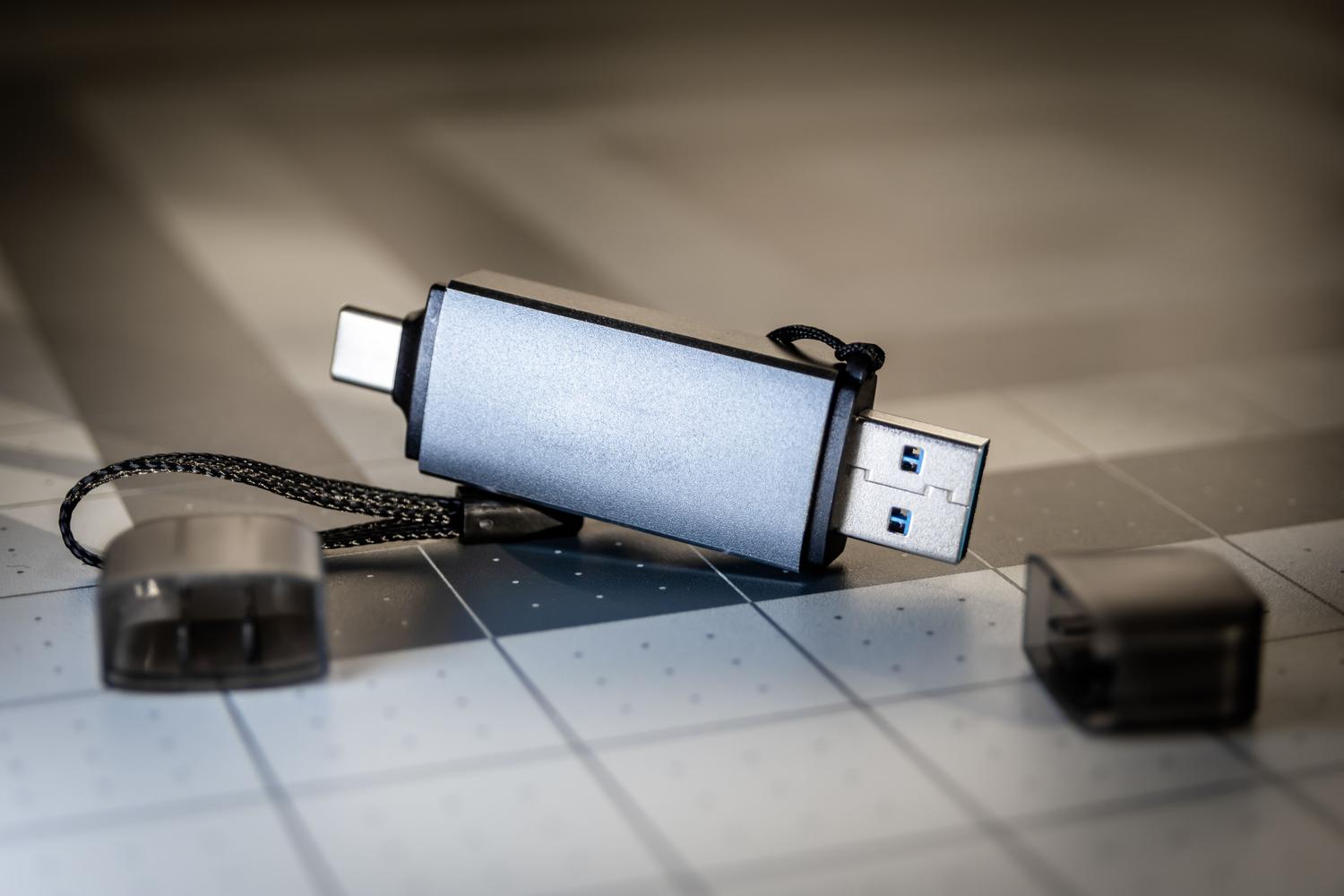
When Rufus is abruptly interrupted, whether by a power issue, an incorrect configuration, or a timeout, a choppy write state occurs . This leaves the partition table in a limbo where Windows doesn't know what to do with the drive.
One of the most common problems is the creation of a hybrid partition table . If the process is interrupted while writing the GPT header, the computer may mistake it for a raw MBR disk, rendering the drive invisible or inaccessible. Another common issue is FAT32 boot sector corruption ; this frequently occurs with Windows 11 because the install.wim file is often larger than 4 GB, and if the write operation fails, the volume is marked as RAW.
We also can't forget about USB controller power-gating . Some laptops cut power to the port if they detect that the transfer isn't responding, leaving the device physically connected but reported as an unknown device in Device Manager.
Step-by-step recovery guide for corrupted USB drives
Before you jump in blindly, make sure you have administrator privileges, a working USB port, and above all, that you don't have any important data on the flash drive, as the process is destructive . Ideally, use 8GB or larger flash drives, preferably 16GB to avoid problems with dual booting.
Phase 1: The physical restart
Sometimes the solution is the simplest: disconnect the memory and shut down the computer completely . Avoid suspending or hibernating, as a cold power cycle is needed to reset the USB controller. When you turn it on, connect the USB directly to the rear ports of the motherboard if it's a desktop computer, avoiding hubs or concentrators that could cause voltage problems.
Phase 2: Deep cleaning with Diskpart
If the drive still doesn't appear, we'll have to get down to brass tacks with the command prompt. Open Command Prompt as administrator and follow these steps:
- Write diskpart to start the tool.
- Usa list disk to locate your USB (pay close attention to the size so you don't erase your hard drive).
- Select the unit with select diskX (replacing X with your USB number).
- Run the command clean to erase any trace of corrupt partitions.
- Convert the unit with convert gpt and create the partition using create partition primary.
- Give it a quick format with format fs = fat32 quick and assign it a letter with assign letter=E.
If the drive is still not visible after this, you can try formatting it manually from Windows Disk Management , making sure it is not marked as RAW.
Rufus Master Configuration for Windows 11
To prevent this from happening again, it's vital to configure Rufus correctly. The most common mistake is choosing MBR when the system requires a GPT partition scheme and UEFI target system . If you're using a Windows 11 ISO, the installation file is very large, so you should select the large FAT32 (Default) option . This allows Rufus to automatically split the install.wim file, avoiding the infamous "file too large" error.
If Rufus is still giving you trouble, don't despair; you can use Microsoft's Media Creation Tool . Although it's slower and less flexible, it's much more conservative and usually works with hardware that Rufus rejects. Other interesting alternatives are Hasleo WinToUSB , ideal for creating Windows To Go versions, or Yumi and RMPrepUSB for those looking to manage multiple ISOs on a single drive.
Health diagnosis and common mistakes

If you've tried everything and the USB drive is still failing, the problem might not be the software, but rather that the flash controller has failed . Flash drives have a limited number of write cycles; if you've created dozens of bootable USB drives, it may have entered read-only mode.
To clear up any doubts, there are tools like ChipGenius to analyze the internal chip, or H2testw , which is the ultimate test for detecting counterfeit memory modules that report higher capacity than they actually have. It's also advisable to check CrystalDiskInfo to view SMART data and see if there are any reallocated sectors.
Quick solutions matrix
- Unbootable image error: The ISO file is probably corrupted. Download it again and verify the SHA-256 hash.
- USB not visible in boot menu: It's almost always because it was formatted as MBR instead of GPT.
- Undetermined error during formatting: Try pressing Alt+L in Rufus to change the available file system.
- Checksum error in UEFI: A bug was recently detected in AMI UEFI NTFS drivers that caused fragmentation failures; be sure to use Rufus 4.16 or higherwhich solves this by writing the files contiguously.
To avoid future problems, the wisest course of action is to buy memory from reputable brands like SanDisk or Samsung and disable USB selective suspend in Windows power settings. Remember that once Rufus starts writing, you shouldn't interrupt it, as this will leave the drive in an inconsistent state, forcing you to restart the cleaning process from scratch.
Maintaining the hardware in good condition and using the GPT partitioning configuration with the appropriate file system ensures that any modern computer will recognize the drive. Using cleanup tools like Diskpart and keeping the write software up to date will resolve most conflicts between UEFI firmware and the NTFS file system.