- Windows 11 safe mode starts the system with minimal files and drivers to isolate software and driver problems.
- Safe mode can be accessed from Settings, from the login screen, or by forcing the recovery environment.
- The Startup Settings screen offers several types of safe mode and advanced options for diagnosing boot errors.
- UEFI secure boot and proper startup configuration help protect and stabilize Windows 11 against malware and crashes.

Windows 11's Safe Mode is one of those tools you almost never use… until one day your PC starts malfunctioning, the screen goes black, it's filled with strange errors, or you suspect you have malware running rampant. It's at these times that this special startup mode becomes your best ally for diagnosing and repairing problems without so many programs and drivers interfering.
In older versions of Windows, simply pressing F8 at startup was enough, but things have become a bit more complicated. Even so, once you know where to look, you'll find several fairly easy ways to boot Windows 11 in safe mode , whether the system starts normally, you only see a black screen, can't log in, or your computer is stuck in a reboot loop.
What exactly is safe mode in Windows 11?
Safe Mode is a diagnostic mode in Windows where the system starts in a very basic state, loading only the files, drivers, and services essential for operation. In this reduced environment, startup programs, many third-party services, and most advanced hardware drivers are disabled.
When your computer works fine in safe mode but fails to boot normally, you can deduce that the problem isn't with the operating system kernel, but rather with a driver, program, service, or additional setting that loads only in standard mode. To avoid future driver issues, it's advisable to back up your drivers before making any significant changes.
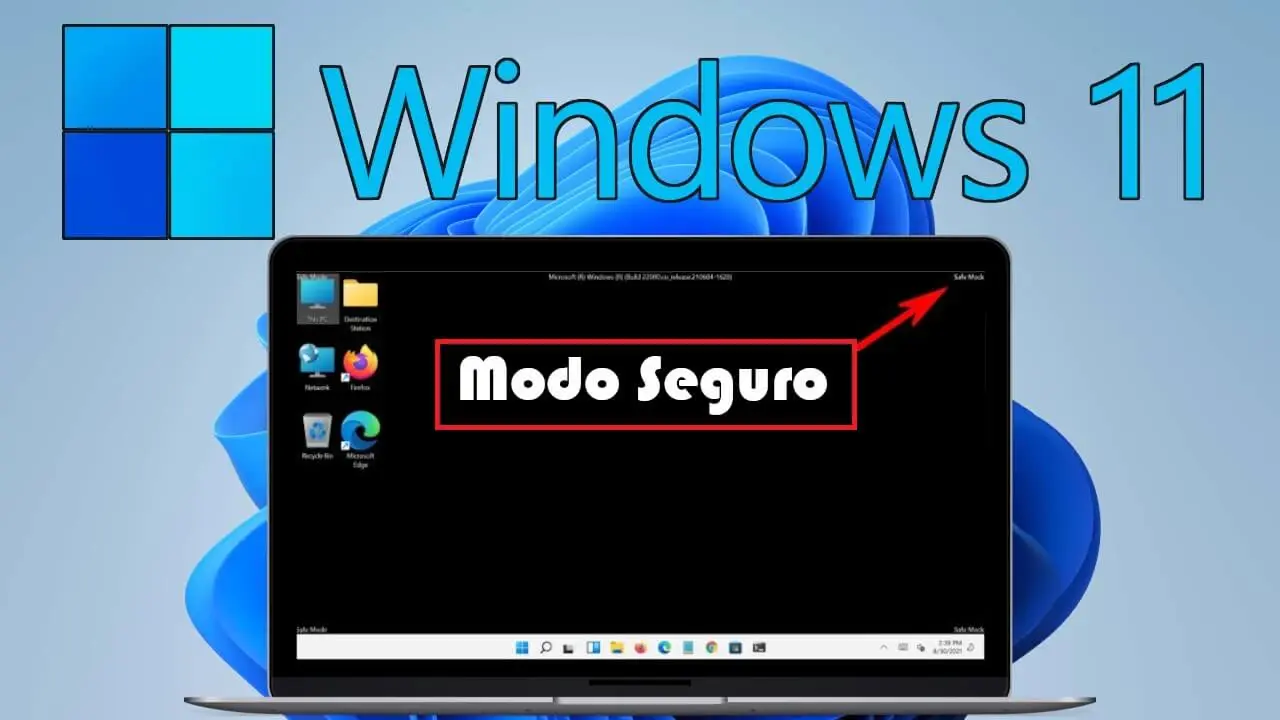
Visually, Safe Mode is quite noticeable: the screen resolution is usually low, a basic VGA-style graphics mode with a limited color palette is used, and you'll see the text "Safe Mode" in the corners. Files like autoexec.bat and config.sys are not loaded, and instead of the usual system.ini file, Windows uses a special batch file (system.cb) that handles mounting the essential virtual device drivers needed to communicate with the hardware.
Besides helping with viruses and malware, starting Windows in safe mode can help diagnose hard drive problems, overheating , and even some random crashes. By removing almost everything that isn't strictly necessary, it becomes easier to see if the problem is due to third-party software, unusual configurations, or a hardware component.
Types of safe mode available in Windows 11
Windows 11 offers several Safe Mode variants , designed for different needs. They all start from the same idea (minimal startup), but add or change some key components to adapt to different troubleshooting scenarios.
Standard safe mode : This is the basic version. It only loads the minimum drivers and services necessary for the system to start and be usable with the keyboard, mouse, and monitor. This is the option to use when you want to isolate the environment as much as possible, for example, to check if a specific driver or program is causing crashes or blue screen errors.
Safe Mode with Networking : This works the same as regular Safe Mode, but adds the necessary network drivers and services to access the internet or other computers on your local network. It's very useful if you need to download cleanup tools, update your antivirus software, or access shared resources. There is one important limitation: in many cases, Wi-Fi is not supported in this mode, so only a wired (Ethernet) network connection may work.
Safe Mode with Command Prompt : Instead of the traditional graphical desktop, the system boots directly into a command prompt window . It is primarily intended for system administrators and advanced users who want to run command-line utilities , commands, and scripts to diagnose or repair problems when the graphical interface crashes or fails to load correctly.
Keep in mind that in Safe Mode and Safe Mode with Command Prompt, the Windows Installer service is disabled, so you won't be able to install or uninstall applications using the usual method. This environment is designed for troubleshooting and fixing bugs, not for making major software changes.
How to start Windows 11 in safe mode from within the system
If the system starts normally and you can log in, the easiest way is to launch Safe Mode directly from Settings . Microsoft has centralized recovery options in what's called Advanced Startup , which provides access to the Windows Recovery Environment (Windows RE or WinRE).
To boot into Safe Mode from Settings in Windows 11, first open the Settings panel by pressing Windows key + I or by going to Settings from the Start menu. Within this panel, in the left-hand menu, go to System and then locate the Recovery section , where you'll find options related to startup and system restoration.
In the Recovery section, you'll see, among other options, Advanced startup . This option allows you to restart your computer in a special environment prior to normal startup. Click the Restart now button next to it to log off and restart the system directly in the recovery environment.
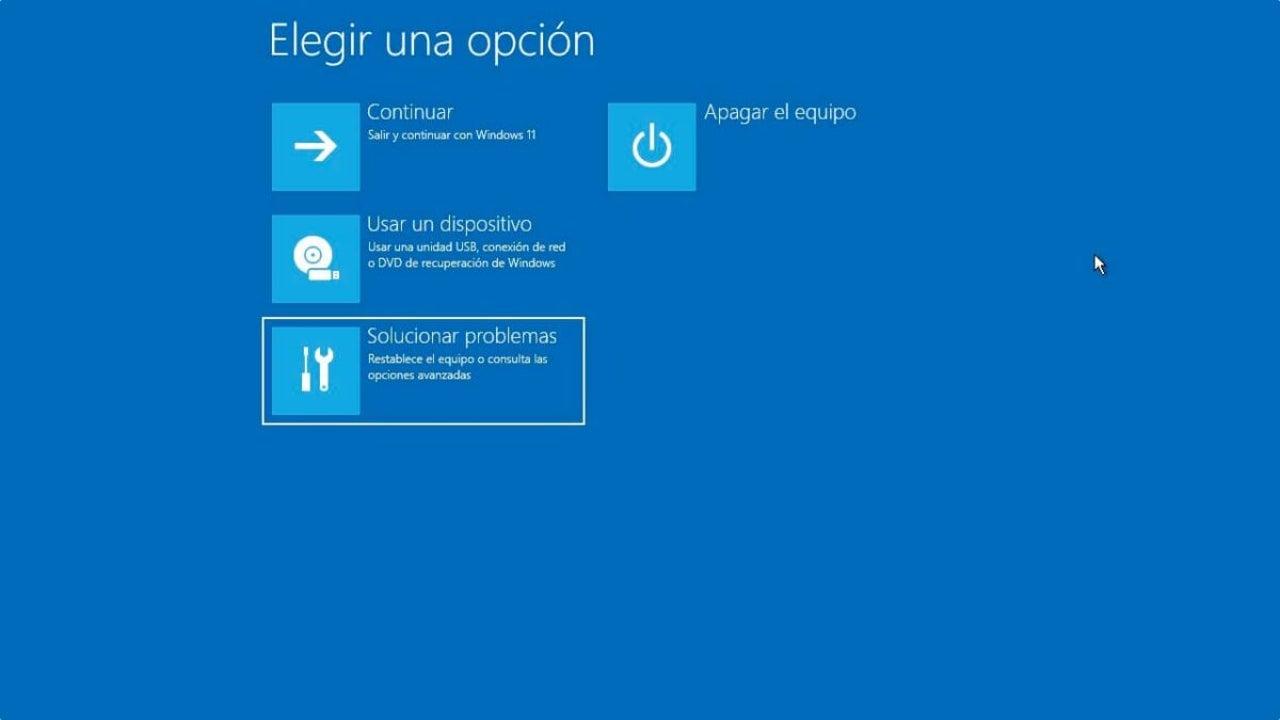
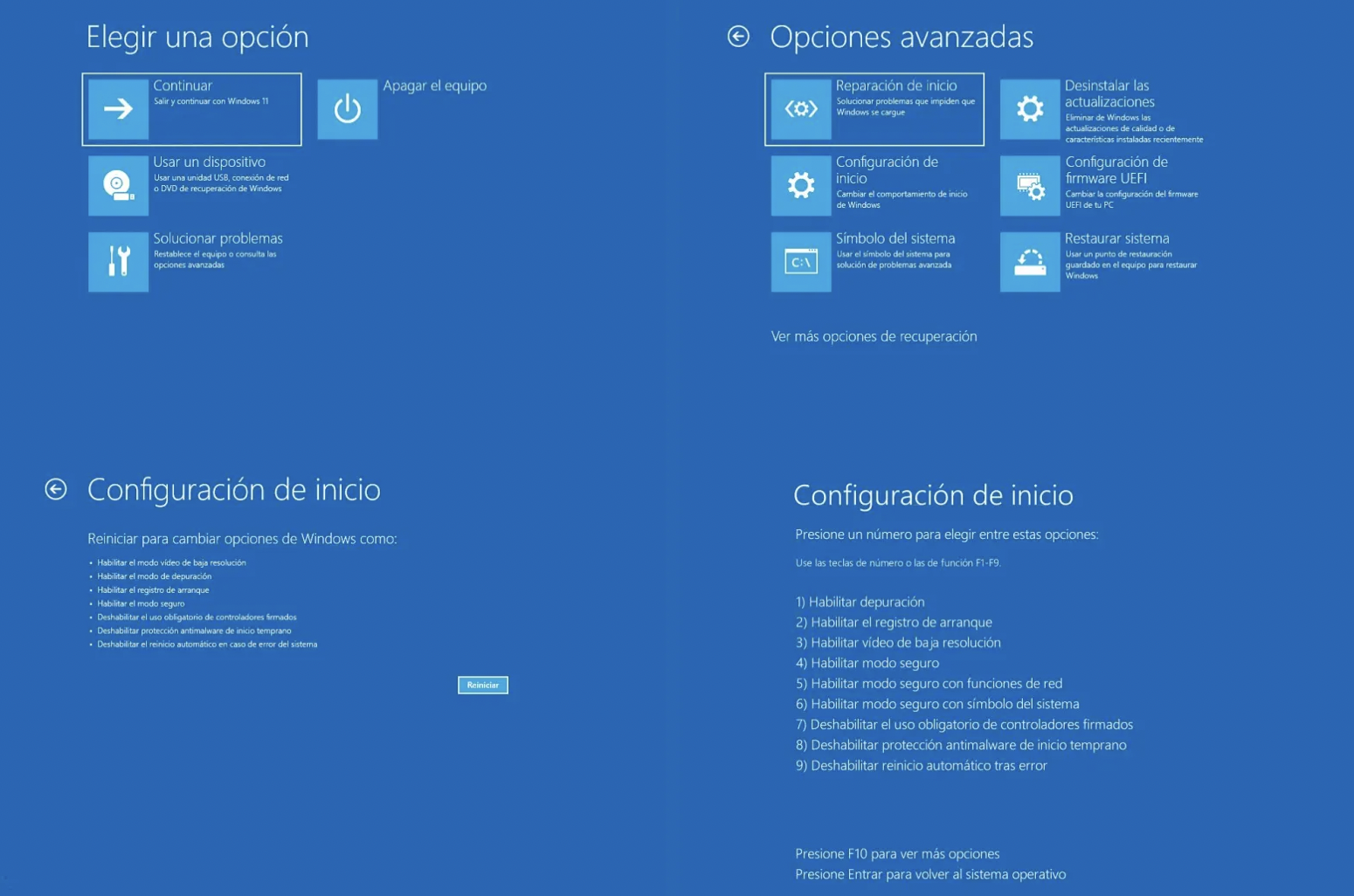
After restarting, the computer will display the Choose an option screen . Here, you should select Troubleshoot , which will take you to a set of tools to repair the system, restore your PC, or modify the startup process. Among the options in this section, choose Advanced options to access more technical startup-related features.
Within Advanced Options, you'll see several alternatives: System Restore , System Image Recovery , Startup Repair , Command Prompt , UEFI Firmware Settings (if your computer supports it), and Startup Settings , among others. In this case, the one we're interested in is Startup Settings , since that's where you can enable Basic Safe Mode, Safe Mode with Networking, and Safe Mode with Command Prompt.
On some computers, you might not initially see the Startup Settings shortcut on the first Advanced Options screen. In that case, look for something like " See more recovery options" to display the full list, and then select Startup Settings from there. Once there, Windows will show you a summary of the available options for the next boot and a button to continue.
Simply click Restart to restart your computer and display the startup settings screen , which shows a numbered list of boot modes. On this screen, you can select the type of safe mode you want to boot into using the numeric keys or F1-F9, as indicated: Enable Safe Mode (Normal), Safe Mode with Networking , or Safe Mode with Command Prompt.
Boot into safe mode from the login screen or from a special restart
Your problem might be that you can't access the desktop , but you can reach the login screen. In this situation, it's also possible to access the recovery environment and, from there, safe mode.
On the login screen, click the Power icon in the lower-right corner. Press and hold the Shift key on your keyboard, and while holding it down, select Restart . This combination will prevent Windows from starting normally; instead, it will return to the Choose an option in the recovery environment screen.
Once the computer restarts and this menu appears, the procedure is the same as described above: click Troubleshoot , go to Advanced options , select Startup Settings , and click Restart . On the next screen, you can choose, using the corresponding number, whether you want to activate Standard Safe Mode, Safe Mode with Networking, or Safe Mode with Command Prompt.
If your computer is stuck on a black or white screen, there's still a way to force it into the recovery environment . To do this, you'll need to interrupt the Windows startup process several times in a row. Press and hold the power button for about 10 seconds to completely shut down your computer. Then turn it on, and when you see it begin to boot, press and hold the power button again to shut it down once more.
Repeat this process of turning the computer on and forcing it to shut down three times . After several failed attempts, Windows will detect a boot problem and, on the next startup, will directly display the Advanced Recovery Options (winRE). From there, again, select Troubleshoot > Advanced options > Startup Settings > Restart and choose the type of Safe Mode you need using the numeric keys or the function keys F4, F5, or F6.
It's true that compared to the classic F8 key of older versions, it's somewhat more cumbersome, and many users wonder why Microsoft has made accessing Safe Mode so complicated . The main reason has to do with the new fast boot systems, the security of the UEFI firmware, and Secure Boot protection, which make the boot process very fast and difficult to interrupt with a single key press before the system loads.

Full list of Startup Settings options
When you reach the Startup Settings screen in the Windows Recovery Environment, you'll see more than just Safe Mode options. There's a whole list of settings designed for administrators and advanced users that help troubleshoot more complex system failures.
On this screen, you can select options using the numeric keys (1-9) or the function keys (F1-F9), depending on your computer. The main options that usually appear include the following:
- enable debugging: starts Windows in an advanced troubleshooting mode intended for technicians and administrators, which allows the use of external debugging tools.
- Enable boot loggingThis creates a text file called ntbtlog.txt where all the drivers loaded during startup are saved. It is very useful for check which driver is failing or causing crashes.
- Enable low-resolution videoThis starts the system with the current video driver but using a very low resolution and refresh rate. It is used for... reset screen settings that prevent you from seeing the desktop properly.
- Enable safe mode: option that activates basic safe mode, with the minimum set of files and drivers.
- Safe mode with networking: same as the previous one, but adds network drivers and services to be able to use the Internet or a local network.
- Secure mode with system symbolInstead of the desktop, a command prompt window opens so you can execute commands directly.
- Disable driver signature enforcementThis allows drivers with incorrect or unsigned signatures to be loaded, something you should only use in a... temporary for testing, as it reduces system security.
- Disable Early Launch Anti-Malware (ELAM) ProtectionThis feature causes antimalware software to load before third-party drivers to block malicious drivers. Disabling it allows Windows to load drivers that would normally be blocked.
- Disable automatic restart after errorThis prevents Windows from restarting automatically when a critical failure occurs. It is very useful if the system enters a infinite loop of errors and restarts, as it allows you to see the full error message on screen.
At any time, if you change your mind, you can simply press Enter to have Windows start normally without applying any of these special settings. This Startup Settings screen is intended as a temporary menu for that specific startup, unless you later enable other options using tools like msconfig.
Use safe mode to remove malware and fix common problems
One of the most common uses of safe mode is removing malware (viruses, Trojans, worms, spyware, ransomware, etc.) that you can't delete during a normal boot because the malware itself launches at startup and locks or restores its files. To identify advanced threats, it's helpful to know about specific tools like Rootkit Revealer.
In Safe Mode, because Windows only loads essential services and drivers , many malicious components fail to activate. This makes them much easier to remove, either manually or using security and antivirus tools. With fewer processes running, it's simpler to locate suspicious files, unusual background services, and startup entries that shouldn't be there.
It's also useful for dealing with misconfigured software installations, faulty drivers, or updates that have left your system unstable. If a video or sound driver is preventing Windows from booting normally, you can often uninstall or roll back the driver from Safe Mode, which disables problematic drivers and uses generic versions. If you need to completely remove video drivers, learn how to use DDU correctly.
It's important to remember that, as several manufacturers mention, in safe mode the system reduces some of its functionality: non-essential components are disabled, such as certain audio services, third-party drivers and services, some non-critical Windows services, etc. This makes the environment more limited, but precisely for that reason it's easier to isolate the cause of the problem.
A good practice is to combine using safe mode with maintenance utilities that clean temporary files, leftover registry entries, and program remnants. Tools like optimization suites can help keep your system running more smoothly, reducing the chances of software conflicts or overloads that slow down your PC . In specific cases, it's also useful to know how to force program uninstallation and clean the registry.
Secure Boot, UEFI and its relationship with Windows 11
In addition to Safe Mode, Windows 11 places great emphasis on another feature called Secure Boot , which is part of the computer's firmware. While Safe Mode is a reduced Windows environment that starts after the operating system loads, Secure Boot is a low-level security feature that operates from the UEFI/BIOS before Windows begins loading.
Secure Boot is designed to prevent malicious software from loading during startup , such as bootkits or certain types of malware that attach themselves early in the boot sequence. Most modern computers support this feature, but in some cases it is disabled or the computer is configured in Legacy BIOS mode (Legacy/CSM), which makes it appear as though Secure Boot is not supported.
To enable Secure Boot, you typically need to access the UEFI firmware settings . You can do this in Windows 11 by going to Settings > Update & Recovery (or Security, depending on your edition) > Security, and using the Advanced startup option to restart your computer. In the Windows RE menu, select Troubleshoot > Advanced options > UEFI firmware settings > Restart . This will open your computer directly to the UEFI settings screen, where you can enable Secure Boot.
The usual procedure is to switch from legacy BIOS/CSM mode to pure UEFI mode , ensuring that UEFI is the first or only boot option. Each manufacturer (Dell, Lenovo, HP, etc.) has its own way of displaying these menus, so it's advisable to review the official support documentation for your model before making any changes. In fact, Microsoft requires that computers upgraded from Windows 10 to Windows 11 support Secure Boot via UEFI, although in some cases this feature may be disabled by default and you may have to enable it yourself; if you've just updated the BIOS, check how to do this after the BIOS update.
Although the key requirement is that the device is compatible, it is highly recommended not to leave secure boot disabled unless there is a clear reason, as it adds an extra layer of protection against malware that tries to load before the operating system.
How to change startup settings and exit safe mode if it gets stuck
Sometimes, after using safe mode, the computer may always boot into that mode . Normally, a simple restart will return the system to normal mode, but if this doesn't happen, it's likely that an option in the Windows boot settings has been left selected.
To check this, press the Windows key + R to open the Run dialog box, type msconfig , and press Enter. The System Configuration window will open . Go to the Boot tab and check the Boot Options section. If the Safe Boot or Safe Boot box is checked , uncheck it so that the next restart will be in normal mode.
Next, click Apply and then OK . The system will ask if you want to restart now or later; if you're finished working, choose Restart for the changes to take effect. Once the restart is complete, Windows should start normally, with all the usual services and drivers.
If your computer has unexpectedly started in safe mode without your permission, you should also check this setting. The safe boot option may have been left selected due to a previous adjustment or after using a repair tool.
Another way to exit Safe Mode, when it doesn't stay locked, is simply to use the Start menu: click Start > Power > Restart . In most cases, this is enough to exit Safe Mode and return the system to the full Windows environment.
Understanding how Windows 11's safe mode works, the different ways to access it, and how it relates to options like UEFI secure boot allows you to control most startup problems, crashes, and strange system behavior, reducing the time you spend struggling with black screens and error messages and increasing your chances of recovering a seemingly lost PC without having to format it.
