- Acting quickly and cutting off all power minimizes the risk of fatal short circuits in the laptop.
- The type of liquid, the exposure time, and proper drying determine the actual severity of the internal damage.
- Drying is not enough: in many cases it is necessary to clean and check components for corrosion and residue.
- The best repair is prevention: safe, protective habits and technical service when needed.

Spilling a glass of water or coffee on your laptop is one of those moments that makes your heart sink in an instant . You're about to save a file, you bring the cup closer, one wrong move… and all the liquid ends up on the keyboard. Before you panic, it's important to know that if you act quickly and thoughtfully, you have a good chance of saving your computer or at least minimizing the damage.
In the following lines, you'll find a comprehensive guide based on recommendations from technical services, manufacturers, and laptop repair specialists. You'll learn what to do immediately after a spill , how to properly clean and dry your laptop inside and out, which methods are pure myth (hello, rice!), the dangers posed by different liquids, and when it's best to stop improvising and take your device to a professional.
What really happens when a laptop gets wet?
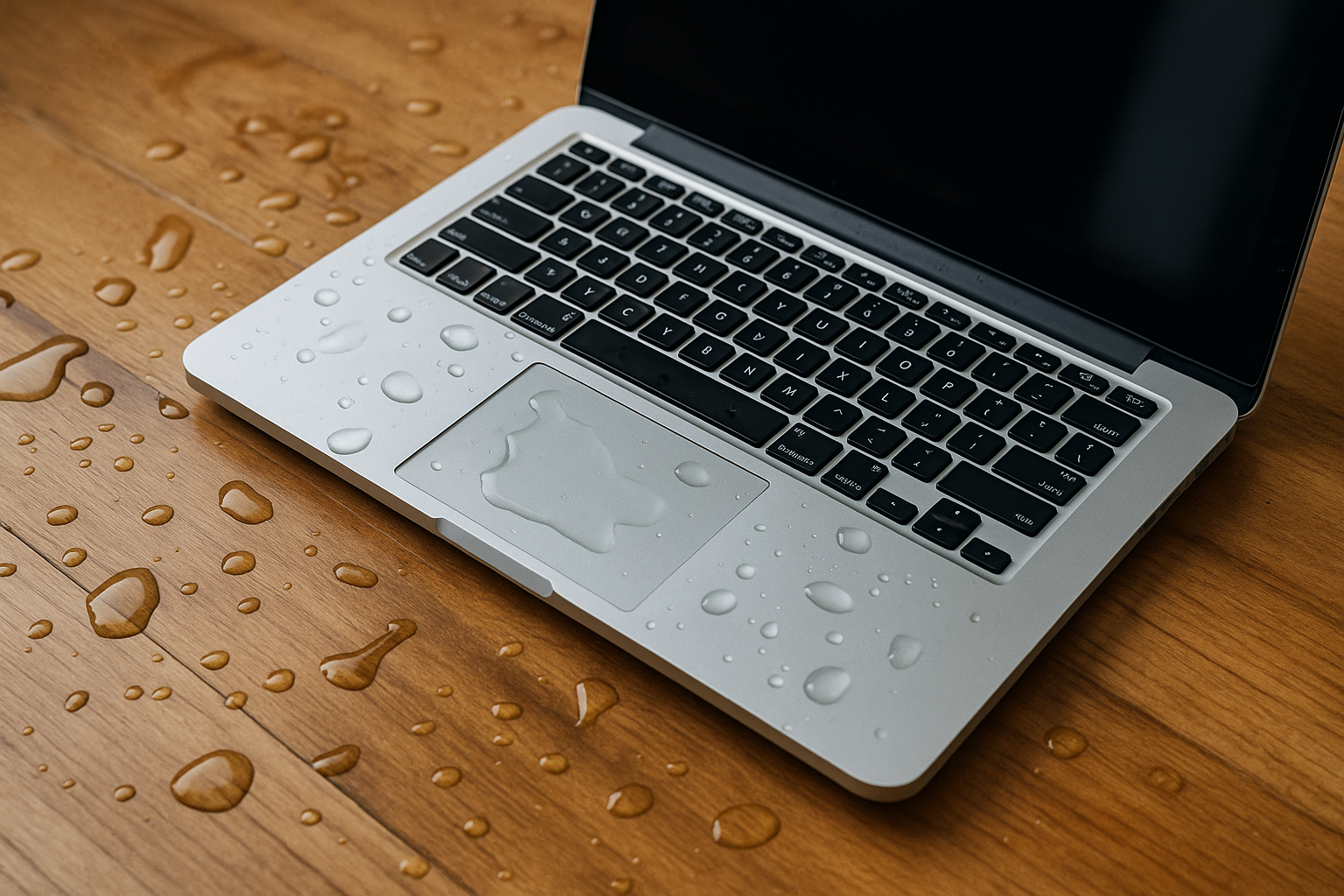
When water or any other liquid gets inside a laptop, it doesn't just get the outside wet: it can reach the motherboard, memory, graphics card, battery, or keyboard, causing immediate short circuits, progressive corrosion, and intermittent malfunctions . Even if the computer seems to continue working normally for a few minutes, the damage may be happening internally.
Electronic components are designed to operate at very specific voltages and with perfectly insulated areas. If a conductive liquid creates a bridge between traces or pins, a short circuit occurs that can melt small components , damage capacitors, cause sparks, and even smoke or a small explosion, especially in the power supply or the power input area.
It's not all about electricity: many liquids (sodas, coffee, juices, alcoholic beverages, cleaning products) have a very acidic or very alkaline pH , in addition to sugars and salts. This accelerates metal corrosion and leaves sticky residues that, over time, can render keys, ports, or even the motherboard itself unusable, even if everything seemed fine at first.
Water spilling on the keyboard or casing doesn't necessarily mean the laptop is doomed, but from that moment on, every second counts, and every wrong decision can significantly worsen the prognosis . That's why it's so important to know the correct steps and also the common mistakes to avoid.
Urgent first steps when you spill water on your laptop
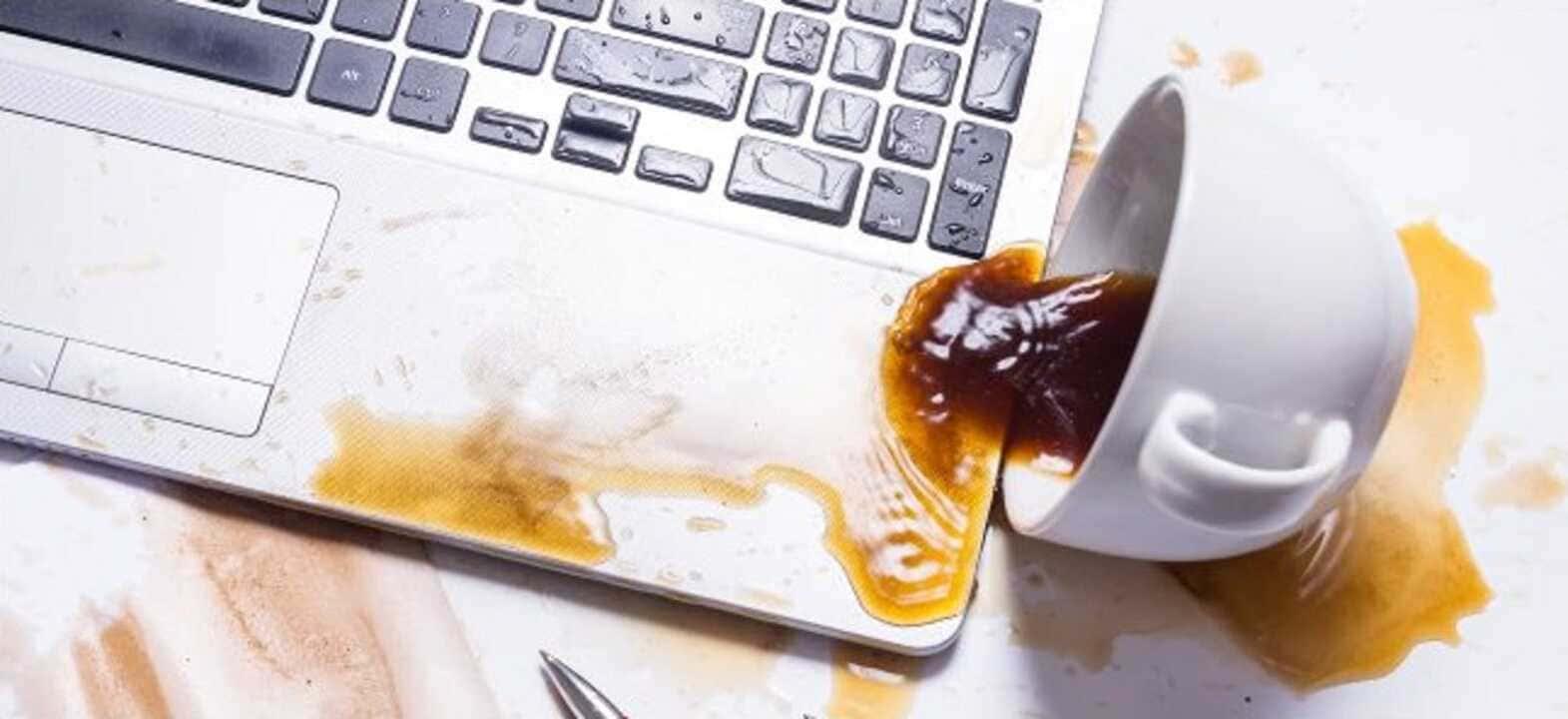
The moment the liquid touches the computer, your absolute priority should be to cut off the power and contain the water . There's no time to overthink it, so it's best to have these steps clear beforehand.
1. Personal safety before the laptop
It might seem like overkill, but if you're barefoot, the floor is wet, or your clothes are soaked, the first thing to do is move away from any electrical outlets and avoid touching plugs with wet skin . If your laptop is plugged in and a lot of liquid has spilled on it, there's a risk of electric shock, however small.
Only when you are certain it is safe to do so approach the computer and proceed with the remaining steps. If you see sparks, smoke, or flames, turn off the main power to the house if possible and call emergency services ; the laptop is the least of your worries in that situation.
2. Turn off the laptop immediately
If the computer is still on, hold down the power button until it shuts down, without wasting time closing programs or saving anything. In this case, the important thing is not the Word document, but preventing the liquid and the electrical current from coinciding inside the computer for longer than absolutely necessary.
If your laptop shut down on its own as soon as it got wet, it's very likely that a short circuit occurred and a protective mechanism kicked in. In that case, don't try to force it to turn back on , because you could damage a component that might still be repairable.
3. Disconnect charger, battery and peripherals
Once the device is turned off, unplug the power adapter from the wall outlet and the laptop itself. If your model allows it, manually remove the battery; doing so as soon as possible greatly reduces the risk of electricity continuing to flow through wet areas.
Next, disconnect any external devices: USB mice, hard drives, memory sticks, printers, SD cards, headphones, etc. Besides preventing damage to the devices themselves, you'll also prevent them from introducing moisture to other parts of the computer. Anything with a cable or connector should be removed from the computer at this time.
4. Place the laptop to drain.
Having done the above, the next step is to make things easier for gravity. Open the laptop as far as the hinge allows and place it in an inverted V shape , keyboard facing down, on an absorbent surface (towels or paper towels). The idea is for the liquid to drain outwards and not continue seeping into the motherboard.
Maintain this position while absorbing the visible water from the casing with a paper towel or soft cloth. It's important not to drag forcefully, but rather to place the cloth and press lightly to avoid pushing the liquid into any grooves, vents, or gaps in the keyboard.
5. First removal of visible liquid
With the device already in an inverted V or at least very tilted, use kitchen paper or a microfiber cloth to collect all the water you see on the surface : keyboard, palm rest, lid, edges, side ports, bottom area... The less that is visible, the less you will have to wring later.
If you have cotton swabs, you can carefully wipe the joints between keys, ports, and crevices to help absorb any remaining drops. Don't force anything inside and avoid leaving any cotton swabs inside the connectors.
Influence of the type of liquid: water is not the same as coffee
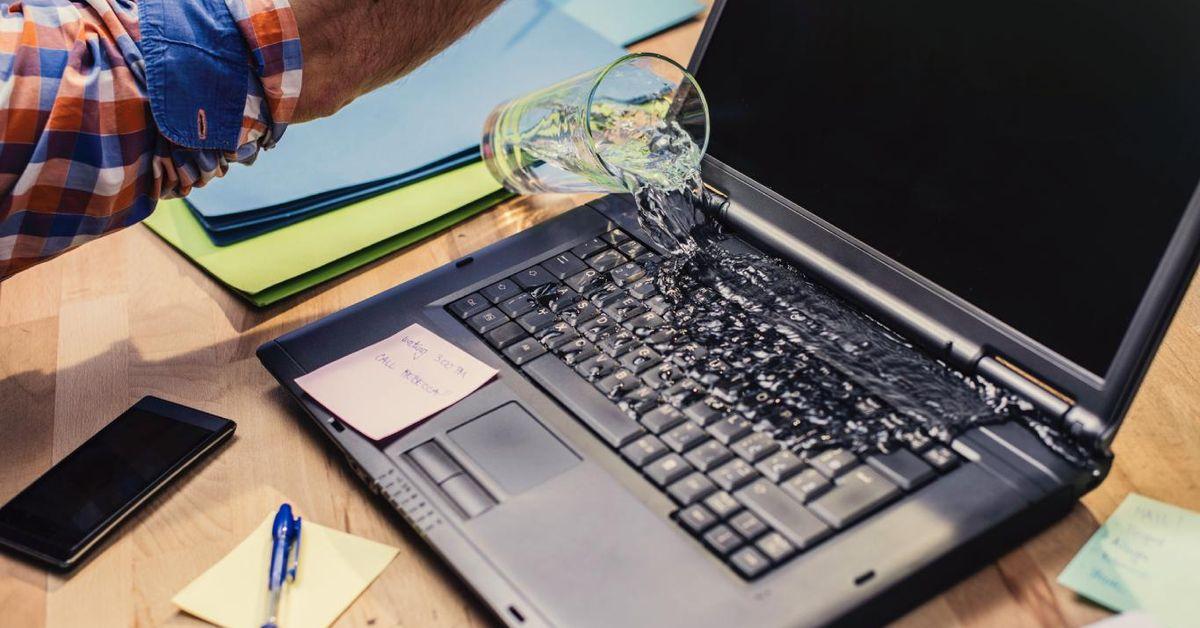
Not all spills are equally serious. The nature of the liquid, beyond the quantity, greatly influences the type of damage to expect and the urgency with which internal components need to be thoroughly cleaned to remove corrosive or sticky residues.
Pure water, with a pH close to 7, is relatively neutral and, if you act quickly, can often restore a laptop with a good cleaning and drying . But in real life, it's almost never distilled water: it's usually tap water, with limescale and salts, or soapy water, seawater, or pool water, which significantly changes the situation.
Salt water (like seawater) or slightly alkaline water (like water from a chlorinated pool) tends to leave crystals and deposits as it dries, which can cause corrosion and create permanent conductive bridges between previously isolated contacts. The higher the salinity and the longer the device has been without cleaning, the worse the problem becomes.
Acidic drinks, such as orange juice, cola, or energy drinks, have low pH levels (for example, around 2,3 for lemon juice, 2,5-3,5 for cola, and around 3,5 for many fruit juices). This acidity, combined with sugar, causes them to corrode metal circuits more quickly, leaving a sticky film that is very difficult to remove without disassembling the device.
There are also clearly alkaline liquids, such as some soaps (pH 9-10) or even bleach (above 12). These types of substances damage plastics, coatings, and welds , and require even more thorough cleaning with isopropyl alcohol or deionized water, ideally using professional equipment such as ultrasonic cleaners.
Beer, wine, coffee, and tea have intermediate pH values (approximately 4,5 for beer, 5 for coffee, and 5,5 for tea), but they contain sugars, acids, colorants, and suspended solids. In these cases, even if you dry the outside thoroughly, what remains inside will continue to corrode and adhere to connectors and traces if it is not physically cleaned.
External drying: how to treat the casing and keyboard

Once the emergency response is under control (power off, disconnection, drain position), it's time to work on the exterior to ensure there are no puddles in any visible area and to minimize the entry of more fluid into the system. This phase is simple, but it must be done patiently.
Start with the lid, sides, and base. Always use a lint-free cloth or good-quality absorbent paper. The idea isn't to scrub roughly, but rather to gently press and lift the absorbent material so it soaks up the water without scraping or pushing.
On the keyboard, gently insert the tip of a thin napkin or paper towel between the keys, letting the paper act as a wick and absorb the moisture . Do not try to pry keys apart or insert hard objects; the mechanisms of many keys are very fragile and it is easy to break the tabs.
Pay attention to the ventilation and speaker areas as well. Even if you can't reach inside, you can dry the area immediately around the vents and remove any droplets before they get into the fans or the inside of the chassis.
If the spill was small and only splashed superficially, this step and a good amount of air drying time may be sufficient. Even so, as a precaution, you shouldn't turn the equipment on for several hours , even if it doesn't appear that much water got in.
Disassembling and drying your laptop: when and how
When a significant amount of liquid has entered the laptop, when the battery cannot be easily removed, or when the liquid wasn't simply water, the safest course of action is to open the laptop and dry/clean the internal components one by one . Let's be honest: if you're not comfortable with the repairs, it's best to accept the situation and take it to a technician.
If you decide to do it yourself, first look for specific information for your model (manufacturer's manual, repair guides, videos) to correctly locate each screw, tab, and connector. Many modern laptops require very fine precision screwdrivers like Torx or Phillips , and forcing them with unsuitable tools can deform the casing or damage the chassis.
Once the bottom cover is removed, identify the battery, storage drive, RAM modules, fans, and motherboard. Ideally, disconnect and remove each component carefully , taking photos if necessary to remember how each ribbon cable, connector, and screw was connected.
With the components removed, repeat the drying process using microfiber cloths and cotton swabs. The goal is to remove any visible traces of liquid, especially around the edges of the board, the connectors, and the power supply area . Do not rub vigorously and avoid snagging small components with the cloth or cotton swab.
At this stage, it's common to find areas with slight corrosion, whitish stains, or sugary clumps if the liquid contained sugar or salt. If this is the case, drying alone isn't enough: a chemical cleaning process is necessary , which we'll cover in the next section.
Deep cleaning of electronics: isopropyl alcohol and other methods
Drying is only half the job. Residues left by many liquids remain even after the drops are no longer visible. Therefore, many professional liquid damage protocols recommend cleaning the logic board and affected components with a suitable cleaning fluid.
The most commonly used cleaning agent is high-purity isopropyl alcohol (ideally 90% or higher). This type of alcohol evaporates quickly, leaves almost no residue, and is much less conductive than water. The most effective method, if the damage is extensive, is to submerge the circuit board in a container of alcohol and gently brush it with a soft-bristled brush (such as a soft toothbrush or a precision cleaning kit), paying particular attention to connectors, contacts, and areas where corrosion is visible.
Alternatively, distilled or deionized water can be used for an initial wash when the soiling is extreme, although it takes longer to dry and requires a subsequent rinse with isopropyl alcohol to help remove the water. In any case, aggressive solvents such as acetone, ketones, or naphtha should be avoided , as they can damage plastics, varnishes, and adhesives.
The most well-equipped repair services use ultrasonic cleaners with solutions specifically designed for electronics. These machines allow access to inaccessible areas under chips and components , dislodging debris with high-frequency vibrations. This is not usually feasible for a home user, but it's worth knowing that it exists and can make all the difference when the damage is severe.
After chemical cleaning, the components must be thoroughly dried again. You can use compressed air (without using excessive pressure) or a hairdryer on the cool or slightly warm setting, always maintaining a distance and avoiding blowing very hot air directly onto the board . Another option is to leave the parts under a desk lamp that provides gentle, constant heat for a few hours.
Before finalizing the process, carefully inspect the edges of the board, the ends of the ribbon cables, and the connectors using a magnifying glass or good lighting. Any traces of green, white, or dark corrosion must be completely removed before reassembly , or problems will reappear over time.
Moisture absorbers: rice, silica gel, and other options
One of the most common tips on the internet is to put your laptop or its components in rice to dry them out. This method has some truth to it and some myth. Rice is capable of absorbing moisture and, in fact, can retain up to twice its volume in water , but that doesn't mean it will leave a device completely dry and clean on its own.
In a laptop, the gaps are large, and there are fans, ports, and delicate mechanisms. Putting a motherboard or the entire laptop in a box full of rice can result in grains getting into fans, slots, and ports , creating new problems that didn't exist before. Furthermore, rice doesn't clean corrosion or sugary residue; it only helps with ambient humidity.
A much more effective option is to use silica gel packets , those small sachets that come in boxes of shoes, electronics, and many food items to keep them dry. Silica is a very powerful desiccant: it absorbs quickly and can be reused by drying it at a low temperature. Surrounding the circuit board, battery, and other components with these packets, inside a sealed box, is an excellent way to speed up the final drying process after cleaning.
However, caution is advised: some industrial desiccants may contain fungicides or pesticides. In domestic settings, it's advisable to reuse the sachets that come with food or consumer products, which shouldn't contain hazardous substances that could come into contact with your hands.
In any case, both rice and silica are complements to drying and cleaning, not substitutes. No desiccant in the world will remove traces of dried Coca-Cola, sugary coffee, or salt water stuck to a copper track. If the liquid wasn't clean water, the affected area must be physically cleaned , no matter what.
Dangerous myths and common mistakes when drying a wet laptop
In trying to help their laptops, many people end up doing the exact opposite of what they should. There are a number of widespread myths that are worth being aware of so you don't fall for them and end up causing damage that you might otherwise have avoided.
One of the most common mistakes is using a hairdryer on full power . Direct, intense heat on plastics, solder joints, and lithium batteries is not a good idea. You can deform connectors, soften adhesives, damage the screen, or create thermal stresses that break something that was previously intact.
Another common mistake is trying to turn the laptop on repeatedly after a few minutes "to see if it still works." This can actually cause the fatal short circuit that was needed. It's recommended to wait at least 24 to 48 hours after a moderate spill, and up to 72 hours if a lot of liquid got in or if you weren't able to disassemble and clean it properly.
It's also not a good idea to attempt to disassemble half a laptop without any prior knowledge. Opening a modern device can void the warranty and end up as a puzzle if you don't know how to reassemble ribbon cables, clips, and screws. Liquid damage is already a delicate matter, and adding assembly errors certainly doesn't help.
Finally, some people spray unsuitable household cleaners or alcohols directly onto the keyboard or circuit board, thinking this "disinfects" or cleans it better. Many of these products contain additives, perfumes, and corrosive components that have no place inside an electronic circuit. For electronics, only distilled water and high-purity isopropyl alcohol should be used—nothing else.
Different scenarios: it keeps working, it shuts down, there's smoke…
Once the initial shock subsides, the laptop's behavior provides several clues about the potential extent of the damage. There are three typical situations that can help guide your next steps without taking unnecessary risks.
If the laptop was turned off and unplugged when it got wet (for example, from rain coming in through a window), the chances of saving it are higher. Even so, many laptops remain plugged in and the battery continues to supply power to certain circuits, so there are no absolute guarantees. In this case, the prudent thing to do is treat it like any other spill: unplug it, dry it, open it if necessary, and give it enough time before turning it on.
If your laptop is still working after the spill and hasn't apparently frozen or shut down, don't be complacent: it just means the damage isn't over yet. The correct thing to do is shut it down as soon as possible, unplug everything , and follow the entire drying and internal inspection protocol. Leaving it on "because it seems to be working fine" is the perfect recipe for something critical to fail within minutes or hours.
In the most worrying scenario, when the computer suddenly shuts down after getting wet, or worse, if you see smoke, sparks, or hear a small explosion, it's very likely that some component has been seriously damaged . Swollen, cracked, or burnt capacitors on the motherboard, graphics card, or power supply are quite common in these types of accidents.
If you notice these symptoms, it's best not to try turning it on again and seek professional help. A technician can disassemble everything, visually locate any burnt components , and assess whether it's worth replacing the part (motherboard, keyboard, screen, battery, etc.) or if the cost would be significantly higher than the laptop's value.
Use of silica gel, fans and air for final drying
After the cleaning and initial drying phase comes the most tedious part: waiting. This is where combining several methods makes sense to ensure that no trace of moisture remains trapped in crevices and inner layers.
Placing the motherboard, battery, and other components on a dry surface in a warm, well-ventilated area is essential. If possible, create a sort of "drying chamber" using a box containing the hardware and several silica gel packets distributed around it , sealing the box tightly to ensure maximum air dryness.
A desktop fan directed at low speed towards the components helps refresh the air on the surface and accelerates evaporation. Avoid placing the laptop directly on a strong heat source (radiators, stoves, ovens), because excessive, localized heat can warp plastic parts or end up being worse than the humidity itself.
The minimum reasonable time is usually 24 hours for very small spills with nearly clean water and good initial drying, but in many cases it's wiser to wait 48 or even 72 hours . A little extra patience can save you the unpleasant surprise of a delayed short circuit on the first attempt to turn it on.
Review and testing after drying
Once the waiting period has finally passed and everything seems dry, it's time to systematically check if the laptop has survived and in what condition. It's best not to rush through things here, but rather follow a short checklist to ensure you don't miss anything important.
Start with a visual inspection: look for stains, corrosion, bubbles, or discoloration on the circuit board, battery, connectors, and cables. Any unusual detail indicates that the area deserves a second cleaning or, at the very least, extra attention.
Next, install only the essential components needed to start the computer: motherboard, RAM, storage, and, if integrated, the screen. Avoid connecting external peripherals during the initial test, and if you have any concerns about the battery, try powering the computer using only the charger (or vice versa, using only the battery if the charger may have been damaged).
If the computer turns on, check its overall behavior: boot times, unusual fan noises, system stability, screen artifacts, spontaneous restarts, etc. Then test USB ports, HDMI, card reader, Wi-Fi, Bluetooth, sound, microphone, and camera to ensure everything is working.
Don't forget the keyboard and touchpad: press each key one by one, check if any are stuck or unresponsive, and try the basic touchpad gestures. If the touchpad fails, consult keyboard shortcuts . It's common for the keyboard to be damaged after a spill, even if the rest of the laptop works fine ; in many models, only the keyboard can be replaced.
When is the best time to go to a repair shop and what can they do there?
No matter how handy you are, there are times when it's wise to stop experimenting and call in professionals. If the liquid wasn't water (or if it was, but contained sugar, salt, or other additives), if the laptop doesn't turn on after drying , or if you notice clearly burned components, a specialized repair service is your best bet.
A good repair shop has diagnostic tools, professional compressed air, high-purity isopropyl alcohol, ultrasonic cleaning tanks, and, above all, experience in identifying recurring failure patterns in specific models. They can completely disassemble the machine, clean each part, and replace only what is actually faulty, instead of blindly replacing parts.
The least unpleasant aspect, of course, is the cost. Depending on the damage, repairs can range from a simple keyboard replacement to a complete motherboard or screen replacement , which isn't always worthwhile for very old or low-end laptops. That's why it's important to always request a quote beforehand and weigh the cost against the expected lifespan.
Furthermore, the warranty issue shouldn't be overlooked. Most manufacturers explicitly exclude liquid damage from their standard warranty. And opening the device yourself, if it's still under warranty, could leave you without coverage for any future repairs . If the laptop is relatively new, it sometimes makes sense to call the official service center first to see what options they offer, even if you'll have to pay.
Prevention: How to minimize the risk of getting your laptop wet again
After experiencing the shock of a soaked laptop, it's normal to become a bit more paranoid about liquids near your device, and with good reason. There are a number of simple precautions that can save you a lot of trouble and repair bills in the future.
The most obvious solution is to keep drinks and liquids away from your work area . If that's difficult, at least use bottles or cups with lids, so an accidental bump doesn't result in a waterfall all over your keyboard. It also helps a lot to have your laptop elevated on a stand and your glasses on a slightly lower part of the table.
Another useful barrier is silicone keyboard covers or membranes . On desktop computers, these protect the external keyboard, and on laptops, they often make the difference between a wet keyboard and a soaked interior. There are also laptops with "spill-resistant" keyboards or certified for water resistance, which offer added peace of mind.
When transporting your laptop, use backpacks or cases with some level of water resistance, especially if you're traveling on foot or by motorcycle. An unexpected downpour or a bottle that opens inside your backpack can cause a disaster without you realizing it until hours later.
Finally, get into the habit of making frequent backups , both on external drives and in the cloud. Spilling water is just one of the many potential threats to your data; if your hardware fails, at least don't let it take your photos, work, and important documents with it.
A water or coffee spill on your laptop doesn't necessarily mean its immediate demise, but it is a delicate situation where every second and every decision counts: turning it off and unplugging it quickly , drying and cleaning it methodically, respecting drying times, not trusting myths like miracle rice, and knowing when to stop and go to a technician are the key factors that most influence whether your computer ends up coming back to life or becoming an expensive paperweight.
