- Essential security strategies to prevent the spread of malware and protect sensitive data.
- Technical recommendations for physical and logical maintenance to maximize the device's lifespan.
- Detailed analysis of USB versions and their impact on file transfer speed.
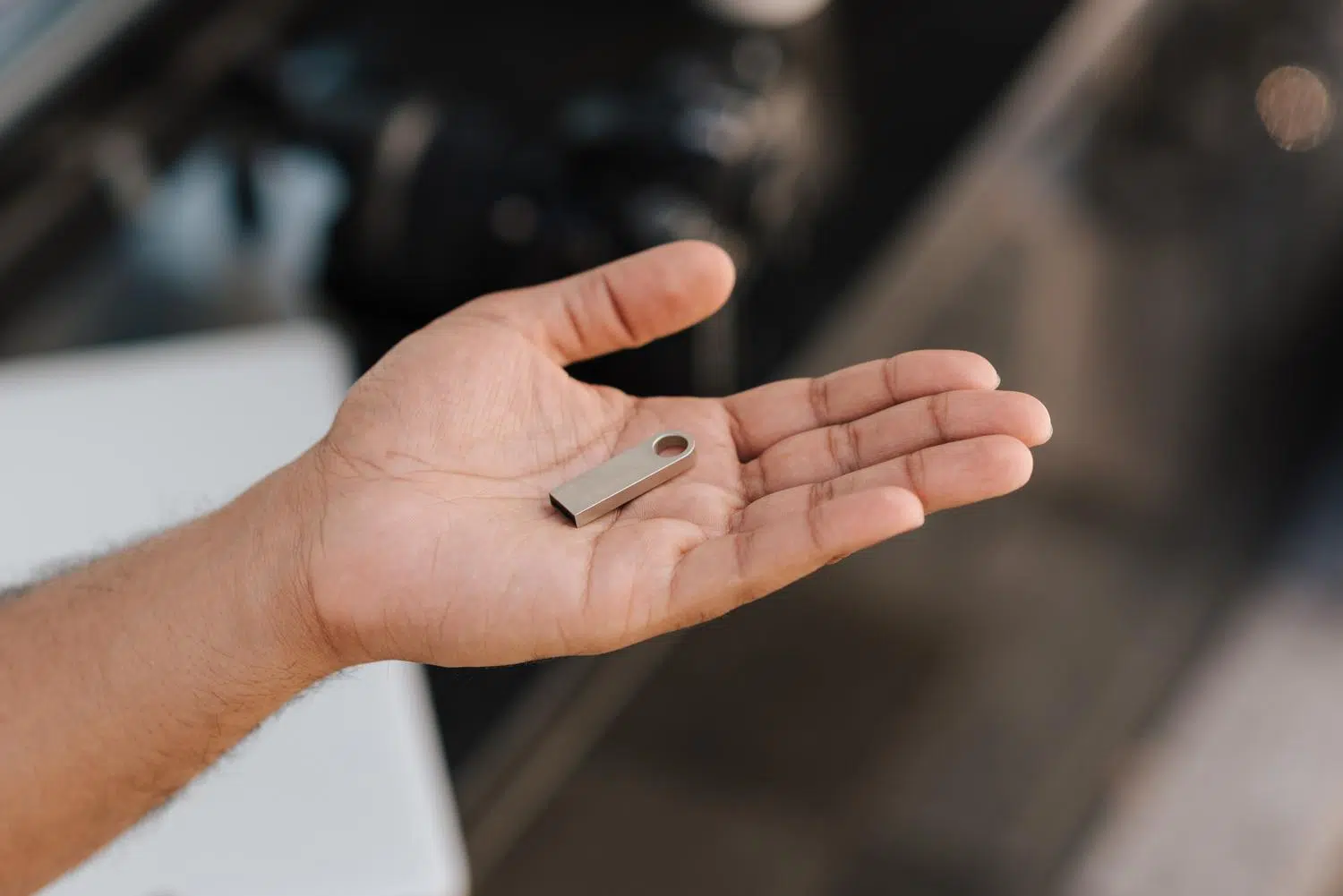
You probably have one of these little devices tucked away in a drawer or hanging from your keys. USB drives have become the standard for moving files , making quick backups, or taking our music and videos with us wherever we go. They're so convenient that we sometimes forget that, although they seem indestructible, they have their weak points and can be an open door for viruses to cause problems.
The problem is that many people use them blindly, plugging them into any computer without considering the risks. To avoid the unpleasant surprise of losing your data or damaging the hardware , it's essential to understand not only how they work internally, but also the best practices to ensure they last for years and your data remains safe.

Safety measures to avoid scares

This is no joke: a significant portion of malware spreads through these devices, especially in office or home environments where offline files are shared. To prevent your computer from becoming infected, the first thing to do is never store confidential data unprotected; if you lose your USB drive or the PC you connect it to has a Trojan, your personal information could be exposed in the blink of an eye.
Another golden rule is to avoid public computers . Those machines in copy shops or libraries are a breeding ground for viruses, since hundreds of people use them. Likewise, avoid connecting USB devices that you should never connect to your computer or that are of dubious origin, as they could contain malicious scripts that run on their own.
To keep things under control, a good strategy is to use multiple USB drives : one exclusively for personal files and another "workhorse" drive for lending or use in public places. If you want to increase the level of protection, the ideal solution is to encrypt the files or the entire drive with tools like BitLocker, ensuring that no one can read the contents if the device falls into the wrong hands. Additionally, it's highly recommended to disable autoplay in your operating system so that no file runs without first being scanned with your antivirus software.
How to care for your hardware so it doesn't die prematurely

To prevent your USB drive from failing prematurely, the most important habit is to use safe system removal . If you boot from the USB drive while the computer is still writing data, you can cause file system errors or even render the device unusable. Although modern systems manage write caching better, don't take the risk and wait for the system to tell you it's safe to remove.
Regarding the physical aspect, don't neglect the connector's protective cap . It's not just for aesthetics; the cap prevents dust, lint, or moisture from getting into the contacts, factors that degrade performance. Likewise, don't force it into the port; remember that they are unidirectional, and if it doesn't go in the first time, you're probably trying to insert it backward.
Other simple but effective recommendations include not leaving the USB drive plugged in permanently, as constant read wear and the risk of power surges can damage the memory. It's also vital to ensure the host computer has sufficient battery power while writing files, since a sudden power outage during writing is one of the most common causes of data loss.

Technical aspects and performance
It's helpful to know that these drives use solid-state (NAND) circuitry, making them much more durable than older storage methods and more resistant to data evolution . However, they have a limited number of write and erase cycles. Depending on the technology (SLC or MLC), they can withstand anywhere from a few thousand to a million cycles. Therefore, it's best to work on files on your PC's hard drive and copy them to the USB drive only at the end , rather than editing the document directly from the drive.
In terms of speed, we've gone from USB 1.1 to USB 4. The differences are enormous: while older versions were slow, the USB 3.0 standard and its successors allow for much faster bidirectional transfers thanks to a greater number of data lanes. If you have a modern computer, prioritize USB 3 or 4 drives to take advantage of the bandwidth.
- USB 2.0: Up to 480 Mbit/s.
- USB 3.0 / 3.1 Gen 1: Up to 5 Gb/s.
- USB 3.2 Gen 2×2: Up to 20 Gb/s.
- USB 4: Up to 40 Gb/s.
To optimize performance, proper formatting is key . For drives of 32 GB or less, the exFAT format with allocation units of 32-64 KB is ideal, while for larger capacities, increasing to 128 KB is recommended. If you need compatibility with very old devices, you can format a USB drive to FAT32 , although keep in mind that this format does not support individual files larger than 4 GB.
Advanced maintenance and utilities
Occasionally, it's a good idea to format the drive to clear errors and optimize space, always making a backup beforehand. For more technical users, tools like H2testw or the MS-DOS command CHKDSK can detect bad sectors . If the system can't repair them, it's time to replace the drive before the data is lost.
Besides storing documents, these drives are fantastic for storing portable applications that don't require installation, or even for creating a Live USB to install Linux . Just remember that, to prevent excessive heat from damaging the components, don't expose the device to direct sunlight or extreme temperatures.
Keep in mind that the combination of proper formatting, encryption , and the habit of safe ejection transforms a simple piece of plastic and silicon into a professional and durable work tool. Maintaining digital hygiene, avoiding infected devices, and protecting the physical integrity of the connector is the only way to ensure our information is available when we truly need it.
