- Quick methods using keyboard shortcuts and the integrated emoji panel.
- Using system tools such as the Character Map and the touch keyboard.
- International keyboard settings to facilitate the writing of diacritics.
- Insertion of characters using ASCII and Unicode codes.

Sometimes, while writing an important email, a school assignment, or simply posting on social media, we find ourselves needing a specific symbol that's nowhere to be found on our physical keyboard. Whether it's an accented letter from another language, a complex mathematical symbol, or a foreign currency, not knowing how to type them can be a real headache.
The truth is that Windows 11 offers plenty of solutions for this, though some are more obvious than others. There's no need to panic or resign yourself to not using the symbol; there are built-in, visually appealing tools and more technical keyboard tricks that allow you to insert any glyph from the Unicode or ASCII standard.

The emoji and symbol panel
One of the fastest and most modern options is to use the pop-up selector. To open it, simply press the Windows key + period (.) . At first, you'll see the typical emojis, but if you look at the top, there's a tab dedicated exclusively to symbols. Here you can browse categories like general punctuation or currency symbols , making it quite intuitive to find what you're looking for, even though it doesn't have a search function as powerful as the one on a Mac.
The touch keyboard: a visual solution
If you don't have a touchscreen, don't worry, you can activate the virtual keyboard on your monitor. To do this, go to Settings > Time & Language > Typing and enable the option to show the touch keyboard. Once the icon appears in the taskbar, simply click on it. The trick here is to hold down a letter for a couple of seconds; you'll see that it automatically displays all the variations and diacritics associated with that key, allowing you to select the exact symbol with your mouse.

The Character Map: the classic method
For those seeking something more comprehensive, the Character Map remains a reliable tool. You can find it by typing "characters" in the search bar. This program allows you to view all the glyphs available in a specific font. Simply select the desired font, click on the symbol you want, press the select button, and then copy and paste it wherever you need it. It's a slightly slower process, but it's the most reliable way to find very rare characters.
ASCII and Unicode codes
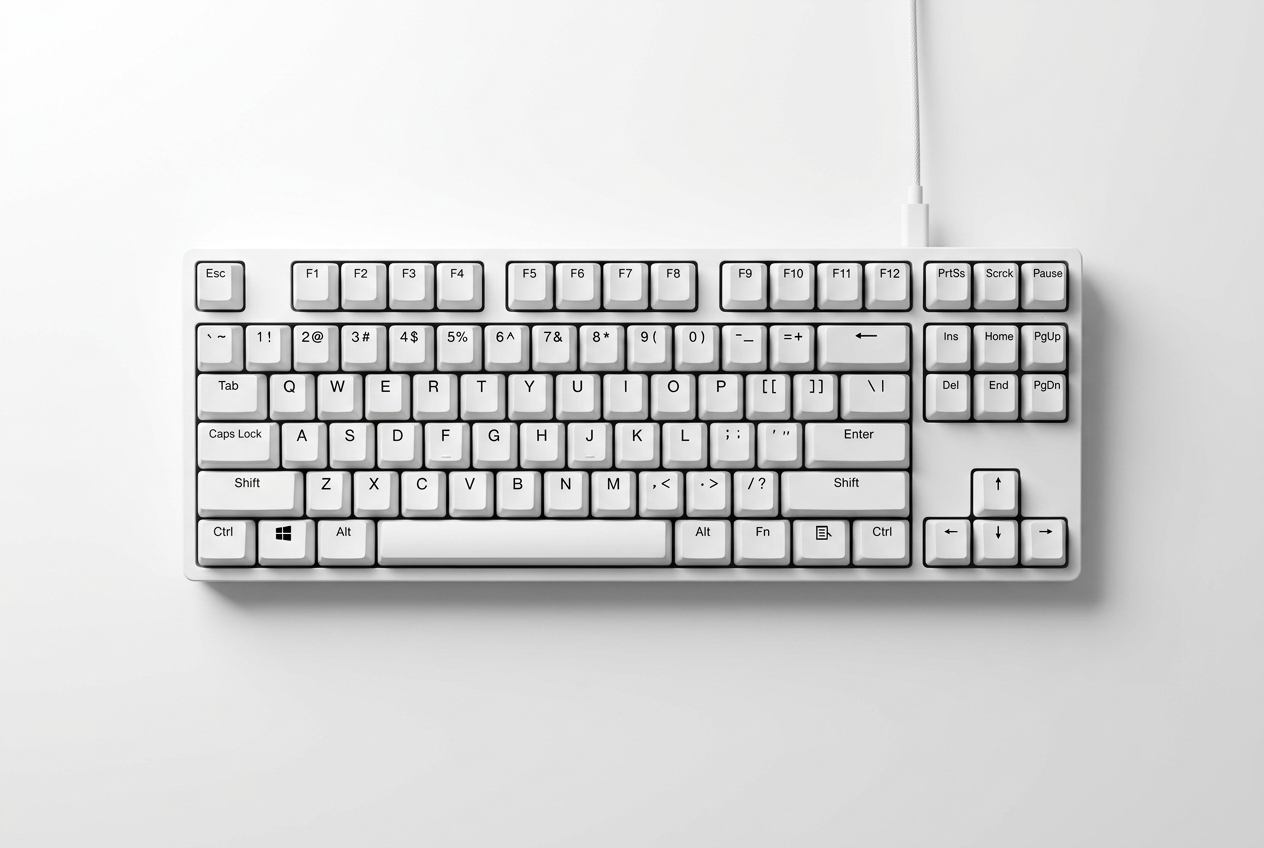
For users who prefer the speed of the numeric keypad, there are ALT codes and keyboard symbols . To use them, hold down the ALT key while typing a number sequence on the numeric keypad (making sure Num Lock is on). For example, ALT+0176 will give you the degree symbol (°). For Unicode characters, type the symbol code and then press ALT followed by the X key ; for example, typing 0024 and pressing ALT+X will give you the dollar sign ($).

International keyboards and configuration
If you frequently type in multiple languages, the most convenient solution is to add an international keyboard to your system. Go to Settings > Time & Language > Language & Region and add the United States International keyboard. This will allow you to use more natural key combinations to insert diacritics. Additionally, if you notice that the keyboard isn't responding as it should, you can try running the keyboard troubleshooter in the Update & Security menu or reinstalling the driver from Device Manager.
We have various ways to customize our typing, from using quick shortcuts like Win + . and the touch keyboard, to more technical methods using ASCII codes or managing the Character Map and configuring international languages to optimize productivity on the system.