- Checking your current edition, activation, and computer compatibility is key before upgrading to Windows 11 Pro.
- The upgrade to Pro can be done with a product key, a digital license from the Microsoft Store, or Microsoft 365 Business Premium rights.
- Windows Update and official Microsoft tools allow you to update without losing files or applications if your computer meets the requirements.
- Editions like Windows 11 Home Single Language may restrict certain paths and require the use of supported methods to avoid upgrade errors.
If you're using Windows 10 or 11 Home and want to upgrade to Windows 11 Pro , it's normal to worry about losing files, settings, or something going wrong with the license. The good news is that, if you do things correctly, the process is quite safe and has several possible paths depending on your starting point.
Throughout this guide, you'll see all the official and recommended ways to upgrade to Windows 11 Pro : from updating a machine with Windows 10 Pro, upgrading from Home to Pro by purchasing a license, taking advantage of a Microsoft 365 Business Premium subscription, to what to do if you have a Windows 11 Pro product key that the system doesn't seem to accept. The goal is for you to end up with your computer running Pro, activated, and without any unpleasant surprises.
Check your current Windows edition and activation status
Before considering upgrading to Pro, it's essential to know your current Windows edition and license status . This determines whether you can upgrade directly or if you first need to purchase or locate a valid product key.
In Windows 10, you can check this from Start > Settings > Update & Security > Activation . You can also type "activation" in the Start menu search bar and directly open the relevant section to view the license information.
In that activation window, in the Windows section , you'll see information such as the installed edition (Home, Pro, Single Language, etc.) and whether Windows is activated . If you already have Pro and it's properly activated, you don't need an edition upgrade, but rather a version upgrade (for example, from Windows 10 Pro to Windows 11 Pro).
Once you've confirmed that the system is activated, it's time to check if you have a valid Windows 10/11 Pro product key or if you'll need to obtain one through the Microsoft Store or your business subscription. If you don't know where your key is, you can consult Microsoft's official guides on how to locate a product key on OEM devices, physical boxes, or digital purchases.
If your computer is running Windows 11 Home Single Language , keep in mind that it's a more restrictive edition and doesn't always allow you to upgrade to Pro as directly as other Home versions. In these cases, it's especially important to follow the official methods to avoid errors like "Your edition cannot be upgraded."
Upgrade from Windows Home to Windows Pro using a product key
If you already have a new and genuine Windows 10 or 11 Pro product key , you can use it to change the system edition without reinstalling everything. This is the most direct way when you have a valid license.
In Windows 10, the usual way is to open Start > Settings > Update & Security > Activation and, within the Windows section, click on Change product key . This opens a window where you can enter your 25-character Pro product key.
Carefully enter your Windows Pro product key, making sure there are no typos or mixed-up numbers (it's easy to get confused with zeros, o's, ones, and l's). Once entered, click Next so the system can verify the key and, if it's valid for upgrading, begin the edition change process.
During this internal update, Windows will download and apply the Pro edition components without deleting your files. It's normal for your computer to take several minutes and may restart one or more times. When finished, in the Activation window you should see that the installed edition is now Windows 10 Pro or Windows 11 Pro, as applicable.
If you receive the message “Your edition cannot be updated” when entering a valid product key , it could be because you are using a special edition such as Home Single Language, because the key is for a different variant (for example, Pro N, Education, etc.), or because there are restrictions imposed by the device manufacturer. In these cases, it is advisable to check the exact type of product key you have and, if necessary, use the “Go to Store” option to purchase the compatible edition.
Upgrade to Pro if you don't have a product key
If you're using Windows 10 or 11 Home but don't have a Pro product key , you can still upgrade through the official store. In this case, the system will associate the license with your Microsoft account as a digital license.
From the same Settings > Update & Security > Activation window (in Windows 10) or Settings > System > Activation (in Windows 11), look for the Go to Store link . This option opens the Microsoft Store app directly to the Windows 10/11 Pro upgrade page.
Once you're in the Microsoft Store, make sure you're signed in with your primary Microsoft account —the one you usually use for email, OneDrive, or Xbox. This is important because your Windows Pro purchase will be linked to that account as a digital license for the device.
On the product page, you'll see the option to purchase or upgrade to Windows 10/11 Pro . Follow the payment steps, review the billing information, and complete the transaction. Once the purchase is confirmed, the Store will automatically begin the installation process for the Pro edition and prompt you to restart your computer to apply the changes.
After the update and restarts are complete, return to the Activation section and verify that the Windows 10 Pro or Windows 11 Pro edition is now displayed, activated with a digital license linked to your Microsoft account. This way, if you reinstall the system on the same hardware in the future, activation will be automatically restored when you connect to the internet.
Upgrade to Windows 10 or 11 Pro with Microsoft 365 Business Premium
Businesses with a Microsoft 365 Business Premium subscription have upgrade rights for certain devices. Specifically, devices running Windows 7 Pro, Windows 8 Pro, or Windows 8.1 Pro can legally upgrade to Windows 10 or Windows 11 Pro without needing to purchase additional individual licenses.
In these corporate environments, users typically log in to their devices with their work account associated with Microsoft 365 Business Premium . Once logged in, they can take advantage of various update paths depending on the specific device and company policies.
The most recommended method for most business users is to use Windows Update , as it's based on a digital license linked to the subscription and greatly simplifies management. Simply go to the Windows Update section and check for new updates while logged into your business account.
If the device isn't already running Windows 10 Pro, Windows Update typically displays a notification offering the upgrade to the Pro edition . Following the on-screen instructions completes the installation without affecting documents or applications already deployed in the corporate environment.
In cases where more control is required, you can choose to update the device from the Microsoft software download site by downloading the official operating system update tool. This method is primarily used when the device being updated is the same one used to access the download page and you wish to initiate the process manually.
Official methods to install or upgrade to Windows 10/11 Pro
Regardless of your license type, Microsoft offers several official tools for installing or upgrading Windows , both to Windows 10 Pro and Windows 11 Pro. Choosing one or the other will depend on whether you're upgrading your current computer or creating installation media for another machine.
For computers that are already up and running and simply need an upgrade, the easiest way is to use Windows Update . Just go to Settings, open the Update section, and check if the option to upgrade to Windows 11 appears, or to upgrade from Home to Pro in the case of some enterprise editions.
If Windows Update doesn't show the option to upgrade to Windows 11, you can go to the official Windows 11 download page and use the Setup Wizard . This tool guides you step by step, checks compatibility, and downloads and installs the latest version of the operating system.
On the Microsoft software download site, you'll also find the "Upgrade now" option for Windows 10, designed to upgrade your device to the latest version of Windows 10 Pro when the requirements are met. The assistant downloads the necessary files and keeps your files and applications safe during the process.
When you need to install Windows 10 or 11 Pro on a different computer than the one you're using , the right solution is an installation media creation tool. With it, you can prepare a bootable USB drive or an ISO file that you'll then use to install the system on another computer, either by booting from the USB drive or mounting the ISO in a supported environment.
Check compatibility and requirements before upgrading to Windows 11 Pro
Before upgrading to Windows 11 (Home or Pro), it's essential to ensure your PC meets the official minimum requirements . These include a compatible CPU, TPM 2.0 enabled, Secure Boot, sufficient RAM, and available storage, among others.
The easiest way to check is to download and run the “PC Health Check” application provided by Microsoft; if you prefer, you can also try Windows 11 without installing it to ensure compatibility before upgrading.
In addition to compatibility, it's a good idea to back up your important files before any major update. Although the process is designed to preserve documents, photos, programs, and settings, unforeseen events can always occur, and it's wise to have a backup plan.
For this backup, you can use OneDrive, an external hard drive, or a combination of both . Ideally, you should save your most critical data (work files, personal photos, projects) to a location outside your computer so that, even if something goes wrong during the update, you can easily restore your information.
If you are using a laptop, make sure it is plugged into a power source and has a good internet connection during the process, as the Windows 11 download can take up several gigabytes and the computer may take a long time to complete the various installation and setup phases.
Upgrade to Windows 11 Pro without losing files or applications
When you perform the update using supported methods, the system is designed to preserve your documents, installed programs, and most settings . This applies whether you update via Windows Update or use the installation wizard downloaded from the Microsoft website.
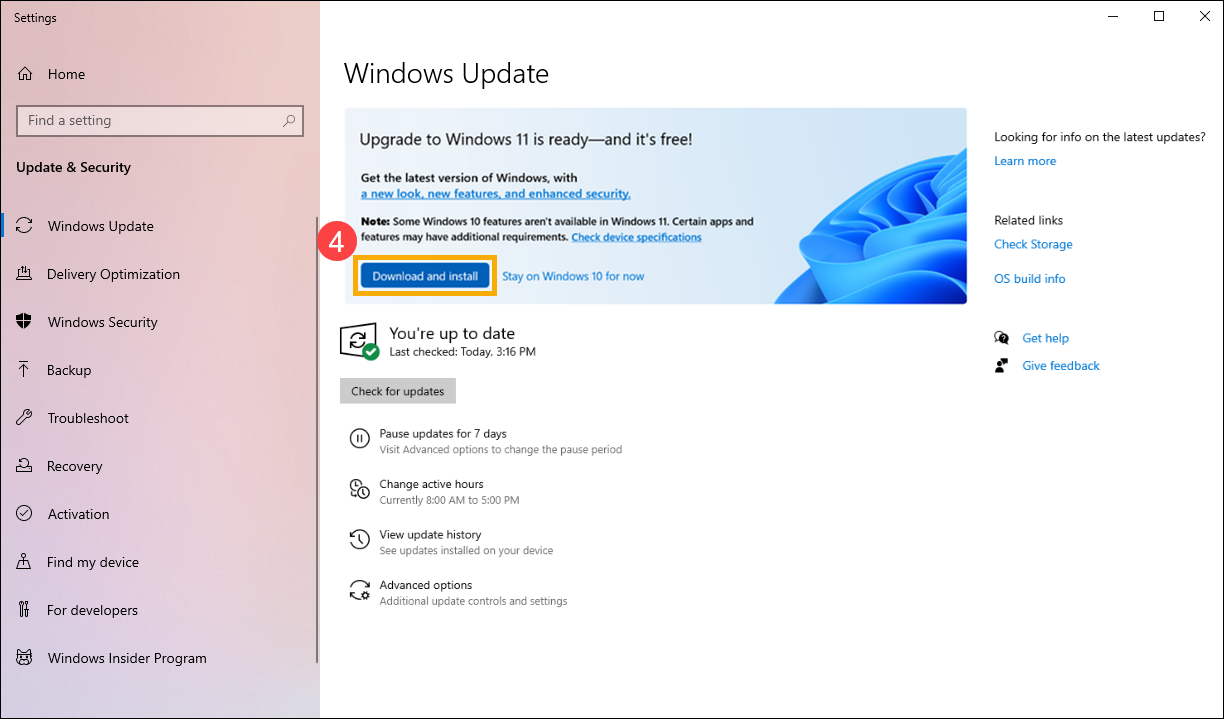
The easiest option for many users is to go to Settings > Update & Security > Windows Update and check if the "Upgrade to Windows 11" offer appears. If your computer is compatible, you'll see a button to "Download and install" the Windows 11 update.
Upon accepting, Windows 10 will download the Windows 11 installation files, prepare the system, and, after several restarts, complete the process. Meanwhile, your documents, photos, and most applications will remain in place when you first access the new Windows 11 desktop, and it's a good idea to review the initial Windows 11 setup to customize everything to your liking.
If Windows Update doesn't offer the update automatically, you can use the Windows 11 Setup Wizard . From the official download page, select the wizard, run it, and follow the on-screen instructions. It's important to have at least 64 GB of free space so the tool can work smoothly during the installation.
In both cases, the goal is to upgrade "in place", so that the system changes to Windows 11 (and, if the license allows, to Windows 11 Pro) without the need to format or reinstall applications from scratch, reducing downtime and the risks associated with a clean installation.
Using a generic key and why the upgrade to Pro might fail
Generic Windows Pro installation keys (such as the well-known generic Windows 10 Pro key ending in 3V66T) are circulating online . Microsoft documents these keys for specific uses in testing or enterprise deployment environments. These keys allow you to install or change editions, but they do not permanently activate the system.
Some tutorials explain that you can disconnect the device from the internet, go to the Activation section, click on "Change product key," and enter one of these generic keys to upgrade from Home to Pro. Once the process is complete, reconnect the device and enter a purchased Pro key to activate it.
This trick might work in certain configurations, but it's also common for the system to display errors like "Your edition cannot be updated ," especially on computers with Windows 11 Home Single Language or other more restricted versions. In these cases, Microsoft may block this type of update because it considers it unsupported.
If you consistently encounter the same error when trying to use a generic product key, even with the connection disabled, it's likely that the source edition is not compatible with that method or that the manufacturer has customized the Windows image with certain limitations. Forcing the process with generic keys outside of a proper business context is not recommended.
The safest way, and the one that aligns with Microsoft's licensing policies, is to use a valid product key or purchase it from the Microsoft Store . This avoids long-term activation problems and ensures that the Pro edition is properly registered for that device.
Common problems when trying to upgrade from Windows 11 Home Single Language to Pro
Users with Windows 11 Home Single Language often encounter more obstacles when trying to upgrade to Pro simply by entering a product key. Even with a genuine Windows 11 Pro product key, the system may respond with a message stating that the upgrade is not possible.
On many OEM devices, the Single Language edition is closely tied to the original manufacturer's license and the type of image that was pre-installed on the device. Therefore, when attempting to upgrade to Pro from Settings > System > Activation, the system detects an update path incompatibility.
In these cases, downloading a generic Windows ISO file and mounting it from the system itself usually results in the same edition being reinstalled or repaired as you already had (for example, Windows 11 Home Single Language), because the OEM key inserted in the BIOS or UEFI forces the installer to use that specific edition.
When this happens, the solution usually involves using an installation medium that allows you to explicitly select the Pro edition and ensure that the correct key is entered at the right time, or using the upgrade path to Pro from the Microsoft Store, which better manages the restrictions of each edition.
It's worth remembering that if you simply want to upgrade from Windows 10 Pro to Windows 11 Pro , the process is much more straightforward, as Windows detects the existing Pro license and, when upgrading to Windows 11 via Windows Update or the Assistant, automatically maintains the Pro edition without needing to change the key.
Best practices for license activation and management
Regardless of the method chosen to upgrade to Windows 11 Pro, it's crucial to maintain proper activation and document which license is associated with each device. This is especially important for businesses and freelancers who need to comply with legal and software audit requirements.
If you use a digital license associated with your Microsoft account , note which users have each device and what type of license they have. For standalone product keys, keep a record (for example, in a password manager or IT inventory) of the 25-character key and the computer it's assigned to.
When you want to activate a computer that has already been upgraded to Pro using a generic key or installation media, you will need to enter the purchased key in the Activation section to complete the online activation. If the computer does not have an internet connection, the activation will not be complete until it can connect to Microsoft's servers.
In business environments with Microsoft 365 Business Premium, it is common to delegate some of these tasks to the IT department, which manages the mass activation and control of Windows 10 and 11 Pro licenses with tools such as Microsoft Endpoint Manager, Intune, or other deployment solutions , avoiding manual management on a computer-by-computer basis.
By following all these steps and using official Microsoft channels to update, activate, and manage your operating system, you can enjoy Windows 11 Pro with all its advanced features (encryption, remote administration, domain, group policies, etc.) without putting your data at risk, complying with the license conditions, and with an environment better suited for professional and business use.