- Genuine Windows updates arrive via Windows Update and require a properly activated original license to keep the system secure.
- Checking the activation status in Settings and using the slmgr /dli command helps confirm if your copy of Windows is genuine and its license type.
- Fake updates, like the Big Head ransomware, usually arrive via emails, websites, or pop-ups, and never from official Microsoft channels.
- Backups, reliable antivirus, email filters, and good clicking habits are key to minimizing the risk of infections and data loss.
If you use Windows daily, you've probably seen a notification about an available update more than once. Sometimes it appears as a pop-up window, other times as a notification in the taskbar, and occasionally even as a full-screen message. Amidst all these alerts, the question arises: how can you tell if that Windows update is real and safe , or if it's a scam or even disguised ransomware?
Furthermore, many people inherit computers from family members, take them to trusted computer technicians, or buy very cheap licenses online without knowing if they are legal. It's quite common to wonder: Is my Windows genuine and properly activated , or have I been given a pirated copy that leaves me more vulnerable to attacks? In this article, we'll cover both: how to check that Windows updates are legitimate and how to verify that your copy of Windows is genuine and properly licensed.
Why is it so important that your Windows is genuine and receives real updates?
Beyond the fact that piracy is illegal, there's a key reason to be concerned: the security of your computer and your data . Windows remains the most widely used operating system in the world, making it a favorite target for cybercriminals. If your Windows is pirated or of dubious origin, it often stops receiving critical security updates, making you a much easier target.
Using a pirated version of Windows downloaded from the internet not only means that activation is questionable; in many cases, modified ISO images include malware, backdoors, or tools to exploit your computer. Sometimes everything seems fine for the first few days, but as soon as the system detects that the license is invalid, official updates are cut off , and you're left without patches that fix serious vulnerabilities.
A well-known example was the WannaCry ransomware attack , which spread like wildfire by exploiting a Windows vulnerability. Those with a genuine, up-to-date copy of Windows were protected , while those who didn't install patches or used pirated copies were much more exposed. The same is true for new threats: if your system isn't updated, it accumulates security holes.
It's also common for users to take their PCs to a "professional" to have them formatted and Windows installed from scratch. Unfortunately, some of these professionals, instead of using the license that came with the computer or selling you a legal one, install a pirated copy and illegal activators . In this situation, besides encouraging illegal activity, you're leaving yourself vulnerable to potential attacks. If you suspect this has happened to you, it's not unreasonable to consider reporting it , because you're paying for a service that leaves you in a precarious situation.
At the other end of the spectrum are those who have received a hand-me-down PC, such as someone who picks up a laptop from their mother or another relative. Sometimes the computer has been upgraded from Windows 10 to Windows 11 and then back to Windows 10 by a technician, and it's understandable to be unsure whether what's currently installed is genuine. The good news is that Windows offers several reliable ways to try Windows 11 without installing it.
How does the validation and activation of a copy of Windows work?
To understand what Microsoft considers "genuine," it's helpful to know that Windows validation is an online process that verifies two things: that the product key used (or digital entitlement) is authentic and that the essential license files haven't been damaged or tampered with. This process, which usually goes unnoticed by the user, only takes a few seconds.
During validation, Microsoft associates your license with a hardware profile on your computer. This "profile" includes device data (such as motherboard, etc.) used to link the activation to that specific PC. Therefore, when you reinstall Windows on the same machine , it often reactivates automatically without you having to re-enter the key, thanks to this digital entitlement stored on Microsoft's servers.
The system may ask you to validate Windows in order to download certain updates or exclusive content (such as specific tools or drivers from Windows Update). This message may also appear if activation was unsuccessful or if a problem is detected with an already activated license.
If your copy of Windows fails validation, you'll see a results screen explaining why it's not considered genuine . This page usually details possible causes (locked key, incorrectly used volume key , counterfeit license, etc.) and offers options to resolve the issue, typically by purchasing a legitimate license or correcting an activation error.
Therefore, having your Windows activated and validated not only allows you to customize the system or remove the desktop watermark; it is crucial for continuing to receive official security updates and not falling behind with critical patches that protect you from modern malware.
How to check if your Windows is genuine from Settings
The simplest method for the average user is to check the activation section within Windows settings. From there, you can see if your copy is activated and with what type of license. This is a quick first step to determine if, in principle, your system is legitimate and properly activated.
In Windows 10 and Windows 11, the process is very similar. You need to go to Settings > Update & Security > Activation (in some versions, this may appear under "System > Activation"). There you will see a section that clearly indicates whether "Windows is activated" and, in some cases, the type of activation (for example, "Windows is activated with a digital license linked to your Microsoft account").
If you see a message in this section indicating that Windows is not activated , or if you encounter an activation error, something is wrong. This could be because you haven't entered a product key yet, the key you entered is invalid, or the system has detected improper use of a product key (such as an enterprise volume key used on a home computer).
When everything is working correctly, you'll usually see a message like "Windows is activated" without any additional warnings . This, along with the absence of "your copy of Windows is not genuine" messages or watermarks on the desktop, indicates that you generally have a genuine copy.
If you want to get more precise and check which license channel your Windows was activated with (Retail, OEM, volume…), you can use the command console , which is very useful if you inherited the computer or suspect that the installer did something strange.
Check the license type using the command prompt (CMD)
The command prompt remains one of the most reliable tools for looking "under the hood" of Windows. With a simple command, you can find out what type of license you have installed and, therefore, determine if it matches your computer's original specifications or if something seems off . It's ideal in cases where a technician has reinstalled the system and you want to make sure they haven't installed an incorrect license.
To do this, you first need to open Command Prompt with administrator privileges . You can do this by searching for "cmd" in the Start menu, right-clicking on "Command Prompt," and choosing "Run as administrator." Accept the User Account Control window when prompted.
Once the black console window is open, type the command slmgr /dli, making sure to include the space between “slmgr” and “/dli”, and press Enter. After a few seconds, a small window will open with information about the Windows license installed on your computer.
This window usually displays the "channel" or license type. Generally, you might see something like: Retail channel, OEM channel, or Volume license . Each has its own context, and it's important to understand what each one means to determine if your Windows is truly legitimate.
If you purchased a license yourself or a digital key from a reputable store, you'll typically see "Retail" or "Retail Channel ," indicating a genuine license purchased individually. If your computer came with Windows pre-installed, you'll usually see "OEM ," as the manufacturer includes these types of licenses tied to the device's hardware.
However, if "Volume" or "volume license" appears , that key is intended for business environments, organizations, or educational institutions, where many computers are activated centrally. In home use, this type of license is usually an indication that someone has used a business key to activate personal PCs, something Microsoft considers a violation and can invalidate at any time.
Signs within the system itself that your Windows is not genuine
Beyond what you see in Settings or the command prompt, the system itself usually gives clear clues when it detects that your copy of Windows isn't genuine . By paying attention to your PC's usual behavior, you can suspect something is wrong with the license even without accessing advanced menus.
One of the most common signs is a watermark in the bottom right corner of the desktop , indicating something like "Activate Windows" or "This copy of Windows is not genuine." If this appears constantly, the system is clearly indicating that the license hasn't passed validation or hasn't been activated at all.
In these circumstances, you might also encounter limitations when customizing the system , such as not being able to change the wallpaper, themes, or some appearance settings. It's a form of gentle pressure to encourage you to rectify the situation.
Sometimes it's not so obvious from day one. It might happen that, initially, everything works normally because the system hasn't yet verified the key or received the information from Microsoft's servers. However, after a few days or weeks, it starts displaying notifications warning you that the copy isn't genuine, along with messages asking you to enter a new product key.
If you don't see any of these warnings, activation appears as successful in Settings, and the console indicates a license channel consistent with the origin of your Windows, you can rest assured that your copy is legitimate and should receive all official updates without issue.
Fake Windows updates: The Big Head ransomware scam
Having addressed the licensing issue, it's time to tackle the other major problem: Windows updates that are actually malware in disguise . One of the most striking recent examples is the ransomware known as Big Head, which masquerades as a legitimate update to infiltrate your computer and encrypt your files.
Imagine this scenario: you're working peacefully when a rather convincing notification pops up, complete with Windows logos and a very professional appearance, stating that an important Windows update is pending . Instead of ignoring it, you think, "I'd better update to be safe," and click to install it. The problem is that, instead of a real patch, you end up launching a malicious program.
In the case of Big Head, the attackers went to the trouble of designing an update screen very similar to Windows's , complete with progress bars and misleading text. They even used forged Microsoft digital signatures to make the file appear more legitimate when the user checks its properties, adding an extra layer of credibility to those not very technically inclined.
Once the user runs the supposed installer, the ransomware begins working in the background, encrypting files and blocking access to the data. When it finishes, it displays a message demanding payment in exchange for the decryption key . The computer is effectively rendered unusable until you restore from a backup or pay the ransom (which, incidentally, doesn't guarantee you'll recover anything).
Cybersecurity experts predict that these types of attacks will continue to grow in the coming years. It is estimated that in the future, a ransomware attack will occur every few seconds worldwide , which gives an idea of the lucrative business it represents for criminals. That's why it's so important to know how to distinguish a legitimate Windows update from a scam attempt.
How to make sure a Windows update is real
The golden rule is simple: genuine Windows updates arrive through official channels , not through suspicious emails, strange websites, or browser pop-ups. If something seems out of the ordinary, be wary and verify before clicking.
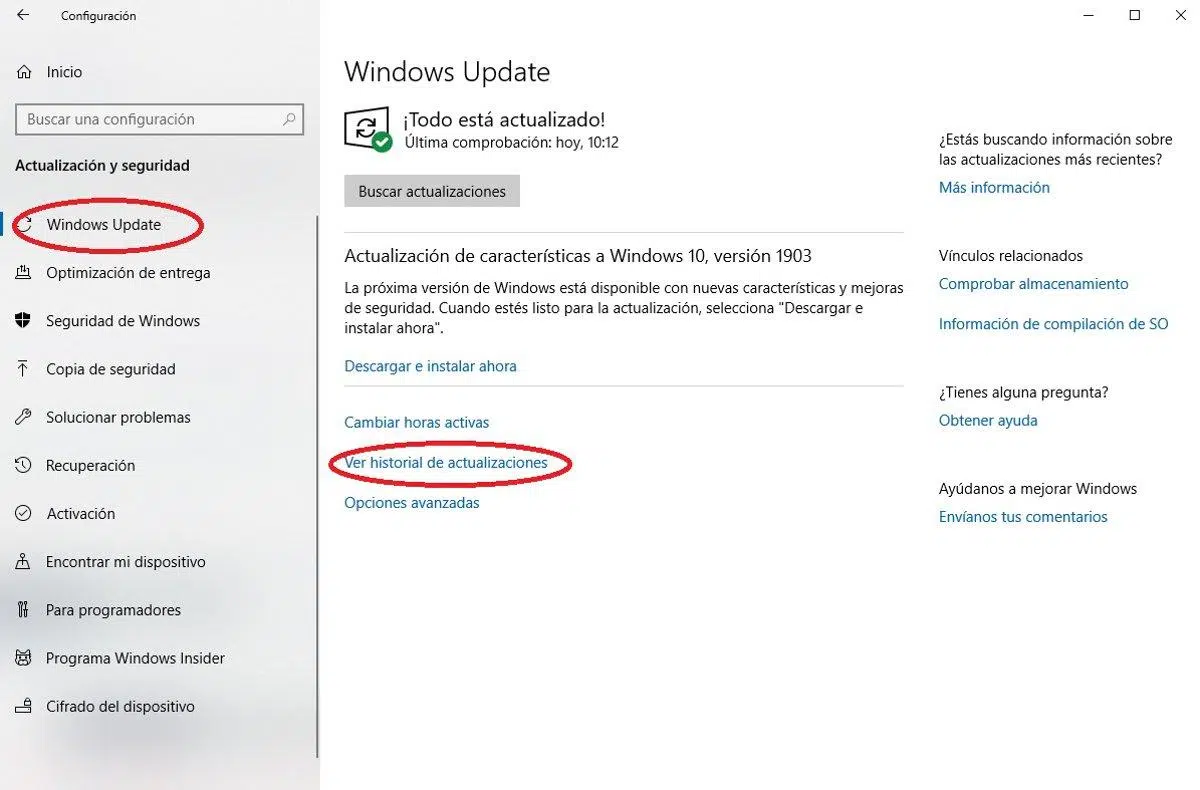
On a home computer, updates typically arrive through Windows Update , which is integrated into the system itself. To check, go to Settings and then to the "Update & Security" section (or simply "Windows Update" in some versions). From there, you can see if there are any pending updates, download them, and install them without worry.
A very sensible way to minimize risks is to automate updates from within Windows settings or, in professional environments, through a trusted IT service provider. This way, the system takes care of installing the necessary updates without you having to click on notifications that pop up unexpectedly while you're browsing the web or reading your email.
If you receive an email, a browser window, or a pop-up saying "Your Windows is out of date, click here to install the latest version," be suspicious. It's not common for Microsoft to ask you to install patches this way . Before doing anything, close the notification and manually open Windows Update to check if there's actually anything pending.
It's also not a good idea to download supposed "updates" from unofficial websites, forums, or links sent via messaging apps . Any executable file that arrives through these channels and presents itself as a Windows patch is very likely to be a malicious installer. The wisest course of action is to ignore it and, if you have any doubts, consult a trusted professional.
Best practices to protect yourself from ransomware and similar threats
In addition to learning how to distinguish a genuine update from a fake one, it's crucial to implement a series of good security practices to minimize the chances of falling victim to ransomware or other types of malware. This isn't just about a one-off trick; it's about changing some habits.
First, it's worth keeping all your computer software reasonably up to date : not just Windows, but also browsers, office programs, media players, etc. Each update usually includes security patches that close vulnerabilities that attackers could exploit. However, always update through official channels: the "update" option within the program itself or official app stores.
Another essential element is having a good, reliable antivirus or security suite . These tools can detect and block many ransomware installation attempts and other threats, as well as scan downloaded files. They aren't foolproof, but they provide an extra layer of protection in addition to your own common sense.
Backups are your ultimate lifeline. If you're ever hit by ransomware that encrypts your entire hard drive, the difference between disaster and a scare is whether or not you have recent backups of your important data . You can use an external hard drive, a NAS, or cloud backup services, but the crucial thing is that they're disconnected or protected so the ransomware itself can't access them.
In business environments, it's advisable to go a step further and implement network security measures , such as well-configured firewalls, network segmentation, and intrusion detection systems. It's also highly recommended to disable the autorun feature on external drives (USB drives, external hard drives), as some malware spreads by exploiting this function.
Finally, don't underestimate the human factor: training yourself and those who use the computer is key. Learning to be wary of suspicious attachments, strange links in emails, or urgent messages asking you to install software is as important as any technical tool. Many attacks occur because someone, without malicious intent, clicks where they shouldn't.
Email and pop-ups: attackers' favorite methods
A large portion of ransomware, including that disguised as a Windows update, is distributed through phishing campaigns . You receive an email that looks very official, perhaps with Microsoft logos or those of a supposed technical support service, and invites you to download a file or click a link to "update your system."
The recommendation is clear: if you receive unsolicited messages asking you to install something , be suspicious from the start. Check the sender's address, look for spelling mistakes, shortened links, or unfamiliar domains. Even if it looks very professional, no critical Windows update will be required via email in this way; it's handled through Windows Update.
You should also be wary of browser pop-ups that masquerade as system alerts . Sometimes they take up the entire screen, beep, or use voices to claim your computer is infected and urge you to call a number or download a program. While they may seem very convincing, they are still just web pages; you can close your browser or terminate the process using the Task Manager.
To minimize these problems, you can use spam filters and email security systems , both in personal and business environments. Many providers offer tools to detect malicious emails before they reach your main inbox, thus reducing your exposure to these scams.
If you still have doubts about the legitimacy of an email or notification, the wisest course of action is not to click on any links or download attachments. Open the official Microsoft website or the Windows Update dashboard yourself, or consult your IT manager if you work for a company. It's always better to spend a minute verifying than to risk installing ransomware.
What to do if you suspect an attack or an irregular license
Even if you follow all the recommendations, you might still notice strange behavior on your PC or discover that the installed license doesn't match what it should. Having a response plan will help you react quickly and minimize the damage.
If you detect signs of ransomware or malware (the computer becomes very slow for no reason, encrypted files or files with strange extensions appear, documents are missing, the processor is at 100% even though you are not doing anything), the first thing to do is disconnect the computer from the network (WiFi and cable) to prevent the infection from spreading to other devices or shared resources.
From there, it's advisable to contact a cybersecurity professional or the IT department if you work for an organization, or consult guides on how to force program uninstallation if you need immediate action on your computer. Avoid paying the ransom unless you have no other option and always seek advice, because not only are there no guarantees of data recovery, but you'll also be supporting the attackers' business.
If you're concerned about the legality of your Windows license , first check the activation status in Settings and the channel type using the command "slmgr /dli". If everything indicates that you're using an incorrect license (for example, a questionable volume key), it's best to rectify the situation as soon as possible by purchasing an official license, either from the Microsoft Store or an authorized reseller.
Be especially wary of extremely cheap keys found on obscure websites . While some may be legitimate, others come from unauthorized sources (revoked volume licenses, stolen keys, etc.) and can stop working at any time. In the long run, it's more cost-effective to pay for a legitimate license and avoid the hassle of activation and updates.
With all this in mind, it's clear that maintaining a genuine Windows installation, properly activated and updated through official channels , combined with good security practices (reliable antivirus, backups, wariness of suspicious emails and pop-ups, and some basic training), is the best way to ensure that the updates you install are real and that your computer remains protected against threats like Big Head ransomware and others.
