- Windows 11 offers built-in methods through the Link to Windows app for a seamless wireless connection.
- It is possible to use USB cables to reduce latency and improve the stability of video transmission.
- When the system is not compatible, there are third-party tools like DroidCam that work via WiFi or cable.

I'm sure it's happened to you: you have a crucial meeting or a job interview, and when you turn on your laptop, you realize the built-in camera is a complete disaster . The image is blurry, there's noise, and overall, you make a very unprofessional impression. Instead of spending money on a new webcam that you might only use occasionally, there's a brilliant solution right in your pocket.
The truth is that any modern Android smartphone has a camera that far surpasses most computer cameras. Thanks to the latest Microsoft updates and some third-party apps, it's now possible to leverage that hardware to achieve a massive leap in the quality of your video calls. Here we explain all the ways to do it, from the official option to tricks for when things don't work the first time.
The official method: Using Link to Windows
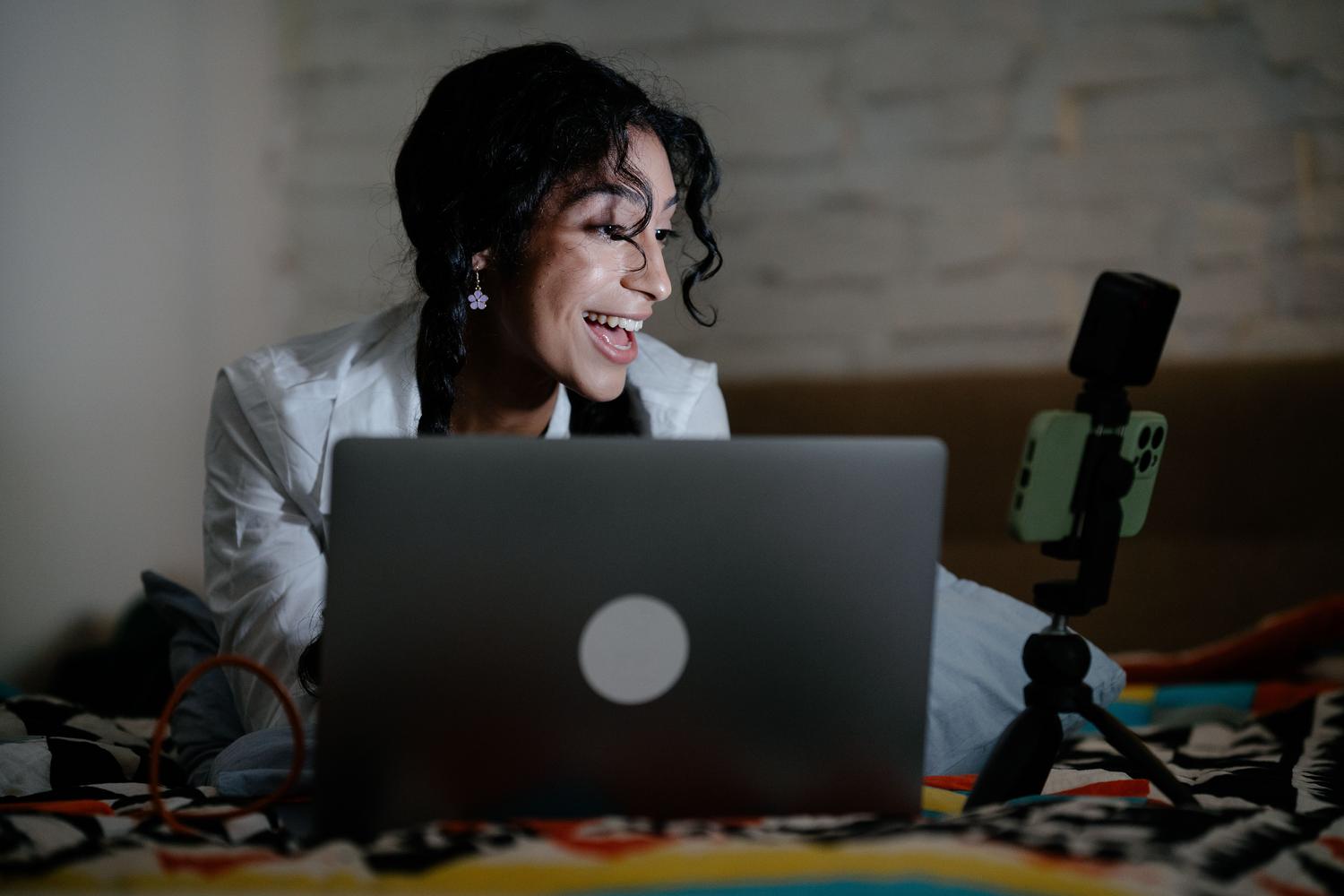
Windows 11 has integrated a powerful feature that allows your paired Android device to act as a connected camera. For this to work, you can't just jump in blind; you need to meet certain minimum technical requirements . First, your PC must be running Windows 11 or later. As for your phone, it must be running Android 10 or higher and have the Link to Windows app installed (version 1.24022.0 or higher). Keep in mind that in some cases, this feature is rolled out first to Insider (beta) users , so if you don't see it, you may need to update your system.
Setting it up is quite simple. On your computer, go to Settings, navigate to Bluetooth & devices , and find the Mobile devices section. If your phone isn't already paired, you'll need to add it by following the on-screen instructions. Once your device appears in the list, simply check the box next to Use as connected camera . From then on, the system will recognize your phone as a virtual webcam available to any application.
When you open Zoom, Teams, or any other calling program, you'll see your mobile device appear in the camera dropdown menu. Activating it will trigger a permission request on your phone , which you'll need to accept to start the broadcast. If you don't see the notification, check your Windows taskbar; sometimes a small window with a camera icon appears to guide you through the process. You can also switch between the front and rear cameras or pause the video from your phone as needed.
An important detail is that if you notice the image isn't rotating when you hold your phone horizontally, check that the device's automatic rotation isn't locked. Also, if your video background appears blocked, remember that this is usually a setting of the video calling app and not a connection problem.
Alternatives using USB cable and external apps

Not everyone has the latest version of Windows or a device compatible with the mobile hotspot system. If this is your case, or if you prefer a more stable connection to avoid Wi-Fi interruptions, you can opt for the USB cable method . Some devices, when connected to the PC, allow you to select the "Manage" option in the USB settings menu and then "Webcam ," instantly turning the mobile phone into an image peripheral.
When native options fail, third-party applications are the answer. One of the oldest and most reliable is DroidCam . To use it, you must install the application on both your smartphone and your PC. Once both are open, your phone will display the IP address of your Wi-Fi network, which you must copy and paste into the Windows client. It is essential that both devices are connected to the same wireless access point for them to recognize each other.
In the DroidCam configuration tool on your computer, you can check the video and audio boxes to also use your phone's microphone . If you want to avoid an intermittent connection, this application also allows a USB connection, which is highly recommended for maximum stability and to avoid relying on your router's quality. Just remember to grant all camera and microphone permissions on your Android device to prevent the software from crashing.
Resolution of common problems
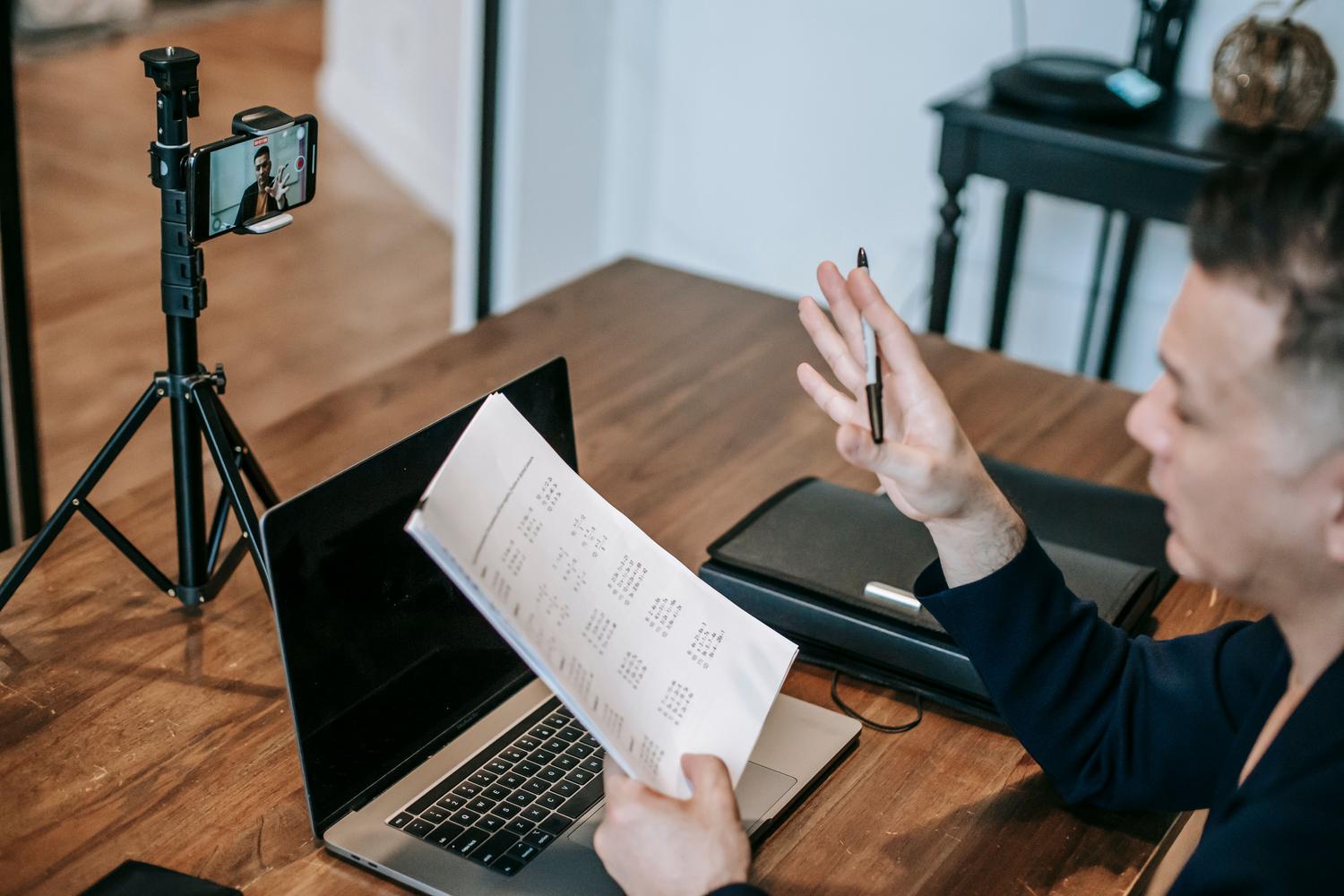
You might encounter some obstacles along the way. For example, some users with high-end devices, such as the Samsung Galaxy S22 Ultra, can't find the webcam option in Link to Windows. This is because the feature isn't yet a universal standard and is being rolled out gradually. In these cases, the best option is to use third-party apps or submit suggestions through the Microsoft Feedback Hub.
Another common problem is audio delay or lag , especially when using extensions for recording software like OBS. If you notice that the sound isn't synchronized with the video, try reducing the streaming resolution or always prioritize a wired connection over Wi-Fi. It's also vital to ensure that the Mobile Link app is updated from the Microsoft Store , as an older version might prevent the camera option from appearing in the settings.
The ability to turn a smartphone into a webcam not only improves image quality but also provides greater flexibility, as you can move the phone around the room to show different angles without being tied to your laptop screen. Whether through native Windows 11 integration, a direct USB connection, or tools like DroidCam, any Android user can stop struggling with a mediocre camera and start projecting a professional and crisp image in all their digital interactions.