- Use of specialized tools such as Winaero Tweaker and O&O ShutUp10++ to improve privacy and performance.
- Disabling critical telemetry services, Xbox processes, and unused network functions.
- Removal of intrusive visual elements such as news widgets and home menu recommendations.
If you notice your computer isn't running as smoothly as it did when you first bought it, don't worry that the hardware is outdated. In most cases, the problem lies in the fact that Windows 11 carries a huge number of services running in the background without you even noticing, consuming resources your computer needs for important tasks.
Microsoft has opted for a modern and automated interface, but this convenience comes at a price: efficiency. Especially if you have an HDD or a mid-range PC, freeing up RAM and CPU from unnecessary processes can make the system noticeably more responsive, restoring that spark of speed that seems to have been lost.
Advanced tools for cleaning the system
For those seeking a deep clean without the hassle of editing the registry, there are programs that do the dirty work. For example, Winaero Tweaker is a gem that allows you to adjust everything from visual aesthetics to disabling telemetry and controlling automatic updates, letting the user decide exactly which components should remain active.
If your biggest worry is that Microsoft knows everything about you, down to the color of your socks, O&O ShutUp10++ is the ideal solution . This utility focuses on privacy, allowing you to block the sending of diagnostics to remote servers and neutralize intrusive features like Copilot, using a color-coded system to indicate which changes are safe and which could be risky.
For the more adventurous or system administrators, the Win11Debloat script runs via PowerShell . It doesn't have a pretty interface, but it's lethal against bloatware, allowing you to delete pre-installed applications and clean the taskbar quickly and automatically.
Finally, we have W10Privacy, a very organized tool that categorizes risks under labels such as networks, searches, and system services. It's ideal for those who prefer a meticulous approach, checking each box to close the privacy gaps that are left open by default.
Quick interface settings and startup
You don't need to be an expert to notice an improvement; sometimes simply removing the search box from the taskbar via the personalization menu is enough to free up space and reduce visual distractions. Similarly, constant notifications about your OneDrive account or backups can be easily disabled so they don't interfere with your workflow.
News widgets are another example of clutter. The MSN feed is usually irrelevant to most users, so hiding the widget panel not only declutters the screen but also saves bandwidth and memory. It's also advisable to go into the applications section and manage your PC's startup , disabling anything you don't need to load when you turn on your computer.
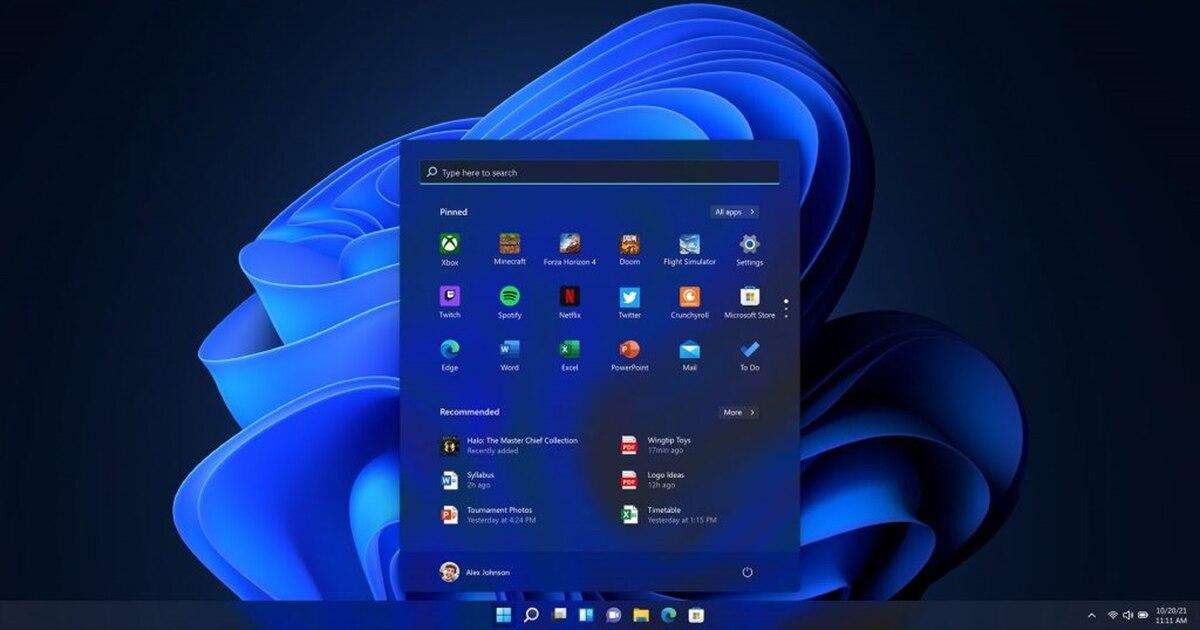
Regarding the Start menu, Microsoft insists on showing us recommendations for recent files and websites. While you can't completely remove this section, reducing the information displayed in the personalization settings helps maintain a cleaner and less cluttered environment.
System services that you can disable
Before modifying any services, it's vital to create a restore point to avoid rendering your system unusable if you make a mistake. Once everything is working correctly, you can go to the Services Manager and disable any services you don't use. For example, if you're not a gamer, all Xbox Live services are just wasted space on your hard drive and RAM.
If you don't have a printer connected, the print queue and its notifications are just wasting resources. The same goes for the fax service, a technological relic that nobody uses anymore, or Hyper-V virtual machine services if you don't work with virtualized environments.
To improve privacy, it's recommended to disable telemetry and user experience features , which send usage data to Microsoft. Additionally, if you don't use airplane mode or don't need Windows to know your exact location, you can turn off the geolocation and radio management services.
One critical point is the Microsoft Edge updater; if you use Chrome or Firefox, you can disable it, but be careful not to touch Windows Update , as missing out on security patches is too high a risk for any user.
By applying these optimizations and restarting your computer, you'll notice faster boot times and less RAM usage . Ultimately, it's about transforming a bloated operating system into an efficient tool that meets your actual needs, not the manufacturer's requirements.