- Most All-in-One computers only allow easy expansion of RAM and storage, while the CPU and GPU are usually integrated and not replaceable.
- Upgrading from 4GB to 8GB of RAM and replacing an HDD with an SSD are the most noticeable improvements in the daily performance of an All-in-One.
- It is essential to check the specifications of the specific model (RAM type, capacity limits, SSD options) and, if necessary, consult a technician for installation.
- When a computer is limited by its processor or graphics card and no longer supports useful upgrades, it is usually more reasonable to consider buying a new computer.
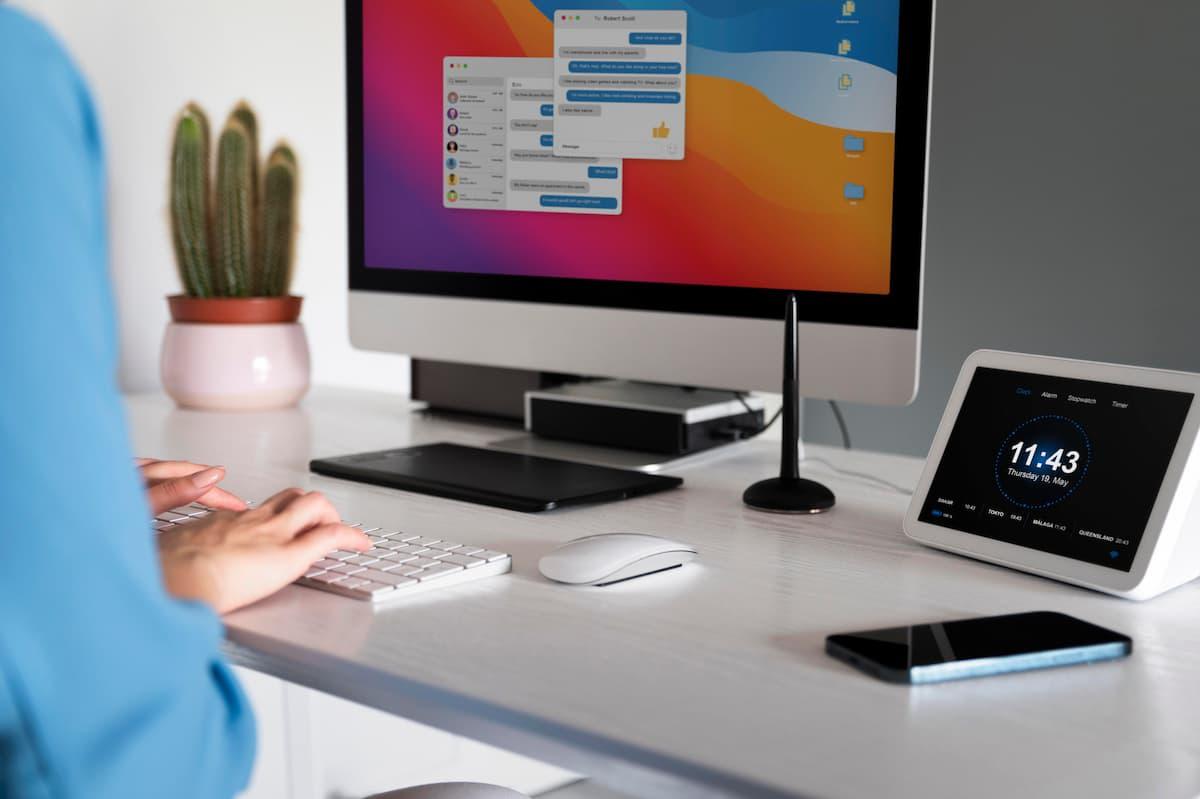
If you have an all-in-one computer and every time you turn it on it feels slower than you are on a Monday morning, you're not alone. Over time, these machines start running low on memory, programs take forever to open, and the hard drive fills up with photos, TV shows, work files, and documents you wouldn't dream of deleting.
In a traditional desktop PC, you usually just remove a couple of screws and swap parts like building blocks, but in an all-in-one PC, it's a very different story. Its compact and streamlined design has a catch: there's less internal space, and many components are much more integrated. Let's take a close look at what you can actually upgrade in an all-in-one , what improvements offer better performance, and what limitations you're bound to encounter.
What's inside an All-in-One computer and why does it complicate upgrades?
The main advantage of an all-in-one computer is that it combines the screen, motherboard, storage, memory, speakers, and all other components into a single unit. This results in a clutter-free desktop, without a tower, with fewer cables, and a much cleaner, more modern look.
That same sleek design has its downside: there's very little room to modify components . While a desktop tower offers free bays, accessible slots, and plenty of space to tinker with, in an all-in-one everything is tightly fitted, sometimes with hidden screws and delicate tabs, almost like disassembling a watch or a very thin laptop.
Another important detail is that many manufacturers opt for integrated solutions: soldered RAM, processors fixed to the motherboard, and integrated graphics . In practice, this means that many critical components cannot be replaced independently, no matter how much you might want to improve performance.
Even so, most models still offer some room for improvement: storage can usually be upgraded, and in many all-in-one PCs, the RAM can also be upgraded, provided it's not completely soldered in. Before buying any component , it's crucial to review the computer's specifications and, if possible, the manufacturer's technical manual.
RAM in an All-in-One: When can it be upgraded and what will you notice?
Random Access Memory (RAM) is responsible for loading the instructions that the CPU executes and for keeping data and applications active while the computer is running. It is not permanent storage space, because everything in RAM is lost when you turn off the computer, but it is much faster than a hard drive or an SSD.
RAM is installed using modules that connect to the motherboard, and all-in-one PCs typically use SO-DIMM modules, the same type found in many laptops . This raises the first big question: can you upgrade the RAM in any all-in-one PC? The answer is that it depends entirely on the specific model.
Some computers include accessible slots where you can add or replace RAM modules , always respecting the maximum capacity supported by the motherboard and processor. In other cases, the manufacturer has soldered some or all of the memory to the motherboard, so there's no practical way to increase it without specialized tools and a huge risk of damaging the computer.
When your system allows it, upgrading memory is often one of the simplest and most effective ways to improve overall performance. Going from 4 GB to 8 GB of RAM , for example, makes a significant difference when using multiple programs simultaneously, having many browser tabs open, or working with more demanding applications. If you can't upgrade, you can also optimize virtual memory to mitigate some of the limitations.
Besides size, you also need to consider the standard (for example, DDR3, DDR4, or DDR5 ), the frequency, and the compatible voltage. Trying to install an incompatible module is like wearing the wrong size shoes: sometimes it won't even fit physically, and if it does, it might not boot or cause unstable performance. The wisest course of action is to check the manufacturer's website or use diagnostic tools to see what type of memory your system supports.
Real-world example: Upgrading the RAM in an Acer Aspire C22-720
A very typical example is that of users with an All-in-One PC like the Acer Aspire C22-720 , which comes from the factory with 4 GB of RAM and, after a while, the system starts to stutter. The official specifications for this model indicate that the memory is expandable up to 8 GB, which allows for installing an additional module or replacing the existing one, depending on the specific configuration.
In a situation like this, the first thing to do is to carefully check the exact type of RAM that the Acer Aspire C22-720 supports : generation, speed, and number of available slots. This information is usually found in the technical manual or on the product page on the Acer website, and it's best not to rely solely on what's written on a sticker or in a screenshot.
Once you've confirmed the type of memory module, it's advisable to go to a specialized store or a trusted technician and ask for compatible memory of the appropriate capacity . Installing it isn't always as straightforward as in a desktop tower: many all-in-one computers require removing the entire back panel, detaching the screen, or disassembling part of the stand, and a wrong move can result in breaking delicate tabs or ribbon cables.
Therefore, if you don't have experience disassembling this type of computer, it's a good idea to get professional help. The technician can open the All-in-One, install the new RAM, and then verify that the system detects it correctly and passes basic stability tests . Once the upgrade is complete, you should notice a clear improvement when opening multiple programs, browsing the internet, and handling large documents.
Storage: Upgrade to SSD in an All-in-One
The other major bottleneck in many all-in-one PCs is the traditional mechanical hard drive (HDD). If your computer still uses an HDD for the operating system, replacing it with a modern SSD can completely transform the experience : the system boots in seconds, programs open much faster, and the overall feeling is like having a brand-new computer.
The basic idea is to replace the internal hard drive with an SSD, or to add an additional SSD if the motherboard and chassis offer the necessary connectors and space. Many all-in-one PCs support 2,5-inch SATA drives, and some newer models also include M.2 slots for NVMe SSDs , which provide even greater speed.
The main obstacle here is usually not compatibility, but physical access to the inside of the device . Some models allow you to remove a back cover with a few screws and access the storage directly, while others require you to practically disassemble the entire system, including the screen, before reaching the hard drive.
Although the process may seem tedious, the performance jump you get when switching from an HDD to an SSD is probably the most noticeable improvement you can make to an all-in-one PC. Boot time is reduced from minutes to seconds , system updates are faster, and opening office applications, simple photo editing, or web browsing is much smoother.
Before doing anything, it's a good idea to back up your data and decide whether to clone your current hard drive to the SSD or perform a clean installation of the operating system. Cloning preserves programs and files exactly as they are now, while a clean installation usually offers a cleaner and more stable environment, ideal if your computer also has years of accumulated software.
CPU and GPU in All-in-One: why they can almost never be improved
When someone wants to play more demanding games, do intensive video editing, or use heavy professional software, the next logical step after RAM and storage is to upgrade the graphics card (GPU). In an all-in-one computer, however, the GPU is almost always integrated into the motherboard , either within the processor itself (integrated graphics) or as a soldered chip.
Because it's integrated, there's no separate graphics card you can remove and replace with a more powerful model, as you would in a desktop tower. This severely limits your options for improving graphics performance. Some specific systems allow the use of external GPUs (eGPUs) via high-speed connections , but this is a fairly uncommon solution in mid-range and low-end all-in-ones, and it requires the model to explicitly support it. If your goal is gaming, a practical alternative is to opt for lightweight titles, such as the best low-spec PC games , which run well on modest hardware.
The processor (CPU) is in a similar situation. In many current All-in-One computers, the chip is either attached or soldered directly to the motherboard , without a standard socket for replacement. Although it could theoretically be removed, the process is so delicate and risky that, in practice, it's considered immovable.
Therefore, when evaluating an all-in-one computer, it's important to understand that the CPU and GPU are practically the final components . If, a few years later, the computer lacks the processing power you need, you won't have the same upgrade flexibility as with a traditional desktop. In many cases, the only real solution will be to consider replacing the entire system.
This doesn't mean that an all-in-one PC isn't suitable for work, study, or multimedia consumption. In fact, many models with good CPUs and capable integrated graphics perform more than adequately for office tasks, browsing, video calls, streaming, or light photo editing. What's unrealistic is expecting to transform a basic AIO into a gaming or professional editing machine simply by changing internal components, because that will almost always be impossible.
Advantages and limitations of All-in-One systems compared to other formats
All-in-one computers have been gaining ground for reasons that go beyond raw power. Their biggest selling point is the space they save on the desk : there's no tower taking up room, just the screen with all the components integrated. For those who work from home or have limited space, this is a key advantage.
Besides saving space, their design is usually cleaner and more minimalist. There are fewer cables in sight, power is typically concentrated in a single cable, and if you add a wireless keyboard and mouse , the whole setup is very tidy. This aesthetic simplicity can also contribute to slightly lower energy consumption, thanks to the integration of more efficient components.
The market offers an ever-increasing range of models, from very basic computers for office tasks to quite powerful all-in-ones for demanding users . Many of these are sold through specialist stores and large retailers, where you can compare screen sizes, configurations, and prices to find the right balance.
However, the very integration that makes All-in-One PCs so appealing comes with the limitations we've already discussed: fewer expansion options, greater difficulty in repairing them , and a greater reliance on official technical support if something goes wrong outside of warranty. While in a tower PC it's easy to replace a power supply or graphics card, in an AIO PC many malfunctions require disassembling a large part of the system or even replacing the entire motherboard.
Therefore, before buying or considering a major upgrade, it's advisable to be clear about the primary use of the computer and to what extent you'll need to increase performance in the medium term . If your work focuses on office applications, browsing, and multimedia, a well-configured all-in-one PC with sufficient RAM and an SSD can easily last for several years.
Practical ways to improve performance without changing equipment
Aside from the usual hardware upgrades (RAM and SSD), there are certain measures you can take to help an all-in-one PC run more smoothly without even opening it up . They won't work miracles, but on systems with limited resources, they can make a real difference in everyday use.
One of the first things you can check is the number of programs that start automatically with your system . The more processes that load when you turn on your computer, the more memory it consumes and the slower everything starts up. Disabling unnecessary startup applications can free up a significant amount of resources.
It's also recommended to keep your operating system and drivers updated, as well as free up disk space by deleting temporary files and unused programs; in addition, you can follow tips and tweaks in Windows 11 that help optimize your computer.
In the case of all-in-one PCs with very limited resources, such as those starting with 4 GB of RAM, limiting browser tab usage and avoiding having many resource-intensive applications open simultaneously can help reduce freezes and lag. While not as convenient as having unlimited multitasking, it can extend the lifespan of the device.
If after applying all these optimizations the performance is still insufficient and you have already upgraded the RAM and SSD (or it is not possible to do so), it is time to calmly consider whether it is worth investing more in that All in One or allocate the money to a new computer with better specifications and the possibility of future upgrades.
An all-in-one PC offers a tidy desktop, fewer cables, and a very comfortable experience for working or studying, but in return, you sacrifice much of the upgrade flexibility of a tower PC. Understanding what can be improved—especially RAM and storage—which components are limited—integrated CPUs and GPUs are almost always fixed—and how to take advantage of the available upgrade options will allow you to get the most out of your current system and make an informed decision about when it's time to upgrade to a new computer.
