- Virtual memory extends RAM by using the disk, but overusing it slows down Windows 11.
- Windows automatically calculates a page file up to 1,5-3 times the physical RAM.
- Adjusting the size and location of the pagefile can improve stability when combined with good RAM management.
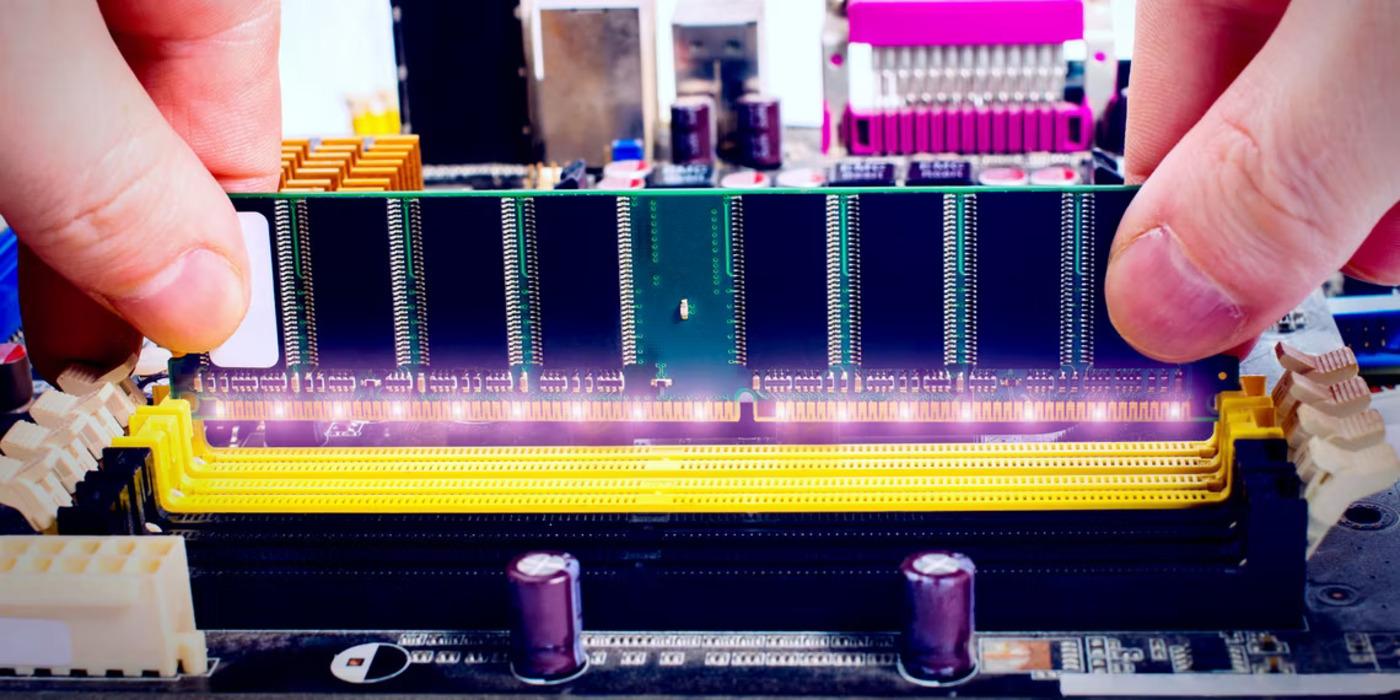
- The definitive solution when everything gets overloaded is to expand the physical RAM memory of the computer.
Windows 11 has many features working behind the scenes that we hardly ever see, but which are key to the smooth running of the computer. One of the most important, though often overlooked, is virtual memory, that "wild card" the system uses when RAM runs out and which can make the difference between a fluid computer and one that sluggishly slows down.
If you've recently noticed lag, low memory messages, or your laptop overheating and struggling to even open the browser, you should probably check and adjust your virtual memory settings in Windows 11 and try some tricks to speed up a slow Windows system . You don't need to be a tech expert or do anything unusual, but you do need to understand what virtual memory is, how it works, and how high you can increase it to improve performance without causing problems.
What is virtual memory and why does it affect performance?
The basis of all this is that RAM is very fast but limited, while the hard drive (HDD or SSD) is much larger but slower . Windows combines both resources so that you have the feeling that there is more memory available than you actually have physically installed.
When you open programs, games, browser tabs , or resource-intensive editing tools, RAM fills up with the data the system needs to access. As soon as it approaches its limit, Windows starts moving less frequently used data to a special file on the hard drive , freeing up RAM for what needs to be readily available.
That file is called the page file or pagefile.sys and is, in practice, the system's virtual memory . Windows treats it as an extension of RAM: when physical memory no longer fits, it moves some data to the page file and continues working.
The problem is that, while an SSD is fast , it's always significantly slower than RAM, so the more Windows uses virtual memory, the more you'll notice your computer slowing down . That's why virtual memory is a necessary workaround, but not a true replacement for installing more RAM.
In addition, virtual memory also has limits. If the system exhausts both RAM and the page file, messages such as "System is low on virtual memory, Windows is increasing the size of the page file..." may appear, and some applications may stop responding or close.
How Windows 11 calculates the paging file size
Windows 11 manages virtual memory automatically by default, and it usually works well. The system typically starts by allocating a size similar to the amount of installed RAM and sets a minimum and maximum, which it can increase as needed.
Generally, a classic formula is used: a minimum size of around 1,5 times the physical RAM and a maximum size of up to 3 times that RAM . For example, with 8 GB of RAM, you might see recommendations such as a minimum of 12 GB and a maximum of 24 GB for virtual memory.
Microsoft, in fact, suggests using something like "up to 3 times the RAM or 4 GB, whichever is greater" to maintain stability, although in practice Windows 11 tends to adjust these values conservatively and adapted to the actual use of the computer.
Keep in mind that all that space reserved for virtual memory takes up space on your hard drive or SSD . If you're running low on space, increasing the page file size too much can fill up the drive, which also negatively impacts performance.
As a reference, many technicians follow rules such as setting the initial size around the installed RAM and the maximum between 1,5 and 2 times that amount , especially in home or office computers where extreme loads are not run.
How much virtual memory to allocate based on your RAM
To fine-tune things a bit more, it's helpful to start with some reference points based on the amount of RAM you have installed. These aren't hard and fast values, but they serve as a guide to avoid going over or underestimating when manually configuring the paging file.
In general, it is recommended that the maximum size of virtual memory be between 1 and 1,5 times the physical RAM , except in computers with very little RAM, where it may be worthwhile to go slightly higher.
- Computers with 4GB of RAM or lessThings are a bit tight here. It's recommended to set a page file size of between 4 and 8 GB. and evaluate lightweight operating systemsIf you have, for example, 4 GB of RAM, you can set an initial size of 4096 MB and a maximum of 8192 MB.
- Computers with 8 GB of RAMIn this case, a reasonable range would be between 8 and 16 GB of virtual memory. For example, an initial size of 8192 MB and a maximum of 16384 MB. Many experts recommend 1,5 to 2 times the physical RAM.
- Computers with 16 GB of RAMWith this amount, you already have some leeway. A typical configuration would be between 16 and 32 GB of paging file. The system can function very well leaving the size managed by Windows, but if you want to fix it, you can opt for a starting size of 16384 MB and a maximum of 32768 MB.
- Devices with 32 GB of RAM or moreIn these cases, it's usually best to let Windows manage the size automatically. If you prefer to adjust it manually, simply keep the maximum to around 1,5 times the physical RAM, or even slightly less, since you'll rarely use that much memory.
Many users also choose to set the initial and maximum sizes to the same value (for example, 16384 MB and 16384 MB) to prevent the page file from expanding and contracting, which can reduce disk fragmentation. However, it's essential to ensure that the disk has sufficient free space.
In any case, the important thing is to avoid extremes: neither leaving virtual memory at zero nor inflating it unnecessarily . An excessive size won't make your PC "faster" and can cause instability if the system is forced to page a huge amount of data to the disk.
How to view and manage virtual memory from Windows 11 settings
Windows 11 includes everything you need to check the current size of your paging file and modify it without installing third-party programs . Access is through the system's advanced settings.
In short, the steps below are based on recommendations from Microsoft documentation and various technical guides, adapted to the Windows 11 interface. You don't need advanced knowledge, but it's best to follow them carefully.
The first step is to open the system information section. You can do this by going to Settings → System → About, or by searching for “System” in the Start menu. From there, you'll find a link to “Advanced system settings” within the related links section.
In the System Properties window, go to the "Advanced" tab. In the "Performance" section, click the "Settings..." button to open the performance options , where you can adjust both visual effects and advanced parameters.
Another window will open. In it, return to the "Advanced" tab and locate the "Virtual memory" section. There you will see the current total size of the paging file and the "Change..." button . This is the entry point for customizing virtual memory in Windows 11.
Change the size and location of the paging file in Windows 11
Clicking "Change…" opens the virtual memory settings window. By default, the "Automatically manage paging file size for all drives" box will be checked , leaving all the adjustments to Windows.
If you want to modify it manually, you'll first need to uncheck that box to unlock the options below . From then on, you can choose, for each drive, between custom size, system-managed size, or no paging file.
The “Custom size” option allows you to specify two values: initial size (MB) and maximum size (MB) . The initial size is the amount reserved on the disk; the maximum size is the limit to which Windows can grow if needed.
At the bottom of the window you'll see some reference data: minimum allowed size, recommended size, and currently assigned size . These will help you avoid configuring something completely disproportionate to your computer's specifications.
If you select "System managed size," you let Windows 11 decide the size for that specific drive , even if you're manually managing other partitions. This is useful if you have multiple drives and want a balance between control and automation.
The "No paging file" option is the most critical. If you completely remove virtual memory and your RAM fills up, applications will start to crash , errors may appear, and some windows will close unexpectedly. It only makes sense to use it in very specific cases (for example, when temporarily moving the file to another drive) and only if you know exactly what you're doing.
Also be aware of warning messages: if you reduce the size of the paging file on your system drive too much, Windows may warn you that it won't be able to generate certain debugging files in case of a critical failure . This isn't a problem for most home users, but it's good to know what it means.
Does moving the page file improve performance?
The page file, as we've already seen, is saved by default on the same partition where Windows is installed (usually C:). In some scenarios, moving it to another physical drive can improve performance , but there are important nuances.
The improvement is especially noticeable when you switch from a mechanical hard drive (HDD) to a solid-state drive (SSD) . If the system is on an HDD and you place the virtual memory on a separate SSD, Windows can read and write to both simultaneously, reducing I/O bottlenecks.
If your situation is the opposite (Windows on an SSD and another slow HDD), moving the page file to the slower drive isn't worthwhile, as you're forcing paging to occur on the least efficient device . Ideally, the page file should be on the fastest available drive.
On systems with multiple physical SSDs, some advanced users distribute the page file across multiple drives to divide the access load . Windows allows page files to be stored on more than one drive, which can be helpful for demanding workstations.
In any case, if you want to change the location, the process involves disabling the paging file on the current drive (by selecting "No paging file" and clicking Set) and then enabling "System managed size" or "Custom size" on the destination drive . After applying the changes, you will need to restart for everything to take effect.
Check the status of physical and virtual memory
Before you start changing sizes, it's a good idea to check what's really going on with your RAM and virtual memory . Windows 11 offers several ways to do this without external tools.
The most visual way is through Task Manager. Open it (Ctrl + Shift + Esc or by searching for it in Start), go to the "Performance" tab, and then to "Memory." There you can see how much RAM you're using, how much is cached, and whether the system is frequently using the page file . You can also use Process Explorer for a more detailed analysis of processes and resource usage.
You can also check virtual memory values from the command line. Open the Start menu, run Terminal (Admin) or Windows PowerShell as administrator , and type systeminfo.exe. The information displayed will show physical and virtual memory data (including maximum, available, and used).
If your computer's RAM is often nearly at 100% usage and virtual memory is also quite full, simply increasing the page file size won't solve the underlying problem . In these cases, it's advisable to review which programs are running in the background and consider upgrading your RAM if your hardware allows it.
When is it advisable to manually adjust virtual memory?
On most modern computers, letting Windows 11 automatically manage virtual memory is sufficient , especially when there's 16 GB of RAM or more and an SSD is used. Even so, there are situations where adjusting these settings can help.
For example, if you frequently see warnings about low virtual memory, if you notice that the system takes much longer than usual to switch between applications or heavy programs , or if you work with video editing, virtual machines , or huge projects that devour RAM, a manual adjustment can provide stability.
It can also be useful to adjust virtual memory on computers with very little RAM (4 GB or less) to give them a little breathing room , always keeping in mind that the improvement will be limited because the bottleneck will still be the physical memory capacity.
Another typical situation is when you have several storage units and want to take advantage of a secondary SSD with little load to place the page file there , freeing up some work from the main drive where the system is located.
In any case, Microsoft technicians usually insist that increasing the page file size is a temporary measure . If you're constantly at the limit of your RAM and virtual memory, the real solution is to install more physical memory.
Extra tips to reduce RAM and virtual memory usage
Besides adjusting the page file settings, there are several practices that greatly help prevent Windows 11 from running out of memory. Often, simply cleaning up the startup items and resident programs makes a world of difference.
Start by looking at the Task Manager, under the "Processes" tab, sorted by memory usage. There you can see which applications are consuming RAM without you realizing it . Close the ones you don't need, but be careful not to touch system processes or services you're unfamiliar with.
Another key point is startup applications. In Task Manager, under the "Startup" tab, you can disable anything that isn't essential, such as game launchers, sync programs you don't use daily, or manufacturer utilities that only add unnecessary load . The fewer applications that start automatically, the more free RAM you'll have after booting up.
If you suspect a third-party program is causing excessive memory usage, you can perform a clean boot following Microsoft's official instructions. This mode loads the system with the minimum number of services and drivers so you can check if the problem disappears and then isolate the conflicting software.
Finally, if your computer allows for upgrades, seriously consider installing more RAM if you're severely limited, especially on 8GB laptops used for demanding tasks. Not only will you reduce your reliance on virtual memory, but the entire system will feel much smoother and you'll be able to improve your PC's performance.
Mastering virtual memory in Windows 11 involves understanding that it's a kind of safety net that complements RAM, not a magic replacement . Properly adjusting its size, placing the page file on the correct drive, and keeping application memory consumption in check will help the system respond better. However, if your daily use demands more resources than your computer has, sooner or later you'll need to upgrade your hardware to get it running as you'd like.