- Mastery of the command palette and shortcuts to optimize workflow.
- Advanced file management, precise line navigation, and efficient code editing.
- Use of debugging and refactoring tools to improve software quality.
- Customization of key combinations according to the operating system and installed extensions.
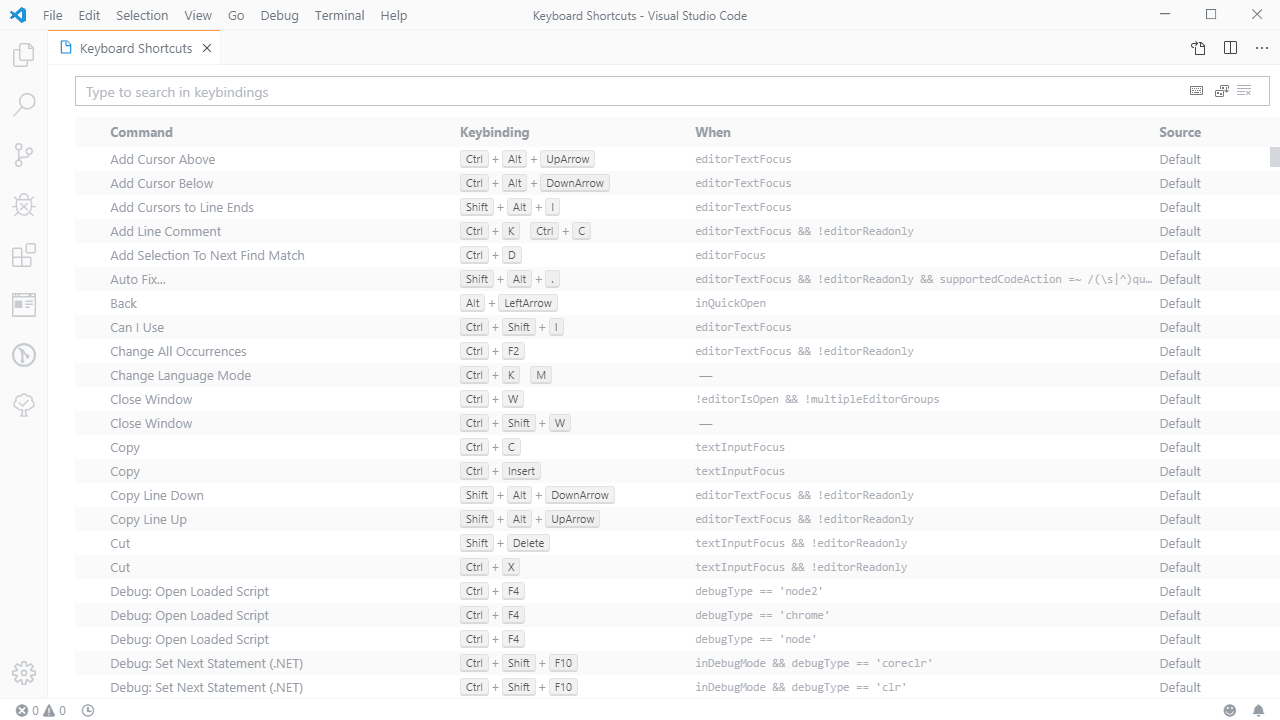
If you spend hours coding, you know that constantly switching from the keyboard to the mouse is a real drag. For those of us who use Visual Studio Code , mastering keyboard shortcuts or key bindings isn't just about showing off; it's essential for speed and efficiency. This editor is a true Swiss Army knife, allowing us to perform almost any task with a simple key combination, making development much smoother.
It's important to note that, while Windows and Linux commands are quite similar, there are slight variations depending on the operating system . Furthermore, VS Code's power lies in the fact that it's not just an editor, but an extensible tool; this means that, depending on the plugins you install, you can add new combinations to get the most out of your workflow.
How to locate and manage your shortcuts
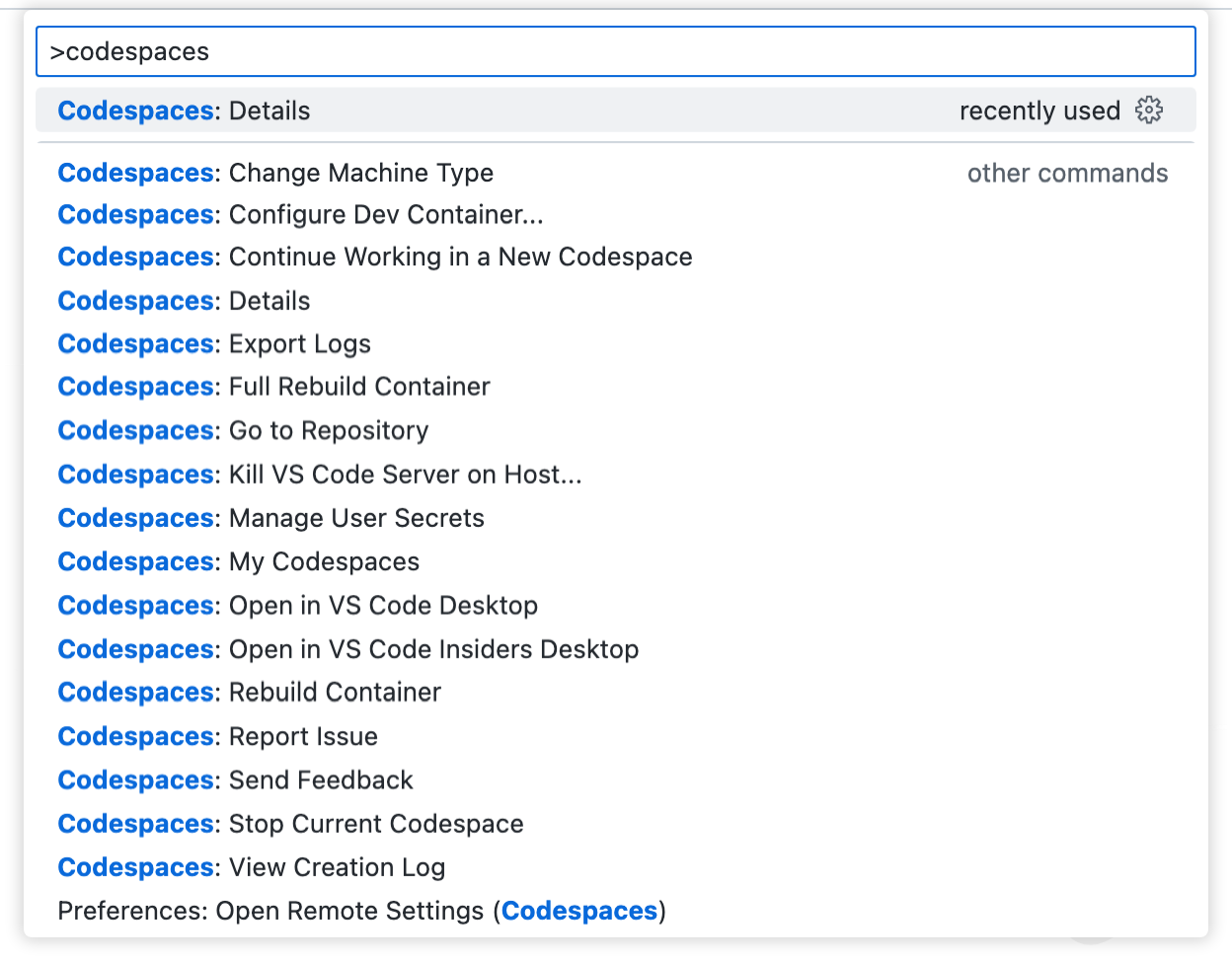
If you get lost among so many keys, don't worry, there are several ways to find your way. The quickest is through the Command Palette , navigating to View and then opening Shortcuts. If you prefer the traditional method, you can go to the File menu, enter Preferences, and select Keyboard Shortcuts.
For those who don't want to waste time navigating menus, there's a direct trick: press + K and then + S. This will take you straight to the settings panel where you can view and modify each command to your liking, adapting the editor to your own workflow.
Essential commands for everyday life
When we're in the middle of a workflow, there are actions we constantly repeat. To save progress, the classic Ctrl +S is king, while to close the active tab we use Ctrl +F4 . If you need to open a new window from scratch, you can use Ctrl+Shift+N.

Editing lines also has its tricks. For example, if you want to select the entire line where the cursor is, use + L. To delete it in one fell swoop without having to select it, you have two options: + or the combination + + K.
As for moving blocks, it's incredibly useful to be able to move code up or down. Just select the snippet and use the up or down arrow keys . If you don't select anything, the editor will move the current line , which is ideal for quickly reordering functions without cutting and pasting.
Regarding comments, you can do it line by line or use traditional delimiters, but the most efficient way is to select the block and press Ctrl +K and then Ctrl+C . To revert and remove the comments, simply change the C to a U: Ctrl+K and Ctrl+U.
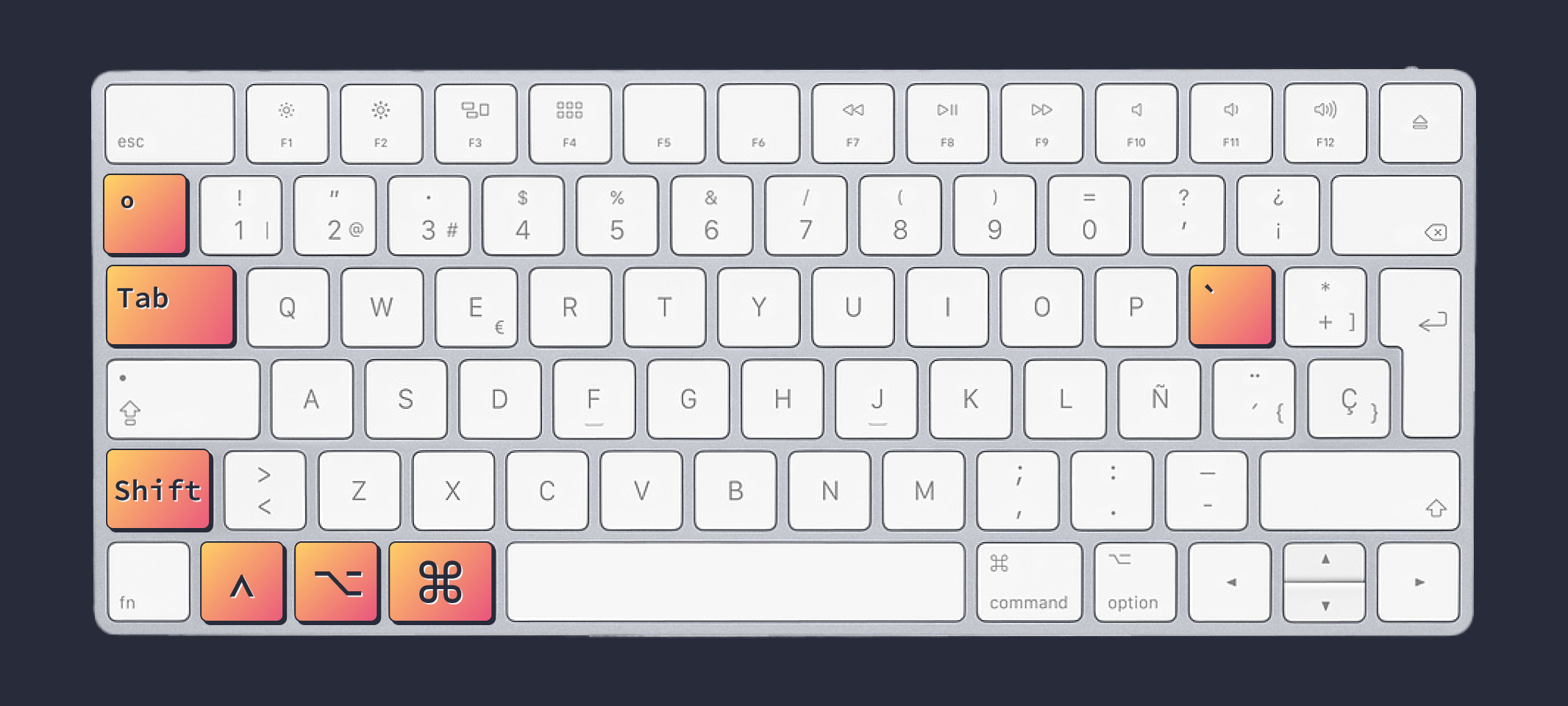
Navigating massive projects can be a nightmare if you don't know the shortcuts. To jump to any file in the project in a second, press + P and type the filename. If you're already in a document and want to go to a specific line, + G is your best friend; you can even add a colon and the column number for extreme precision.
If you need to search for a word or phrase in the current file, Ctrl+F is the standard. But if you also want to replace that term with another, you should use Ctrl +H . For more advanced users, Alt+Enter allows you to select all the matches in a search at once, enabling bulk multi-editing.

To manage your workspace, Ctrl+B hides or shows the left sidebar, giving you more room for code. If a line is too long and goes off-screen, Alt+Z activates automatic line wrapping, preventing you from having to scroll horizontally.
Debugging and refactoring tools
There comes a point when the code stops working, and you need to enter detective mode. To start debugging, press F5 . If you want to step through the instructions one by one, you can use F11 to enter functions or F10 to skip them. To stop the entire debugging process, use Shift + F5.
Refactoring is vital for keeping your code clean. If you need to rename a variable or function across the entire project, F2 is the magic command that does it intelligently. To jump directly to an element's definition, you can press F12 , saving you from manually searching for where that variable was declared.
There are also tools for analyzing the structure. Ctrl+Shift+O displays the code as a symbol list, while Ctrl+Shift+M opens the Problems window to view compiler warnings. To see the call hierarchy of a method, press Ctrl+K followed by T.
To complete the picture, remember that you can open the built-in terminal at the bottom with Ctrl + ` , allowing you to run console commands without leaving the editor. Mastering these tools transforms the programming experience, letting you focus on the logic rather than the tool itself.
The combination of streamlined navigation, the ability to instantly edit entire blocks of code, and the use of built-in debugging tools makes Visual Studio Code an unbeatable environment. By integrating these shortcuts into your muscle memory, you drastically reduce fatigue and gain execution speed that makes all the difference in any professional project.
