- It allows you to restrict the bandwidth of updates using absolute values in Mbps or percentages of the connection.
- Difference between foreground (manual) and background (automatic) downloads to optimize network usage.
- It offers the possibility of configuring the network as a metered connection to avoid non-priority automatic downloads.
- It includes tools to limit upload speed and monitor data exchange activity with other PCs.

I'm sure it's happened to you before: you're in the middle of an online game, an important video call, or streaming a series, and suddenly your connection starts to slow down . It's not that your internet provider is trolling you; it's that Windows has decided it's the perfect time to download a major update, hijacking all your bandwidth without asking.
The good news is that you don't have to resign yourself to your PC hogging all your home internet bandwidth. Microsoft has included some pretty decent tools to limit Windows Update and decide exactly how much bandwidth the system can use, allowing you to browse peacefully while your computer updates in the background.
What exactly is Delivery Optimization?
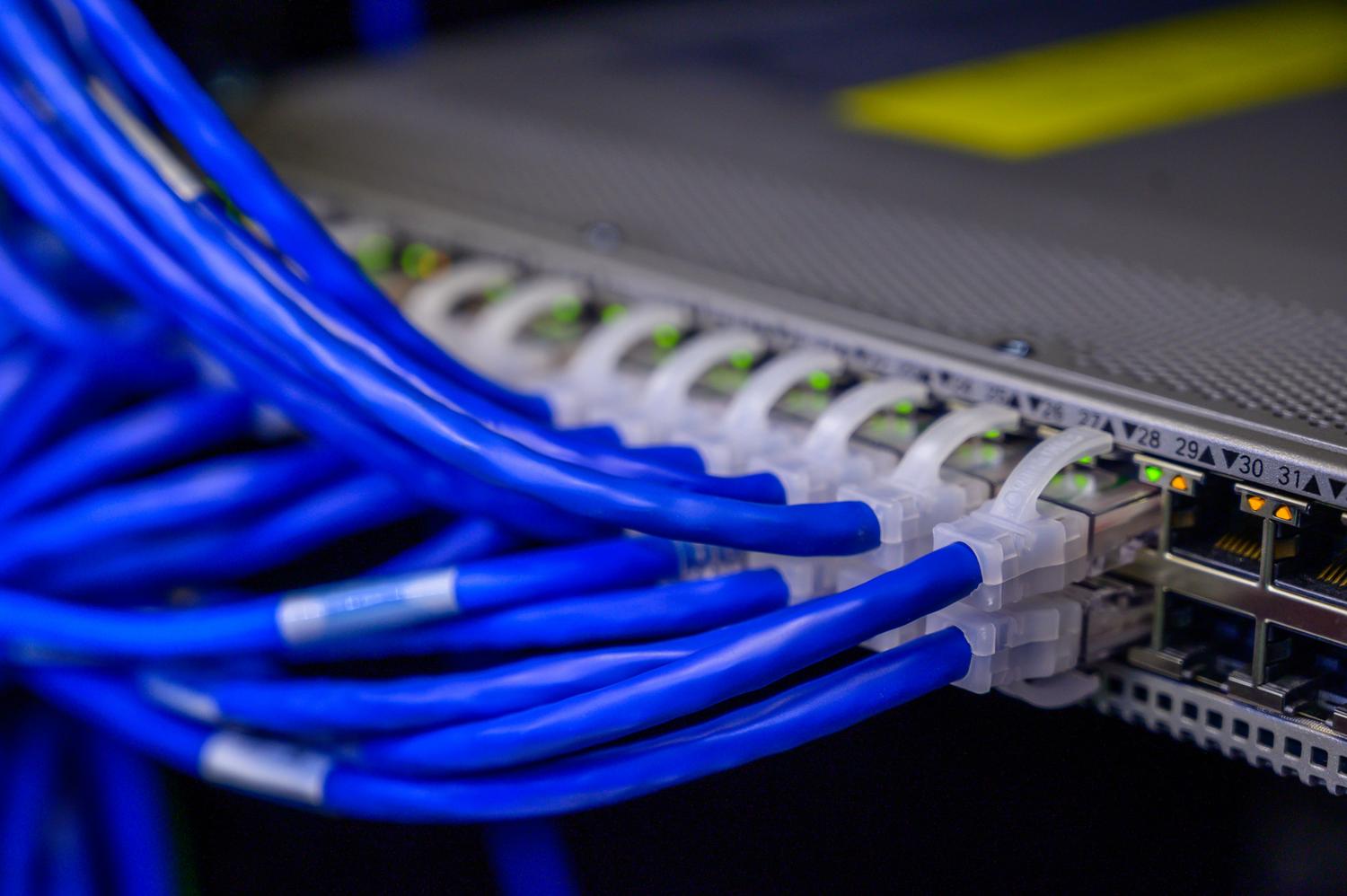
Before we delve into the settings, it's helpful to understand what Delivery Optimization is. Essentially, it's a cloud-based download system that allows your computer to not only download files from Microsoft servers, but also exchange data with other PCs on your local network or even the internet.
The idea is that if another computer in your house has already downloaded the update, your PC will download it from there, which is much faster and more efficient. The system divides the files into small pieces and finds the most reliable and fastest source for each part. Don't worry, this process is safe: Windows checks the authenticity of each file fragment before installing it and doesn't access your personal folders or touch your private files.
How to limit bandwidth in Windows 11

If you're using the latest version of the system, accessing the speed controls is quite intuitive. Just follow these steps: go to Start, open Settings, go to Windows Update , and then scroll down to Advanced options. Once there, find the Distribution Optimization section and go into Advanced options again.
This is where the magic happens. You have two ways to limit the speed:
- Absolute bandwidth: This is where you enter the exact speed in Mbps. You can check the box to limit background downloads (those that Windows does automatically) or foreground downloads (when you click the check for updates button). You can set the limit that you want so that it doesn't overload the network.
- Percentage of measured bandwidth: If you're not entirely sure how many Mbps you're paying for, this is the best option. You simply move a slider to indicate what percentage of your connection the system can use. A balanced setting is usually to leave the 45% for background and 90% for foreground, so you always have room to play or work.
Settings for Windows 10 users
If you're still using Windows 10, the process is very similar, although the menus are slightly different. You need to go to Settings, Update & Security , and then to Delivery Optimization and its Advanced options.
One curious detail is that in some versions of Windows 10 there's a translation error where the two limit boxes appear to say the same thing. Don't be confused: the first box controls automatic downloads (background) and the second controls downloads you initiate manually (foreground). Just like in Windows 11, you can choose between absolute values in Mbps or percentages of your total speed.
Other ways to save data and speed
If the problem is that you have a very limited data plan or you're using a mobile hotspot, there's a very effective trick: set your connection to metered usage . To do this, go to Settings, Network & Internet, select your Wi-Fi, and turn on the metered connection option. This tells Windows not to automatically download updates unless they're critical, thus avoiding surprises on your mobile bill.
You can also check your background apps . Sometimes it's not just Windows Update; email or social media apps can be consuming data without you realizing it. Controlling which apps can run when you're not using them helps make your actual download speed more stable.
Load management and activity monitor

You can limit not only what comes in, but also what goes out. In the Distribution Optimization menu, you can limit the percentage of upload bandwidth your PC uses to send updates to other computers. You can even set a monthly upload limit (between 1 and 500 GB) to prevent your computer from constantly sending data over the internet.
If you're curious to know how much the system is helping you, there's an Activity Monitor . There you'll see detailed statistics for the current month, including average speed and how much content you've downloaded from other computers versus what you've downloaded directly from Microsoft. This lets you check if your settings are too restrictive or appropriate.
It's important to note that if you can't disable some of these options, it's probably because your computer is managed by a company or institution and the IT administrator has locked those settings. In that case, the options will appear grayed out and you won't be able to change them.
Controlling the data flow of updates allows your system to stay current without impacting your browsing experience. Whether by adjusting the exact Mbps, using percentages, or configuring your network as a measure, you have the power to prevent Windows Update from slowing down your internet, ensuring that bandwidth is intelligently allocated between your priority tasks and software maintenance.