- Home Assistant is extended through add-ons, integrations, and HACS, each with a distinct role in the architecture.
- ZHA, Zigbee2MQTT, Z-Wave JS and Mosquitto are pillars for managing wireless networks and local home automation communications.
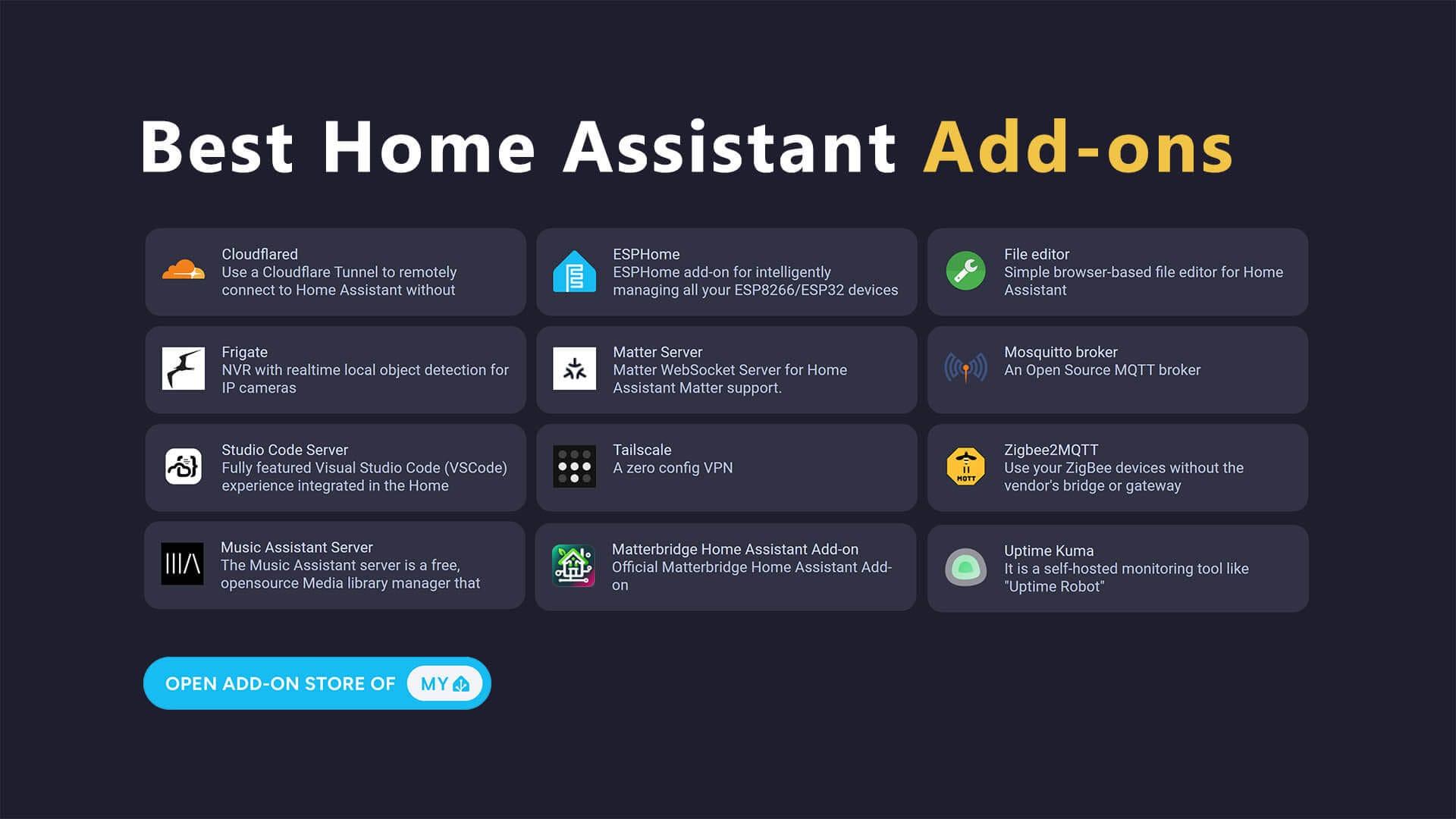
- Add-ons such as Node-RED, Studio Code Server, Tailscale, or Cloudflared improve automation, administration, and secure remote access.
- A good Zigbee mesh and an automated backup system are essential for stability and recovery from failures.
If you're involved in the world of home automation, sooner or later you're going to come across Home Assistant and its enormous ecosystem of plug-ins, add-ons, and integrations . The problem is that when you search for something as specific as "Home Assistant plug-in," you're met with a jumble of information: add-ons, integrations, HACS, Matter, Zigbee, Z-Wave… and in the end, you don't know where to begin.
In this guide, we'll clarify all of that. We'll see what a Home Assistant plug-in actually is, what types are available, and which ones are most important for setting up a stable, secure, and easy-to-maintain smart home. We'll also review key concepts of Zigbee, Z-Wave, MQTT, Matter, and best practices to prevent your network from becoming a nightmare every time you update or add a new device.

What does “plug-in” really mean in Home Assistant?
When we talk about "plug-ins" in Home Assistant, we're actually referring to several different things: add-ons, integrations, and community extensions (HACS) . Understanding the difference is essential to avoid problems during installation or updates.
On one hand, there are add-ons : small applications or services that run within Home Assistant OS or Home Assistant Supervised. These are not simple configurations; they are complete services (MQTT servers, code editors, proxies, VPNs, etc.) that Supervisor manages as containers, with their own configuration and logs.
Then we have integrations . These allow Home Assistant to communicate directly with your devices or services: Zigbee, Z-Wave, Philips Hue, cameras, cloud services, etc. They are managed from the Integrations section of the interface and are the "official" way to connect things to the system.
And finally, there's HACS (Home Assistant Community Store) , which functions as a community store for plug-ins: Lovelace cards, unofficial integrations, themes, and tools that don't come standard but greatly expand what you can do.
One important detail: add-ons are only available in Home Assistant OS and Home Assistant Supervised , because these are the versions that include Supervisor. If you use Home Assistant Container or Core installed directly on Linux, you can use integrations, but you'll have to set up add-ons yourself as separate services.
Essential add-ons for Home Assistant to work smoothly
There are dozens of add-ons, but a few are practically essential for a modern smart home to function . They aren't the most flashy, but without them, everything else collapses like a house of cards.
Z-Wave JS (formerly Zwavejs2mqtt)
If you use Z-Wave devices, the Z-Wave JS add-on is the heart of the system. It bridges your Z-Wave network and Home Assistant , managing the USB dongle (like the Aeotec Z-Stick 7 Plus) and exposing sensors, lights, plugs, locks, and other devices as entities in Home Assistant.
In many homes, most critical automation systems (lights, switches, motion sensors, garage door openers, even some alarm systems ) rely on dozens of Z-Wave devices . Without this add-on, those devices simply wouldn't exist for Home Assistant.
Zigbee: Zigbee2MQTT and ZHA
In the Zigbee world, you have two main paths: Zigbee2MQTT as an add-on, or ZHA (Zigbee Home Automation) as a native integration . Both turn your Zigbee USB coordinator into the hub of a mesh network of sensors, plugs, lights, and remotes.
ZHA, on the other hand, is the official Zigbee integration in Home Assistant . It uses the zigpy library to communicate with various types of coordinators (Silicon Labs, Texas Instruments, ConBee/RaspBee, ZiGate, XBee, etc.) and sets up the network directly from the HA interface, without requiring an intermediary service.
In both cases, what they are looking for is the same: to set up a stable Zigbee network with a coordinator, several routers and a lot of end devices , taking advantage of the mesh network to have sufficient range and capacity.
Zigbee in detail with ZHA: concepts you need to understand
ZHA integration has become one of the most robust and straightforward ways to bring Zigbee to Home Assistant . It allows you to replace typical proprietary hubs (Hue, Aqara, etc.) and centralize everything in a single local system.
Zigbee Basics
Before you struggle with devices and pairings, it's worth understanding how Zigbee works. The network consists of three types of elements: coordinator, routers, and end devices.
- Zigbee CoordinatorThis is the main adapter (usually a USB device plugged into the same computer where Home Assistant is running). Each Zigbee network can only have one.
- Zigbee routers: devices powered by the electrical network (plugs, light bulbs, fans…) that repeat the signal and allow extending the range and number of nodes.
- End devicesThey are usually battery-powered (motion sensors, temperature sensors, remote controls, etc.) and are connected to the coordinator or a nearby router.
The key to Zigbee is that it forms a mesh network : routers pass messages from one to another, so you can reach areas of the house far from the coordinator without needing to increase transmission power.
Selection of the coordinator and compatibility
ZHA works with many different coordinators as long as they are compatible with the Zigpy library . Recommended coordinators rely on Silicon Labs EmberZNet (EZSP) or Texas Instruments (Z-Stack) chips, and it also supports ConBee/RaspBee from Dresden Elektronik.
More hardware is supported (ZiGate, XBee, older Silabs or TI models), but the documentation itself makes it clear that not all adapters offer the same level of stability and support . If you're setting up a large installation, it's best to opt for a modern and well-tested coordinator.
Zigbee channels and coexistence with Wi-Fi
The 2,4 GHz Zigbee uses 16 channels, from 11 to 26. The problem is its coexistence with Wi-Fi : they can easily overlap. The general recommendation is to work with channels 15, 20, or 25, which usually avoid the worst of the overlap with typical home Wi-Fi channels.
From the ZHA network page, you can change the Zigbee channel . There's a "Smart" option that scans and chooses the one that seems best, prioritizing 15, 20, and 25. It's a one-time change: devices can take up to an hour to reconnect, so it's best to do it when things are quiet.
Zigbee network management and migration
ZHA goes beyond simply pairing devices. It includes detailed network information (channel, PAN ID, coordinator IEEE address, radio type, serial port, baud rate, etc.) and, most importantly, a very powerful coordinator backup and migration system.
When you create a copy from ZHA, you can migrate your entire network to another adapter (for example, from an older dongle to a newer one) without having to re-pair all the devices. The process can even clone the coordinator's IEEE address so that the nodes continue to recognize the network as the same.
How to pair, organize, and maintain a stable Zigbee network
It's one thing for ZHA to detect your coordinator, and another for the network to run smoothly. A large part of the success lies in how you position the devices, which routers you use, and how you avoid interference.
Pair devices with ZHA
To add a new device with ZHA, simply go to Settings > Zigbee > Add device , open the network to allow new additions, and put the device into pairing mode or perform a factory reset (according to the manufacturer's instructions).
It's recommended to pair the devices directly where they'll be living , not next to the coordinator and then move them around. If you pair them right next to the coordinator and then move them to the back of the house, they might end up with less than optimal or unstable routes.
If something is causing problems, check three things: interference, the number and quality of routers, and battery status . Many Zigbee devices with low batteries simply won't reliably enter pairing mode.
Zigbee router usage and device limits
All coordinators have a limit on the number of direct child devices (end devices directly connected to them). Zigpy typically works with a maximum of 32 direct children, but that doesn't mean the network is limited to 32 devices: with routers, you can easily reach hundreds.
The idea is to fill the house with always-on Zigbee routers : plugs, light bulbs that never need to be switched off, built-in modules, etc. Each router can, in turn, accept multiple child devices, and that's how you scale up.
In a simple example, a coordinator with a limit of 32 devices and three routers that each support 16 devices could reach a total of 77 units. In real-world homes, if you want reliability, it's always wise to prioritize more routers and better placement rather than pushing the theoretical device limit.
Visualization of link topology and quality
ZHA includes a network map that lets you see how nodes are connected . It displays multi-hop relationships and, if reported by the device, RSSI and LQI values.
These numbers should be taken with a grain of salt: each manufacturer calculates RSSI and LQI in their own way , so they're not exactly comparable. They're more useful for detecting major issues: a device connected to a single, distant router, consistently very low values, unexpected gaps in the mesh network, etc.
Interference and coordinator placement
One of Zigbee's biggest enemies is the noise from USB 3.x ports and cables, Wi-Fi routers , and metal enclosures . A Zigbee adapter attached to a NAS with hard drives, a Wi-Fi router, and a tangle of cables is almost guaranteed to cause problems.
The basic guidelines for improving the network are clear: use a well-shielded USB 2.0 extension cable, place the coordinator in the center of the house, keep it away from Wi-Fi routers and other noisy devices , and, if possible, use a dongle with an external antenna.
MQTT, Mosquitto and why they are so important
Many key Home Assistant plug-ins rely on MQTT as a lightweight and flexible communication layer . This is the case with Zigbee2MQTT, some older Z-Wave bridges, and numerous DIY projects.
The Mosquitto add-on implements a complete MQTT broker within Home Assistant
If you open a client like MQTT Explorer, you'll see a forest of topics and messages constantly circulating: sensor readings, device states, power-on and power-off commands . When your Zigbee and Z-Wave network are integrated via MQTT, the broker becomes a literally critical component.
Advanced automation with Node-RED and native automation
Home Assistant has greatly improved its visual automation editor . You no longer need to wrestle with YAML for simple things… but when the logic gets complex, Node-RED remains a very powerful tool.
Node-RED is installed as an add-on and offers a web interface where you drag and drop nodes to create flows that chain together conditions, timers, service calls, and data processing. It's especially useful for automations where visualizing the flow as a diagram helps you understand what's happening.
Many people combine both worlds: simple automations in the native Home Assistant editor , and more complex workflows (complex scheduling logic, integration of multiple data sources, etc.) in Node-RED. It's not mandatory, but it provides a lot of flexibility.
Add-ons for development, administration, and remote access
Beyond the pure home automation layer, there are a number of plug-ins that greatly facilitate day-to-day management and extension of Home Assistant.
Studio Code Server
Studio Code Server integrates a version of Visual Studio Code directly into the browser as a Home Assistant add-on. It allows you to edit configuration.yaml files, automations, scripts, and any other file without leaving the interface.
It includes syntax highlighting, autocompletion for YAML and Home Assistant schemas , and you can customize the editor, install extensions, and upload files. For anyone who still does a lot of manual configuration, it's a must-have.
Advanced SSH & Web Terminal
This add-on provides a browser-accessible SSH terminal with support for keys and advanced options. It's the most convenient way to run commands on the host, review logs, install HACS, or make minor adjustments without relying on an external SSH client.
It is also very useful in diagnostics: when something doesn't start, a system log or a well-done "docker ps" saves you a lot of trouble.
Tailscale and Cloudflare for secure remote access
If you want to access Home Assistant from outside your home, you have several options, but two add-ons stand out for their security: Tailscale and Cloudflared.
Tailscale sets up a mesh VPN between your devices , based on WireGuard but with a much more user-friendly configuration.
Cloudflare, on the other hand, creates encrypted tunnels from your Home Assistant instance to the Cloudflare network . It allows you to expose Home Assistant to the internet without opening ports, using your own domain and certificates managed by Cloudflare. It's one of the most secure and clean ways to have always-available remote access, at the cost of requiring a domain and some initial configuration.
Monitoring, privacy, and extra services that make all the difference
Once you have the foundation (Zigbee/Z-Wave, MQTT, automation and remote access), it's time to polish the experience with add-ons that improve visibility, security and convenience.
Uptime Kuma
Uptime Kuma is an availability monitoring tool that you can use as an add-on to monitor your Home Assistant, other network services, critical devices, cameras, and more. It allows you to define HTTP checks, ping, port checks, certificate checks, and receive alerts if something goes down.
With its dashboards and graphs, it's easy to see patterns of outages, response times, and small intermittent problems that would normally go unnoticed.
AdGuard Home
Integrating it as an add-on in Home Assistant allows you to centralize browsing statistics, improve privacy and increase loading speed across your home network, as well as offer parental controls and custom blacklists.
Grocy, Jellyfin, Music Assistant and other useful services
Home Assistant isn't just for lights and plugs. Thanks to add-ons, you can turn it into a central hub for home management and entertainment.
- Grocy: inventory manager (pantry), household chores and planning that integrates with HA to create reminders and automations based on expiration dates or stock.
- jellyfin: open source media server that organizes and serves your movies, music and series without fees or external clouds.
- Music Assistant: Multiroom audio management layer that integrates local sources, online radios and streaming services under centralized control from Home Assistant.
ESPHome, Frigate and Matter: the future of plug-ins in HA
One of Home Assistant's greatest strengths is that it makes it easy to go all-in on DIY projects when you want to go beyond what's sold in stores . This is where ESPHome, Frigate, and Matter Bridge come into play.
ESPHome for ESP-based DIY devices
ESPHome is practically essential if you enjoy tinkering. It allows you to configure and maintain ESP8266/ESP32-based devices (sensors, relays, displays, etc.) using YAML and with built-in OTA updates.
From Home Assistant, you can compile the firmware, flash it, and keep all your devices updated. This makes your own DIY devices behave like official integrations , with fully exposed entities and without relying on Chinese cloud services.
Frigate as a smart NVR
Frigate is an NVR (Network Video Recorder) with real-time AI object detection . It integrates with Home Assistant and can trigger automations when it detects people, vehicles, animals, etc., on your IP cameras.
This allows for the creation of scenarios such as "if there is a person in the garden and the alarm is armed, send a notification and turn on lights" with great precision, avoiding false alarms due to tree movement, rain, etc.
Matter Bridge and external ecosystems
Matter Bridge acts as a bridge between Matter devices and Home Assistant without requiring re-pairing. Additionally, it can expose your HA entities as Matter devices to other controllers (such as Google Home, Apple HomeKit, etc.).
With a simple interface designed to scale, this piece will become key as more Matter devices appear on the market and you want to have them all under the control of Home Assistant without giving up your usual voice assistants.
Backups: the plug-in that doesn't seem urgent… until it is
Last but not least: if you don't have a well-set-up backup system, you're playing with fire . Home Assistant is updated frequently, add-ons are constantly changing, and hardware errors or failures are not unheard of.
Add-ons like Samba Backup or Home Assistant Google Drive Backup allow you to automate complete backups of your instance and save them off-site (to a NAS via Samba, Google Drive, etc.). The idea is that you can restore your entire installation or a specific add-on without losing weeks of work.
Many users' experiences make it clear that sooner or later, a major system restore is inevitable . Having recent, tested, and accessible snapshots makes all the difference between a minor scare and having to rebuild your entire smart home from scratch.
With all these plug-ins and concepts clearly explained—from ZHA and MQTT to add-ons for development, monitoring, remote access, and backups—it becomes quite clear that Home Assistant is much more than "a lighting app": it's a complete platform where the right plug-ins transform a standard installation into a robust, flexible, and fully controlled home automation ecosystem , provided you dedicate some time to choosing the right pieces and understanding how they fit together.