- Windows 11 Home and Pro share the same interface, base performance, and almost all home and gaming features.
- Windows 11 Pro adds advanced security, centralized management, domain, and virtualization for professional environments.
- For most home users and gamers, Windows 11 Home is sufficient and more cost-effective.
- Windows 11 Pro is most worthwhile for businesses, managing multiple PCs, and advanced technical uses.
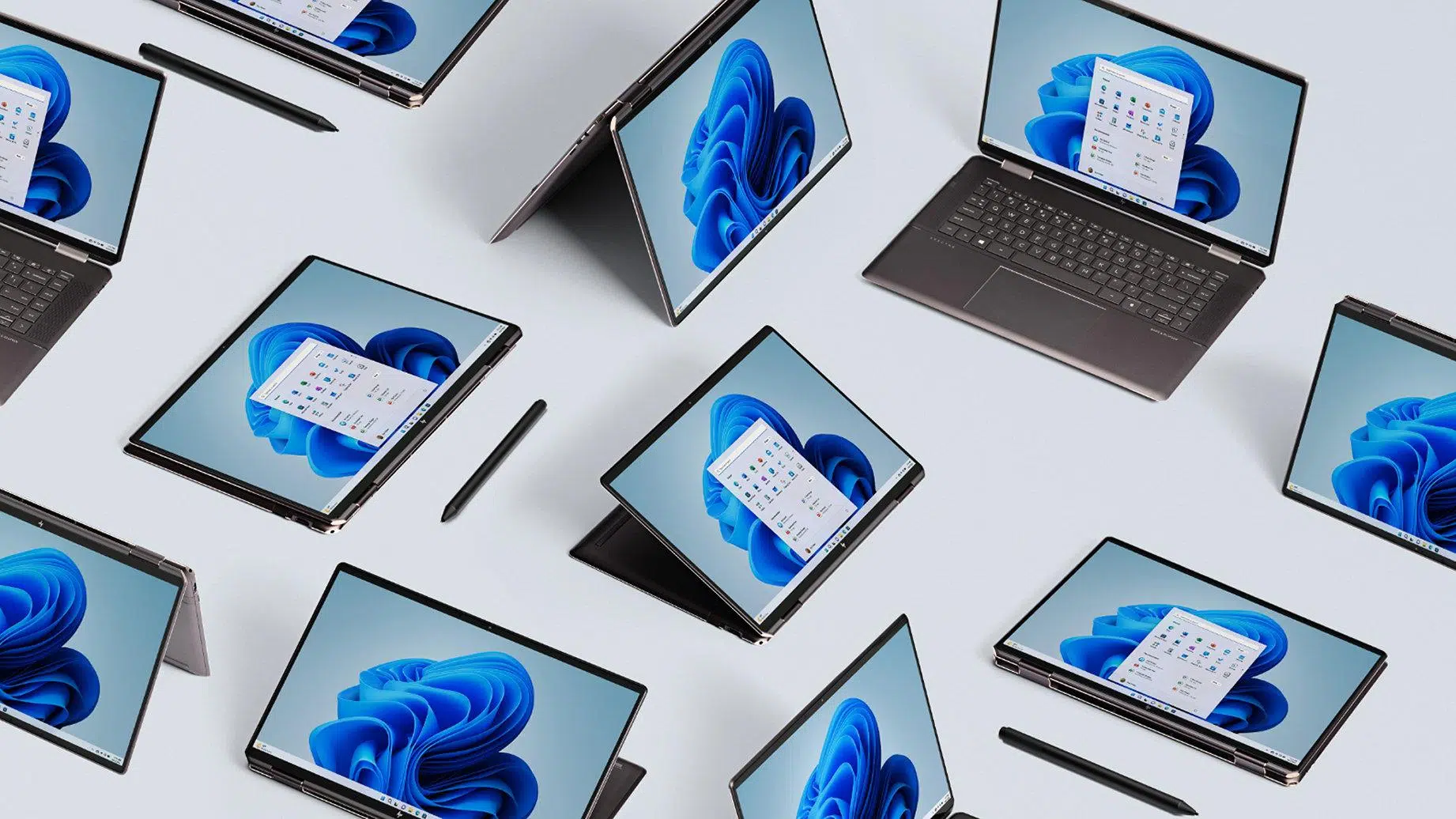
If you're thinking about upgrading your desktop PC or laptop to Windows 11, it's normal to have the classic question on your mind: Windows 11 Home or Windows 11 Pro? System reviews are generally positive, Windows 10 support is nearing its end, and you don't want to make the mistake of choosing an edition you don't need... or end up missing out on key features.
In this article, you'll find an in-depth comparison between Windows 11 Home and Windows 11 Pro, using all the information from the most comprehensive guides available online, but explained clearly, accessibly, and without unnecessary technical jargon. You'll see what they have in common, how they differ, what terms like "advanced security," "device management," and "virtualization" mean, and, most importantly, which version is best suited to your needs , whether for personal, professional, gaming, or business use.
What exactly are Windows 11 Home and Windows 11 Pro?
Microsoft has been offering several editions of its operating system for years, and with Windows 11 it has simplified things considerably: for the average user, the two editions that matter are Home and Pro . There are other versions (Enterprise, Education, workstations, etc.), but these are designed for large companies, educational institutions, or highly specialized teams.
Windows 11 Home is the standard edition that comes pre-installed on most laptops and desktops you buy from major retailers. It's designed for the typical home user: browsing, office applications, streaming, gaming, some content creation, and not much else. It includes all the modern features you'd expect from Windows today.
Windows 11 Pro is the edition geared towards professionals and businesses . It includes everything in Home and adds a set of advanced tools that most home users never use: extra security options, centralized management of multiple computers, enterprise networking features, advanced virtualization, and more.
This difference in approach is reflected in the price: Windows 11 Pro is more expensive than Windows 11 Home . Therefore, it's important to fully understand what the professional version offers and consider whether it's worth paying the extra cost or if the Home edition is more than sufficient.
Many business computers or high-end PCs already come with Pro pre-installed, so in those cases you don't have to choose anything: if you already have Pro, there's no point in "downgrading" to Home , because Pro includes absolutely everything that Home offers.
Similarities between Windows 11 Home and Windows 11 Pro
Before discussing the differences, it's important to clarify that the system's foundations are identical in Home and Pro . There aren't two distinct "Windows 11s": the overall experience, performance, and interface are virtually the same in both editions.
Both versions share the same user interface with a centered Start menu, a redesigned taskbar, and redesigned icons . Looking at the screen, you can't tell if a PC is running Home or Pro, because they're visually identical.
In terms of performance, Windows 11 Home and Pro behave the same if the hardware is identical . They share the same improved memory management, CPU and GPU optimizations, and energy efficiency improvements, which are especially noticeable on laptops with better battery life.
As for "day-to-day" features, both editions include Snap Layouts and Snap Groups for snapping windows, virtual desktops, a Widgets panel, Microsoft Edge, the Microsoft Store, Clipchamp, the new Photos app, the revamped media player, and the Snipping Tool, which now also allows video capture.
They also share Copilot, Microsoft's AI assistant , and all the productivity and entertainment improvements that have come with the latest versions. If you're concerned about being able to use the new visuals, modern apps, or gaming features, you don't need to pay extra for Pro.
The minimum hardware requirements are identical for Windows 11 Home and Pro . To install either one, you need, as a minimum:
- Processor1 GHz or faster, 64-bit, with at least 2 cores
- RAM: minimum 4 GB
- Storage: at least 64 GB of available space
- Graph- Compatible with DirectX 12 or later
- FirmwareSecure Boot and TPM 2.0
- ScreenMinimum resolution 720p
- Internet connection and Microsoft account for initial setup
Some specific functions, however, require additional hardware: Windows Hello needs a compatible camera or fingerprint reader , Teams requires a camera, microphone and speakers, and certain graphics functions demand a more powerful GPU.
Windows 11 Home vs Pro in security
Although both editions come with fairly good protection as standard, the biggest leap between them lies precisely in the security and data protection features designed for professional environments . This is where Pro becomes justified for offices, SMEs, and very advanced users.
Both include very comprehensive basic security: Secure Boot, TPM 2.0, Windows Security (antivirus and firewall) , parental controls, device encryption, and anti-malware mechanisms . For the average home user, this is usually more than enough.
Windows 11 Pro also incorporates several additional layers of security. The best known is BitLocker , which allows you to encrypt all the contents of your hard drive or SSD. If you lose your laptop or it gets stolen, without the correct password no one can access your data, which is vital for a company or freelancer who carries sensitive information.
Another feature exclusive to Pro is Windows Information Protection (WIP) . It's geared towards businesses and helps prevent data leaks, even accidental ones, by better differentiating between corporate and personal information, both on company devices and employees' personal computers.
This also includes advanced update control options with Windows Update for Business . With Home, you receive updates when Microsoft releases them and can postpone some, but with Pro, you can manage when and how updates are deployed to different groups of PCs to avoid disrupting work during critical hours.
For personal use, unless you handle highly sensitive data or are particularly privacy-conscious, these extra layers of security in Pro are usually "nice to have," not essential . There are third-party encryption alternatives if you want something similar to BitLocker in Home, for example.
Administration and management tools in Windows 11 Pro
Where Microsoft truly shines is in its administration, deployment, and remote management features for multiple computers . This is clearly designed for businesses or highly advanced users who manage several PCs.
In Windows 11 Pro you have the classic Group Policy available , which, together with Windows Server, allows you to centralize the configuration of security, permissions, printers, network drives and many other policies on dozens or hundreds of computers without having to go one by one.
Another very useful feature in corporate environments is Assigned Access . With it, you can configure a PC to run only a specific application, blocking the rest of the system. It's perfect for kiosks, customer service terminals, or workstations where only access to a specific program is needed.
During the initial deployment phase, Windows 11 Pro offers dynamic provisioning . This allows a new PC to be quickly configured with company policies, apps, and settings the first time it's powered on, saving the IT department significant time.
If your company uses the Microsoft cloud, Enterprise State Roaming with Azure comes into play , synchronizing user settings and configurations across different Windows devices connected to Azure AD Premium or Enterprise Mobility + Security packages. Essentially, it prepares new devices by leveraging the profiles of existing ones.
Also exclusive to Pro (and enterprise editions) is the Microsoft Store for Business , a dedicated store for managing licenses and deploying applications en masse to multiple devices. Although the current trend is toward web apps and management via Intune or other MDM solutions, it remains an important component for certain organizations.
All of this is complemented by cloud-based mobile device management (MDM) , designed to remotely control and configure PCs, laptops, and tablets from a central console. This is another clearly enterprise-oriented component: if you only have one PC at home, this part won't offer you any benefit.
Integration with Active Directory and Azure AD
Another key difference is the ability to join Active Directory (AD) and Azure Active Directory (Azure AD) domains , something that Windows 11 Home does not fully support.
In enterprise environments, it's common for all computers and users to be managed through Active Directory on a Windows server . This allows for the centralized application of security policies, assignment of network permissions, and management of shared printers and resources. Windows 11 Pro is ready to join these domains seamlessly.
Azure Active Directory offers a similar concept, but implemented in the cloud. It enables single sign-on (SSO) between Windows 11, Microsoft 365 (Office), and other Microsoft services, significantly simplifying the management of users, passwords, and resource access.
If you use your PC at home for personal tasks, this aspect won't matter much to you. However, if you work in an SME or manage a small fleet of computers , Windows 11 Pro's compatibility with Active Directory and Azure AD is a compelling reason to choose it.
Virtualization, Remote Desktop and advanced features
In addition to security and management, Windows 11 Pro adds some powerful tools for advanced users and IT professionals, especially in the field of virtualization and remote access.
The best known is Hyper-V , Microsoft's own hypervisor that allows you to create and run virtual machines with different operating systems (for example, another Windows or a Linux distribution) directly on the hardware, without depending on third-party solutions.
Related to this is Windows Sandbox , which is only available in Pro and higher editions. It's a disposable, lightweight environment where you can run suspicious programs or perform tests without fear: when you close the Sandbox, everything inside disappears. It's very useful for those who tinker with a lot of software or files of dubious origin.
In terms of remote access, Windows 11 Home only allows you to connect to another PC that has Remote Desktop enabled . In other words, with Home you can only act as a "client." With Windows 11 Pro, however, your computer can also act as a "host": you can allow others to connect to your PC via Remote Desktop and control it as if they were sitting right in front of it.
For most home users, these features sound like "too much," but for developers, system administrators, support technicians, or very advanced users, they make all the difference and make Pro worthwhile.
RAM, cores, and hardware limitations
As for the minimum requirements, we've already seen that there are no differences, but there are important changes in the maximum hardware limits supported by each edition , something that may matter to some very demanding users.
Windows 11 Pro, on the other hand, raises those limits dramatically: it can manage up to 2 TB of RAM , which is intended for workstations, servers, or very high-end specialized equipment. It also handles CPU configurations that Home doesn't support, including systems with more than one physical processor.
In the home market it is very rare to see PCs with more than 128 GB of RAM or more than one processor, so these hardware differences only affect very specific cases , such as machine learning machines, extreme 3D rendering or virtualization labs with many simultaneous machines.
Games and entertainment: Does the edition matter?
For those building a PC for gaming, the question of whether to choose Home or Pro often arises. The answer is quite clear: in gaming, Windows 11 Home and Pro perform the same , as they share the same system kernel and gaming technologies.
Both editions include support for DirectX 12 Ultimate, Auto HDR, and Windows 11 Game Mode. Game Mode prioritizes system resources for foreground gameplay, reducing background processes to improve stability and latency.
Both versions also feature DirectStorage , a technology that speeds up the loading of modern games by taking advantage of NVMe SSD drives, reducing loading times and improving the feeling of fluidity when entering open worlds or changing scenes.
The entire Xbox Game Pass ecosystem, the Xbox app, and streaming and capture integrations behave the same on both Home and Pro. What will make the difference in FPS or graphics quality is your graphics card, processor, and memory, not the Windows edition.
Only if you're building an extremely powerful gaming PC with massive amounts of RAM or significant virtualization needs would you benefit from Pro. In 99% of cases, Home is the logical choice for gaming.
Windows 11 Home and Pro Requirements, Licenses, and Pricing
Beyond the features, the cost is also a factor to consider. Officially, Windows 11 licenses have different recommended retail prices depending on the edition , although cheaper options can be found on the open market.
The approximate prices that Microsoft lists for full licenses are:
- Windows 11 Home: around $139,99
- Windows 11 Pro: around $199,99
- 11 Windows Enterprise: around $259,99 USD (aimed at large organizations)
Additionally, there is the option to upgrade from Home to Pro from the Microsoft Store itself , usually for around $99 USD, which in relation to the total price is even more expensive than buying Pro directly in some cases.
In parallel, there are OEM licenses and other types of legal keys that are much cheaper , usually sold by authorized distributors or specialized platforms, which allow you to get Windows 11 (Home or Pro) for considerably less than the official price.
If you already have Windows 10 and your computer meets the requirements, the upgrade to Windows 11 is free and the edition remains the same : Windows 10 Home becomes Windows 11 Home and Windows 10 Pro becomes Windows 11 Pro. If you want to upgrade from Home to Pro, you will have to pay the difference.
If you're building a PC from scratch, the official price difference between the Home and Pro versions is around $60. For most home and gaming builds, that difference is usually better spent on more RAM, a better SSD, or a slightly better GPU than upgrading from Home to Pro.
Practical differences in daily use
Given all the theory, the question many people ask is: "For personal use, what do I really gain with Windows 11 Pro?" And the answer, to be honest, is that in the day-to-day life of an average user, the changes are minimal.
For web browsing, office applications, streaming, entertainment, photo management, even basic video editing and gaming, the experience is virtually identical between Home and Pro . You won't notice your PC running slower or lacking important features in Home.
Where you would notice a difference is if you need very specific features: professional disk encryption with BitLocker, joining the computer to a domain, using Hyper-V or Sandbox, or acting as a Remote Desktop server . If none of this sounds useful to you, then Pro probably doesn't offer you a clear benefit.
One thing to keep in mind is that Windows 11 Home requires you to use a Microsoft account during the initial installation , while Pro allows you to use a local account from the start. In both cases, you can then use local accounts, but if you don't want to link the system to an online account, Pro makes it a bit easier.
It's also important to remember that, while full BitLocker and some advanced tools are exclusive to Pro, there are third-party alternatives for encryption, remote desktop, or virtualization that you can perfectly well use in Home without paying the license difference.
The reality is that, as of today, Windows 11 Home is the recommended edition for the vast majority of home users : it's cheaper, doesn't include business modules you won't use, and offers virtually all the consumer, productivity, and gaming features you'll need.
For those who already have a computer with Windows 11 Pro pre-installed, switching to Home makes no sense because Pro has no functional disadvantages compared to Home ; it simply adds extra features geared towards the professional environment.
Looking at all of the above, it's quite clear that Windows 11 Home more than adequately covers the needs of personal use, gaming, and office applications, while Windows 11 Pro really starts to make sense when you enter business scenarios, manage multiple PCs, implement corporate security, or handle advanced technical environments . If you primarily use it at home and just want your PC to run smoothly, have support for a few more years, and be able to do everything without complications, Home is the logical choice; however, if you need to join your computer to a domain, deploy policies, implement professional encryption, and seriously manage virtual machines, then it's worth spending a little more and opting for Pro.

Table of Contents
- 1 What exactly are Windows 11 Home and Windows 11 Pro?
- 2 Similarities between Windows 11 Home and Windows 11 Pro
- 3 Windows 11 Home vs Pro in security
- 4 Administration and management tools in Windows 11 Pro
- 5 Integration with Active Directory and Azure AD
- 6 Virtualization, Remote Desktop and advanced features
- 7 RAM, cores, and hardware limitations
- 8 Games and entertainment: Does the edition matter?
- 9 Windows 11 Home and Pro Requirements, Licenses, and Pricing
- 10 Practical differences in daily use