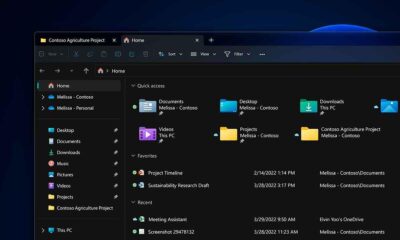
- Explorer can become slow due to how Windows classifies and prepares folders, even with fast SSDs.
- Modifying the Registry to use "unspecified" folders reduces scanning and speeds up file loading.
- Windows 11 adds preloading and visual improvements that optimize Explorer and fix annoying bugs.
- Customizing the context menu through the Registry cleans up unnecessary options and improves usability.
If you use Windows daily, you know that when File Explorer slows down or freezes , your productivity suffers. Folders that take forever to open, thumbnails that won't load, and endless green progress bars are far more common problems than you might think, even on powerful machines with modern SSDs.
The good news is that, although Microsoft has improved Explorer over time, there are several tweaks and tricks you can apply yourself to speed up browsing, avoid random crashes, and tailor Explorer to your workflow . From changes to the Windows Registry to new Windows 11 features, and even real-world user examples, there's plenty you can do before considering formatting or reinstalling your system.
One of the most illustrative cases is that of those who suddenly begin to notice that File Explorer randomly stops responding, even though the rest of the system doesn't seem to be malfunctioning. This can happen in Windows 10 and Windows 11, and in many cases, it appears seemingly out of nowhere, for example, after a power outage or after installing an update.
In these situations, it's typical that when opening folders with many images or videos, only thumbnails of some files are displayed, while the rest appear with generic icons . The Explorer seems to freeze, the green loading bar moves very slowly or freezes completely, and the window becomes unresponsive when trying to change folders.
Another common symptom is that, when you launch Explorer, the quick access and drive structure in the left sidebar takes a long time to appear . Sometimes you only see "Quick access" without the usual shortcuts to Desktop, Downloads, Documents, or the different disk partitions, and file thumbnails aren't generated as they should be.
It's also very common that, after copying or creating new files, thumbnails aren't generated for those new items , while those for older files continue to appear. This inconsistency suggests problems with caching, indexing, or how the system is processing folder contents.
In some cases, even a simple action like dragging a file into a folder causes Explorer to freeze and restart . The user sees the window close, reopen automatically, and for a few seconds everything seems to be stuck. If this happens frequently, the feeling of instability is overwhelming.
When hardware isn't the problem: an analysis of a real case
It's common to immediately suspect a damaged hard drive when encountering unusual Explorer errors . However, there are cases where the computer has more than enough power: mid-range/high-end motherboards, Intel Core i7 processors, dedicated GTX graphics cards, and 16 GB of RAM are more than sufficient to run Windows 10 or 11 smoothly.
In a real-world example, the system booted from a 500GB Crucial BX500 SSD , while an older HDD served as additional storage. After several power outages, the user suspected the SSD might have been affected, but analysis using tools like CrystalDiskInfo showed the drive's health to be good , with no reallocated sectors or critical errors.
To rule out file system problems , utilities such as chkdsk were also run from the Windows command prompt . The scan checked the disk's logical structure, corrected minor discrepancies, and forced a system restart, but the erratic behavior of Explorer persisted, pointing to a deeper issue within the operating system itself.
The next logical step was to see if a clean Windows installation would solve the problem. In this case, they even went so far as to buy a second identical Crucial SSD, install Windows from scratch on the new drive, and format the old one to use as a data drive . Despite this, the crashes and slowness of Explorer continued to occur on the newly installed system.
If a problem persists after changing the hard drive and reinstalling Windows from scratch, it indicates that, rather than a physical issue, we're dealing with a combination of Explorer behavior, configuration, user profiles, and perhaps additional software . In these scenarios, it's best to focus on internal system settings before resorting to formatting or hardware replacements.
Why is File Explorer slow even with fast SSDs?
Many people assume that having a modern SSD—capable of several GB/s of sequential read and write speeds —means any folder should open instantly. However, in practice this isn't the case, and with both SSDs and mechanical hard drives, some folders, especially those containing many multimedia files, take forever to load.
One of the key factors is that modern versions of Windows analyze the contents of each folder to "guess" its type . The system tries to determine if it's a general documents folder, a music library, an images folder, or a video collection. Based on this, it applies a default view (large icons, details, list, etc.) and prepares certain additional features, such as specific columns (artist, album, duration, resolution, capture date, etc.). To adjust this behavior, you can review the default settings in Windows 11.
This behavior, which in theory should make the experience more pleasant, can become a hindrance when the folder contains thousands of large files, lots of metadata, or uncommon formats . Explorer starts reading extra information from each file, generating thumbnails, and updating the preview pane, which translates into seconds (or even tens of seconds) of waiting.
The impact is even more noticeable in folders containing only music or video, because Windows tries to optimize the display of that content and, in the process, introduces a significant delay . If the storage medium is a relatively slow mechanical HDD, the problem is compounded; but even on very fast SSDs, this initial "pause" is noticeable when opening the folder for the first time after booting the system.
In short, it's not always a matter of raw disk speed. A significant part of that sluggish feeling stems from how File Explorer interprets and categorizes folders . Fortunately, this behavior is adjustable and can be tamed so that Windows stops "thinking so much" every time you access your photo collection or your downloads folder.
Advanced trick: force all folders to be "unspecified"
A very effective method for improving speed involves modifying the Windows Registry so that all folders are treated as "unspecified" . This way, Explorer stops trying to determine if a folder contains music, images, or videos, and simply opens it using a generic view, without extra analysis or cumbersome customization.
Developers and advanced users have shared this solution on social media, noting that the change results in virtually instantaneous opening of folders that previously took several seconds . In environments that handle large multimedia libraries (for example, collections of RAW photos or 4K videos), the improvement in performance can be very noticeable.
There are two ways to implement this approach: manually edit the Registry or create/apply a .reg file with the necessary keys. The second option is usually more convenient, as it allows you to apply all the changes at once without having to navigate through different branches of the Registry.
If you're using a .reg file, the general procedure is simple: save the file with the .reg extension, run it, accept the security warnings, and restart your computer . Windows will automatically incorporate the changes into the Registry and, from that moment on, will handle folders much more efficiently.
Once the change is applied, you can verify its effect by opening, for example, a folder containing only media files. Typically, the default view will change to a list view (or a very basic view) , without thumbnails or special default columns, reflecting that the system is no longer classifying the content as a "video folder" or "music folder," but as a generic container.
How to change the folder type from the Registry step by step
If you prefer to understand and apply the setting directly, you can use the Windows Registry Editor (regedit) , keeping in mind that any incorrect modifications can cause problems. It is highly recommended to create a system restore point beforehand in case you need to undo the changes.
The goal is to tell Windows that, at the current user level, all folders should use the "unspecified" type . This is achieved by working on a specific branch of the Registry responsible for storing the Explorer folder view templates.
The relevant path is something like: HKEY_CURRENT_USER\SOFTWARE\Classes\Local Settings\Software\Microsoft\Windows\Shell\Bags\AllFolders\Shell . Within this key, you can define global parameters that affect the behavior of all folders for that specific user profile.
Within this key, a new string value named FolderType is created . Once created, this value is edited and set to the string "not specified" . This tells the system to stop trying to automatically determine if a folder contains images, music, or something similar.
After making this change, it's essential to restart your computer so that File Explorer can reload its settings . From the next login onward, opening folders—especially those containing many files—should become faster, as it reduces the amount of scanning that Windows was performing automatically.
Specific improvements that Microsoft is introducing in Windows 11
In addition to manual workarounds, Microsoft is incorporating a series of native improvements into File Explorer in Windows 11 that directly aim to optimize speed and stability. Many of these new features are first arriving through the Insider program, in test builds of versions like 24H2 and 25H2.
One of the areas where they are focusing most of their efforts is the startup time of the Explorer itself . Although the company doesn't always go into technical details, it has acknowledged introducing internal optimizations that reduce waiting times when opening the first window, making the tool more responsive from the very first click.
A key feature is background preloading . This technique allows Windows to "prepare" part of Explorer before the user explicitly invokes it, so that when the taskbar icon is clicked or any folder is opened, much of the work is already done. The logic is similar to technologies like Startup Boost, used in browsers to shorten startup times.
Another aspect being refined is the correction of annoying visual glitches, such as the white flash when using dark mode . Many users complained that when opening new tabs, resizing windows, or activating certain panels, a white flash appeared that completely ruined the dark theme experience.
In addition, Microsoft is improving how File Explorer remembers user view preferences for each folder . This includes icon size, sort order, and view type. The idea is that, regardless of the path or application used to open a folder, it will retain its settings, preventing users from having to reconfigure them repeatedly.
New practical features of File Explorer in Windows 11
The improvements aren't limited to performance. File Explorer is also gaining tools that enhance the everyday file management experience , eliminating some intermediate steps that previously required additional programs or manual actions.
One of these additions is a button in the preview panel for managing downloaded files with security warnings . Instead of having to go to the file properties to unlock it or mark it as safe, the panel itself offers a more direct way to interact with these cases.
Also noteworthy is the expanded native support for compressed formats . Explorer can now open files with extensions such as UU, CPIO, XAR, and NuGet packages without third-party software. This reduces reliance on external applications when working with development projects or specific packages.
In parallel, certain interface details are being refined to create a more consistent and modern experience , while maintaining a homogeneous design across the entire system. Although some aesthetic changes may not appeal to everyone, the underlying philosophy is to unify behavior and appearance.
However, many of these improvements are still in testing and are being released gradually to end users . This means that if you're on a stable channel and not in the Insider program, it might take a little longer to receive them, but they will eventually arrive through major annual updates and cumulative patches.
How to enable or disable Explorer preloading from the options
While preloading File Explorer can be very helpful for improving opening times, not all users want background services constantly consuming memory. Fortunately, Microsoft allows you to enable or disable this feature visually, without having to modify the Registry.
The location where this function is controlled is the Explorer options dialog box. From there, you can access a list of advanced settings that affect how the Explorer window starts and behaves in different scenarios.
Specifically, within the View tab, there's an option called something like "Enable window preloading for faster startup times ." Checking it makes the system pre-load Explorer to respond more quickly when you open it; unchecking it frees up some RAM and reduces background processes, at the cost of slightly slower initial startup.
For users looking for a simple change, managing preloading from this field is the safest method . It requires no special permissions beyond those of a standard user and avoids having to navigate the Registry or memorize complex paths.
It's important to remember that any changes to Explorer options may require closing and reopening all active windows or even restarting your computer to verify that the changes have been applied correctly. If you don't notice a difference after modifying the settings, it's advisable to restart to confirm the actual impact.
With the arrival of Windows 11, Microsoft redesigned the context menu that appears when you right-click on files and folders. The goal was to modernize the interface and achieve a cleaner, more minimalist look, but not all users have been delighted with the change.
The new menu hides some classic options behind the "Show more options" entry, requiring an extra click to access previously readily available functions . For advanced users or professionals who perform many repetitive actions (compressing, sending, editing with certain applications, etc.), this extra step translates into a small but constant loss of time.
The problem is compounded by certain third-party applications that don't integrate properly with the new minimalist menu . In many cases, their entries still only appear in the classic menu, forcing you to tap "Show more options" every time you want to use that integration.
Aware of the criticism, Microsoft is continuously reviewing these aspects and will likely introduce further adjustments in future updates . Meanwhile, some users have chosen to customize the experience themselves, modifying the Registry to restore some of the context menu's traditional behavior.
Before applying any tricks like this, it's important to understand that modifying the Registry without knowing exactly what you're doing can cause errors . It's always advisable to create a restore point and note the keys being modified, so you can revert the changes if necessary.
One of the most recent complaints about the context menu is the appearance of additional options like "Ask Copilot" when right-clicking on certain files. This feature may be useful for some, but for others it's simply an element that clutters the menu and is rarely used.
If you don't want to see that entry constantly, you can block it using the Windows Registry without uninstalling the Copilot application . The idea is to create a list of shell extensions blocked for the current user and include the specific identifier of that menu option in it.
To do this, access the Registry Editor and navigate to a path like HKEY_CURRENT_USER\Software\Microsoft\Windows\CurrentVersion\ShellExtensions . Within that level, create a new key called, for example, Blocked , which will act as a container for the entries you want to disable.
Inside the Blocked key, a new string value is created whose name matches the identifier of the Copilot extension , something like {CB3B0003-8088-4EDE-8769-8B354AB2FF8C}. No additional data needs to be set; the value simply needs to exist for Windows to understand that this extension should be blocked.
After saving the change and restarting your system, the "Ask Copilot" option will no longer appear when you right-click on compatible files. If you ever want to restore that entry, simply return to the same Registry location, delete the key or value you created, and restart your computer again.
Remove “Edit with Notepad” and similar entries
Similar to Copilot, some users find the "Edit with Notepad" option that appears when right-clicking on text files annoying. While many find it useful, others prefer a cleaner menu or use other default editors.
The procedure for disabling it is virtually the same: you work in the Shell Extensions section of the user registry , using the Blocked key to indicate which extensions should not be loaded. The only difference is the identifier of the extension associated with Notepad.
Within the Blocked key, a new string value is created whose name corresponds to the CLSID of the entry “Edit with Notepad” , something along the lines of {CA6CC9F1-867A-481E-951E-A28C5E4F01EA}. Once created, it is not necessary to modify the content of the value: its mere existence is sufficient for the system to interpret it as blocked.
After restarting your computer, right-clicking on a text file should no longer display the option to quickly edit with Notepad . As always, if you change your mind, simply delete the value from the Blocked key and restart to restore the original behavior.
This approach can also be applied to other context menu entries that seem irrelevant, as long as you know the exact identifier of the extension you want to disable . However, it's best not to blindly block values you don't understand, as you could hide functions that later prove necessary.
In all cases, having a backup of the Registry or a system restore point will give you leeway to experiment without fear of leaving the context menu in a problematic or incomplete state.
For those who use the advanced right-click options daily, the classic version of the Windows 10 context menu remains more convenient than the new one in Windows 11. Therefore, many users have looked for ways to force the old menu to appear without giving up the other system improvements.
A fairly common solution involves taking advantage of how Windows manages certain Class List Identifiers (CLSIDs) in the Registry . By creating a specific key with a particular identifier and configuring it in a specific way, the system can be made to restore the classic menu behavior.
The process involves reopening the Registry Editor and navigating to a path such as HKEY_CURRENT_USER\SOFTWARE\CLASSES\CLSID . It is important not to confuse this entry with other similar ones (for example, one called “.cls”), as the change must be applied to the exact correct branch.
Within CLSID, a new key is created whose name corresponds to a specific identifier that forces the restoration of the classic menu , something like {86ca1aa0-34aa-4e8b-a509-50c905bae2a2}. This key will act as an anchor point for the additional configuration that will alter the behavior of the context menu.
Inside this newly created key, another key called InprocServer32 is generated . When editing it, it's important to leave the "Value data" field completely empty, with no file paths or additional text. Then, accept the changes and close the editor.
After restarting your computer, the right-click context menu should revert to the Windows 10 version , displaying all the usual options without needing to click "Show more options." If you ever prefer to return to the modern menu, simply delete the key with that identifier and its subkey InprocServer32 and restart Windows.
This strategy is very useful for professional users who have developed work habits around the classic menu and don't want to lose speed after upgrading to Windows 11. However, Microsoft will likely continue to adjust these behaviors in future versions, so it's advisable to keep an eye out for possible compatibility changes.
Taken together, between Microsoft's internal optimizations, Registry tweaks, preloading management and context menu cleanup, and tools like PowerToys , it's possible to transform a slow, cluttered, and crash-prone File Explorer into a faster, more stable tool tailored to your workflow , without needing to change hardware or constantly resort to system reinstalls.